
Your computer feels slow just as the workday gets busy. A spreadsheet pauses while recalculating, video calls stutter when too many browser tabs are open, or a project takes far too long to export. The natural response is to ask which component to upgrade.
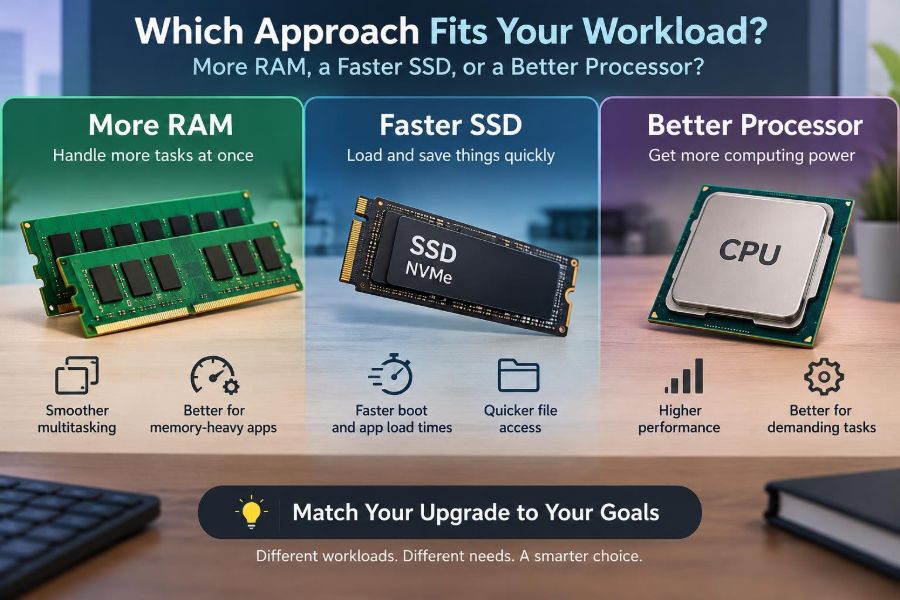
More RAM, a faster SSD, and a better processor can all make a computer feel dramatically more responsive. But they solve different bottlenecks. Buying the wrong upgrade can leave you with a faster part and nearly the same frustrating experience.
The most useful question is not, “Which part is best?” It is, “What is my computer waiting for during my actual workload?” Once you can identify that delay, upgrade choices become much clearer.
This guide explains what each component does, the symptoms it affects, and how to match an upgrade to school, office, creative, technical, and everyday tasks.
🧭 Start With the Workload, Not the Specification
A workload is the collection of tasks a computer performs: opening documents, editing photos, compiling code, running virtual machines, playing games, or exporting video. Two people can own similar computers yet need completely different upgrades because their workloads are different.
A student writing essays and researching online mostly needs smooth multitasking and quick application launches. A professional editing high-resolution footage may need large memory capacity, fast storage, a powerful processor, and often a capable graphics processor as well.
Think about the moments that waste time. Do delays happen while switching between open apps, loading files, or actively processing a task? That distinction points toward RAM, storage, or processor performance.
🚦 Understand the Idea of a Bottleneck
A bottleneck is the component that most limits performance in a particular task. Like a narrow lane slowing traffic on an otherwise wide highway, it prevents the rest of the system from working at full potential.
For example, a fast processor cannot instantly open a large project if the drive is slow at reading its files. Likewise, a fast SSD cannot prevent stutters when the system has run out of RAM and must repeatedly move data between memory and storage.
There is rarely one permanent bottleneck. The limiting part can change as you move from browsing the web to rendering a video or copying a large archive.
🧠 What RAM Actually Does
Random Access Memory, or RAM, is short-term workspace for currently running programs and the data they are using. It is much faster than long-term storage, but its contents disappear when the computer shuts down.
When you open a browser, edit a document, join a video meeting, and keep a music app running, each program occupies some RAM. Your operating system also uses memory for its own background work and for caching frequently needed data.
RAM capacity is usually measured in gigabytes (GB). More capacity lets the computer keep more active material readily available; it does not automatically make every individual calculation faster.
📚 Why Running Out of RAM Feels So Bad
When available RAM becomes scarce, the operating system moves less-active data to a reserved area on storage. This process is often called paging or swapping. Even a quick SSD is far slower than RAM for this purpose.
The result is often uneven performance: apps freeze briefly, switching windows becomes sluggish, browser tabs reload, and a computer that was responsive a moment ago becomes difficult to use. The processor may not be the real problem; it may be waiting for data to return from storage.
One brief memory spike is not necessarily a crisis. Persistent high memory use during ordinary work is a stronger sign that additional RAM could help.
🪟 Signs That More RAM Is the Right Upgrade
RAM is a strong candidate when the system slows mainly as you open more things at once. The issue is usually not that one simple program is slow, but that the computer loses responsiveness under multitasking.
- Browser tabs refresh when you return to them.
- Switching between applications causes pauses.
- Large spreadsheets, design files, or datasets become harder to work with alongside other apps.
- Virtual machines or development tools leave little room for anything else.
- Your operating system’s performance monitor shows memory use consistently near its available limit.
Close unneeded applications first. If that routinely restores performance, your workflow may simply need more memory headroom.
🧩 Capacity Matters More Than RAM Speed for Most Upgrades
RAM also has speed ratings and timing values, which describe how quickly it can transfer or access data. These can matter in certain workloads, especially where a processor relies heavily on system memory or integrated graphics uses shared RAM.
For many everyday computers, however, moving from insufficient RAM to sufficient RAM makes a much larger practical difference than buying slightly faster memory with the same capacity. A system forced to page data will not be rescued by modestly quicker memory modules.
Compatibility still matters. Laptops may use compact memory modules, some machines have soldered RAM that cannot be upgraded, and systems require a supported memory generation and configuration.
💾 What an SSD Does
A solid-state drive, or SSD, is long-term storage. It holds the operating system, installed applications, documents, games, project files, and data when the computer is off.
Unlike a mechanical hard disk drive, an SSD has no moving read/write heads. That gives it much lower access latency—the delay before data transfer begins—and usually much better responsiveness when opening many small files.
Storage speed affects booting, launching applications, loading projects, searching large file collections, installing software, and transferring data. It does not directly increase the speed of every calculation a processor performs.
⚙️ SATA, NVMe, and the Limits of Drive Speed
Most modern SSDs use either SATA or NVMe. SATA SSDs communicate through an older storage interface and are still a major improvement over hard drives. NVMe SSDs use PCI Express connections and can move data faster, particularly in sustained or highly parallel transfers.
The faster specification is not always the more noticeable upgrade. Replacing a hard drive with almost any reputable SSD is often transformative. Replacing a working SATA SSD with a very fast NVMe model may be valuable for large-file workflows, but everyday web browsing may feel only modestly different.
Drive speed also depends on the computer’s supported interface, the SSD design, free space, temperature, and the size and type of files being handled.
📂 Signs That a Faster SSD Fits the Problem
Storage is likely involved when delays happen at the beginning or end of tasks: booting, launching, loading, saving, copying, installing, or searching. A system can feel fast once an application is running but still lose time during these file-related stages.
- The computer still uses a mechanical hard drive as its main drive.
- Large projects take a long time to open or save.
- File copies and software installations are frequent parts of the day.
- Programs pause while reading extensive libraries of media, samples, or reference files.
- The drive is nearly full, leaving little room for temporary files and normal operation.
Before assuming the drive is slow, check whether cloud synchronization, antivirus scanning, backups, or another background process is heavily using it.
🧺 Storage Capacity Can Be a Performance Issue
A drive that is almost full can create practical and sometimes performance-related problems. Operating systems and applications need free space for updates, caches, temporary files, and virtual memory.
Large creative applications may produce temporary media or preview files while working. If storage is tight, saving can fail, projects can become harder to manage, and the system may have less room for its normal housekeeping.
Adding capacity is not identical to buying a faster drive, but it may be the more sensible upgrade. A moderately fast SSD with comfortable free space can serve a real workflow better than a tiny premium drive that fills immediately.
🧮 What the Processor Does
The central processing unit, or CPU, executes instructions. It runs application logic, performs calculations, coordinates operating system activity, processes data, and helps manage countless background tasks.
Processor performance is shaped by more than one number. Core count describes how many independent processing units are available. Clock speed indicates operating frequency, while architectural efficiency affects how much work a core completes at a given speed.
Because software varies, no single processor specification tells the entire story. One application may depend mainly on one fast core; another may divide work effectively across many cores.
🏗️ Single-Core and Multi-Core Performance
Single-core performance matters when a task has a chain of steps that cannot be efficiently split across many cores. This can affect parts of everyday responsiveness, older software, some design operations, and certain game workloads.
Multi-core performance matters when software can process several pieces of work at once. Video encoding, 3D rendering, software builds, data analysis, and running multiple demanding applications can often benefit from additional capable cores.
More cores are not automatically better for every person. A processor with many cores may offer little advantage in an application that mainly uses one or two, while stronger individual cores can improve its active work.
🔥 Signs That a Better Processor Is Needed
A CPU upgrade is worth investigating when a demanding task remains slow even with adequate RAM and an SSD, particularly while that task is actively computing rather than loading data.
- Exports, renders, simulations, or code compilations take longer than your schedule allows.
- A processor-intensive application makes the system sluggish while it is working.
- Performance monitoring shows sustained high CPU use during the slow task.
- Files load quickly, but applying effects, recalculating formulas, or converting media is slow.
- Your processor lacks features or core capacity required by software you must use.
High CPU use is meaningful only in context. A brief spike during a normal task is expected; sustained saturation while you wait is more revealing.
🎛️ Some Workloads Need the GPU Too
Not every “processor” problem belongs to the CPU. The graphics processing unit, or GPU, handles display output and can accelerate graphics, video effects, 3D work, technical computing, and some AI-assisted tools when the software supports it.
If video playback stutters, a 3D scene renders slowly, or a GPU-accelerated application identifies graphics hardware as the limiting resource, CPU, RAM, and SSD upgrades may not solve the main issue. An integrated GPU also commonly uses system RAM, so memory capacity can still influence it.
Check the requirements and acceleration settings for the particular software. GPU support differs widely by application, feature, operating system, and driver.
🖥️ Everyday Browsing and Office Work
For documents, email, web research, video meetings, and light spreadsheets, the best upgrade often depends on whether the system has an SSD and enough RAM for normal multitasking. A hard-drive-based computer can feel slow even with a reasonable processor because every launch and update involves storage delays.
More RAM helps people who routinely keep many browser tabs, PDFs, collaboration tools, and communications apps open. A newer CPU becomes more relevant when the existing processor struggles with calls, large spreadsheets, browser-heavy workflows, or modern software requirements.
Do not overlook browser extensions and startup applications. Removing unnecessary background load can improve an office computer without any hardware purchase.
🎓 Student Workloads Have Peaks, Not Just Averages
Student workloads are often light most of the time but demanding at specific moments: research with many tabs, recorded lectures, large PDFs, data assignments, programming environments, or media projects. Buy for the busiest realistic week, not only for typing notes.
For general coursework, responsive storage and adequate RAM usually provide a smooth foundation. Students in engineering, media, computer science, design, or data-focused courses should check the requirements of their actual course tools.
A laptop with non-upgradeable memory deserves extra thought. If you cannot add RAM later, selecting enough capacity at purchase matters more than it does on a desktop with open memory slots.
📊 Spreadsheets and Data Work Vary Widely
A small budget sheet is not a demanding workload. A large workbook with complex formulas, data connections, pivot operations, macros, and multiple open files can be very different.
RAM helps retain large workbooks and supporting applications in memory. CPU performance helps when formulas recalculate or data is processed. Storage helps open and save large files, especially if they are stored locally rather than waiting on a network service.
Look for the exact slow moment. Slow opening suggests storage or network access; slow recalculation often points more toward CPU capability; delays after opening several files may indicate limited RAM.
🎨 Photo, Design, and Illustration Work
Creative applications often use all three resources in different phases. Storage loads source files and writes exports. RAM holds images, layers, history states, and working data. The CPU handles many filters, transformations, and application tasks.
Large, multilayered images can make memory capacity especially valuable. Yet faster storage may still improve scratch-disk behavior, where an application uses storage as overflow workspace. The details depend on file size, image dimensions, bit depth, layer count, and application settings.
For 3D and GPU-accelerated effects, graphics hardware can become the deciding factor. Avoid treating “creative work” as one uniform category.
🎬 Video Editing Separates the Components Clearly
Video editing offers a useful example because its stages have different demands. Importing and opening media depend on storage. Smooth timeline playback may depend on codec support, CPU, GPU, RAM, and the speed of the source drive. Exporting can use CPU and GPU acceleration depending on settings.
High-resolution footage, multicamera projects, effects, and long timelines can consume substantial memory. Large media files also make fast, high-capacity storage practical, especially when active projects, cache files, and source footage compete for drive space.
A better CPU may shorten export time, but it will not necessarily cure playback caused by a slow external drive or insufficient memory. Test the stage that actually interrupts your work.
💻 Programming, Builds, and Virtual Machines
Software development can be surprisingly memory-intensive. An editor, browser, local server, database, containers, test tools, and documentation may run together. Virtual machines reserve RAM for another operating system, making memory capacity a frequent constraint.
CPU cores can reduce build and test times when development tools support parallel work. A fast SSD helps with source trees containing many small files, package installation, indexing, and virtual-machine disk activity.
Developers should consider the complete active environment, not merely the programming language. A small script and a multi-service local application have very different hardware demands.
🎮 Gaming Is a Separate Decision Tree
Games commonly depend heavily on the GPU, then on CPU performance, memory capacity, and storage depending on the title and settings. An SSD often improves loading and asset streaming, while RAM prevents shortages during play and background multitasking.
A CPU can limit frame rate in processor-heavy scenes or when seeking very high refresh rates. But a CPU upgrade may make little difference if the graphics card is already the dominant limitation at your chosen resolution and visual settings.
Use game-specific benchmarks cautiously. Results can change with the GPU, display resolution, quality settings, game updates, background software, and the scenes tested.
🔍 Use Performance Monitoring Before Spending
Performance monitoring turns guesswork into observation. Windows Task Manager, macOS Activity Monitor, and Linux system monitors can show CPU activity, memory pressure or usage, storage activity, and sometimes GPU load.
Reproduce the problem while watching the system. If memory is exhausted and disk activity rises while changing apps, investigate RAM. If one workload keeps the CPU busy while storage is quiet, the processor may be limiting it. If a drive stays busy during loads and saves, storage deserves attention.
Monitoring tools provide clues, not perfect verdicts. Short bursts are normal, and interpretations vary across operating systems. Watch repeated behavior over several typical sessions.
🧪 Test One Variable at a Time
Simple tests can narrow down the problem without specialized equipment. Restart the computer, close nonessential programs, and repeat the slow task. If it becomes much faster, background load or limited RAM may be involved.
Try a local copy of a file if a project is normally opened from cloud or network storage. If performance changes sharply, the network or synchronization process may be part of the delay rather than the internal SSD.
Also check temperatures and power modes. A laptop operating in a power-saving mode, on a weak charger, or under high heat may reduce processor performance to manage energy use or temperature.
🧷 Compatibility Can Override the Perfect Plan
An ideal upgrade on paper must still fit the computer. RAM type, maximum supported capacity, open slots, SSD form factor, interface support, CPU socket, cooling, power supply, and firmware can all constrain what is possible.
CPU upgrades are usually easier on some desktops than on laptops. A processor may require a compatible motherboard and firmware, and a faster model may need more cooling or power than the current system was designed to handle.
Consult the device manual, manufacturer support information, or a qualified technician before purchasing. Never force components into connectors that look similar but are not designed for each other.
🛠️ A Processor Upgrade May Mean a Platform Upgrade
On many systems, replacing only the CPU is not practical or cost-effective. Newer processor families often require a different motherboard, and that board may require a different RAM generation. Laptop processors are frequently soldered in place.
This does not mean a CPU-focused upgrade is a bad idea. It means the realistic choice may be between keeping the machine with improvements such as RAM or SSD storage, or replacing several connected components together.
Consider the age and condition of the full system. Battery health, display quality, ports, operating-system support, and repairability may matter as much as raw processing speed.
💰 Choose the Upgrade With the Best Practical Return
The best value is the change that removes the delay you experience most often. An SSD can make an older hard-drive computer feel vastly more responsive for general use. More RAM can restore smooth multitasking. A stronger CPU can save significant time in repeated compute-heavy work.
Estimate how often the task occurs. Saving a few minutes on a weekly export may matter less than eliminating dozens of small daily pauses, unless that export blocks a deadline or paid work.
Also account for labor, backup needs, licensing, adapters, and whether the upgrade extends the computer’s useful life. The least expensive component is not always the least expensive solution.
🚫 Common Upgrade Mistakes to Avoid
A common mistake is upgrading based on a single headline number, such as CPU clock speed or SSD transfer rate. Specifications are useful, but they do not replace understanding the workload and checking compatibility.
- Buying faster RAM when the real problem is too little capacity.
- Choosing a premium SSD for a system that still has inadequate memory.
- Replacing a CPU while ignoring a GPU-bound creative or gaming task.
- Filling every drive with files and leaving no working space.
- Skipping backups before changing storage or opening a computer.
- Assuming an internet, cloud, or network delay is a local hardware fault.
Upgrades should solve a measured problem, not simply improve a specification sheet.
🧰 A Sensible Upgrade Order for Many Older PCs
There is no universal order, but many older computers benefit first from moving the operating system from a hard drive to an SSD. This addresses broad responsiveness problems: startup, application launches, updates, and file access.
Next, assess RAM based on your normal multitasking. If the computer uses an SSD but becomes unresponsive with typical apps open, memory may be the more urgent need. Consider a CPU upgrade when demanding active processing remains the limiting stage and the platform supports a sensible path.
Back up important data before any storage migration or hardware work. An upgrade is also a good opportunity to clean dust, review startup software, and apply operating-system updates.
🗺️ A Quick Decision Guide
| What you notice | Likely area to investigate first | Why |
|---|---|---|
| Many open apps cause freezing or tab reloads | RAM | Active work may no longer fit comfortably in memory. |
| Booting, launching, loading, and copying are slow | SSD or storage capacity | These tasks depend strongly on reading and writing files. |
| Rendering, compiling, calculating, or exporting is slow | CPU, then application settings | These are often compute-heavy operations. |
| 3D work or certain visual effects are slow | GPU, CPU, and RAM | Graphics acceleration may be central to the workload. |
| Only cloud-based files feel slow | Network and synchronization | The bottleneck may be outside the computer. |
Treat this as a starting map rather than a diagnosis. The same symptom can have multiple causes, especially on heavily used or aging systems.
✅ Match the Component to the Wait
RAM keeps current work close at hand. An SSD retrieves and saves long-term data quickly. The CPU performs the calculations and instructions that turn data into results. Each is essential, but each addresses a different kind of waiting.
Observe when the slowdown happens, check what the system is doing at that moment, and verify what your computer can actually accept. That approach avoids both underpowered upgrades and unnecessary premium parts.
The right upgrade is the one that removes your real bottleneck—not the component with the most impressive number on its box.
Once you match your hardware to the work you actually do, your computer becomes less of an obstacle and more of a dependable tool for learning, creating, and getting things done. 🖥️⚙️📚