
You open a laptop, click a browser icon, and begin working almost immediately. A few minutes later, you have a document, video call, music app, and several browser tabs running at once. The computer seems to keep up—until a large file opens slowly or too many programs compete for resources.
Behind that ordinary experience is a carefully layered memory system. Your computer does not store every piece of information in one place, even though it may feel as though it does.
Some information must be available in a tiny fraction of a second. Other information must remain safe after power is removed. Still other data needs enormous capacity at a reasonable cost. No single memory technology excels at all of these jobs.
That is why modern computers combine several kinds of memory. Understanding the trade-offs explains everything from startup time and app responsiveness to why saving a file matters.
🧠 What “Memory” Means in a Computer
In everyday speech, “computer memory” often means RAM. In computer fundamentals, the term is broader: memory is any hardware that stores data or instructions for later use.
That includes tiny storage locations inside the processor, fast cache memory near it, main memory such as RAM, and long-term storage such as SSDs and hard drives. Each serves a different role in moving, holding, or preserving information.
🗂️ The Basic Problem: Different Jobs Need Different Properties
A processor needs immediate access to the next instruction and its data. A photo library needs to retain thousands of files for years. A single device that tried to do both perfectly would face conflicting design requirements.
The central trade-off is simple: memory can be extremely fast, very large, inexpensive, power-efficient, or permanent—but achieving all of those qualities together is difficult. Computer designers therefore combine specialized technologies rather than forcing one type to do every job.
⚖️ The Speed, Capacity, Cost Trade-Off
Memory choices are often described using three practical questions: How quickly can it be accessed? How much can it hold? How much does it cost per unit of capacity?
Very fast memory tends to use more circuitry per stored bit and occupies valuable chip area. High-capacity storage can hold far more data at lower cost, but usually responds more slowly. The memory hierarchy is the engineering answer to this trade-off.
| Memory level | Typical role | Relative speed | Capacity tendency | Retains data without power? |
|---|---|---|---|---|
| Registers | Current processor work | Fastest | Very small | No |
| Cache | Frequently needed data | Very fast | Small | No |
| RAM | Active programs and data | Fast | Moderate | No |
| SSD or hard drive | Files and installed software | Slower | Large | Yes |
These descriptions are relative, not fixed measurements. Specific devices, workloads, and generations of hardware vary, but the overall ordering is fundamental.
🏛️ The Memory Hierarchy
Computer memory is arranged like a hierarchy: the fastest and smallest levels sit closest to the processor, while larger and slower levels sit farther away.
When the processor needs data, it checks nearby levels first. If the data is not there, the system retrieves it from a lower level. This arrangement delivers high average performance without requiring every byte to be stored in the most expensive technology.
🔢 Registers: The Processor’s Immediate Workspace
Registers are tiny storage locations built directly into the central processing unit (CPU). They hold values the CPU is actively calculating with, such as an address, a loop counter, or the result of an arithmetic operation.
Because registers are integrated into the processor, access is exceptionally quick. Their number and size are limited, however, so they cannot hold an application, a document, or even all of a program’s current data.
⚡ Cache: Keeping Likely Data Close
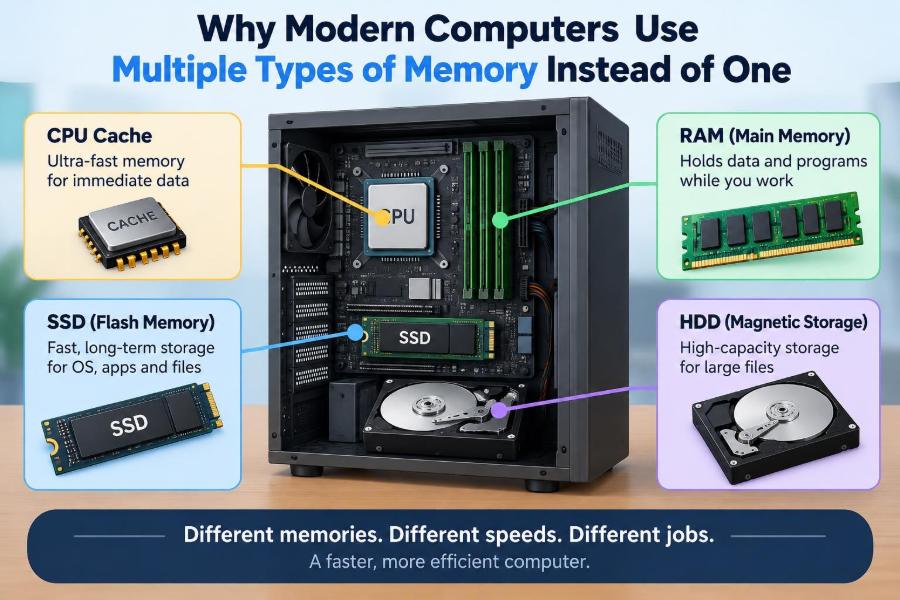
Cache memory stores copies of data and instructions that the processor is likely to use again soon. Most modern CPUs contain several cache levels, often called L1, L2, and L3, with different sizes and speeds.
Cache makes repeated work much faster. For example, while editing a spreadsheet, the processor may repeatedly use parts of the program that calculate formulas and redraw the visible cells. Keeping those pieces nearby avoids repeated trips to slower main memory.
🎯 Why Cache Can Predict the Future—A Little
Cache works because software commonly shows locality: it tends to reuse recently accessed information or access nearby information next. This is a pattern, not a guarantee.
Temporal locality means a recently used item may be used again soon. Spatial locality means that after reading one part of an array or file, a program may soon need adjacent parts. Cache systems exploit both patterns automatically.
🚫 Cache Misses and Their Cost
A cache hit occurs when requested data is already in cache. A cache miss occurs when it is absent and must be fetched from a lower, slower level.
A miss is not an error; it is a normal event. But frequent misses can slow demanding software because the CPU may wait for data instead of performing useful calculations. This is one reason program design and data organization can affect performance.
🧩 RAM: The Main Workspace
Random-access memory, or RAM, is the computer’s main working area. When you launch an application, the operating system loads its code and currently needed data from long-term storage into RAM.
RAM provides far more space than cache, allowing several active applications, documents, browser tabs, and background services to coexist. It is slower than cache, but fast enough to support normal interactive computing.
🔌 Why RAM Is Volatile
Most main memory is volatile, meaning its contents disappear when power is removed. This property is not a design mistake; it helps make RAM fast and practical for active workloads.
When a computer shuts down, the operating system and applications must be loaded again from persistent storage at the next startup. Unsaved work stored only in RAM is lost, which is why saving a document creates a durable copy elsewhere.
📚 RAM Capacity Changes Multitasking
More RAM does not automatically make every task faster. A processor, graphics system, storage device, software design, and network connection can all be bottlenecks.
But RAM capacity matters when active programs need more memory than is available. A computer with enough RAM can keep more useful data in its main workspace, reducing the need to move data back and forth to storage.
🪟 Virtual Memory Extends the Workspace
Operating systems use virtual memory to give each program the impression that it has a large, separate address space. The system maps those virtual addresses to actual locations in RAM and, when necessary, to a reserved area on persistent storage.
This isolation improves reliability and organization. One program is less likely to overwrite another program’s memory simply because both are running at the same time.
🐢 When Virtual Memory Becomes a Slowdown
If RAM becomes crowded, the operating system may move less active memory pages to an SSD or hard drive, then bring them back when needed. This process is often called paging or swapping, though the exact behavior differs among operating systems.
Persistent storage is much slower than RAM for this kind of frequent, small-scale access. Heavy paging can make a computer feel unresponsive: apps pause, windows redraw slowly, and switching tasks takes longer.
💾 Persistent Storage Keeps Data After Shutdown
SSDs and hard drives provide non-volatile storage. They preserve files, installed programs, settings, and the operating system when the machine is turned off.
This persistence is essential, but storage is not a replacement for RAM. A document saved to an SSD can survive a restart; while you edit it, its actively used portions are generally held in RAM for much faster access.
🔩 SSDs and Hard Drives Solve the Same Role Differently
A solid-state drive stores data electronically using flash memory, while a traditional hard disk drive stores data magnetically on spinning platters. Both are persistent storage, but their physical designs produce different behavior.
SSDs usually respond much more quickly to many small requests and have no moving parts. Hard drives can still be useful where large capacity is needed economically, but their mechanical motion makes random access comparatively slow.
🚀 Why an SSD Often Makes a PC Feel Faster
Starting a computer or launching an application requires reading many operating-system and program files from storage. An SSD can supply those pieces much more promptly than a typical hard drive, so the system becomes ready sooner.
However, an SSD does not change the basic hierarchy. Once the program is running, the CPU still depends primarily on registers, cache, and RAM for rapid ongoing work.
📦 Flash Storage Has Its Own Limits
Flash memory is persistent and compact, but it is not identical to RAM. Writing data involves different internal operations, and flash cells have practical limits on repeated writes over their service life.
Drive controllers distribute writes and manage spare capacity to support reliability. Users normally do not need to manage these details manually, but backups remain sensible because any storage device can fail, be damaged, or be accidentally erased.
🧬 Firmware Memory Starts the System
Before an operating system can load, the computer needs basic startup instructions. Those instructions are stored in non-volatile firmware memory on the device.
Firmware initializes essential hardware, performs early checks, and finds a bootable operating system. This is another example of using a specific memory type for a specific requirement: the instructions must remain available even when ordinary storage has not yet been accessed.
🎮 Graphics Memory Serves Visual Workloads
Graphics processors need rapid access to textures, frame buffers, geometry, and other visual data. A dedicated graphics card often includes its own high-bandwidth memory, commonly called video memory or VRAM.
Integrated graphics may instead share part of the system’s RAM. This can reduce hardware cost and work well for many everyday tasks, but it also means the CPU and graphics processor share a pool of memory bandwidth and capacity.
📱 Phones Use the Same Principle
Smartphones and tablets also use a memory hierarchy. Their processors have registers and cache, their operating systems run in RAM, and apps, photos, and messages live in persistent flash storage.
Mobile devices emphasize battery life and compact design, so many components are tightly integrated. The underlying reason for multiple memory types remains unchanged: active computation, quick reuse, and long-term retention impose different demands.
🔄 Data Moves Through the Layers
Consider opening a presentation. The file begins on persistent storage. The operating system reads relevant portions into RAM, the CPU pulls currently needed pieces toward cache, and individual calculations use registers.
When you save changes, the flow includes a return trip: changed data is written from the active working environment to persistent storage. The layers cooperate constantly, usually without requiring the user to manage each transfer.
🧵 The Operating System Coordinates Memory
The operating system decides which programs receive RAM, tracks which memory areas are in use, protects programs from one another, and reclaims memory when applications close.
It also works with the processor’s memory-management hardware to translate addresses and enforce permissions. A program can be allowed to read its own data while being blocked from changing protected operating-system memory.
🛡️ Memory Protection Improves Reliability
Separating memory spaces is a safety feature as well as an organizational one. Without protection, a malfunctioning program could more easily corrupt unrelated data or interfere with the operating system.
Protection cannot prevent every software vulnerability or bug, but it creates useful boundaries. Modern systems add further defenses, and their exact strength depends on hardware, operating-system settings, and software quality.
🔋 Speed Is Not the Only Design Concern
Power consumption, heat, physical size, durability, and manufacturing cost also influence memory design. A laptop and a data-center server may prioritize the same basic hierarchy but make different compromises.
For example, a mobile device benefits from efficient memory access to preserve battery life. A server may prioritize large RAM capacity, error-detection features, or storage systems designed for many simultaneous users.
🧱 Why One “Universal Memory” Is Difficult
Researchers and manufacturers continue to develop memory technologies that aim to improve speed, density, endurance, or persistence. Some technologies can blur traditional boundaries for particular uses.
Yet a universal replacement must succeed not only in a laboratory property but also in price, manufacturing scale, power behavior, compatibility, reliability, and real-world performance. For now, specialized layers remain a practical and effective design.
🧮 A Library Analogy That Fits—With Limits
Imagine a researcher at a desk. A few pages currently being read are like registers. Books placed on a nearby shelf resemble cache, while a larger reading room resembles RAM.
The building’s full archives resemble persistent storage: they hold vastly more material, but retrieving a distant volume takes longer. The analogy helps explain the hierarchy, although computer hardware transfers data far more automatically and at electronic speeds.
🧰 Choosing Upgrades Wisely
If a computer slows down while many applications are open, additional RAM may help—especially if the system regularly relies heavily on virtual memory. If startup, application loading, and file access are slow on a hard-drive-based system, an SSD may have a larger visible effect.
Check what the actual workload needs before upgrading. A slow internet connection will not be repaired by more RAM, and a CPU-bound video export may benefit more from a faster processor or appropriate graphics hardware.
🔍 Signs That Memory Is the Bottleneck
Useful clues include repeated pauses while switching between programs, browser tabs reloading because the system cannot keep them active, or system monitoring tools showing RAM nearly full during normal work.
These symptoms are clues, not proof. Background updates, insufficient free storage, overheating, poorly designed software, malware, or failing hardware can also affect responsiveness. Diagnose the pattern before spending money.
❌ Common Misunderstandings About Computer Memory
- “Storage and RAM are the same.” Both hold data, but RAM supports active work and usually loses contents without power; storage preserves files.
- “More RAM always makes a PC faster.” It helps when available RAM is insufficient, not when another component is the limiting factor.
- “Cache is manually managed.” Most cache movement is handled automatically by hardware and software behavior.
- “An SSD is just faster RAM.” An SSD is persistent storage with different performance characteristics and a different system role.
🧭 The Core Principle: Put Data Where It Best Fits
Multiple memory types exist because computers must balance competing needs. The processor requires immediate, tiny work areas; running programs need a larger fast workspace; users need abundant, durable storage.
The memory hierarchy places small amounts of costly, extremely fast memory close to computation and larger amounts of slower, cheaper, persistent memory farther away. Intelligent hardware and operating-system management make these layers feel like one coherent computer.
When a device responds quickly, preserves your files, and runs several tasks at once, it is not relying on one perfect kind of memory. It is benefiting from a coordinated system of purposeful compromises.
Modern computers use multiple types of memory because no single technology can simultaneously provide the speed, capacity, affordability, and persistence that different computing tasks require. Once you see the layers, slowdowns, upgrades, saving, and startup behavior all become easier to understand. 🖥️⚡💾