
You click an app icon, switch between browser tabs, and open a document. Most of the time, those actions feel immediate. At other times, the computer pauses, a game stutters, or an old laptop seems to think for several seconds before responding.
Those differences are closely connected to the computer’s memory system. Despite the everyday phrase “computer memory,” a computer does not rely on one single place to hold information. It uses several layers, each designed for a different balance of speed, size, cost, and permanence.
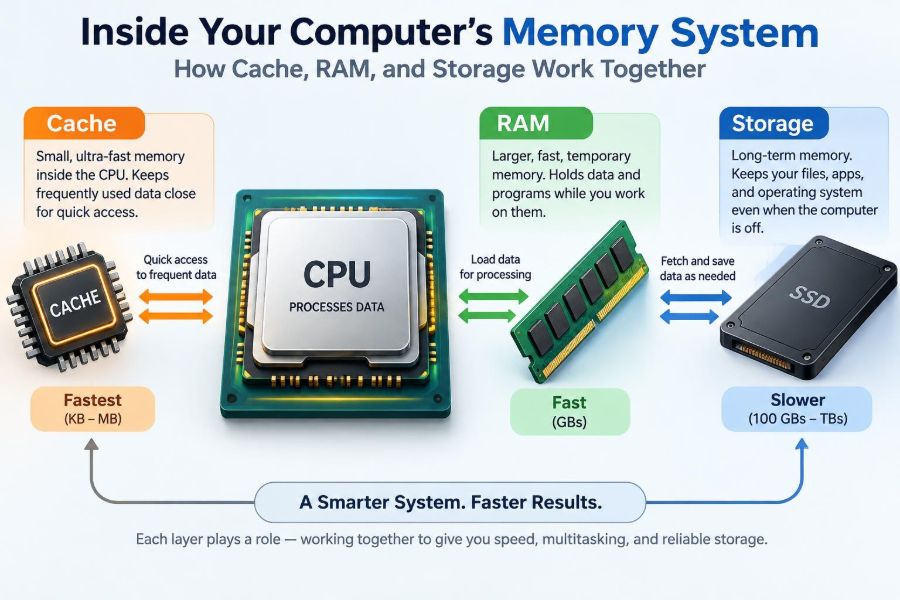
Cache, RAM, and storage work as a team. Understanding their roles makes slowdowns less mysterious and helps when choosing, upgrading, or troubleshooting a computer.
The key idea is simple: information that the processor needs most urgently must be kept closest to it. The rest can sit farther away, where there is room for much more of it.
🧠 Memory Is a System, Not One Thing
In everyday conversation, “memory” may mean RAM, disk space, or both. Technically, they are different parts of a broader memory hierarchy: layers that hold data at different speeds and capacities.
A processor cannot perform useful work without instructions and data. The hierarchy supplies them, from tiny, extremely fast cache near the processor to long-term storage such as an SSD or hard disk.
🏢 A Helpful Desk-and-Warehouse Analogy
Imagine preparing reports in an office. Papers on your desk are fastest to reach, papers in a nearby cabinet take a little longer, and boxes in a warehouse take longer still.
Processor cache is like the desktop, RAM is like the nearby cabinet, and storage is like the warehouse. The warehouse holds far more, but repeatedly walking there would slow the work down.
⚙️ The CPU Creates the Demand
The central processing unit (CPU) executes program instructions. When you edit a photo, play audio, or calculate a spreadsheet, the CPU constantly requests small pieces of information.
Modern CPUs operate far faster than storage devices can deliver individual requests. The hierarchy exists partly to prevent the CPU from spending much of its time waiting.
📚 What Data Moves Through Memory
The data being moved is not limited to your files. It includes program instructions, operating-system code, open documents, images being edited, browser page content, and temporary calculation results.
For example, a browser may load website files from storage, place actively used parts in RAM, and repeatedly use some instructions and values from cache while drawing the page.
⚡ Cache: The CPU’s Fastest Workspace
Cache memory is very small, very fast memory built into or extremely close to the CPU. It stores copies of data and instructions likely to be needed again soon.
Cache is usually made from a type of memory that is faster and more expensive per unit of capacity than ordinary RAM. Its limited size is a deliberate trade-off: keeping a small amount close to the CPU is practical; making all system memory that fast is not.
🪜 L1, L2, and L3 Cache Levels
Many CPUs organize cache into levels. Exact designs vary, but the general pattern is straightforward: lower-numbered levels are smaller and faster, while higher levels are larger and usually a little slower.
| Level | Typical relationship | Main purpose |
|---|---|---|
| L1 cache | Closest and smallest | Immediate access to frequently used instructions and data |
| L2 cache | Larger, slightly farther away | Backup for information not found in L1 |
| L3 cache | Larger and often shared among CPU cores | Helps serve data before the CPU must request RAM |
These levels are managed mostly by hardware. Programs benefit from cache behavior, but they do not normally place ordinary data into a particular cache level directly.
🎯 Cache Hits and Cache Misses
A cache hit occurs when requested information is already in cache. The CPU can continue quickly. A cache miss means the information must be fetched from a slower level, perhaps RAM.
A miss is not an error. It is an expected part of computing. Performance depends partly on how often useful requests become hits and how costly the misses are.
🔁 Why Repeated Work Often Feels Fast
Programs often reuse the same instructions and nearby data. This pattern is called locality. Temporal locality means something used recently may be used again; spatial locality means data near a recently used item may be needed soon.
Opening menus repeatedly or processing a continuous block of pixels can benefit from locality. Randomly jumping among large, unrelated data sets tends to make cache use less efficient.
🧩 CPU Cores and Shared Resources
A multi-core CPU has multiple processing cores, allowing different tasks or parts of tasks to progress at once. Each core commonly has private cache, while a larger cache may be shared.
Sharing can help cores exchange relevant data, but coordination has costs. Software that repeatedly changes the same data from several cores can spend time keeping each core’s cached copy consistent.
🧮 RAM: The Active Work Area
Random access memory (RAM) holds the programs and data currently in use. When you launch an application, the operating system loads necessary portions from storage into RAM so the CPU can access them far faster.
RAM is much larger than cache but slower. It is the computer’s main active workspace: spacious enough for many applications, yet fast enough for normal interactive work.
🧱 Why RAM Is Called Random Access
The phrase “random access” means the system can reach a location directly rather than reading every preceding location in sequence. It does not mean the data itself is random.
This property suits programs well. An application can request one part of an open document, then a different part of its code, without mechanically winding through a long stream first.
🔌 RAM Is Volatile Memory
Most ordinary RAM is volatile: it requires power to retain its contents. When a computer shuts down or loses power, the temporary contents of RAM disappear.
This is why unsaved work can be lost during an unexpected power failure. Saving writes a lasting version to non-volatile storage; it does not simply leave the work in RAM.
🪟 What Happens When You Open a Program
Launching a program does not necessarily mean every byte of its files is copied into RAM at once. Modern operating systems commonly load what is needed first and bring in more code or data as the program requests it.
This approach can make startup more efficient, especially for large applications. It also explains why an application may open quickly but pause later when it first reaches a feature whose components have not yet been loaded.
🧺 RAM Is Shared Among Running Tasks
Your operating system, browser tabs, background services, security software, and active applications all compete for RAM. The system keeps track of which memory belongs to which process, helping prevent one ordinary application from freely overwriting another’s data.
Closing unused programs can reduce pressure on RAM, though it is not always necessary. An operating system also uses spare RAM to cache recently accessed files, which can improve responsiveness.
📦 Storage Preserves Data Over Time
Storage holds data when the power is off: the operating system, installed applications, photos, downloads, and saved documents. Common forms include solid-state drives, hard disk drives, removable flash media, and network storage.
Storage is built for capacity and persistence, not for serving every CPU request instantly. Its contents must usually travel through RAM before the CPU can use them efficiently.
💾 SSDs and Hard Drives Are Different
A solid-state drive (SSD) stores data electronically using flash memory. A hard disk drive (HDD) stores data magnetically on spinning platters and uses moving heads to read and write it.
SSDs generally respond much faster to many small, scattered requests because they do not need physical movement. HDDs can still be useful for high-capacity storage, but their mechanical nature makes random access slower.
🚪 Booting: From Stored Files to a Running System
When a computer starts, firmware initializes essential hardware and locates a boot program on storage. That program begins loading the operating system into RAM.
Once the operating system is running, it manages memory, schedules tasks, and loads programs as needed. Storage keeps the system between sessions; RAM supports the live session.
🗺️ Virtual Memory Extends the Address Space
Programs commonly work with virtual memory, an address space that the operating system maps onto physical RAM. This gives each process a more organized view of memory and supports isolation between programs.
If RAM is under pressure, the operating system can move less-active memory pages to storage and bring them back later. This is often called paging or swapping, although the exact behavior differs by operating system.
🐢 Why Running Out of RAM Slows a Computer
Using storage as an overflow area is useful, but it is far slower than keeping active information in RAM. If the system repeatedly moves pages out to storage and immediately needs them back, responsiveness can collapse.
This condition is often described as thrashing. Symptoms can include long pauses while switching tabs, delayed typing, heavy drive activity, and programs that appear temporarily frozen.
📏 Capacity and Speed Solve Different Problems
More storage lets you keep more files and applications. More RAM lets more active work remain available without relying on slower overflow space. A faster SSD improves loading and file access, but it does not replace sufficient RAM for a demanding workload.
Likewise, a CPU with more cache can help particular workloads, but it cannot compensate for every bottleneck. The useful upgrade depends on what is actually limiting the computer.
📊 Reading the Memory Specifications
Capacity is only one specification. RAM also has generation, transfer rate, latency, channel configuration, and compatibility requirements. These details matter, but a compatible increase in capacity is often more noticeable than small specification differences when a system is frequently short of RAM.
Storage specifications may include capacity, interface, and sustained or random performance. Real-world results also depend on the computer’s interface, workload, remaining free space, and the drive’s own design.
🧪 A Simple Everyday Example
Consider a hypothetical laptop with many browser tabs, a video meeting, a large spreadsheet, and a photo editor open. The active data for these tasks occupies RAM, while the CPU repeatedly uses small portions through cache.
If RAM becomes crowded, the operating system may move inactive browser-tab data to storage. Returning to a tab can then take longer because its data must be restored to RAM before the CPU can work with it normally.
🔍 How to Identify the Likely Bottleneck
Task-monitoring tools can show CPU activity, memory use, and storage activity. A high number alone is not always a problem; look for a pattern that matches the slowdown.
- High memory use with frequent disk activity during task switching suggests RAM pressure.
- Slow startup and long application loading may point to storage performance.
- High CPU use while storage and RAM are comfortable may indicate a processor-intensive task.
- Brief pauses in a particular program can also come from the program, network access, updates, or a large file—not necessarily memory hardware.
🛠️ When Adding RAM Makes Sense
A RAM upgrade can be worthwhile when normal workloads regularly exhaust available memory. It is especially relevant for multitasking, virtual machines, large media projects, software development tools, and complex spreadsheets.
Check the computer’s maximum supported memory, available slots, memory type, and whether the RAM is replaceable. Many thin laptops have soldered memory, so upgrade options may be limited.
🚀 When an SSD Upgrade Makes Sense
Replacing a hard drive with an SSD often makes a noticeable difference to booting, launching applications, searching files, and loading projects. It is particularly valuable when a computer still uses a mechanical hard drive as its main system drive.
An SSD will not eliminate every pause caused by too little RAM or a heavily loaded CPU. It improves the slower storage layer; the other layers still have their own limits.
🧹 Free Space and Storage Health Matter
Storage should not be treated as an endlessly packed closet. Operating systems and applications need working room for updates, temporary files, caches, and virtual-memory activity.
Keeping meaningful free space, backing up important files, and paying attention to unusual errors are sensible habits. Storage devices can fail, and neither cache nor RAM is a backup for saved work.
⚠️ Common Misunderstandings to Avoid
One common mistake is assuming “memory” shown in a system utility means unused memory is wasted. Operating systems may use spare RAM to cache useful data and release it when applications need it.
Another is assuming deleting files makes a computer’s processor faster. Freeing storage can help when the drive is nearly full, but it does not add RAM or cache. Finally, clearing cache is not a universal speed fix; it may simply force useful data to be fetched again.
🔐 Memory, Privacy, and Safe Shutdowns
Because RAM can contain active documents, credentials, and program data, properly locking or shutting down a device matters in shared environments. Storage encryption can protect data at rest, while memory protections help limit access between ordinary processes.
These protections are not interchangeable, and their behavior depends on operating system, hardware, and configuration. For sensitive work, use supported security features and keep software updated.
🌐 The Same Hierarchy Appears Elsewhere
The idea of fast, small layers in front of slower, larger ones appears beyond a single computer. Web browsers cache files, databases cache frequently requested records, and content delivery systems keep copies closer to users.
The details differ, but the principle remains: keeping likely-needed information near the work reduces waiting. Every cache, however, must manage the possibility that a stored copy becomes outdated.
🧭 The Core Principle: Put Active Data Close to the CPU
Cache, RAM, and storage are not competing versions of the same component. They are coordinated layers. Cache supplies immediate repeats, RAM holds live programs and working data, and storage preserves much larger amounts of information over time.
The system performs well when data moves predictably through those layers and the active workload fits reasonably in RAM. When it does not, the computer must reach farther down the hierarchy, and waiting becomes visible.
A responsive computer depends less on one “best” kind of memory than on cache, RAM, and storage each doing the job their position in the hierarchy was designed for. Once you see that partnership, everyday slowdowns and upgrade choices become much easier to interpret. 🖥️⚡💾