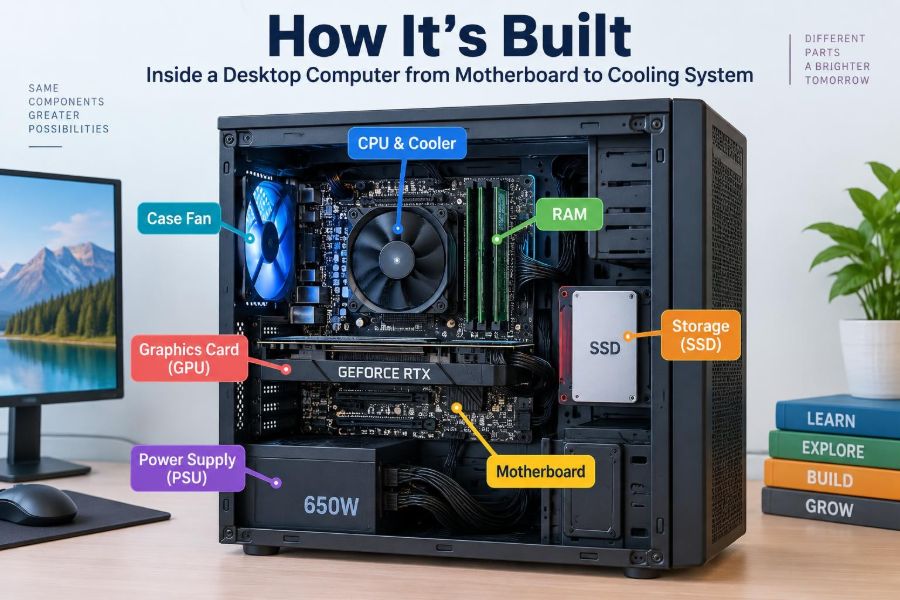

You press the power button, hear a brief whir of fans, and within seconds a desktop computer is ready for work, games, video calls, or a late-night assignment. From the outside, it can seem like a single machine. Inside the case, however, several specialized parts must coordinate precisely.
A slow computer, a mysterious startup failure, or the task of choosing an upgrade becomes much less confusing once you know what those parts do. You do not need to build a PC to benefit from understanding its layout.
A desktop is best understood as a system: it needs a place for components to communicate, a way to calculate, short-term and long-term memory, stable electrical power, and a path for heat to leave the case.
Let’s take the side panel off—conceptually—and follow the connections from the motherboard at the center to the cooling system that keeps everything operating safely.
🧩 A Desktop Is a Coordinated System
Each internal component has a different job. The processor executes instructions, memory holds active data, storage retains files, and the graphics processor creates images. None of these parts is useful in isolation.
The motherboard provides the physical mounting points and electronic pathways that let them exchange data and receive power. The case then protects this system while guiding airflow through it.
📦 The Case Creates the Physical Framework
The computer case, also called the chassis, is more than a decorative box. It supports the motherboard, power supply, drives, fans, front-panel controls, and expansion cards in standard positions.
Cases come in several sizes, including full tower, mid tower, and small-form-factor designs. A smaller case saves desk space, but it may limit graphics-card length, cooler height, drive bays, and the room available for airflow.
📐 Motherboard Size Standards Matter
Motherboards are made in common form factors, such as ATX, Micro-ATX, and Mini-ITX. The form factor defines board dimensions, mounting-hole locations, and general expansion capacity.
| Form factor | Typical strength | Common trade-off |
|---|---|---|
| ATX | More expansion slots and headers | Needs a larger case |
| Micro-ATX | Balanced size and expandability | Fewer slots than ATX |
| Mini-ITX | Very compact systems | Tighter space and fewer upgrades |
A board must fit the case, and its connectors must suit the planned components. “Desktop motherboard” is not a single universal size.
🛣️ The Motherboard Is the Communication Backbone
The motherboard is the large circuit board visible beneath most other components. Its copper traces—thin conductive paths layered within the board—carry electrical signals between chips, slots, ports, and controllers.
Modern processors communicate directly with certain high-speed devices, while the motherboard chipset coordinates many other connections, such as USB ports, SATA drives, audio, and networking. The exact division of work varies by platform, but the core idea is simple: the board organizes traffic.
🔌 The CPU Socket Sets Compatibility
Near the upper center of many motherboards sits the CPU socket, a precisely designed connector for the processor. Its shape, contacts, and electrical layout must match the CPU family.
A processor cannot be chosen by brand alone. A compatible motherboard needs the correct socket and firmware support. Even boards with the same socket may need a BIOS update before recognizing a newer processor.
🧠 The CPU Executes Instructions
The central processing unit, or CPU, performs general-purpose calculations and coordinates many tasks across the operating system. Opening a document, running a spreadsheet formula, decompressing a file, and managing a game’s logic all involve CPU work.
CPUs contain multiple cores, which can work on separate instruction streams. They also use small, extremely fast caches to keep frequently needed data nearby. More cores can help heavily parallel workloads, but clock speed, architecture, and software design also affect real performance.
🧴 Thermal Paste Bridges Tiny Gaps
A CPU cooler does not touch the processor’s heat spreader perfectly at a microscopic level. Tiny air gaps would reduce heat transfer because air is a poor conductor compared with metal.
Thermal paste fills those imperfections with a thermally conductive material. Use only the needed amount: too little can leave gaps, while excessive paste can create mess and make installation harder. It is not glue.
🧊 CPU Coolers Move Heat Away
A basic air cooler has a metal base, heat pipes, a fin stack, and a fan. Heat travels from the CPU into the base and pipes, spreads through the fins, and is carried away by moving air.
Liquid coolers use a pump to circulate coolant between a CPU block and a radiator. They can fit certain layouts well and may handle sustained heat effectively, but they add pump hardware and more installation considerations. A well-sized air cooler remains a practical, reliable choice for many desktops.
⚡ Power Delivery Feeds the Processor
The CPU needs very low, tightly controlled voltage, while the power supply delivers higher-voltage rails. Near the CPU socket, the motherboard’s voltage regulator module, or VRM, converts and regulates that power.
VRM components can become warm under demanding workloads. Motherboard heatsinks and case airflow help manage that heat, especially when using power-hungry processors for long rendering or compiling sessions.
🧠 RAM Holds What Is Active
Random-access memory, or RAM, holds data and program instructions that the CPU needs quickly. When you have a browser, a presentation, and a photo editor open, their active information is generally kept in RAM.
RAM is volatile: its contents disappear when power is removed. That is why saving a document writes it to long-term storage rather than merely leaving it open in memory.
🧷 Memory Channels Affect Bandwidth
Desktop boards usually provide two or more RAM slots. Matching modules in the recommended slots can enable dual-channel operation, allowing the CPU to access memory over multiple channels.
The motherboard manual identifies the preferred slots for one, two, or more modules. Placing two identical sticks beside each other without checking can leave performance on the table or, in unusual cases, prevent startup.
💾 Storage Keeps Data After Shutdown
Storage holds the operating system, applications, documents, photos, and game files after the computer powers off. The two familiar categories are hard disk drives and solid-state drives.
Hard drives store data on spinning magnetic platters and use moving heads. SSDs use flash memory and have no moving parts. SSDs usually provide much faster response for everyday tasks, while hard drives can still be useful for large, lower-cost archives.
🚀 SATA and NVMe Use Different Paths
A 2.5-inch SATA SSD connects with a data cable and a power cable. It is compact, dependable, and widely compatible. Traditional hard drives commonly use SATA as well.
An M.2 SSD is a small card that mounts directly to the motherboard. Many M.2 drives use the faster NVMe protocol over PCI Express lanes, although physical M.2 shape alone does not guarantee NVMe support. Check both the drive specification and the board manual.
🎨 The GPU Produces Visual Output
The graphics processing unit, or GPU, handles the calculations needed to draw images, video, 3D scenes, and displays. Some CPUs include integrated graphics, which share system memory and are sufficient for ordinary desktop use in many cases.
A discrete graphics card has its own GPU, dedicated video memory, cooler, and circuit board. It is often useful for demanding games, 3D design, video effects, engineering visualization, and some compute workloads.
🧱 PCI Express Connects Expansion Hardware
Most graphics cards install in a long PCI Express, or PCIe, slot. PCIe is a high-speed expansion connection used not only for GPUs but also for some storage cards, capture cards, network adapters, and sound cards.
PCIe connections use lanes. A graphics card commonly uses a long slot with many lanes, while smaller cards may use fewer. Physical slot length and electrical lane count are related but are not always identical.
🔋 The Power Supply Converts Wall Power
The power supply unit, or PSU, converts alternating current from the wall outlet into the direct-current voltages used by computer hardware. It provides connectors for the motherboard, CPU, graphics card, storage devices, and accessories.
Choose a PSU based on the system’s expected load, required connectors, physical size, and build quality—not simply the largest wattage printed on a box. A unit with inadequate GPU or CPU connectors is not made suitable by using questionable adapters.
🧵 Modular Cables Improve Build Planning
With a non-modular PSU, all cables are permanently attached. Semi-modular and fully modular units allow some or all cables to be detached, which can reduce clutter in a case.
There is one essential safety rule: never mix modular PSU cables between different power-supply models unless the manufacturer explicitly confirms compatibility. The connector may fit physically while its wiring differs, risking component damage.
🔘 Front-Panel Wires Handle Everyday Controls
Small wires from the case connect the power button, reset button, activity light, power light, front USB ports, and audio jack to motherboard headers. These tiny connectors are easy to overlook during a first build.
Power and reset switch connectors are usually not polarity-sensitive, but LED connectors are. If a light does not work, reversing its small plug may solve the issue; always use the motherboard diagram rather than guessing.
🌐 Ports and Controllers Extend the System
Rear motherboard ports may provide USB, audio, Ethernet, video output, and sometimes wireless antenna connections. Internal headers extend some of these features to the front of the case.
Not every port behaves the same way. A front USB-C port needs both a case cable and a compatible motherboard header. A motherboard video output works only when the installed CPU provides integrated graphics and that output is enabled or available.
🔎 BIOS or UEFI Starts the Hardware
When the power button is pressed, firmware stored on the motherboard begins a startup sequence. Modern systems commonly use UEFI, the successor to traditional BIOS terminology, though people often use “BIOS” for both.
The firmware checks essential hardware, initializes devices, identifies a bootable drive, and hands control to the operating system. Its settings include boot order, memory configuration, fan behavior, and security features.
🔐 Firmware Updates Need Care
A firmware update can add CPU support, improve compatibility, or correct specific problems. It is not automatically necessary for every stable system, and interrupting an update can leave a motherboard unable to start normally.
Use the exact update file for the exact board model and follow the manufacturer’s documented procedure. Confirming the model matters because names that look nearly identical can refer to different boards.
🌬️ Airflow Is a Planned Route
Fans do more than make air move; they should create a useful route. A common arrangement brings cooler air in through front or bottom intakes and sends warmer air out through rear or top exhausts.
Components release heat into the case. Without a route for that warm air to leave, a powerful CPU cooler or GPU cooler may repeatedly draw in warmer air and become less effective.
🌀 Fan Direction and Pressure Balance
Most case fans have arrows showing blade rotation and airflow direction. The open-looking side is often the intake side, while the side with support struts is commonly the exhaust side, but the arrows are the dependable guide.
More intake airflow than exhaust can create slight positive pressure, which may reduce dust entering through unfiltered gaps. More exhaust can also work, but it may pull dust through openings. Filters, room cleanliness, and regular maintenance matter more than chasing a perfect ratio.
🌡️ Temperature Sensors Guide Fan Control
Motherboards and components contain temperature sensors. Fan-control settings can increase fan speed as a CPU, GPU, or system sensor warms, then reduce speed again when the workload ends.
A gentle fan curve can keep a desktop quiet during reading or office work, while a steeper curve responds to long gaming or rendering sessions. Extremely aggressive curves may cause distracting speed changes with small temperature fluctuations.
🧹 Dust Changes Cooling Over Time
Dust collects on intake filters, fan blades, radiator fins, and heatsinks. That buildup restricts airflow and insulates surfaces that should release heat.
Shut down and unplug the system before cleaning. Use compressed air carefully, hold fans so they do not spin excessively, and avoid pushing a vacuum nozzle against delicate board components. Cleaning frequency depends on pets, carpets, smoking, open windows, and where the computer sits.
📏 Clearances Prevent Costly Surprises
Before buying parts, check CPU cooler height, graphics-card length and thickness, radiator support, PSU length, and drive locations. A case may technically support a long GPU until a front radiator or thick cable bend reduces the available space.
Also check RAM clearance beneath large air coolers. Tall decorative memory heat spreaders can interfere with a cooler’s front fan, requiring a different fan position or a different component choice.
🛠️ Build Order Makes Assembly Easier
Many builders install the CPU, RAM, M.2 storage, and CPU cooler on the motherboard before putting it in the case. This gives better access and reduces the chance of working around case edges.
- Confirm all parts are compatible and inspect the motherboard manual.
- Install CPU, memory, and storage with the board on a safe work surface.
- Mount the cooler and prepare the case standoffs.
- Install the motherboard, PSU, graphics card, and required cables.
- Check connections, then perform the first boot before final cable cleanup.
Use the correct standoffs beneath the motherboard. An extra standoff in the wrong location can contact the underside of the board and cause a short circuit.
🚫 Common Problems Have Simple Starting Checks
If a new desktop will not start, begin with basics: wall power, PSU switch, motherboard power connector, CPU power connector, front-panel power switch wiring, and correctly seated RAM. Do not assume the most expensive component has failed.
If it powers on but shows no image, verify that the display cable is connected to the graphics card when a discrete GPU is installed. Reseat memory and check diagnostic lights or codes if the motherboard provides them. Change one thing at a time so the result is meaningful.
🧪 Upgrades Should Target the Bottleneck
The best upgrade depends on what limits the real task. An older hard drive often makes startup and application loading feel slow; an SSD can make a large difference. More RAM helps when active applications exceed available memory and the system relies heavily on storage-based paging.
A faster GPU helps graphics-heavy work, while a CPU upgrade may help simulation, compiling, or multitasking. Before spending money, observe the workload: high CPU use, full memory, storage activity, and GPU load point to different bottlenecks.
♻️ Safe Handling Protects Components
Computer parts are durable enough for normal installation but should be handled carefully. Hold circuit boards by their edges, avoid touching socket contacts, and work on a clean, stable surface.
Static electricity is a manageable risk rather than a reason for panic. Avoid building on carpet when possible, discharge yourself by touching grounded metal before handling parts, and follow the component maker’s instructions for any anti-static packaging or tools.
🧭 The Core Principle: Compatibility, Power, and Heat
A desktop computer works well when its parts fit together physically and electronically, receive stable power, and stay within reasonable temperatures. These three concerns explain many build decisions, from choosing a motherboard socket to arranging fans.
Performance is not just the result of buying a fast component. A capable GPU needs adequate power and case clearance; fast storage needs the right interface; a strong CPU needs a suitable cooler; and every device depends on the motherboard’s connections.
Once you see the desktop as an interconnected system rather than a collection of mysterious boxes, troubleshooting and upgrading become more logical. You can ask the right question: what does this part need, what does it connect to, and what limitation is it solving?
A desktop computer is built around cooperation: the motherboard connects, the power supply feeds, the components compute and store, and the cooling system protects the whole process. That simple map makes the inside of a PC far easier to understand. 🖥️⚙️🌬️