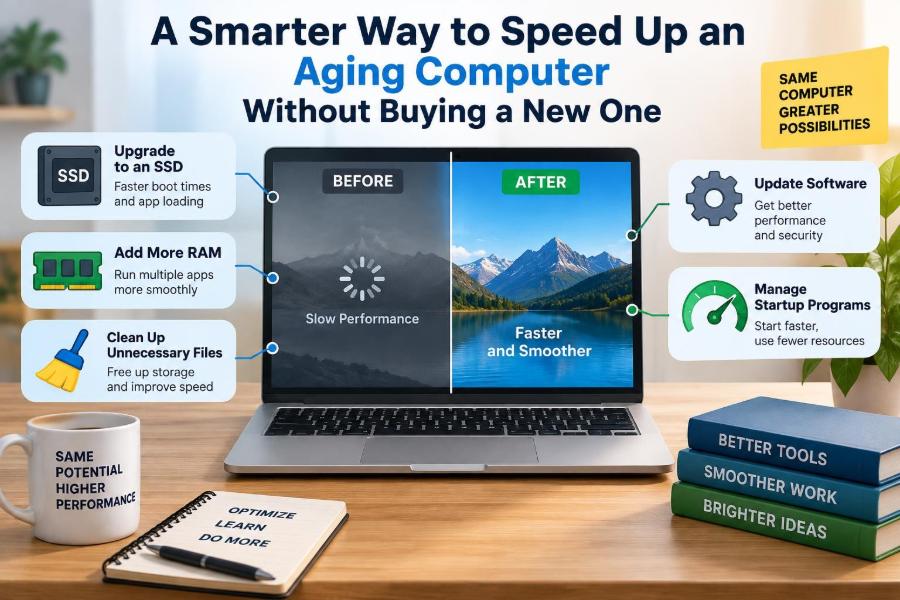

A computer that once felt quick can gradually become frustrating. Programs take longer to open, video calls stutter when several browser tabs are open, and a simple restart seems to consume an entire coffee break.
That slowdown does not automatically mean the computer has reached the end of its useful life. Many aging PCs and laptops are held back by a few specific bottlenecks: crowded storage, too little memory, unnecessary background activity, overheating, or software that has accumulated over years.
Replacing a device is sometimes the sensible answer, especially when hardware no longer supports needed software or security updates. But buying a new computer before identifying the actual problem can be expensive and wasteful.
A smarter approach is to diagnose the slowdown, make low-risk improvements first, and spend money only where it will make a noticeable difference. The goal is not to turn an old machine into a new one; it is to make it reliably useful again.
🧭 Start With the Right Expectation
Computer speed is not one single thing. A machine may start slowly but run applications well afterward, or it may boot quickly yet struggle during multitasking. The first useful question is: when does the computer feel slow?
Notice the pattern for a few days. Does the delay appear at startup, when opening files, during web browsing, while gaming, or only when the computer is warm? The answer points toward different causes and prevents random “fixes” that do little.
🔍 Identify the Bottleneck Before Changing Anything
A bottleneck is the component or process limiting the whole system. Think of a busy checkout line: adding more shoppers does not help if only one register is open. In a computer, the limiting register might be storage, memory, processor time, graphics capability, or the internet connection.
On Windows, Task Manager can show CPU, Memory, Disk, and network activity. On macOS, Activity Monitor provides similar views. Open the tool while the slowdown happens rather than relying on an idle snapshot.
- Consistently high Disk activity often suggests slow or overloaded storage.
- Memory close to full can cause apps to pause while data is moved to storage.
- High CPU use from one process may reveal a misbehaving app or demanding task.
- High network use can make cloud-based work feel slow even when the computer is fine.
🧪 Separate Computer Problems From Internet Problems
A slow website, buffering video, or delayed cloud document may be caused by the connection rather than the device. Check whether local tasks are also slow: opening a saved document, browsing folders, or launching a basic app.
If only online work struggles, test another device on the same network. A router restart, a better Wi-Fi position, or using Ethernet may help. Replacing a laptop will not fix a weak wireless signal.
💾 Check How Much Free Storage Remains
Storage is the long-term home for the operating system, applications, and files. When a drive is almost full, the system has less room for temporary files, updates, and virtual memory. Performance can become uneven, especially on smaller drives.
A practical rule is to avoid running a drive at its limit. Exact needs vary, but leaving a meaningful amount of free space gives the operating system room to work. Examine storage settings to find the largest categories before deleting anything.
🗂️ Remove Clutter, Not Important Files
Downloaded installers, duplicate photos, old phone backups, and forgotten video files are common space users. Sort folders by size so that you can make informed choices instead of deleting small files one by one.
Use built-in storage cleanup tools for temporary files and empty the recycle bin only after checking its contents. Back up personal files before major cleanup. A missing document is far more costly than a few gigabytes of recovered space.
⚡ Replace a Mechanical Hard Drive With an SSD
For many older computers, the most noticeable upgrade is replacing a mechanical hard disk drive (HDD) with a solid-state drive (SSD). An HDD reads data from spinning magnetic platters using moving parts. An SSD stores data in flash memory and has no moving read head.
That difference usually improves startup, application launches, searches, and general responsiveness. It does not make a weak processor powerful, but it removes the long waits associated with a hard drive seeking many small files.
| Storage type | Typical strength | Typical limitation |
|---|---|---|
| Mechanical HDD | Often inexpensive for large file archives | Slower access and moving parts |
| SATA SSD | Major responsiveness improvement; common upgrade path | Limited by older SATA connection speeds |
| NVMe SSD | Very fast storage for compatible systems | Requires a compatible slot and may not suit older devices |
🔧 Confirm SSD Compatibility First
Not every SSD fits every computer. Many older laptops accept a 2.5-inch SATA SSD, while newer systems may use a small M.2 drive. M.2 describes a physical format; it does not automatically mean the drive uses the faster NVMe protocol.
Check the computer manual, manufacturer support page, or the existing drive model before purchasing. Desktop computers may have more options, but laptops can have limited internal space. When unsure, ask a qualified repair shop to confirm compatibility.
📦 Plan the Move to New Storage
You can either clone the old drive or perform a clean operating-system installation. Cloning copies the existing setup, including applications and settings, and can be convenient when the old system is healthy.
A clean installation takes more preparation because files and programs must be restored, but it avoids carrying years of unused software and configuration problems forward. Either method requires a verified backup first. Treat the original drive as a fallback until the new installation works properly.
🧠 Understand Why RAM Affects Multitasking
Random-access memory, or RAM, is the computer’s short-term workspace. Each open browser tab, document, and application uses part of it. When RAM is insufficient, the operating system moves some data to storage, a process often called paging or swapping.
Even with an SSD, storage is much slower than RAM for this job. Symptoms include browser tabs reloading, pauses while switching apps, and slowdowns that appear only when several tasks are open at once.
➕ Upgrade RAM When the Evidence Supports It
More memory can help substantially if memory use is regularly near capacity during normal work. It is especially useful for people who work with many browser tabs, spreadsheets, development tools, image editing, or virtual machines.
Check whether your system has upgradeable memory. Some laptops have one accessible slot; others use memory soldered to the motherboard and cannot be upgraded. Match the supported type, speed, capacity, and slot arrangement rather than buying modules based only on appearance.
🚫 Do Not Expect RAM to Fix Every Delay
Adding RAM will not repair a failing drive, compensate for an unsupported operating system, or dramatically improve a task that is limited by a weak processor or graphics hardware. If memory use stays moderate while the disk is constantly busy, storage deserves attention first.
This is why measurement matters. Upgrades are most valuable when they target the constraint you actually have, not the component that is easiest to name.
🚀 Trim Startup Programs
Many applications add themselves to the startup list so they can check for updates, synchronize files, or remain ready in the background. Over time, that list can make login slow and consume memory before you begin work.
Review startup applications in your operating system’s settings or task manager. Disable items you do not need immediately after login, such as game launchers or optional messaging tools. Keep security software, touchpad utilities, and hardware services enabled unless you understand their purpose.
🧹 Uninstall Programs You No Longer Use
Old utilities can run services, install browser extensions, or create update tasks even when you never open them. Removing unused programs reduces maintenance burden and can reduce background activity.
Use the operating system’s uninstall feature rather than simply deleting an application folder. Be cautious with “cleanup” programs that promise dramatic acceleration; some provide little benefit, show alarming but unhelpful warnings, or encourage risky changes.
🌐 Make the Browser Less Demanding
For many people, the browser is their main workspace. Each tab may contain scripts, advertisements, video, live updates, and extensions. A browser with dozens of active tabs can consume significant memory and processor time.
Close tabs you no longer need, bookmark useful pages, and remove extensions you do not recognize or use. Built-in tab-sleeping features can reduce resource use for inactive tabs, though returning to a sleeping tab may take a moment.
🧩 Review Extensions and Add-Ons
Extensions can be genuinely useful, but each one becomes another piece of software with access to browser activity. Poorly designed or outdated extensions can slow page loading, cause crashes, or create privacy concerns.
Disable extensions one at a time if the browser feels unusually slow. Keep only those that solve a clear problem. This simple test often reveals that a browser issue is not a computer-wide issue.
🔄 Keep the Operating System Updated
Operating-system updates can deliver security fixes, hardware compatibility improvements, and corrections for known bugs. Regular updates are part of keeping an older computer dependable, not merely adding new features.
However, do not interrupt an update by forcing a shutdown unless there is no safer option. Plug in a laptop, allow time, and back up important work beforehand. If a device no longer receives security updates, its suitability for sensitive tasks declines.
🛡️ Scan for Malware and Unwanted Software
Unexpected pop-ups, changed search settings, unfamiliar browser extensions, and unexplained processor activity can indicate unwanted software. Malware is not the only reason a computer slows down, but it should be ruled out before assuming a hardware fault.
Use the reputable security tools built into your operating system or a trusted security product. Avoid installing several real-time antivirus tools at once; they can conflict or add unnecessary overhead. If you suspect serious compromise, seek professional help and change relevant passwords from a known-safe device.
🌡️ Address Heat Before It Causes Throttling
Processors protect themselves from excessive temperature by reducing speed, a behavior called thermal throttling. A computer may seem fine when cold and then become sluggish during longer meetings, gaming, exporting, or charging.
Blocked vents, dust buildup, and dried thermal material can contribute. Place laptops on a hard, flat surface rather than bedding or a cushion. For desktops, careful dust removal with appropriate tools can improve airflow; if opening the device is unfamiliar, a technician is safer.
🔋 Check Power Mode and Charger Health
Power-saving modes can intentionally reduce performance to extend battery life. This is useful away from an outlet but may feel restrictive during demanding work. Review the power setting when diagnosing slowness, particularly on a laptop.
Use the correct charger with adequate power delivery. An underpowered or damaged charger may cause some laptops to limit performance or charge unreliably. Do not assume that any physically fitting USB-C charger provides enough power.
🧱 Update Drivers Carefully
Drivers are software components that help the operating system communicate with hardware such as graphics chips, Wi-Fi adapters, printers, and storage controllers. A current driver can resolve a specific stability or compatibility problem.
But constant driver updating is not a performance strategy. Prefer updates supplied through the operating system, computer maker, or hardware manufacturer. Avoid anonymous driver-updater utilities, which may identify the wrong component or bundle unwanted software.
🎮 Set Realistic Graphics Expectations
Modern games, video editing, 3D design, and high-resolution displays can exceed the capability of older graphics hardware. No amount of disk cleanup will make an integrated graphics chip behave like a recent dedicated graphics card.
You may still improve usability by lowering resolution, reducing visual effects, choosing less demanding software, or using proxy media in video editing. These are trade-offs: image quality or render time may change, but the task can become practical again.
✨ Reduce Visual Effects When They Distract From Work
Animations, transparency, shadows, and motion effects usually have modest impact on a healthy modern computer, but reducing them can help marginal systems feel more direct. It can also benefit people who prefer less motion.
Consider this a finishing adjustment, not a replacement for storage or memory improvements. If turning off animations is the only change you can detect, the underlying bottleneck may be elsewhere.
📁 Organize Files for Easier Work, Not Just More Space
A disorganized file system does not always slow a computer technically, but it slows the person using it. Searching through duplicate folders, cluttered desktops, and unclear filenames adds friction to every task.
Create a simple structure for active projects, archive completed work, and use consistent names. Cloud storage can help with access and backup, but synchronized folders should be managed thoughtfully so that large files are not constantly downloading to a small drive.
☁️ Be Intentional About Cloud Synchronization
Sync tools are helpful, yet they can use disk activity and bandwidth while copying thousands of files. After a new setup or large folder change, the computer may feel busy until synchronization finishes.
Choose which folders need offline copies. Files that are rarely used can often remain online-only if the service supports it. This preserves local storage while keeping documents accessible when needed.
🧰 Use Built-In Repair Tools Before Drastic Measures
If a specific problem began after a crash, failed update, or corrupted application, built-in repair options may help. Operating systems can check disks, repair system files, review storage health information, and reset certain settings.
Read prompts carefully and back up first. A repair tool can be useful when it addresses a known fault, but it should not become a weekly ritual. Repeated errors, drive warnings, or unexpected shutdowns may indicate hardware that needs professional assessment.
💽 Maintain a Backup Before Every Major Change
Speed improvements should never put irreplaceable work at risk. Keep at least one separate copy of important files, ideally on an external drive or reputable cloud service. A backup is only trustworthy if you can find and open the files when needed.
Before replacing storage, reinstalling an operating system, or opening a computer, verify the backup and record important license information. This preparation also makes a clean installation much less stressful.
🔐 Consider Security Support Part of Performance
A computer can still feel quick while being unsuitable for online banking, work accounts, or sensitive personal data. Operating-system support matters because security updates address newly discovered weaknesses.
If official support has ended, evaluate whether the device can run a supported version, whether a different supported operating system suits your needs, or whether it should be limited to low-risk offline tasks. Compatibility workarounds can have trade-offs and should not be treated as a permanent security solution.
🛠️ Know When a Repair Is Worth Paying For
An SSD, extra RAM, battery replacement, or professional cleaning can extend a computer’s useful life considerably when the rest of the machine meets your needs. Compare the total cost with the practical value you expect: supported software, battery condition, screen quality, ports, and reliability all matter.
A repair is less attractive when several major parts are failing, required applications cannot run acceptably, or security support is unavailable. In that situation, replacement may be the more responsible long-term choice.
📋 Use a Sensible Improvement Order
Work from observation to low-risk maintenance, then to targeted upgrades. This order avoids spending money because of a vague impression that the computer is “old.”
- Back up important files.
- Check whether the issue is local performance or the network.
- Review storage space, startup apps, browser tabs, and unused software.
- Check resource use while the slowdown occurs.
- Address overheating, updates, and security concerns.
- Upgrade storage or RAM only after confirming compatibility and need.
- Reassess whether the computer remains supported and fit for its workload.
🎯 Focus on Useful Responsiveness, Not Benchmark Scores
Benchmark numbers can compare hardware under controlled tests, but your everyday experience is shaped by the tasks you actually perform. A computer that opens your work files quickly, joins meetings reliably, and handles normal multitasking may be entirely adequate even if it is not impressive on paper.
Conversely, a fast-looking score does not solve poor Wi-Fi, an overloaded browser, or a nearly full drive. Measure success by fewer interruptions and smoother work, not by a single number.
🧠 The Core Principle: Diagnose, Then Improve
The best way to speed up an aging computer is not a secret utility or one universal upgrade. It is a sequence of clear decisions: identify the bottleneck, protect your files, remove avoidable load, and choose upgrades that match the machine and your work.
An SSD often transforms a hard-drive-based system, and additional RAM can make multitasking much smoother. Yet cleaning startup items, managing browsers, improving cooling, and maintaining support status are equally valuable because they address different sources of frustration.
Aging hardware deserves a diagnosis before it deserves replacement. With a careful upgrade or a few well-chosen maintenance steps, many computers can remain capable, secure, and pleasant to use for longer. 🖥️⚡🔧