
A computer can feel perfectly capable one week and frustratingly slow the next. You click a browser tab, then wait. A document opens after a pause. The fan becomes louder while the screen seems to do almost nothing.
It is easy to blame “the processor” for every delay. The processor, or CPU, is the part most people associate with speed, but it is only one part of a system that must work together.
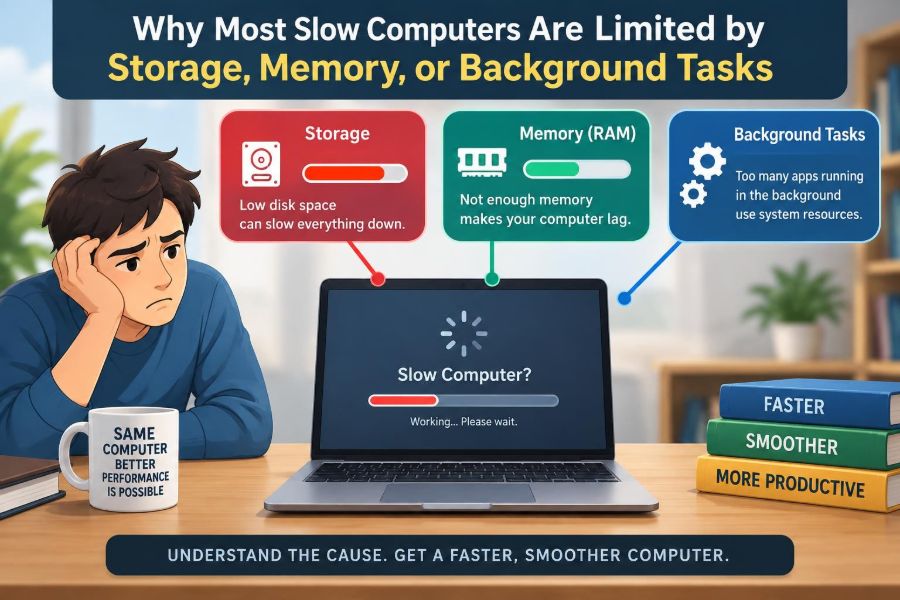
For many everyday workloads, the real limits are much less dramatic: a storage drive that cannot keep up, too little available memory, or programs quietly competing for resources in the background.
Knowing which limit you are actually hitting turns vague troubleshooting into a practical process. It also helps you spend money on the upgrade that will make a noticeable difference rather than buying a part that solves the wrong problem.
🧩 A Computer Is a Chain, Not a Single Speed Rating
Opening an application requires several components to cooperate. Storage supplies program files, memory holds the active data, the CPU processes instructions, and the graphics processor may draw the interface.
The experience is limited by the slowest necessary step. A very fast CPU cannot make a program appear instantly if the program is waiting for files from a slow drive. This is often called a bottleneck: the part of a process that restricts its overall speed.
🚦 Why “Slow” Needs a Specific Meaning
Different symptoms point to different causes. “The computer is slow” might mean slow startup, delayed file searches, browser tabs reloading, choppy video calls, or poor game frame rates. These are not the same problem.
Before changing anything, describe the task, when the delay happens, and whether it began recently. A machine that is slow only while opening files needs a different investigation from one that becomes unresponsive with many browser tabs open.
🗄️ Storage Is Where Files Wait
Storage is the long-term home for the operating system, applications, documents, photos, and downloaded files. It keeps data after the computer is turned off.
When you start a program, open a photo, or load a saved project, data must travel from storage into memory. If that transfer involves many small files or a busy drive, it can be the part you feel most.
💾 Hard Drives and SSDs Behave Very Differently
A traditional hard disk drive, or HDD, stores data on spinning magnetic platters and uses a moving read/write head. It can hold a great deal of data economically, but physically moving to many locations takes time.
A solid-state drive, or SSD, stores data electronically with no moving read head. SSDs are generally much more responsive, especially when a system must access many small files scattered across the drive.
| Storage type | Typical strength | Common experience |
|---|---|---|
| Hard disk drive (HDD) | Large-capacity file storage | Longer boot and application-load times |
| SATA SSD | Responsive everyday computing | Major improvement over an HDD for many systems |
| NVMe SSD | High-speed work with compatible hardware | Can help demanding transfers and workloads, though not every task feels dramatically different from SATA SSD |
📂 Small Random Reads Can Make a System Feel Stuck
Copying one large video file is not the only test of drive performance. Operating systems and applications often request many small files: settings, fonts, libraries, icons, temporary data, and security checks.
On an HDD, each request may require a physical movement of the read head. That delay adds up. This is why an older computer can feel especially sluggish during login, updates, program launches, and antivirus scans even when its CPU is not especially busy.
⏳ Startup Is a Storage Test Disguised as a Waiting Problem
During startup, the operating system loads drivers, services, user settings, and login items. Some of these tasks happen in sequence, so one delayed step can hold up the next.
An SSD does not eliminate all startup delays, but it often reduces the storage waiting that dominates older machines. Too many startup programs can still make a fast drive feel slow, which is why startup speed should never be diagnosed from drive type alone.
🧺 Free Space Is Not Just Empty Space
Storage needs room for temporary files, application caches, operating-system updates, and working data. A nearly full system drive can make routine tasks awkward and can prevent updates or applications from completing normally.
Low free space is not a universal explanation for poor performance, but it is a sensible condition to correct. Remove unneeded downloads, empty the recycle bin or trash, move large archives elsewhere, and check which folders are consuming space before deleting anything important.
🔎 Drive Health and Errors Need Attention
A drive that starts failing may produce unusually long pauses, file errors, crashes during access, or repeated repair messages. These signs are different from ordinary slowness because they can also threaten your data.
If you suspect a drive problem, back up important files first. Diagnostic tools can provide clues, but they do not guarantee that a drive is safe. Replacing questionable storage is usually more urgent than trying repeated performance tweaks.
🧠 Memory Is the Computer’s Active Workspace
Random access memory, or RAM, holds the information programs are actively using. It is much faster to access than storage, but it is temporary: its contents disappear when power is removed.
Think of storage as a filing cabinet and RAM as the desk. A large filing cabinet is useful, but a cramped desk makes active work cumbersome because papers must constantly be put away and brought back.
📚 What Happens When RAM Runs Short
When active programs need more memory than is available, the operating system can move less-active data from RAM to storage and bring it back when needed. This is commonly called paging, swapping, or using virtual memory.
Virtual memory is useful because it prevents an immediate crash in many situations. But it is far slower than keeping data in RAM. If the system repeatedly moves data back and forth, it may pause, stutter, or become difficult to use.
🔁 Thrashing Is Repeatedly Moving Data Instead of Doing Work
Thrashing occurs when a computer spends a large share of its time moving memory pages between RAM and storage. The system is technically busy, yet the task you care about makes little progress.
A familiar example is a laptop with many browser tabs, a video meeting, a large spreadsheet, and a photo editor open at once. Switching windows may trigger a delay because each application needs data restored into active memory.
🌐 Browser Tabs Are Real Workloads
A browser tab is not always a simple page of text. Modern sites may run scripts, hold images and video, maintain live updates, use graphics acceleration, and keep multiple frames active.
Extensions also use resources. A small number of carefully chosen extensions may be harmless, while a long list of rarely used add-ons can contribute to memory use, startup time, or unexpected background activity.
📊 Recognizing a Memory Bottleneck
Common signs include slow switching between applications, tabs that reload after you leave them, steady disk activity while little seems to be happening, and improvement immediately after closing programs.
These clues are not proof by themselves. A slow drive can resemble a memory problem because both can create pauses. The strongest clue is a resource monitor showing high memory use together with sustained disk activity while you work.
🧰 More RAM Helps Only When RAM Is the Limit
Adding RAM can make a substantial difference when your normal workload regularly exhausts available memory. It lets more applications and data remain in the fast workspace instead of being pushed to storage.
It will not cure a damaged drive, a CPU-heavy video export, or a poor internet connection. Before buying memory, check what your computer supports: laptop RAM can be non-upgradeable, and systems have limits on capacity, type, and module arrangement.
⚙️ The CPU Still Matters, but Context Matters More
The CPU performs calculations and coordinates many instructions. It matters greatly for compiling software, rendering video, processing large datasets, running simulations, and other compute-heavy tasks.
For ordinary office work, though, the CPU often spends time waiting for data or responding to short bursts of activity. A computer with a modest CPU, sufficient RAM, and an SSD can feel more responsive than one with a stronger CPU paired with too little memory and a hard drive.
🎮 Graphics Problems Are Not Always General Slowness
Graphical tasks rely on a graphics processing unit, or GPU, as well as the CPU, drivers, memory, and display settings. Poor game performance, visual glitches, or slow 3D rendering may be graphics-related rather than a general system bottleneck.
Do not assume a new graphics card will speed up web browsing, document editing, or operating-system startup. Match the suspected component to the task that is actually slow.
🕵️ Background Tasks Compete for Attention
Many programs continue working after their windows are closed. They may synchronize cloud files, check for updates, index files for search, download game patches, scan for malware, or send notifications.
These tasks are often legitimate. The problem arises when several run at once, when one becomes stuck, or when software you no longer use launches automatically every day.
📥 Updates Can Cause Temporary Slowdowns
Operating-system, application, and security updates may download files, unpack them, install components, and reorganize data. Immediately after a major update, a computer can also spend time indexing content or completing maintenance.
Temporary activity is not necessarily a fault. If high use continues for an unusually long period or recurs at every startup, inspect the process involved rather than disabling updates broadly. Updates often include stability and security fixes.
☁️ Synchronization Can Saturate a Drive or Network
Cloud storage is convenient, but a large first-time sync can read thousands of local files while downloading or uploading others. On a slow drive or limited connection, this can affect the tasks you are trying to do.
Pause nonessential syncing during a deadline, then let it finish later. Avoid treating pausing as a permanent solution unless you have another reliable backup and access plan for those files.
🛡️ Security Software Requires Balance
Security tools need to inspect files and processes, especially when new downloads arrive or many files change. Scans can be noticeable on older hardware, but removing protection solely to gain speed creates an unnecessary risk.
Instead, schedule full scans for a convenient time, keep only one real-time antivirus product active unless your security provider specifically advises otherwise, and investigate repeated scans or suspicious processes.
🧾 Startup Apps Multiply the Cost of Logging In
Chat clients, launchers, updaters, printer utilities, creative tools, and cloud services often offer to start with the computer. Each may use a little time and memory; together they can make a fresh login feel crowded.
Review startup items in your operating system’s settings or task manager. Disable items you do not need immediately, but leave unfamiliar hardware, security, and operating-system components alone until you identify them.
📈 Use a Resource Monitor Instead of Guessing
Windows Task Manager, macOS Activity Monitor, and Linux system monitors show which processes are using CPU, memory, storage, and network resources. Names and layouts differ, but the basic question is the same: what is consuming resources when the slowdown occurs?
Observe the machine during the actual problem. A snapshot taken when everything is normal is less useful than seeing, for example, a backup tool using the drive while an application is taking minutes to open.
🧪 Read the Four Main Resource Signals Together
One high number is not automatically bad. A system may use available RAM deliberately for caching, and a brief CPU spike while opening an app is normal. Look for high use that persists while the computer is unresponsive.
- CPU: A process stays busy during calculation-heavy work.
- Memory: Available memory is scarce, especially if the system is paging heavily.
- Disk: Storage remains active with long response delays or a process repeatedly reading and writing.
- Network: Downloads, uploads, backups, or unstable connections affect online tasks.
The goal is not to keep every meter low. The goal is to find the resource that is preventing your intended task from progressing.
🌡️ Heat Can Turn a Fast Computer into a Slower One
Processors reduce their speed when temperatures become too high, a protective behavior often called thermal throttling. Dust, blocked vents, failed fans, soft surfaces that cover air intakes, or aging cooling components can contribute.
Heat-related slowdowns commonly appear after several minutes of demanding work rather than immediately at startup. Keep vents clear, use a hard surface for laptops, and seek qualified repair help if fans make unusual noises or temperatures appear persistently abnormal.
🔋 Power Settings Change Performance Expectations
Laptops may reduce processor speed and background activity to extend battery life. This is useful when mobility matters, but it can make demanding tasks feel slower on battery than when connected to power.
Check the selected power mode before assuming something is broken. Higher-performance settings can improve responsiveness in some situations, but they also use more energy and may increase heat and fan noise.
📡 Internet Delays Can Feel Like Computer Delays
A web page that waits on a remote server, a cloud document that will not sync, or a video call that freezes may be limited by the network rather than your computer. Wi-Fi signal quality, congestion, VPN routing, and the service itself can all matter.
Compare a local task with an online one. If local files and applications are responsive but only web-based work is delayed, investigate the connection before replacing hardware.
🧹 Cleaning Software Is Not a Universal Repair
Removing unused applications and unnecessary startup items can help, especially when they consume resources. Clearing a genuinely oversized cache may also reclaim space when an application misbehaves.
However, aggressive “cleaner” tools can delete useful data, alter settings, or promise performance gains without identifying a real bottleneck. Manual review, built-in maintenance tools, and backups are safer than indiscriminate cleanup.
🚫 Avoid Random Fixes and Registry Myths
Repeatedly reinstalling the operating system, editing advanced system settings from online advice, or downloading multiple optimization utilities can make diagnosis harder. Some changes may create new problems while hiding the original one.
Make one change at a time and test the same task afterward. This simple habit reveals whether the change helped and gives you a way to reverse it if it did not.
🔧 Choose Upgrades by the Work You Actually Do
For a computer still using an HDD as its system drive, moving the operating system to an SSD is often the most noticeable upgrade for everyday responsiveness. For a machine that constantly runs out of RAM, memory capacity may be the better priority.
CPU and GPU upgrades make sense when measurements and workload behavior point there. Compatibility, cost, repairability, and the age of the device matter; sometimes a targeted upgrade is sensible, and sometimes replacement is the more practical choice.
✅ A Sensible Troubleshooting Order
- Describe the slow task and reproduce it.
- Save and back up important work, especially if errors or drive warnings appear.
- Restart once to clear temporary conditions and complete pending updates.
- Check free storage space and use a resource monitor during the slowdown.
- Review startup items, sync activity, downloads, and recently installed software.
- Check power mode, temperature clues, and whether the issue is local or network-related.
- Make one measured change, then retest before considering an upgrade.
This order starts with low-risk observations and avoids spending money before the evidence points to a likely cause.
🎯 The Core Principle: Find What Is Waiting
Most slow-computer problems become clearer when you ask what the system is waiting for. It may be waiting for a hard drive to find files, for memory to free space, for a background task to finish, for a server to respond, or for heat to fall.
That question also explains why there is no single “speed up” button. The right solution depends on the task, the resource under pressure, and whether the slowdown is temporary, configuration-related, or a sign of failing hardware.
A responsive computer is usually not the one with the most impressive specification on paper; it is the one whose storage, memory, active tasks, and workload are in balance. Watch the symptoms, measure the pressure points, and fix the actual constraint. 🖥️⚙️🔍