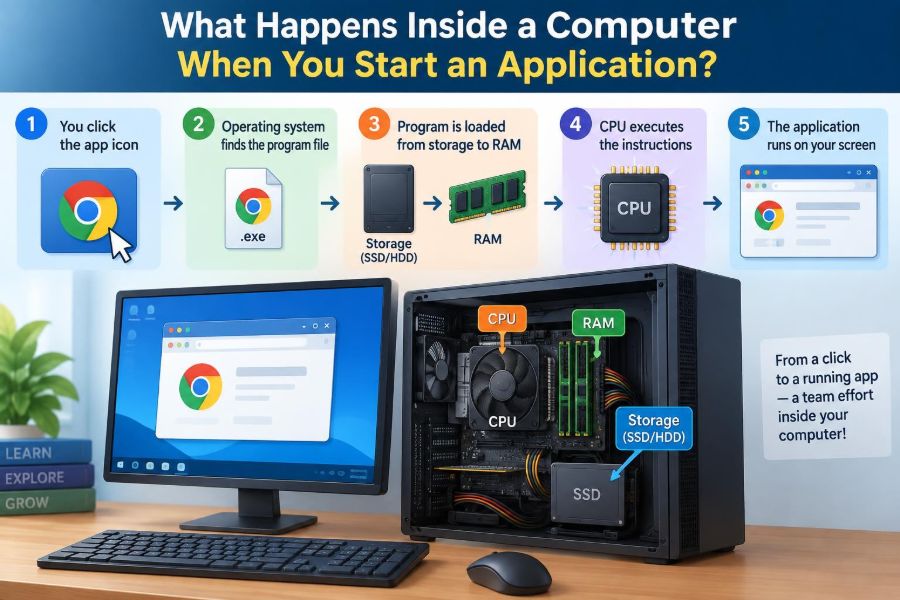

You click a browser, spreadsheet, game, or messaging app. For a moment, the computer may show a spinning cursor, a splash screen, or nothing visible at all. Yet during that small pause, many parts of the system begin coordinated work.
Starting an application is not simply a matter of “opening a file.” The operating system must find the program, check whether it may run, create a place for it in memory, give it processor time, and connect it to the services it needs.
Understanding this journey makes everyday computer behavior less mysterious. It also helps students read technical explanations and helps professionals diagnose slow launches, missing files, crashes, and security warnings.
Let us follow the path from a click or command to a working application window, one layer at a time. 💻
🖱️ 1. The launch request begins
An application starts when something creates a launch request. That might be a double-click on an icon, a selection from a menu, a keyboard shortcut, a command typed in a terminal, or a file opened with its associated program.
The desktop environment or command interpreter receives this request first. It determines which program should be started and passes that request to the operating system.
A file may also cause a launch indirectly. Opening a document usually starts an already-installed application and asks it to load that document at the same time.
📍 2. The system identifies the target program
The operating system needs a precise location for the application. An icon is usually a convenient reference, not the program itself; it may point to an executable file, a launcher, or a command.
On many systems, file associations decide which application handles a particular type of document. A terminal may instead search folders listed in its command path to locate a requested command.
- Executable: a file containing instructions the processor can run, directly or through a runtime.
- Launcher: a small configuration or shortcut that tells the system what to start.
- Arguments: extra information supplied at launch, such as a filename or option.
🔐 3. Permissions and security checks happen early
Before allowing code to run, the operating system checks whether the current user has permission to access the program. It may also examine whether the file is blocked, signed, quarantined, or restricted by organizational policy.
Security software can inspect a program when it is opened. This is one reason an unfamiliar application can take longer to launch, especially when it has been downloaded from outside a trusted environment.
These checks are not a guarantee that software is safe. They are protective layers designed to reduce the chance that unauthorized or suspicious code receives control of the computer.
📦 4. The executable file is opened
Once approved, the system opens the executable file from storage. The file is organized in a format the operating system understands, containing machine instructions and information about how the program should be loaded.
That information can include the program’s required libraries, requested memory layout, entry point, supported architecture, and sections containing code, data, and read-only values.
The operating system’s program loader interprets this structure. It does not need to copy every byte into RAM immediately; modern systems often load parts only when they are needed.
💾 5. Storage supplies the first data
The executable normally lives on an SSD, hard disk, network location, or another storage device. Starting it requires reading some of its contents into main memory, also called RAM.
Storage is persistent: it keeps files when power is off. RAM is much faster for active work but temporary, so a running program cannot simply execute from an ordinary file on storage.
An SSD often makes launches feel quick because it can retrieve many small pieces of data efficiently. But launch time can still be limited by processor work, security checks, dependencies, or network activity.
🧠 6. Virtual memory gives the program its own view
The operating system creates a virtual address space for the new program. This is the range of memory addresses the program is allowed to use and perceive as its own.
Virtual memory separates one process from another. A bug in one ordinary application should not let it freely read or overwrite the private memory of another application.
Virtual addresses are translated to physical RAM locations by hardware and operating-system-managed data structures. Some memory regions may be backed by files, while others are created for the program’s changing data.
🗺️ 7. Memory is arranged into useful regions
The loader maps different parts of the program into appropriate regions of its address space. Code is generally placed in executable regions, constant data in read-only regions, and writable data in regions the program may modify.
Two important areas are the stack and the heap. The stack supports function calls and local values, while the heap supports data requested dynamically as the program runs.
| Memory area | Typical purpose |
|---|---|
| Code region | Machine instructions for the program |
| Read-only data | Constants and fixed program information |
| Stack | Function calls, local variables, return information |
| Heap | Dynamically allocated objects and buffers |
🧩 8. Shared libraries and frameworks are connected
Most applications do not contain every instruction they need. They use shared libraries for common capabilities such as drawing windows, handling text, networking, encryption, audio, or database access.
A dynamic linker or loader finds suitable libraries and connects the application’s references to functions and data provided by them. This process is often called dependency resolution.
Sharing libraries can save memory and disk space because multiple applications may use common code. It also means a missing, incompatible, or damaged library can stop a program before its window appears.
🧱 9. A process is created
The running instance of a program is called a process. A process includes its virtual memory, security identity, open resources, environment settings, and one or more threads that execute instructions.
Two copies of the same application can be separate processes. They may use the same executable file and some shared library code, but each has its own active state and private writable memory.
The operating system records process information so it can schedule, monitor, pause, and eventually clean up the application.
🧵 10. The first thread receives a starting point
A process begins with at least one thread, often called the main thread. A thread is the execution path that the processor actually runs: it has registers, a stack, and a current instruction location.
The loader prepares this thread and points it at the program’s entry point. The entry point is low-level startup code, not necessarily the first line written by an application developer.
Applications commonly create more threads later. Separate threads can handle tasks such as interface events, calculations, file operations, or network communication.
⚙️ 11. The scheduler assigns CPU time
The processor cannot run every ready thread at exactly the same instant on a single core. The operating system’s scheduler chooses which threads receive CPU time and for how long.
On a multi-core processor, several threads can genuinely execute at once. Even then, there may be far more runnable threads than cores, so the scheduler continually makes choices.
When a thread waits for input, storage, or a network response, the scheduler can run another ready thread. This switching creates the responsive multitasking expected from a modern computer.
🧮 12. The CPU begins executing instructions
When scheduled, the main thread’s instructions are fetched, decoded, and executed by a CPU core. The processor performs arithmetic, comparisons, data movement, branching, and requests to the operating system.
Programs normally run in a restricted mode often described as user mode. They cannot directly control hardware or access protected parts of memory whenever they choose.
That restriction is essential. It prevents ordinary applications from bypassing the rules that keep users, processes, and devices isolated from one another.
🚪 13. System calls cross into the operating system
When an application needs a protected service, it uses a system call. Examples include opening a file, allocating certain resources, creating a network connection, or asking the system to create a window.
A system call transfers control into a privileged part of the operating system, often called kernel mode. The kernel validates the request and either performs it, queues it, or returns an error.
This controlled boundary lets applications use hardware without giving every application unrestricted hardware access.
🏗️ 14. Runtime startup prepares the application
Before the visible part of an application begins, a language runtime or framework may initialize itself. It can set up memory management, exception handling, configuration, localization, logging, and internal data structures.
For a managed language, this stage may include starting a virtual machine or runtime environment. For a native application, it may include library initialization routines and program-specific setup.
This explains why a tiny-looking application can still do considerable work before it shows any interface. Its first visible screen is often not its first action.
📄 15. Configuration and user data may be read
Many applications load preferences, recent-file lists, themes, account details, plugins, templates, and cached information during startup. Some read local files; others query system settings or protected credential stores.
Applications should handle missing or corrupted settings safely. A poor startup path may crash because it assumes a file, folder, setting, or permission will always exist.
Startup speed therefore depends partly on the application’s design. Loading everything at once can delay the first usable screen, while delaying nonessential work can improve perceived responsiveness.
🌐 16. Network-aware apps may contact online services
A messaging client, browser, cloud storage tool, or business application may connect to a server soon after launch. It may check authentication, synchronize data, retrieve settings, or ask whether updates are available.
Network work is unpredictable because it depends on connection quality, server response, name lookup, and security negotiation. Well-designed applications avoid freezing the interface while they wait.
Being online does not mean every application must send data at startup. Good privacy practices require clear purpose, appropriate permissions, and careful protection of sensitive information.
🪟 17. The application asks for a window
A graphical application communicates with the operating system’s windowing system to create a window. The request defines properties such as size, title, position preferences, and whether the window can receive input.
The operating system and desktop environment manage shared interface responsibilities. They decide how windows are placed, focused, minimized, resized, layered, and represented in task-switching tools.
A window is not the same thing as the application itself. A process can run without a visible window, and one process can create several windows.
🎨 18. The interface is drawn and composed
The application builds its initial interface: buttons, text, panels, document areas, icons, and other elements. It then requests drawing through a graphics framework or rendering system.
Modern systems commonly use a compositor to combine the visual output of different windows into the final display. The graphics processor may accelerate drawing, transformations, and composition.
The first frame can appear before every feature is ready. This is often intentional: showing a usable interface early gives the user feedback while background tasks continue. ✨
⌨️ 19. Input is delivered as events
Once the application is active, keyboard presses, pointer movements, clicks, touches, and other actions travel from input devices through drivers and the operating system. The windowing system directs relevant events to the appropriate application.
Applications usually process these through an event loop. The loop waits for events, responds to them, updates program state, and asks the interface to redraw when necessary.
If the main interface thread is blocked for too long, the application may appear frozen because it cannot promptly process input or repaint its window.
🔄 20. Background work continues after the window appears
The visible window often marks the beginning of interactive use, not the end of startup. Background threads may index content, load thumbnails, restore a previous session, synchronize files, or prepare features that were not immediately needed.
This pattern is called lazy loading when work is delayed until it is useful. It can improve startup experience, although later actions may briefly pause while deferred resources are obtained.
Good applications balance fast initial availability with predictable performance afterward.
🧷 21. Caches can make a later launch faster
After an application has run, several layers may retain useful data. The operating system may keep recently read file contents in unused RAM, while the application may save caches, compiled resources, thumbnails, or session information.
This is why a second launch can feel faster than the first. The needed bytes may already be available in memory or in an application-specific cache rather than requiring the same storage work again.
A cache is a performance aid, not the original source of truth. It must be refreshed or discarded when its contents are outdated or inconsistent.
🧹 22. Memory pressure changes the experience
RAM is shared among the operating system and active processes. When memory is plentiful, more useful code and data can remain readily available; when it is scarce, the system must reclaim memory or move less-active contents out of immediate RAM.
That extra work can make application launches slower. Opening a large program while many other programs are active may therefore feel different from launching it after a restart.
Closing unused applications can free resources, but memory use is not the only cause of slowness. CPU demand, storage activity, updates, and network waits can also matter.
🐢 23. Why an application can start slowly
There is rarely one universal reason for a slow launch. The delay may come from the program itself, the operating system, hardware conditions, security scanning, dependencies, or the data the application chooses to load.
- Large executables, libraries, or resource files may require more reading and setup.
- Many plugins, extensions, fonts, or startup tasks increase initialization work.
- Busy storage, limited RAM, or heavy CPU activity can delay progress.
- Network authentication or cloud synchronization can add waiting time.
- A damaged configuration, unavailable server, or missing dependency can cause failure rather than delay.
The most useful troubleshooting step is to identify where the wait occurs instead of assuming the visible application is always the sole cause.
🛡️ 24. Isolation protects the rest of the system
Processes, permissions, virtual memory, and system-call boundaries work together to provide isolation. An application receives useful capabilities, but only within rules enforced by the operating system.
Additional mechanisms may restrict applications further through sandboxes. A sandboxed application can be limited to approved folders, devices, services, or user-granted permissions.
No protection is perfect, but layered isolation reduces the consequences of ordinary software defects and makes unauthorized actions harder.
🧪 25. Errors can occur at every stage
A launch failure does not always mean the application’s main code is broken. The operating system may be unable to find the file, read storage, verify permission, load a library, allocate resources, connect to a required service, or create the interface.
Error messages can seem vague because the failure may happen below the application’s visible layer. Logs, system event records, and diagnostic tools help reveal whether the problem occurred during loading, initialization, graphics setup, or later background work.
Knowing the startup sequence turns troubleshooting into a structured investigation rather than random clicking.
🧰 26. Different application types follow the same broad pattern
A desktop application, command-line utility, web browser tab, service, and mobile app do not look alike, but they share core ideas: code is located, checked, mapped into memory, scheduled on a processor, and given controlled access to services.
A command-line program may skip window creation. A background service may start automatically and wait for requests. A browser may launch one process and then create additional processes for separate tasks or content.
The details vary by operating system and platform, but the underlying principle remains consistent: software runs through cooperation between programs, hardware, and the operating system.
🧭 27. The core principle: launching is coordinated resource management
Starting an application is a carefully managed transition from inactive files on storage to active instructions, memory, windows, input handling, and ongoing work. The operating system coordinates this transition while enforcing boundaries between users, processes, and hardware.
The click is simple because many complex responsibilities are hidden behind it: locating code, validating access, loading dependencies, creating a process, scheduling threads, and delivering a responsive interface.
Every application launch is the operating system turning stored software into a protected, scheduled, interactive process. 🖥️⚙️🚀