
You press the power button before a class, meeting, or work shift. The Windows logo appears quickly enough, but then the computer seems to hesitate: the desktop is visible, icons are still loading, and the pointer may briefly show a spinning circle.
A slow start is frustrating because it delays more than the boot itself. It can interrupt sign-in, postpone access to files and cloud tools, and make a perfectly capable computer feel unreliable.
The good news is that startup delays usually follow understandable patterns. Windows must initialize hardware, load drivers and services, sign in the user, and launch selected applications—so a delay can often be traced to a specific stage.
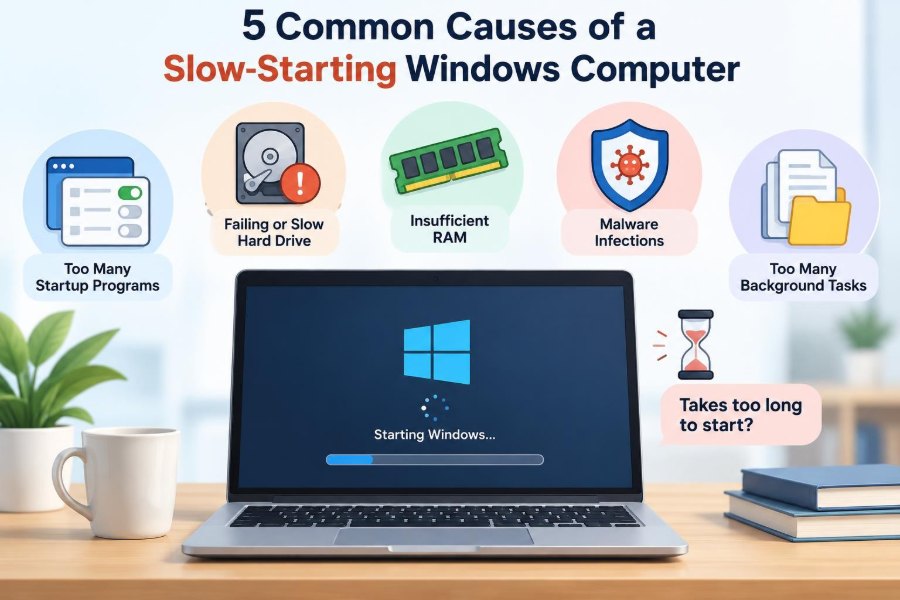
This article focuses on five common causes: too many startup apps, slow storage, background services and updates, driver or hardware problems, and malware or unwanted software. It also explains how to diagnose the real cause before making changes.
🧭 1. Define “slow-starting” before troubleshooting
“Slow” can mean different things. A computer may take a long time to reach the sign-in screen, accept a password slowly, or reach a usable desktop only after several minutes.
Notice where the pause happens. That observation is more useful than timing the entire process as one number.
- Delay before the Windows sign-in screen: often firmware, storage, driver, or hardware related.
- Delay after sign-in: often startup applications, services, syncing, updates, or user-profile issues.
- Delay only when opening programs: the computer may have started normally, but background work is still consuming resources.
🔄 2. Understand the stages of a Windows startup
Startup is a sequence, not a single event. First, the computer firmware checks and initializes devices. Then Windows loads essential files, drivers, services, and the sign-in environment.
After you sign in, Windows loads your profile and starts tasks configured to run in the background. A desktop that appears quickly is not necessarily ready for productive work.
This distinction prevents a common mistake: blaming Windows itself when one slow application or service is actually responsible.
🚦 3. Start with a simple symptom check
Before disabling anything, restart the computer once and watch for patterns. A restart is useful because it completes more of the startup sequence than simply waking the computer from sleep.
Ask whether the slowdown occurs every time, only after updates, only when connected to a network, or only for one user account. Consistent patterns point toward a narrower set of causes.
Useful observations to record
- Whether the manufacturer logo remains on screen unusually long.
- Whether the disk activity light stays busy after sign-in.
- Which applications appear automatically.
- Whether errors, repeated notifications, or failed sync messages appear.
- Whether the computer behaves differently in a clean or limited startup environment.
📱 4. Cause one: too many startup applications
The most common reason for a slow usable desktop is an overloaded startup list. Many applications add themselves to startup so they can check for updates, sync files, show notifications, or reopen quickly.
Each item may use only a modest amount of processing power or memory. Together, however, many items compete for disk access, processor time, network bandwidth, and available memory immediately after sign-in.
Common examples include chat clients, game launchers, cloud-storage tools, browser helpers, printer utilities, creative applications, and vendor update assistants.
🧰 5. Review startup apps in Task Manager
In Windows, open Task Manager and look for the startup applications area. It lists many programs that are configured to launch when you sign in and may indicate their estimated startup impact.
The impact label is a clue, not a verdict. An item marked high impact deserves attention, but a lower-impact item can still be unnecessary if many similar items are enabled.
Look for software you recognize and do not need immediately. Disable it from startup rather than uninstalling it at first; this is a reversible test.
✅ 6. Decide what should remain at startup
Keep startup items that provide a service you need as soon as you sign in. For example, security software should normally remain enabled, and a work-required synchronization tool may be appropriate if current files are essential.
Most convenience applications can wait until you open them. Disabling an item from startup usually does not prevent it from working later; it simply stops automatic launching.
| Usually reasonable to keep | Often reasonable to disable and test |
|---|---|
| Security software and essential device utilities | Game launchers and media players |
| Required accessibility tools | Optional chat and meeting applications |
| Work-critical file synchronization | Manufacturer promotional or update helpers |
| Backup software that must run at sign-in | Browser updaters and quick-launch helpers |
If an unfamiliar entry appears, do not disable it blindly. Search its name through trusted documentation, inspect its publisher, or ask an IT administrator on a managed computer.
🧹 7. Reduce startup load gradually
Change only a few entries at a time, then restart and evaluate the result. Disabling everything at once can make it difficult to identify which item caused the improvement or which needed function disappeared.
After testing, re-enable anything that you genuinely miss. The goal is not an empty startup list; the goal is a startup list that supports your work without creating unnecessary competition for resources.
Also review applications that offer their own “launch at startup” settings. Some programs can restore their setting after an update or use a separate background component.
💾 8. Cause two: a slow or crowded storage drive
Windows reads a large number of files during startup. If the system drive is slow, nearly full, or beginning to fail, every stage involving file access can take longer.
Traditional hard disk drives use moving mechanical parts. They can provide large capacity but are generally slower at the many small reads that happen during boot than solid-state drives.
An SSD has no moving parts and usually makes startup and application launching feel much more responsive. However, an SSD can still slow down when it is nearly full, heavily busy, faulty, or connected through a limited interface.
📦 9. Check free space on the Windows drive
Windows needs working space for temporary files, update processes, virtual memory, caches, and recovery tasks. A drive that is close to full has less room for these normal operations.
Start by removing files you no longer need, emptying the Recycle Bin after reviewing it, and moving large personal files to suitable storage. Uninstall applications that are no longer used instead of merely deleting their shortcuts.
Avoid deleting unfamiliar folders from Windows system locations. Manual removal can damage applications or make future updates harder to install.
🗂️ 10. Clean storage safely
Use Windows storage management features to identify large categories of data. Temporary files, old downloads, unused applications, and duplicate personal files are common places to look.
Review each category before removal. A Downloads folder, for example, may contain installers you no longer need—but it can also contain important coursework, invoices, or project exports.
- Move completed projects and media archives to appropriate external or cloud storage.
- Remove unused software through Windows settings.
- Clear temporary files using Windows tools rather than third-party “cleaner” utilities.
- Keep backups before deleting irreplaceable personal data.
🩺 11. Look for signs of drive trouble
A failing drive may create slow startup, repeated freezing, file errors, unusual clicking from a hard drive, or attempts by Windows to repair the drive. These signs should be treated seriously.
Back up important files immediately if you suspect storage failure. Troubleshooting can wait; data recovery becomes more difficult when a failing drive is repeatedly stressed.
Windows includes tools for checking drives, and drive manufacturers may provide diagnostic utilities. On an employer-managed device, report suspected hardware trouble to IT rather than opening the device or installing unapproved tools.
⚡ 12. Consider an SSD upgrade carefully
If the computer uses a healthy older hard disk drive, replacing it with a compatible SSD is often one of the most noticeable improvements for Windows startup. It addresses a physical bottleneck rather than merely hiding it.
Compatibility matters. Computers may use different drive sizes, connectors, and storage protocols, while some laptops have limited upgrade access.
Plan the migration before changing hardware. Create a backup, confirm the drive type, and decide whether to clone the existing installation or perform a fresh Windows installation.
🧩 13. Cause three: services, updates, and background work
Windows starts many services that support networking, printing, security, search, device management, and other operating-system features. Installed software can add its own services as well.
Some background activity is normal after sign-in. Windows may index files, check for updates, synchronize settings, scan for threats, or allow cloud services to compare changed files.
The problem begins when too much work happens at once, a service repeatedly fails and retries, or an update process is stuck. The computer can appear idle while its storage and processor are busy.
📊 14. Use Task Manager to identify the bottleneck
When the desktop feels slow, open Task Manager and inspect CPU, memory, disk, and network activity. Look for a process that remains unusually busy instead of assuming that the top entry is automatically harmful.
Disk usage near its limit for an extended period often points to storage pressure, update work, syncing, scanning, or a program making excessive file requests. High memory use may indicate that too many applications are already open.
Names matter. Record the process name and publisher before taking action, especially when it is part of Windows or security software.
🔔 15. Let legitimate updates finish
Updates can temporarily make startup slower because Windows may configure components, optimize files, or complete installation steps after a restart. Interrupting the process repeatedly can leave the system in a worse state.
Keep the computer connected to reliable power, particularly a laptop. Give updates time to complete, then restart when Windows requests it.
If the same update appears to fail over and over, use Windows update troubleshooting options or seek support. Repeated failures are different from a one-time period of post-update background work.
☁️ 16. Manage cloud synchronization at sign-in
Cloud storage is valuable, but the first few minutes after sign-in can be demanding if many large files changed elsewhere. Multiple sync clients can make the pressure greater.
Check whether a sync tool is uploading, downloading, or reporting conflicts. You may be able to pause non-urgent synchronization until the computer settles, then resume it later.
Do not pause or remove synchronization without understanding where the authoritative copy of a file is stored. For shared work, confirm that teammates and backup processes will not be affected.
🖨️ 17. Remove unnecessary background software
Printer suites, device utilities, trial software, browser extensions, old VPN clients, and vendor control panels sometimes install services that remain active even when their main application is rarely used.
Review installed applications in Windows settings. Remove software that is obsolete, duplicated, or unrelated to how you use the computer.
Use the normal uninstaller whenever possible. Deleting a program folder does not reliably remove services, scheduled tasks, startup entries, or system settings.
🔌 18. Cause four: driver, peripheral, or hardware issues
Drivers allow Windows to communicate with graphics hardware, storage controllers, network adapters, printers, audio devices, and other components. A damaged, outdated, incompatible, or unstable driver can slow startup or cause a device to repeatedly initialize.
External devices can contribute too. A problematic USB drive, dock, printer, adapter, or memory card may delay detection or confuse the boot order.
Hardware issues are less common than startup-app overload, but they deserve attention when delays occur before the sign-in screen or are accompanied by crashes, blue screens, or device errors.
🔍 19. Isolate external devices
Shut down the computer and disconnect nonessential peripherals. Leave only what is needed to start the system, such as the primary display, keyboard, and mouse for a desktop computer.
Restart and compare the result. If startup improves, reconnect one device at a time over several restarts to identify the possible cause.
Do not disconnect essential internal hardware or devices required for encryption, authentication, or work access unless your organization provides instructions.
🧱 20. Update drivers from appropriate sources
Use Windows Update, the computer manufacturer’s support resources, or the manufacturer of the specific component. These sources are more reliable than random driver-download websites.
Prioritize drivers when there is a clear reason: a device is malfunctioning, an update addresses a known compatibility issue, or the computer manufacturer recommends it for your model.
Avoid updating every driver simply because a newer version exists. Unnecessary changes introduce variables and can make diagnosis harder.
🧠 21. Check memory and temperature clues
Insufficient available memory can make startup feel slow because Windows must rely more heavily on the storage drive for temporary data. This is especially noticeable when many large applications reopen automatically.
Unexpected shutdowns, severe performance drops, fan noise, or heat may indicate a separate hardware or cooling problem. These symptoms require a different investigation than ordinary startup optimization.
Built-in Windows memory diagnostics can help investigate suspected memory errors. If a laptop is overheating or a desktop has accumulated dust, professional service may be safer than attempting repairs without experience.
🦠 22. Cause five: malware and unwanted software
Malware may run at startup to maintain persistence, collect information, display unwanted advertising, or use system resources. Potentially unwanted software can also clutter startup with toolbars, browser changes, pop-ups, and aggressive background tasks.
Not every unfamiliar process is malicious. Windows and legitimate applications use technical names, so a careful investigation is better than deleting files based on suspicion alone.
Warning signs include unexpected browser changes, repeated advertisements, security alerts you did not request, unknown startup entries, unexplained network activity, and performance changes that began after installing questionable software.
🛡️ 23. Scan and secure the computer
Use the built-in Windows security tools and ensure their protection updates are current. Run an appropriate scan, follow the recommended remediation steps, and restart when prompted.
Keep only one real-time antivirus product active unless a security professional specifically advises otherwise. Multiple real-time security products can conflict and create additional performance problems.
After removing unwanted software, review startup apps, installed programs, browser extensions, and account passwords. If you entered credentials into a suspicious site, change those passwords from a known-safe device when possible.
🧪 24. Use a clean-start approach for stubborn cases
If the cause remains unclear, a clean-start approach can help separate Windows components from third-party services and startup software. The principle is to start with fewer non-Microsoft background items, then reintroduce them methodically.
This is a diagnostic process, not a permanent configuration. Follow official Windows guidance carefully, document every change, and keep essential security protections enabled.
On a business, school, or managed device, ask IT before changing service settings. Management software, security controls, and required network tools may be intentionally configured to start automatically.
📝 25. Keep a troubleshooting record
Performance troubleshooting becomes confusing when several changes are made without notes. Record the date, symptom, change made, and result after each restart.
A simple record helps you avoid repeating unsuccessful steps and gives useful information to a technician. It also makes it easier to reverse a change that caused a new problem.
- What was slow: boot screen, sign-in, desktop, or first application launch?
- What changed recently: an update, application, peripheral, or account setting?
- What did Task Manager show during the delay?
- Which startup item, service, or device was changed?
- Did the next restart improve, worsen, or leave performance unchanged?
🧯 26. Know when to repair, reset, or seek support
Seek help when startup delays come with data errors, repeated crashes, blue screens, failed updates, unusual drive sounds, or signs of malware that cannot be removed. Back up important data before major repair steps whenever possible.
Windows recovery and reset options can be useful when system files or software configuration are severely damaged, but they are not a first response to every slow startup. They may remove applications or require restoration of settings afterward.
A qualified technician or IT team can check hardware health, event records, encryption requirements, and organization-specific software. This is particularly important for devices containing confidential work or student data.
🎯 27. The core principle: remove the bottleneck, not random features
A slow-starting Windows computer is usually dealing with too much startup work, slow access to storage, background tasks that need attention, unstable hardware communication, or unwanted software. The most effective fix depends on which of those bottlenecks is actually present.
Observe the startup stage, make one controlled change, restart, and check the result. This method protects important features while building a clearer picture of the problem.
The best startup optimization is not disabling everything—it is keeping only the software, services, and hardware activity that are genuinely needed when Windows begins. 🛠️⚡💻