
Your computer has started showing a storage warning just as you need to download course material, edit a video, install a large application, or back up family photos. The obvious question seems simple: buy more storage.
Then the choices appear: an internal HDD, an internal SSD, or an external drive. They have different capacities, speeds, connectors, prices, and practical limitations, so choosing the cheapest-looking option can create a new problem instead of solving the old one.
For students, storage affects how quickly projects open and whether important work is safely backed up. For working professionals, it can affect boot times, file transfers, media workflows, portability, and recovery after a device fails.
The best choice is not one technology that wins in every situation. It is the storage type that fits the files you use, the device you own, your budget, and the level of protection your data needs. 💾
🧭 1. Start With the Real Question
Do not begin by asking which drive is “best.” Start by asking what problem you need to solve: slow performance, insufficient space, portable files, or data backup.
An internal SSD usually improves daily computer responsiveness. An external drive is often the practical answer for extra capacity and backups. An HDD can provide a large amount of space when speed is less important.
📦 2. Storage Means Keeping Data When Power Is Off
Storage is the part of a computer that keeps operating systems, applications, documents, photos, videos, and other files even after shutdown. It differs from RAM, which holds data temporarily while programs run.
When people say a computer has “memory,” they sometimes mean storage. In purchase decisions, separate these ideas: more RAM helps multitasking, while more storage holds more files.
🧲 3. What Is an HDD?
An HDD, or hard disk drive, stores data on rotating magnetic disks called platters. A mechanical arm moves across those platters to read and write information.
This physical design has been used for decades. HDDs remain useful because they can offer substantial capacity, especially for files that do not need to be accessed instantly.
⚡ 4. What Is an SSD?
An SSD, or solid-state drive, stores data in flash memory chips. It has no spinning platters and no moving read/write arm.
Because it accesses data electronically, an SSD generally responds much faster than an HDD. It is now the usual choice for a computer’s operating system and frequently used applications.
🧳 5. What Is an External Drive?
An external drive describes where and how a drive is used, not necessarily the technology inside it. It is a storage device outside the computer that connects through a cable, usually USB or USB-C.
An external drive may contain an HDD or an SSD. That means “HDD vs. SSD vs. external drive” is not a perfectly direct comparison: external is a form factor and connection method, while HDD and SSD are storage technologies.
🔍 6. The Most Important Distinction
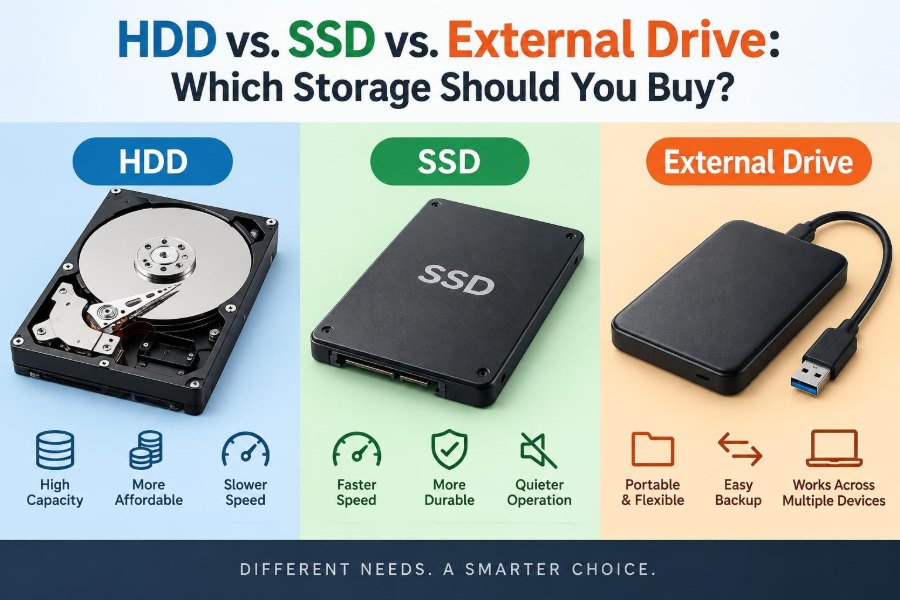
| Term | What it describes | Typical use |
|---|---|---|
| HDD | Mechanical storage technology | Large archives, backups, media libraries |
| SSD | Flash-based storage technology | Operating systems, apps, active projects |
| External drive | Drive used outside the computer | Portable storage and backups |
You can buy an internal HDD, an internal SSD, an external HDD, or an external SSD. Once this distinction is clear, product labels become much easier to understand.
🚀 7. Why SSDs Feel Faster
SSDs are especially strong at random access: opening many small files located in different places. This is common during startup, application launches, searches, updates, and general multitasking.
An HDD must physically move its arm and wait for platters to rotate. Those tiny delays add up, making an older HDD-based system feel less responsive even when its processor is adequate.
🎬 8. Speed Matters Differently for Different Work
If you mainly store movies, photos, PDFs, and completed projects, raw access speed may not be your first concern. Capacity and dependable backup practices may matter more.
If you edit media, run virtual machines, compile software, work with large design files, or frequently copy big folders, faster storage can noticeably improve your workflow. The benefit depends on the files, software, computer, and connection in use.
💰 9. HDDs Usually Favor Capacity per Budget
HDDs have traditionally been selected when a buyer needs lots of storage for the available budget. They are commonly used for long-term collections, local backups, and desktop archive drives.
That value does not make an HDD outdated. It simply makes it better suited to capacity-focused work than to making a main computer feel fast.
🏎️ 10. SSDs Favor Performance and Convenience
SSDs usually cost more per unit of capacity than comparable HDDs, but they offer speed, quiet operation, and physical resilience. For a primary laptop or desktop drive, those benefits are often worth prioritizing.
A modest SSD paired with a separate backup drive can be more useful than putting all available budget into one very large, slower internal HDD.
🔌 11. Internal Drives Improve the Main System
An internal drive is installed inside a desktop or laptop. It is the most suitable location for the operating system, regularly used applications, and files you need available every day.
Before buying one, confirm that your device supports an upgrade. Some laptops allow a drive replacement or an additional drive, while others have storage that cannot be upgraded easily.
🧩 12. Understand SATA and NVMe
Internal SSDs commonly use either SATA or NVMe. SATA SSDs may come in a 2.5-inch drive shape and use a SATA connection; they are much faster than HDDs but have limits set by that interface.
NVMe SSDs commonly use the compact M.2 form factor and communicate through PCIe. They can offer higher performance, but an M.2-shaped drive is not automatically compatible with every M.2 slot.
🧷 13. Check Compatibility Before Ordering
Look up your computer model or consult its manual. Verify the supported drive size, interface, slot type, and whether there is a free slot or only a replacement option.
- Check whether the device accepts a 2.5-inch SATA drive.
- Check whether an M.2 slot supports SATA, NVMe, or both.
- Check physical length requirements for an M.2 drive.
- Check whether opening the device affects service terms or requires special care.
Never assume that a drive will fit just because its connector looks familiar.
🖥️ 14. Desktop and Laptop Needs Differ
Desktop computers often have more room for multiple drives. A practical desktop setup may use an SSD for the operating system and active programs, plus an HDD for large local files.
Laptops place more value on low weight, energy efficiency, and resistance to movement. An internal SSD is generally a better fit, while an external drive can handle backups or a less frequently used archive.
🎒 15. External HDDs: Large Storage You Can Carry
An external HDD is commonly chosen for storing large photo libraries, video collections, old projects, and full-device backups. It can be an economical way to add substantial space without opening the computer.
However, it contains moving parts. Avoid dropping it, squeezing it in a crowded bag, or disconnecting it while it is actively reading or writing data.
🪶 16. External SSDs: Fast and Portable
An external SSD is smaller, lighter, and generally more resistant to everyday bumps than an external HDD. It is especially useful for carrying active work between locations.
It can be a strong option for photographers, video editors, developers, and professionals who need to transfer files often. Its main trade-off is usually a higher cost for the same capacity.
🔗 17. The Cable and Port Can Limit Performance
An external SSD cannot deliver its full potential if the computer port, cable, or hub is slower than the drive. The connection is part of the storage system, not an unimportant accessory.
Use a cable designed for data transfer and compatible with your drive and computer. A USB-C connector describes its physical shape, but it does not by itself guarantee a particular transfer speed.
🗂️ 18. Choose Capacity by Measuring Your Files
Check how much space you use now, then consider what you expect to create over the next few years. Do not buy based only on an empty drive’s advertised capacity or a guess that “bigger is always better.”
Useful capacity questions
- How large is your current Documents, Photos, Videos, or project folder?
- Will you keep raw media files, game libraries, virtual machines, or backups?
- Do you need room for several versions of ongoing work?
- Will the drive hold one computer’s data or several devices’ backups?
Leave spare space rather than filling a drive to the edge. Storage management becomes easier when you have room for updates, temporary files, and new projects.
🛡️ 19. No Drive Is a Backup by Itself
A drive that contains your only copy of important data is not a backup. It is a single point of failure, whether it is an HDD, SSD, internal drive, or external drive.
Drives can fail, be lost, be stolen, become corrupted, or be damaged by power problems and accidents. Important files need copies stored separately. 🔐
🔁 20. Use the 3-2-1 Backup Idea
A widely used backup principle is 3-2-1: keep three copies of important data, on two different types of storage, with one copy kept elsewhere.
For example, you might keep your active files on an internal SSD, maintain a backup on an external HDD, and keep another protected copy in a separate location or a trusted online backup service. Adapt the method to your privacy, cost, and access needs.
🧯 21. Reliability Is More Than Drive Technology
It is tempting to say that SSDs are always reliable because they have no moving parts, or that HDDs are always fragile. Reality is more nuanced: both can fail, and failure can happen without much warning.
SSDs avoid mechanical wear from spinning parts, while HDDs can be more vulnerable to shocks during operation. But controller faults, file-system errors, manufacturing issues, accidental deletion, and poor backup habits can affect either type.
🌡️ 22. Protect Drives During Everyday Use
Keep drives away from liquid, excessive heat, unstable surfaces, and unnecessary impacts. For external drives, use the operating system’s safe-eject function before unplugging whenever possible.
Do not rely on a drive’s small size as proof that it is indestructible. A protective case, a sensible cable route, and careful handling can prevent avoidable problems.
🔐 23. Consider Encryption for Portable Data
An external drive is easy to carry, which also makes it easy to lose. If it holds personal records, confidential work, or client information, encryption can protect the contents from unauthorized access.
Use built-in operating-system encryption or a trusted encrypted storage approach that you understand. Keep recovery keys securely, because strong encryption can also prevent you from accessing your own files if the key is lost.
📁 24. File Systems Affect Sharing
A drive’s file system organizes the data stored on it. The format you choose affects compatibility with Windows, macOS, Linux, game consoles, cameras, and other devices.
Formatting a drive usually removes its existing data. Decide where you will use the drive before formatting, and copy off anything important first. Cross-platform use may require a compromise in features or file-size support.
🧹 25. Storage Health Includes Good Organization
Storage fills up faster when downloads, duplicate files, temporary exports, and forgotten installers accumulate. Periodically review what is using space instead of deleting files at random.
Create clear folders for active work, completed work, archives, and backups. A simple naming system makes it easier to find files and helps prevent an archive drive from becoming an unsearchable digital box.
🎮 26. Common Buying Scenarios
For a student with a slow computer
Choose an internal SSD if the existing drive is an HDD and the computer supports an upgrade. Use an external drive separately for backups and large archives.
For a professional with large active projects
Use a fast internal SSD for applications and current work. Consider an external SSD when you must carry project files, and use a separate backup strategy for completed work.
For a home media collection
An HDD, often external or installed in a desktop, can make sense when capacity is the priority. Keep another copy of irreplaceable photos and videos elsewhere.
For someone who only needs a backup
An external HDD is often a practical choice for large backups, while an external SSD is attractive when portability and faster transfers matter more.
✅ 27. A Simple Decision Checklist
- Buy an internal SSD when you want a faster main computer.
- Buy an internal HDD mainly when a compatible desktop needs economical bulk storage.
- Buy an external HDD for high-capacity backups and archives that stay mostly in one place.
- Buy an external SSD for portable, fast access to active files.
- Buy a second drive or backup service when the files matter enough that losing them would be painful.
Check compatibility, capacity, ports, and backup needs before comparing product names.
🧠 28. The Core Principle: Match Storage to the Job
The right purchase comes from matching the drive to the role it will play. Use SSDs where speed and responsiveness matter, HDDs where affordable large capacity matters, and external drives where portability, expansion, or backup matters.
Most importantly, separate performance storage from data protection. A fast drive helps you work; a reliable backup plan helps you recover when something goes wrong.
Buy storage for the way you work today, but protect your files for the day something fails. 💾🛡️✅