
A laptop stops turning on the night before a project is due. A phone disappears on a train. An external drive slips from a desk. These situations are ordinary enough that most people know someone who has lost photos, coursework, client files, or years of personal records.
When that happens, the question is rarely whether the file was valuable. The question is whether there was another usable copy somewhere else.
Local storage, external drives, and cloud backup all protect files in different ways. Each also has weaknesses that are easy to miss until a device fails, an account is locked, or a folder is accidentally overwritten.
The safest choice is usually not one location. It is a sensible combination of storage methods, chosen for the kind of files you have and the problems you are most likely to face.
🧭 Start With What “Safe” Really Means
A storage option is safe when it helps you recover a file after something goes wrong. That might mean hardware failure, theft, accidental deletion, ransomware, fire, account trouble, or simply losing track of a document.
Safety is not the same as convenience. Keeping every file on a computer desktop is convenient, but it provides no protection if the computer is damaged. Uploading files to a cloud service is convenient too, but sync settings can sometimes copy a mistake across devices.
A useful question is: safe from which risk? The answer changes the best setup.
💾 What Counts as Local Storage
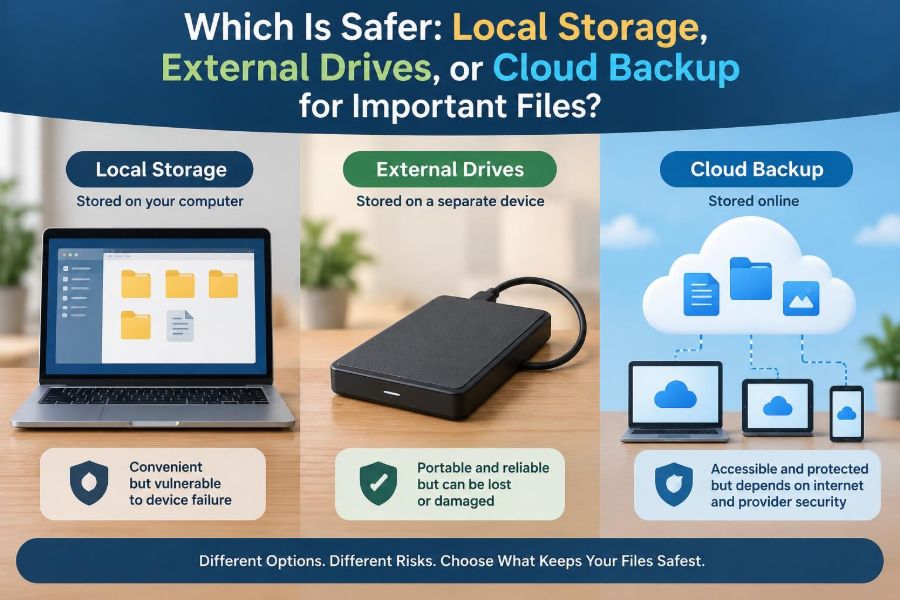
Local storage means files kept directly on a device you control, such as a computer’s internal solid-state drive (SSD), hard disk drive (HDD), phone storage, or tablet storage. A file saved in the Documents folder on your laptop is local.
Local files are available without an internet connection and usually open quickly. They are also physically tied to one device unless you deliberately copy them elsewhere.
An SSD stores data electronically and is fast, while an HDD uses spinning magnetic disks and often offers larger capacity for less cost. Either can fail; the technologies fail in different ways.
🗄️ What External Drives Add
An external drive is a separate storage device connected by USB, USB-C, Thunderbolt, or another interface. It can be an external HDD, external SSD, or a larger desktop storage unit.
Its key advantage is separation. If your laptop’s internal drive fails, a copy stored on an external drive may still be available. You can also unplug it and keep it in another place.
However, an external drive is only a backup when it contains a separate, reasonably current copy. A drive that stays empty in a drawer, or has not been updated for a year, cannot rescue recent work.
☁️ What Cloud Backup Means
Cloud backup stores copies of files on remote servers operated by a service provider. You access the backup through an account and, usually, an internet connection. The provider manages the physical equipment, replication, and data-centre operations.
Cloud storage and cloud backup overlap, but they are not always identical. A cloud storage folder may be designed mainly for syncing and sharing active files. A backup service is designed to preserve copies that can be restored after loss.
Before relying on any cloud product, learn whether it provides file history, deleted-file recovery, device backup, and a way to restore folders at scale.
🔄 Backup Is Not the Same as Sync
Synchronization keeps folders matched across locations. Edit a document on your laptop, and the changed version may appear on your phone and cloud folder. This is excellent for current work and collaboration.
But syncing can reproduce problems. If you delete a synced folder, encrypt it with ransomware, or replace a report with the wrong version, that change may spread to every synced copy.
A proper backup preserves recoverable versions or snapshots from different points in time. Sync helps you work; backup helps you recover. Many people need both.
⚠️ The Major Risks to Plan For
Different storage locations are exposed to different failures. Thinking in terms of risks avoids a simplistic “cloud versus drive” debate.
- Device failure: an SSD, HDD, phone, or computer stops working.
- Human error: files are deleted, overwritten, moved, or formatted by mistake.
- Malware: malicious software damages, encrypts, or steals data.
- Physical loss: theft, fire, water damage, electrical events, or misplacement affect equipment.
- Account risk: a password compromise, lost recovery method, or service issue blocks cloud access.
No single option removes every risk, which is why multiple independent copies matter.
📊 A Practical Comparison at a Glance
| Storage method | Strongest advantage | Main weakness | Best role |
|---|---|---|---|
| Local internal storage | Fast, immediate access | One device can be lost or fail | Working copy of active files |
| External drive | Separate, private copy with no subscription required | Can be lost, damaged, or forgotten | Routine local backup and archive |
| Cloud backup | Off-site protection and access from elsewhere | Needs account security and usually internet | Disaster recovery and off-site copy |
The table describes typical strengths, not guarantees. The quality of your routine—how often backups run, where the drive is kept, and how accounts are secured—often matters more than the label on the technology.
🚀 Why Local Storage Is Still Essential
Your internal storage is normally the fastest and simplest place to create, edit, and organize files. Large video projects, design files, databases, and software often work better locally than over a network connection.
Local storage also gives you control during an internet outage. A student can continue writing an assignment on a laptop even when cloud services are unavailable.
The limitation is concentration: the working copy and the device are the same thing. Treat local storage as your primary workspace, not as the only place important work exists.
🔧 Local Storage Failure Can Be Sudden or Quiet
Some failures are obvious: a device will not boot, an HDD makes unusual noises, or a screen shows storage errors. Others are quieter, such as file-system corruption, failing sectors on a disk, or an SSD that becomes unreadable without much warning.
Free space matters too. A nearly full drive can slow a system, interrupt updates, and make it harder for applications to create temporary files safely.
Warnings deserve quick attention, but they are not a backup plan. If a drive looks unreliable, copy critical data first rather than spending hours trying to diagnose it.
🔌 External Drives Offer Useful Physical Separation
An external drive can protect against the failure of the main computer because it is separate hardware. For many households, this is the simplest affordable way to keep a full second copy of photos and documents.
It can also be faster than restoring large files from the internet. If a computer needs to be replaced, copying a local backup from an external SSD or HDD may take far less time than downloading everything.
For sensitive material, an encrypted external drive can provide control without placing every file with an online provider.
🧳 An Unplugged Drive Has a Special Advantage
A drive disconnected from the computer is harder for malware to reach and cannot be affected by a power surge travelling through a connected system. This is sometimes called an offline backup.
For example, someone might connect an external drive each Friday, run a backup, confirm it finishes, and then unplug and store it. That routine creates a copy isolated from day-to-day mistakes.
An unplugged drive is not invulnerable. It still needs safe handling, a known location, and periodic checking. But separation reduces several shared risks.
📦 External Drives Have Their Own Weak Points
Portable drives are easy to drop, misplace, leave in a bag, or store beside the same computer they are meant to protect. If a laptop and backup drive are stolen together, physical separation has not helped much.
HDDs are particularly vulnerable to impact while operating because they contain moving parts. SSDs have no moving parts, but can still fail, be lost, or suffer damage.
Another common problem is false confidence: a backup drive exists, but nobody checks whether the software is backing up the intended folders or whether old files can actually be opened.
🌍 Cloud Backup Protects Against Local Disasters
Cloud backup is especially valuable when a local event affects your home or workplace. A stolen laptop, burst pipe, or fire may take both the computer and any nearby drive.
Because the remote copy is stored elsewhere, you can often begin recovery from a replacement device in another location. This is the major reason an off-site copy belongs in a strong backup plan.
Cloud services also reduce the burden of manually carrying a drive to another building, although they replace that task with account management and internet dependence.
📶 Internet Speed Shapes Cloud Recovery
Uploading a few documents is easy on most connections. Backing up years of high-resolution video, raw photographs, or large work files can take much longer, particularly when upload speed is limited.
Restoring is also constrained by download speed, data limits where applicable, and the amount of data involved. A cloud backup can be safe but not immediately available in practice.
For large collections, a local external backup plus a cloud copy is often more comfortable: the local copy enables a faster restore, while the cloud copy covers loss of the premises.
🔐 Cloud Accounts Need Strong Protection
Cloud safety depends partly on account safety. A reused password, phishing message, or insecure recovery email can give someone access to valuable files.
Use a long, unique password stored in a reputable password manager when possible. Turn on multi-factor authentication (MFA), which asks for another proof of identity in addition to the password.
Keep recovery codes in a secure place that is not only inside the account they recover. Review signed-in devices and recovery information occasionally, especially after replacing a phone.
🧾 Encryption Protects Data, but Context Matters
Encryption transforms readable data into protected data that requires the correct key or password to access. It is useful for laptops, external drives, and some cloud services.
Device encryption helps if a lost laptop or drive falls into someone else’s hands. Cloud services commonly encrypt data during transfer and while stored, but their exact security model and key handling differ.
If you use encryption that only you can unlock, protect the recovery key carefully. Losing the key may make recovery impossible. Encryption is valuable only when access can still be managed responsibly.
🕰️ Version History Defends Against Bad Changes
A good backup does more than preserve the latest file. It retains earlier versions long enough to recover from accidental edits, corruption, or ransomware encryption.
Imagine that a spreadsheet is edited incorrectly on Monday but the error is noticed Friday. A copy that updates only once and replaces the old file may not help. Version history lets you choose an earlier state.
Check how long versions are retained, whether the service limits them, and whether deletion has a separate recovery period. Retention rules are a practical part of safety.
🦠 Ransomware Changes the Backup Conversation
Ransomware is malware that can encrypt files and demand payment for restoration. It may affect local folders, connected drives, and cloud-synced folders if changes are allowed to propagate.
Useful protection includes patched software, cautious handling of unexpected attachments, limited administrative privileges, versioned backups, and an offline or otherwise protected copy.
Do not assume any single defence is enough. The goal is to make it possible to restore clean files without relying on the compromised device or the most recent altered version.
🏠 Keep Copies in Different Places
A backup drive beside the computer is useful against drive failure, but not necessarily against theft or a building-level disaster. A cloud copy is off-site, while an external drive stored at a trusted separate location can also be off-site.
Distance should be practical rather than dramatic. The point is to avoid one incident affecting every copy at once.
For a home user, that may mean a local backup drive plus an encrypted copy in cloud backup. For an organization, it may mean formally managed systems with controlled access and tested recovery procedures.
🧩 Use the 3-2-1 Principle as a Starting Point
A widely used planning guideline is called the 3-2-1 backup rule: keep at least three copies of important data, on two different kinds of storage, with one copy off-site.
For example, a photographer might keep photos on a computer, back them up to an external drive, and maintain an encrypted cloud backup. This arrangement addresses more failures than any one copy alone.
It is a guideline, not a magical formula. Highly important files may justify additional copies, while temporary downloads may not need the same protection.
🎓 Match the Plan to the Value of the File
Not every file needs equal protection. A replaceable application installer is different from a thesis, tax record, family photograph, legal document, or a client deliverable.
Create a short list of irreplaceable categories. Include files that would be difficult to recreate, costly to lose, or needed under time pressure.
- Personal photos and videos
- Academic work and research notes
- Work projects and client files, subject to workplace rules
- Identity, financial, and property records
- Passwords, recovery information, and encryption keys
This inventory helps you spend effort where it has the greatest effect.
🧑💼 Workplace Files May Have Extra Rules
Working professionals should not automatically copy employer or client material to a personal drive or personal cloud account. Organizations may have confidentiality obligations, retention rules, approved tools, and access controls.
Follow the organization’s backup and data-handling policy. If the approved system seems inadequate, ask the relevant IT or security team rather than creating an unofficial copy.
For freelancers and small businesses, the same principle applies in a different form: define who owns the files, who can access them, and how work will be recovered if a device is unavailable.
🗂️ Organize Before You Automate
Backup software can only protect files it can find. Important work scattered across Downloads, Desktop, random application folders, and removable media is easy to overlook.
Use a simple folder structure with clear names. Keep active projects in known locations, separate temporary files from records, and avoid vague names such as “final-final-new.”
Automation becomes much more reliable once the important folders are predictable. It also makes restoration less stressful because you know where to look.
⚙️ Automate Routine Backups
Manual backups depend on memory, and memory is least reliable when life becomes busy. Built-in operating-system backup tools and reputable backup software can run on a schedule or when a drive is connected.
Choose a frequency that reflects how much work you can afford to lose. Someone editing a document all day may need continuous cloud versioning or daily backups, while a rarely changed archive may need less frequent updates.
Automation should still provide notifications or logs. A scheduled task that silently fails is not protection.
✅ Test Restores, Not Just Backup Messages
A “backup completed” message confirms a process ran. It does not always prove that the correct files are present, readable, and recoverable on another device.
Every so often, restore a small sample: an old document, a photo, and a folder with multiple file types. Open them after restoration and confirm that the expected version is there.
For a larger system, practise restoring to a different folder first so you do not overwrite current files. A backup is only as trustworthy as your ability to restore it.
🧹 Avoid Common Backup Mistakes
Several habits create preventable gaps. The fixes are usually straightforward once you recognize them.
- Keeping the only backup drive permanently attached to the computer.
- Assuming a synced folder is automatically a versioned backup.
- Backing up documents but forgetting photos, email archives, application data, or phone files.
- Ignoring failed-backup notices or a drive that reports errors.
- Saving passwords or recovery keys only on the device that needs recovery.
- Never trying a restore until an emergency occurs.
Review the setup after buying a new device, changing cloud services, or reorganizing major folders.
📱 Do Not Forget Phones and Tablets
Phones often hold the only copies of recent photos, messages, notes, authentication apps, and contacts. They are also easy to lose, damage, or replace unexpectedly.
Check whether photo upload, device backup, contacts sync, and app-data backup are enabled and understood. Some applications keep data only locally or require their own export process.
Also plan for MFA when replacing a phone. Keep recovery methods available so that the loss of one device does not lock you out of your cloud backup.
💰 Cost, Capacity, and Convenience Are Real Trade-Offs
External drives generally involve an upfront purchase and require you to manage the device. Cloud backup generally involves ongoing service costs and depends on the provider and your connection.
Cloud storage plans can be convenient for modest document collections, while large media libraries may require more capacity and longer recovery times. External HDDs may be economical for large archives, whereas portable SSDs are often more convenient and durable for travel.
Choose based on recovery needs, not only the cheapest advertised capacity. A less expensive option that you never use or cannot restore from is poor value.
🧠 A Sensible Setup for Most People
For many students and home users, a balanced approach is straightforward: keep active files on the computer, use automatic cloud sync or backup for current documents, and maintain an external-drive backup for broader recovery.
Place critical folders inside the locations your tools actually protect. Enable MFA on the cloud account. Connect the external drive on a schedule, then disconnect it after the backup completes if that suits your workflow.
For especially valuable files, add another off-site copy or keep a second encrypted drive at a separate trusted location. The exact tools can vary; the protective pattern matters more.
🏁 The Core Principle: Independence Beats a Single “Safest” Place
Local storage is excellent for daily work. External drives provide a controllable second copy and can be kept offline. Cloud backup provides geographic separation and recovery after local loss.
None is universally safer in isolation. An external drive can be stolen, a cloud account can be compromised, and local storage can fail. Combining methods means one failure does not automatically become permanent data loss.
The strongest plan is one you understand, automate where possible, protect with sensible security, and test occasionally. It should fit your files, your devices, and the amount of loss you can realistically tolerate.
Important files are safest when they exist in multiple independent, recoverable copies—not when they are trusted to one device, one drive, or one account. Start with the files you would miss most, then build outward from there. 💾☁️🔐