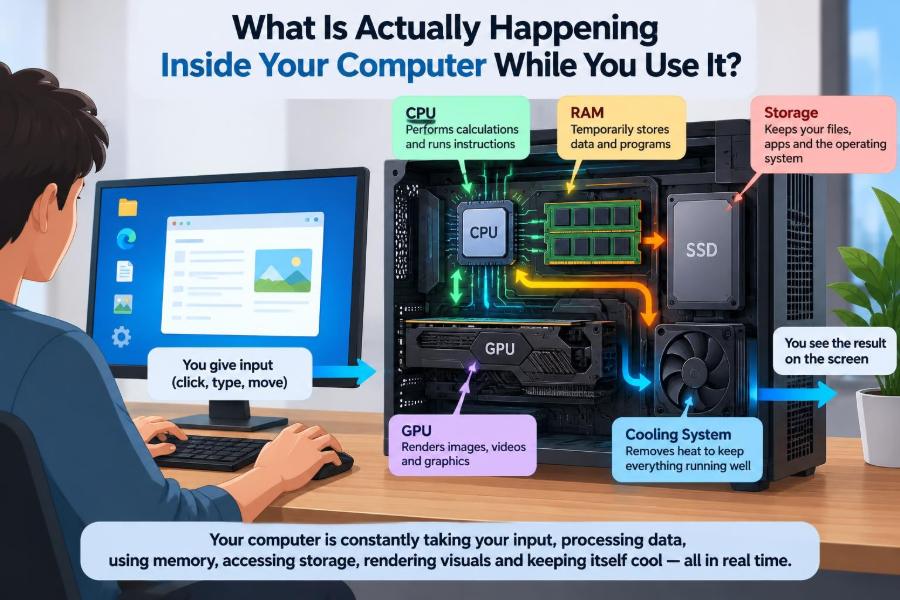

You click a browser icon, type a question, switch to a video call, and save a document without giving much thought to the machinery involved. From the outside, a computer can feel immediate: you ask, it responds.
Inside the case—or behind the screen in a laptop—many separate components are constantly coordinating. Tiny electrical signals carry instructions, data moves through temporary workspaces, and the operating system decides which task gets attention next.
Understanding this process does more than satisfy curiosity. It helps explain why a computer becomes slow, why opening many tabs affects battery life, why unsaved work can disappear, and why some upgrades make a dramatic difference while others do not.
Think of a computer not as one machine doing one thing, but as a tightly organized workplace. Here is what is actually happening while you use it.
⚡ Electricity Starts the Conversation
A computer works by controlling electricity. Its components do not “understand” words, images, or music directly; they respond to electrical states that represent binary digits, or bits: 0s and 1s.
A bit is not simply a tiny switch you can see. In modern chips, it is represented through carefully controlled electrical conditions in extremely small circuits. Groups of bits form larger units such as bytes, which can represent letters, colors, numbers, instructions, and other data.
The power supply in a desktop, or battery and charging circuits in a laptop, provide stable power at suitable voltages. Components need different amounts of power, so the system regulates and distributes it rather than sending the same electrical supply everywhere.
🔘 Pressing the Power Button Begins a Sequence
The power button usually does not directly turn every part on by itself. It sends a signal to power-management hardware, which tells the system to begin its startup sequence.
Firmware—low-level software stored on the motherboard—performs basic checks. It confirms that essential hardware such as memory and a processor is available, initializes devices, and looks for a bootable storage device.
This stage is why a computer may show a manufacturer screen before the operating system appears. If the firmware cannot find a usable operating system or encounters a serious hardware issue, startup may stop before your familiar desktop is loaded.
🧭 Firmware Finds the Operating System
Most current computers use UEFI firmware, while older systems may use BIOS. Their role is similar: prepare the hardware enough to hand control to an operating system.
The firmware reads boot information from a drive and starts a small program called a bootloader. The bootloader then loads the operating system kernel—the central part of Windows, macOS, Linux, or another system—into memory.
This handoff matters because the operating system gives applications a consistent way to use hardware. A word processor does not need to independently figure out how to communicate with every brand of keyboard, disk, or graphics device.
🧠 The CPU Follows Instructions at High Speed
The central processing unit, or CPU, is often called the computer’s brain. The comparison is useful only up to a point: a CPU does not think or make intentions. It rapidly executes precisely defined instructions.
Programs are stored as machine-readable instructions. The CPU repeatedly fetches an instruction, interprets what it requires, performs the operation, and moves to the next instruction. This is commonly described as the fetch-decode-execute cycle.
An instruction might add two values, compare data, move information between locations, or jump to another part of a program. Complex software is built from enormous numbers of these small operations.
🧩 Cores Let the CPU Handle More Work
Most CPUs have multiple cores. A core is an independently operating processing unit within the same chip. Multiple cores allow a computer to work on more than one stream of instructions at a time.
That does not mean every task becomes proportionally faster. A program must be designed to divide useful work across cores, and some jobs are inherently sequential. One step may need the result of the previous step before it can continue.
Still, extra cores are valuable in everyday use. While one application processes a large file, other cores can help keep a browser, music player, and operating-system services responsive.
⏱️ The Operating System Schedules Your Tasks
Many programs appear to run at once, but each CPU core can execute only a limited stream of instructions at any instant. The operating system creates the feeling of simultaneous activity by switching rapidly among tasks.
A scheduler decides which threads receive processor time. A thread is a sequence of work within a program. A web browser may use separate threads for its interface, page rendering, networking, and background tasks.
The scheduler weighs factors such as priority, responsiveness, available cores, and whether a task is waiting for input. This is why moving your mouse or typing usually feels responsive even when a background update is running.
🗂️ Programs Become Processes in Memory
When you open an application, the operating system creates a process: a managed instance of that program. It gives the process memory, access to approved resources, and an identity the system can track.
Each process is generally kept separate from others. If a photo editor has a bug, it should not be able to freely overwrite a spreadsheet’s data. This isolation improves both stability and security.
Task Manager on Windows, Activity Monitor on macOS, and similar Linux tools reveal these active processes. Seeing many entries is normal; the operating system itself runs numerous services in the background.
🧮 RAM Is the Computer’s Active Workspace
Random-access memory, or RAM, holds data and instructions that the CPU needs soon. It is much faster to access than a storage drive, which is why applications are loaded into RAM while they are running.
Imagine a desk. Your storage drive is a filing cabinet containing many documents; RAM is the clear working area where you spread out the pages currently needed. A larger desk lets you keep more work available without constantly putting things away.
RAM is volatile, meaning its contents disappear when power is removed. That is why saving a document matters: until data is written to persistent storage, a sudden power loss can erase recent changes.
📚 Virtual Memory Extends the Workspace
When RAM becomes crowded, the operating system can move less immediately needed data to a portion of the storage drive. This technique is called virtual memory, and the moved data may be called pages or swap data.
Virtual memory helps prevent an immediate crash when applications collectively need more memory than physically installed. However, drives—even fast solid-state drives—are slower than RAM, so frequent movement between RAM and storage can make a system feel sluggish.
If a computer slows down after opening many heavy browser tabs, editing media, or running virtual machines, memory pressure may be the cause. Closing unneeded applications can help; adding RAM can help when the workload regularly exceeds what the system has.
🧷 Cache Keeps Frequent Data Close
Between the CPU and RAM are smaller, faster memory areas called caches. A cache keeps recently used or likely-to-be-used data close to the processor, reducing the time spent waiting for information.
CPUs typically use several cache levels. Smaller caches are faster and closer to the processing core, while larger caches store more data but may take slightly longer to access.
Cache behavior is mostly automatic. You do not normally “clear CPU cache” as a performance fix. Software design, data patterns, and the CPU’s own hardware policies determine how effectively caches are used.
💾 Storage Preserves Files After Shutdown
Your solid-state drive (SSD) or hard disk drive (HDD) stores the operating system, applications, documents, photos, and saved settings. Unlike RAM, storage keeps its contents when the computer is switched off.
SSDs store data electronically in flash memory and are generally much faster at accessing scattered files than mechanical HDDs. HDDs use spinning platters and moving read/write heads, which can make them slower but still useful for large-capacity storage.
Storage speed affects startup, application launching, file copying, and the responsiveness of virtual memory. It does not replace RAM, though; the two components solve different problems.
🗃️ A File Is More Than Its Name
When you save a file, the operating system’s file system records where its data is stored and associates it with a name, folder location, permissions, and other metadata. The visible filename is only one part of that record.
Applications usually write data through the operating system rather than directly controlling the drive. The system may temporarily keep writes in memory, organize them, then send them to storage in a safer or more efficient order.
That is one reason it is wise not to forcefully turn off a computer during updates or while a drive activity is in progress. Interrupting a write does not always cause damage, but it can leave a file or system state incomplete.
🖥️ The GPU Builds What Appears on Screen
The graphics processing unit, or GPU, specializes in drawing images, video frames, animations, and three-dimensional scenes. Some computers have a dedicated GPU; others use graphics hardware integrated with the CPU.
When you scroll a webpage, move a window, or play a game, software describes what should be shown. The GPU transforms that description into pixels—the small colored points that make up the screen image.
Graphics work is well suited to many repeated calculations happening in parallel. That is why GPUs are also used for certain scientific, creative, and machine-learning workloads, though not every calculation benefits from GPU-style processing.
🎨 Frames Turn Instructions into Moving Images
A display does not receive an abstract command such as “show a button.” It receives a finished arrangement of pixels, usually prepared in a memory area called a frame buffer.
The operating system combines windows, text, video, and interface elements into frames. The GPU may render portions of those frames, then the display hardware refreshes the screen at its configured rate.
If the system cannot prepare frames quickly enough, motion can look less smooth. This can happen in demanding games, during heavy graphics work, or when a background task competes for CPU, GPU, memory, or power resources.
⌨️ Input Devices Send Small Signals
Every key press, mouse movement, touch gesture, and microphone sample begins as a hardware signal. A keyboard controller identifies the pressed key; a mouse reports movement; a touchscreen detects changes in touch location.
Device drivers translate these device-specific signals into forms the operating system understands. The operating system then delivers appropriate events to the focused application.
For example, pressing the letter A does not immediately place an “A” in a document. The system considers keyboard layout, modifier keys, the active application, language settings, and the program’s own handling of the input.
🔌 Drivers Bridge Software and Hardware
A driver is software that helps the operating system communicate with a particular category or model of hardware. Printers, graphics cards, Wi-Fi adapters, audio devices, and storage controllers all rely on drivers.
Drivers operate close to the hardware, so a faulty or incompatible one can cause crashes, missing features, poor performance, or devices that stop working. This is why operating-system updates sometimes include driver updates.
Updating drivers can solve genuine problems, but it is not a universal tune-up. Installing random “driver updater” utilities may create more risk than value. Prefer updates supplied through the operating system or the hardware manufacturer’s official channel.
🌐 Networking Breaks Data into Packets
When you open a website, your computer sends and receives data through a network adapter, using Wi-Fi or an Ethernet cable. The information is divided into manageable pieces called packets.
Packets travel through local network equipment, an internet service provider, and other networks before reaching a server. The route can vary, and packets may not arrive in the exact order in which they were sent.
Network protocols provide rules for addressing, delivery, and reconstruction. Depending on the service, the system may prioritize reliable delivery, low delay, or an appropriate balance of both.
📡 Wi-Fi Adds Radio Conditions to the Equation
Wi-Fi uses radio signals, which makes it convenient but sensitive to distance, walls, interference, and competing devices. A computer can show a strong Wi-Fi signal yet still experience slow performance if the connection is congested or the internet service itself is limited.
Ethernet usually offers a more stable wired path, but it is not automatically faster than every Wi-Fi setup. The actual result depends on the network hardware, connection speed, server response, and other traffic.
When diagnosing a slow online service, separate the possible causes: the computer, local Wi-Fi, router, internet connection, remote server, and application can all contribute.
🔐 Security Checks Happen in the Background
Modern operating systems enforce permissions so applications and users cannot automatically access every file, device, or system setting. You see this when an app asks to use your camera, microphone, location, or a protected folder.
Security tools may also inspect downloaded files, verify software signatures, filter network traffic, and isolate risky processes. These checks use some system resources, but they reduce the chance that a single untrusted program can freely control the machine.
No security layer is perfect. Good habits still matter: install software from trustworthy sources, apply updates, use unique passwords with a password manager where possible, and keep backups that are separate from the computer.
🔋 Power Management Trades Speed for Endurance
Laptops must balance performance with battery life and heat. The operating system and hardware can reduce clock speeds, dim the display, pause background activity, or place unused components into low-power states.
This is why a laptop may perform differently on battery power than when plugged in. It may also reduce speed when it becomes warm, a behavior called thermal throttling, to stay within safe operating limits.
Power-saving settings are not defects. But if demanding work feels unusually slow, check whether a battery-saver mode, restricted power plan, blocked vents, or high temperature is limiting the system.
🌡️ Cooling Protects Performance and Components
Electrical work creates heat. CPUs, GPUs, power circuits, and drives all have operating temperature ranges, and the computer uses sensors and fans to remove or manage that heat.
Fans may speed up during gaming, video exporting, software updates, or many browser tasks because the workload has increased. A louder fan is often a normal response, not proof that something is failing.
Persistent overheating deserves attention. Dust buildup, soft surfaces blocking vents, dried thermal material in older devices, failing fans, or unusually demanding software can all contribute. Avoid opening hardware unless you understand the device and its safety requirements.
🔊 Audio Is Processed as Digital Samples
Music, speech, and alerts are stored and handled as digital data. Audio software sends streams of samples to the audio hardware, which converts them into electrical signals that speakers or headphones turn into sound.
For recording, the path reverses: a microphone turns air pressure changes into electrical signals, and hardware converts those signals into digital samples the computer can store or transmit.
Audio needs steady timing. If the system cannot provide data quickly enough, you may hear clicks, dropouts, or delayed sound. High CPU use, overloaded drivers, and wireless interference can sometimes contribute.
🧾 Your Browser Is Many Systems Working Together
Opening one web page can involve more activity than it appears. The browser checks local data, asks a domain-name service where the site is located, establishes a network connection, exchanges encrypted traffic when applicable, and receives page resources.
It then interprets HTML for structure, CSS for presentation, and JavaScript for behavior. The browser lays out text and images, runs scripts, draws the page, and may use the GPU for compositing or animation.
A single tab can consume substantial memory or processing time if it contains complex scripts, high-resolution media, advertisements, live updates, or web applications. This is why “just a few tabs” can sometimes be a real workload.
📹 Video Calls Must Work Against the Clock
A video call combines camera capture, microphone input, audio processing, video compression, encryption, network transmission, reception, decompression, and screen rendering. It must do this continuously with minimal delay.
To keep conversation natural, video-call software may adapt quality when conditions change. It might lower resolution or frame rate when the network is unstable rather than waiting for perfect data that arrives too late.
Closing bandwidth-heavy downloads, using a stable connection, and avoiding unnecessary background workloads can improve a call. But problems can also occur at the other participant’s network or the service provider, beyond your computer’s control.
🧹 Background Work Is Often Legitimate
Computers do work when you are not actively clicking: syncing cloud files, indexing documents for search, checking email, installing updates, backing up data, scanning for threats, and maintaining system records.
Some background activity is essential, while some is optional. Startup applications and browser extensions can add delays or consume memory, especially if many are installed without review.
A sensible approach is to identify a specific problem before disabling items. Removing every background service blindly may break useful features or reduce security without meaningfully improving speed.
🐢 Why a Computer Can Feel Slow
“Slow” is a symptom, not a single diagnosis. The limiting resource may be CPU time, RAM capacity, storage speed, graphics capability, network quality, temperature, or a single poorly behaving application.
| What you notice | Possible bottleneck | Useful first check |
|---|---|---|
| Apps pause when many are open | Low available RAM or heavy storage swapping | Check memory use and close unneeded tasks |
| Startup and file loading take a long time | Slow or crowded storage | Check free space, drive health, and startup apps |
| Games or visual apps stutter | CPU, GPU, heat, or graphics settings | Check temperatures and reduce demanding settings |
| Only online services feel slow | Network, server, or Wi-Fi issue | Test another site or connection |
Observing when the slowdown occurs is more useful than applying a generic “speed boost.” A pattern points toward the component or software layer that deserves attention.
🛠️ Simple Habits Keep Systems Easier to Use
Most maintenance is less dramatic than advertisements suggest. Keep the operating system and trusted applications updated, leave enough free storage for normal operation, restart occasionally when problems persist, and review programs that launch automatically.
- Save important work regularly and maintain backups.
- Install software deliberately rather than accepting every bundled offer.
- Use Task Manager or an equivalent tool to investigate unusual resource use.
- Keep air vents clear and use laptops on firm surfaces during demanding work.
- Ask what changed before a problem began: an update, new app, peripheral, or workload?
These steps do not guarantee perfection, but they make ordinary failures easier to diagnose and reduce avoidable clutter.
🧠 The Core Principle: Coordination Creates the Experience
Using a computer feels simple because layers of hardware and software hide enormous complexity. A click travels from an input device through the operating system to an application; instructions run on the CPU; data moves through RAM and storage; the GPU prepares pixels; and the display shows the result.
Every smooth action depends on coordination, timing, and available resources. When something goes wrong, the cause may be local hardware, software behavior, a network dependency, or the interaction among several of them.
Seeing the computer as a system—not merely a screen with apps—makes troubleshooting more logical. It also explains why performance changes with the task: editing text, rendering video, joining a call, and loading a website ask different parts of the machine to do different kinds of work.
Your computer is continuously moving instructions and data through a coordinated set of specialized components—and understanding that flow turns everyday glitches into solvable clues. 🖥️⚙️🔍