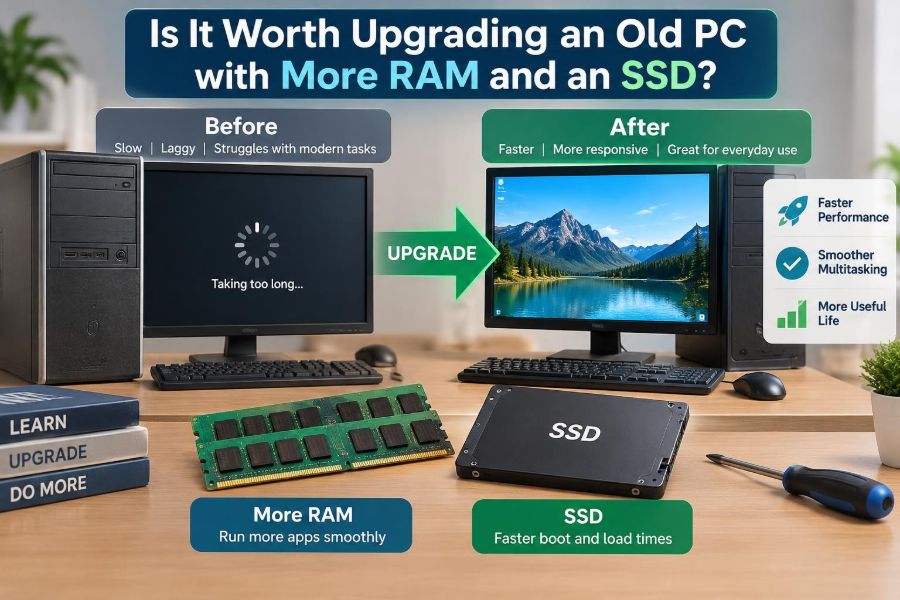

Your computer still turns on, but simple tasks have become irritating. A browser takes too long to open, video calls stutter when several tabs are active, and starting the PC may involve enough waiting to make coffee.
The natural response is to shop for a new computer. Yet many older desktops and laptops are held back by two replaceable parts: limited memory and a slow mechanical hard drive.
Adding RAM or replacing a hard disk drive with a solid-state drive can make an old PC feel dramatically more responsive. But these upgrades cannot fix every kind of slowdown, and buying parts without checking compatibility can waste money.
The useful question is not simply whether an upgrade is possible. It is whether it solves the specific limitation your computer has, for the work you actually do.
🧭 Start with the Real Reason the PC Feels Slow
“Slow” is a symptom, not a diagnosis. A PC may pause because it has too little RAM, because its storage drive is struggling, because the processor is old, or because software is overloaded.
Notice when the problem appears. Long boot times and delayed program launches often point toward storage. Slowdowns after opening many browser tabs or several applications often point toward RAM. Persistent slowness during demanding work may be a processor or graphics limitation.
🧠 What RAM Actually Does
RAM, short for random-access memory, is the computer’s short-term workspace. Programs, open documents, browser tabs, and parts of the operating system are placed there while they are actively needed.
Think of RAM as the surface of a desk. A larger desk lets you keep more books and papers open at once. A small desk forces you to keep putting things away and retrieving them later.
RAM does not store files permanently. Turning off the PC clears it, unlike a storage drive that retains documents, photos, and installed software.
💾 What an SSD Changes
An SSD, or solid-state drive, is long-term storage with no moving parts. It uses flash memory, while a traditional hard disk drive, often called an HDD, stores data on spinning magnetic platters.
Because an SSD can access many small files much faster, it usually improves startup, sign-in, application launching, updates, file searching, and general responsiveness. For an older PC that still uses an HDD, this is often the most noticeable single upgrade.
⚙️ Why a Hard Drive Can Make Everything Seem Sluggish
Mechanical drives must physically move a read/write head to the right position on a spinning disk. That movement is quick in human terms, but operating systems constantly request thousands of small files.
When the drive is busy, programs may appear frozen while they wait for data. The computer may also become louder, with clicking or whirring sounds. An SSD removes the mechanical delay, though it cannot make an underpowered processor perform complex calculations faster.
🔄 How Low RAM Creates Slowdowns
When RAM fills up, the operating system moves some less-active data to a storage-based area often called a page file or swap space. This process is known as paging.
Paging is much slower than working directly in RAM. It is especially painful on a hard drive. An SSD makes paging less disruptive, but it is not a substitute for having enough memory in the first place.
If switching between open applications causes long pauses, RAM may be the constraint.
📊 RAM and SSD Solve Different Problems
| Common symptom | Likely helpful upgrade | Why |
|---|---|---|
| Very slow startup or app launching | SSD | System files and programs load faster. |
| Slowdowns with many tabs or apps open | More RAM | More active data stays in fast memory. |
| Both problems at once | RAM and SSD | The system has more workspace and faster storage. |
| Slow video rendering, compiling, or modern gaming | Possibly neither alone | Processor, graphics hardware, or system age may be the limit. |
These are patterns, not guarantees. Monitoring the PC during a typical slow period gives a more reliable answer than guessing from age alone.
🔍 Check the Current Hardware Before Buying
Find out how much RAM is installed, how much is usable, and what type of storage the computer has. In many versions of Windows, Task Manager can show memory capacity, memory use, disk activity, and whether a disk is identified as an HDD or SSD.
You also need the computer model, operating system, and available storage space. A desktop usually allows easier upgrades than a thin laptop, but assumptions are risky: some laptops have soldered RAM that cannot be replaced.
📈 Read Resource Use, Not Just the Specification Sheet
Open the programs you normally use, then inspect resource usage while the PC feels slow. High memory use near the installed limit, accompanied by disk activity, supports the case for a RAM upgrade.
A storage drive sitting at very high activity while the processor is not heavily used may support the case for an SSD. A processor near full use during a task suggests that more RAM or a faster drive may improve surrounding tasks but not eliminate the main delay.
Short spikes are normal. Look for sustained pressure during real work.
🗂️ The Storage Upgrade That Usually Matters Most
If an old computer has a healthy HDD and supports a standard SSD, replacing the system drive is commonly worthwhile for browsing, office work, study, email, and everyday home use.
A SATA SSD is the usual replacement for a 2.5-inch laptop drive or many desktop hard drives. Some newer systems use compact M.2 drives, which may support either SATA or NVMe. The connector shape alone does not prove compatibility.
Check the manual or manufacturer documentation before selecting a drive type.
🧩 Choosing a Sensible RAM Capacity
The right amount depends on your operating system and workload. A light-use computer with very little memory may benefit substantially from moving to a more practical baseline, while a system already equipped with adequate RAM will gain little from adding more.
For ordinary browsing, documents, streaming, and communication, enough RAM to keep everyday applications open comfortably is the goal. Photo editing, virtual machines, large spreadsheets, programming tools, and creative software can require considerably more.
Do not buy capacity merely because it is available. Buy it when your normal workload shows memory pressure.
🧬 RAM Compatibility Is More Than Capacity
Memory modules come in generations and physical formats. Desktop computers typically use DIMMs, while many laptops use smaller SO-DIMMs. DDR3, DDR4, and DDR5 are not interchangeable.
Motherboards also have supported capacity limits. A module can physically fit only if its generation and form factor are correct, and it must still be supported by the system.
Use the PC model or motherboard model to verify compatible memory. If uncertain, consult the manufacturer’s documentation or a reputable compatibility tool rather than relying on appearance.
🧷 Matching Memory Modules Carefully
Two matching RAM modules can sometimes operate in dual-channel mode, which increases memory bandwidth by using two channels. This can help some workloads and integrated graphics, though it does not transform every everyday task.
Mixed modules often work, but they may run at the speed or settings of the slower module, and unusual combinations can occasionally cause instability. For a straightforward upgrade, use a matched kit or a module with compatible specifications.
Capacity is usually the first priority; matching modules is a useful refinement.
🔌 SATA, M.2, and NVMe Are Not the Same Thing
SATA describes a common storage connection. A 2.5-inch SATA SSD looks like a small flat rectangle and can often replace a laptop HDD. An M.2 SSD is a slim circuit-board-shaped device that installs directly into a slot.
Some M.2 drives use SATA; others use NVMe, a protocol designed for faster communication over PCIe. An NVMe drive can be much faster in supported systems, but an old PC may not have an M.2 slot or may not be able to boot from one.
Choose compatibility first, then speed. A compatible SATA SSD is far better than an incompatible NVMe drive.
🧰 Can Your Laptop Actually Be Opened?
Older laptops often have accessible panels for the drive and memory. Newer thin models may require removing the entire bottom cover, and some have glued components or soldered RAM.
Before opening anything, look for a service manual or teardown guide for the exact model. Check whether opening the device affects any remaining warranty, whether special screwdrivers are needed, and whether the battery should be disconnected.
If the procedure seems beyond your comfort level, a repair shop can install compatible parts. The value of an upgrade includes avoiding accidental damage.
🖥️ Desktops Usually Offer More Flexibility
Desktop PCs generally make storage and RAM upgrades easier. They often have spare drive bays, extra SATA ports, accessible memory slots, and room for additional cooling.
Even so, inspect the system first. Very old desktops may use outdated memory, have limited firmware support, or use proprietary power supplies and drive mounting arrangements. Small-form-factor business PCs can have less physical room than a full tower.
Do not assume that “desktop” automatically means “simple upgrade.”
📦 Decide Whether to Clone or Reinstall
After buying an SSD, you must choose how to move the operating system. Cloning copies the contents of the old drive to the new one. A clean installation installs the operating system again and requires reinstalling applications and restoring personal files.
Cloning can save time when the old installation is healthy and the used space fits on the new SSD. A clean installation can be preferable when the old system has years of unwanted software, corruption, or unclear settings.
Neither method replaces a backup. Make one before changing drives.
🛡️ Back Up Before Any Hardware Change
Storage migration is usually manageable, but mistakes happen: a clone can fail, a cable can be loose, or the original drive can reveal an existing fault. Copy essential documents, photos, course work, and other irreplaceable files to separate storage first.
Confirm that the backup opens correctly. A backup that cannot be read is not useful when it is needed.
- Keep important files in at least one separate location.
- Record application licenses and account recovery details.
- If device encryption is enabled, make sure recovery information is available.
🧹 An Upgrade Does Not Replace Basic Maintenance
Before deciding hardware is the answer, remove clearly unwanted startup applications, ensure adequate free storage space, install trusted updates, and run a security scan if suspicious behavior is present.
Maintenance can reduce unnecessary load, but it cannot turn a worn hard drive into an SSD or create additional RAM. Be skeptical of “PC cleaner” tools that promise dramatic speed gains while offering vague explanations.
Simple, observable changes are safer than miracle fixes.
🌡️ Heat, Dust, and Battery Problems Can Mimic Slowness
A computer that overheats may reduce processor speed to protect itself, a behavior called thermal throttling. Dust-blocked vents, failed fans, and dried thermal materials can contribute, especially in older laptops.
A severely worn battery can also affect portability and, in some devices, performance or stability. These issues require their own diagnosis. Installing more RAM will not solve a fan problem.
Listen for abnormal fan behavior and check that vents are clear before treating every slowdown as a storage issue.
🧪 Consider a Typical Student Workload
Imagine a student using an older laptop for a learning platform, research tabs, PDFs, word processing, video meetings, and cloud storage. If the laptop has limited memory and a hard drive, opening everything together can lead to constant delays.
More RAM helps keep the browser, document editor, and meeting app active at once. An SSD makes startup and application opening less frustrating. For this workload, the combination can extend the laptop’s useful life if the processor still handles video calls acceptably.
🏢 Consider a Typical Office Workload
For email, web-based business tools, spreadsheets, presentations, and remote meetings, responsiveness often matters more than peak computing power. A machine that pauses while opening documents can interrupt work repeatedly even if it completes heavy calculations eventually.
An SSD is particularly useful here because many office tasks involve opening, saving, searching, and switching among smaller files. Extra RAM helps workers who keep many browser tabs, communication tools, and documents open throughout the day.
🎨 When Creative Work Needs More Than These Upgrades
Photo editing may benefit from RAM and fast storage, especially when working with large files. However, video editing, 3D work, large software builds, and advanced design applications can expose limits in the processor, graphics processor, display, and available ports.
An SSD can speed file imports, project loading, and cache access. More RAM can reduce slowdowns with larger projects. But export or rendering time may remain long because those tasks depend heavily on compute hardware.
Set expectations according to the application, not the upgrade’s reputation.
🎮 Gaming Has Separate Bottlenecks
Games rely on a balance of processor, graphics hardware, RAM, storage, cooling, and software support. An SSD improves loading times and can reduce some streaming-related delays, while adequate RAM prevents avoidable stutter caused by memory pressure.
Neither upgrade can make an old integrated graphics processor meet the requirements of a modern game. Check the game’s stated requirements, but treat them as a starting point rather than a promise of a particular experience.
🚫 When More RAM Will Not Help Much
Adding RAM is unlikely to be transformative when the existing amount is already comfortably handling the usual workload. It also will not repair a failing drive, solve malware, compensate for overheating, or make a slow single-threaded processor suddenly fast.
Watch for the temptation to upgrade the easiest part rather than the limiting part. A computer with a continuously busy processor during a specific application needs a different solution than one that runs out of memory.
🚫 When an SSD May Not Be Enough
An SSD improves access to stored data, but it does not add software support or security updates to an obsolete operating system. It also cannot fix unreliable power, damaged ports, a failing display, or a motherboard fault.
If the machine cannot run a supported operating system appropriate for your needs, cannot connect reliably to current networks, or has multiple hardware faults, investing in a replacement may be the more sensible long-term choice.
⚠️ Signs That Replacement Is the Better Path
Consider replacement rather than incremental upgrades when the computer has several serious limits at once. Examples include non-upgradeable memory, a very old processor that struggles with required applications, unsupported software, recurring hardware failures, or repair costs approaching the value of a newer device.
Also consider practical needs: webcam quality, battery life, USB-C charging, external display support, accessibility features, and Wi-Fi capability may matter more than raw speed.
- The device frequently crashes or loses data.
- Essential applications no longer run reliably.
- Parts are difficult to find or unusually expensive.
- The total upgrade and repair cost no longer fits the machine’s useful role.
💰 Judge Value by Useful Life, Not Just Part Price
A low-cost part is not automatically good value, and an older machine is not automatically worthless. Estimate whether the upgraded PC will comfortably perform your required tasks for a meaningful period.
For example, a basic desktop used for documents and web access may gain plenty of useful life from a compatible SSD and more RAM. A laptop with a cracked hinge, weak battery, incompatible software, and an aging processor may not justify several separate repairs.
Include installation tools, adapters, backup storage, and professional help if needed when comparing options.
🔐 Security and Software Support Belong in the Decision
Performance is only one part of usability. A fast computer that cannot receive appropriate security updates or run required software can create avoidable risk, particularly when used for banking, work accounts, or confidential documents.
Check whether your operating system remains supported and whether your school or workplace requires particular applications, encryption, VPN software, or browser versions. Hardware compatibility may limit the operating systems a very old computer can run.
An upgrade can be technically successful while still being the wrong practical decision.
🪛 A Safe Upgrade Planning Checklist
- Identify the exact computer or motherboard model.
- Record current RAM, storage type, operating system, and free disk space.
- Observe resource use during the tasks that feel slow.
- Verify compatible RAM generation, capacity limits, and drive interface.
- Back up important files and recovery information.
- Choose cloning or a clean installation for the SSD.
- Install carefully, test the system, and keep the old drive untouched until files are confirmed.
This approach turns an upgrade from a hopeful purchase into a measured troubleshooting decision.
🧾 Avoid Common Upgrade Mistakes
The most common error is buying an attractive part before checking the computer. Other problems include selecting an SSD smaller than the data being copied, confusing M.2 with NVMe compatibility, installing incompatible RAM, and forgetting to back up.
Another mistake is expecting one improvement to solve every complaint. Write down the slow tasks first. That short list will help you evaluate whether the upgrade delivered the result you needed.
✅ The Core Decision: Upgrade the Bottleneck, Not the Age
An old PC is worth upgrading when its main limitations are replaceable, the machine remains reliable, and it can still run the software you need safely. For many everyday computers, an SSD addresses storage delays and extra RAM improves multitasking enough to make the system pleasant again.
It is not worth upgrading simply because parts are inexpensive or because replacement feels inconvenient. Processor limits, unsupported software, failing hardware, and non-upgradeable designs can make a newer computer the better investment.
The central principle is simple: identify what is slowing the PC down, verify what it can accept, and spend only where the change will improve your actual work.
More RAM and an SSD can give the right old PC a genuinely useful second life—but only when they address its real bottleneck. Check first, back up carefully, and upgrade with a clear purpose. 🖥️🔧💾