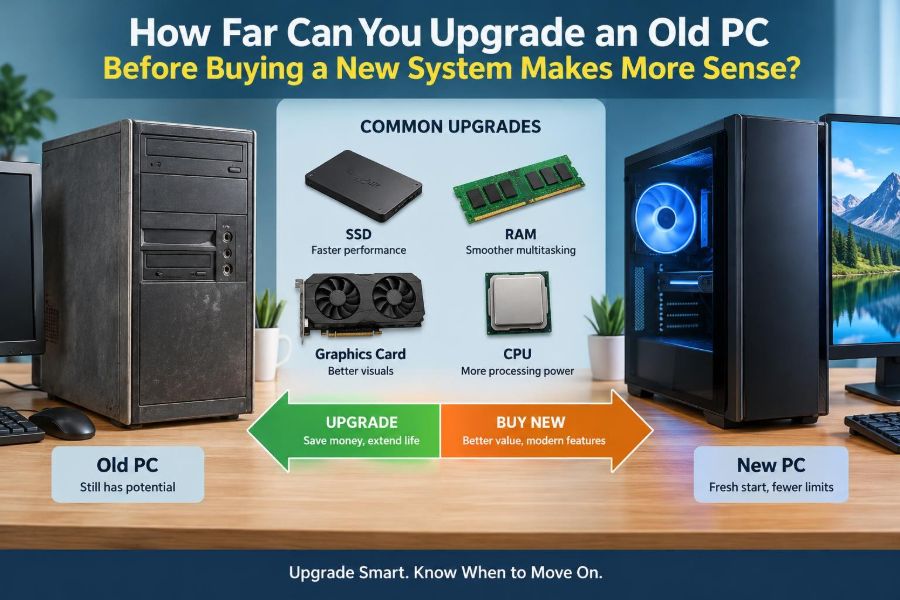

Your computer may still turn on, but everyday tasks have begun to feel oddly slow. A browser with several tabs stutters, video calls make the fan roar, and a simple software update seems to demand more storage than you have left.
The obvious reaction is to shop for a new PC. But an old computer is not automatically a useless computer. A carefully chosen memory upgrade, solid-state drive, or graphics card can sometimes transform how it feels to use.
The difficult part is knowing where useful upgrading ends and wasted spending begins. Buying parts that the machine cannot fully support—or that merely postpone a deeper problem—can cost nearly as much as replacing the system.
This decision is really about matching a computer’s remaining capabilities to the work you need it to do. Here is a practical way to assess the limits before committing your money.
🧭 Start With the Job, Not the Computer’s Age
Age is a clue, not a verdict. A ten-year-old desktop used for documents, email, and light web browsing may remain perfectly serviceable. A much newer laptop can feel inadequate if it is expected to edit high-resolution video, run design software, or play recent games.
List the tasks that feel slow and the programs involved. Then distinguish between an occasional inconvenience and a barrier that affects work, study, or reliability. That distinction helps prevent both premature replacement and overly optimistic upgrades.
- Basic use: office work, online learning, email, streaming, and browsing.
- Moderate use: larger spreadsheets, programming tools, photo editing, and many browser tabs.
- Demanding use: modern games, 3D design, video production, engineering workloads, and virtual machines.
🔎 Identify the Actual Bottleneck
A slow PC does not have one universal cure. Its limiting component is called a bottleneck: the part that holds back the overall experience during a particular task.
A hard drive can delay startup and application loading, while insufficient memory can cause pauses when many programs are open. An older processor may struggle with complex calculations, and an outdated graphics processor may be the issue in games or visual-creation applications.
Use the operating system’s built-in performance monitor while reproducing the problem. On Windows, Task Manager can show CPU, memory, disk, and GPU activity. On macOS, Activity Monitor provides similar clues. Look for a resource staying near its limit while the slowdown occurs.
🧹 Rule Out Software Problems First
Hardware is not always at fault. Too many startup applications, a nearly full drive, browser extensions, background cloud syncing, unwanted software, or an operating system problem can make a healthy PC feel old.
Before buying anything, back up important files and try basic maintenance. Remove software you no longer use, disable unnecessary startup items, update the operating system and drivers from legitimate sources, and scan for malware with trusted security tools.
If the machine suddenly became slow rather than gradually slowing over years, investigate software changes, overheating, or a failing drive before assuming it needs an upgrade.
💾 Why a Solid-State Drive Is Often the Best First Upgrade
Replacing a mechanical hard disk drive (HDD) with a solid-state drive (SSD) is one of the most noticeable upgrades for many older PCs. An HDD reads data from spinning magnetic disks; an SSD stores data in flash memory and has no moving parts.
The improvement is most visible when starting the computer, opening programs, searching files, installing updates, and switching between applications. It does not make the processor calculate faster, but it removes much of the waiting associated with disk access.
For an older desktop or laptop that still has enough processor power and memory for its intended work, an SSD can extend useful life substantially. It can also improve reliability relative to an aging mechanical drive, though every storage device still needs a backup plan.
🔌 Check Which SSD Connection Your PC Supports
Not all SSDs fit all computers. Many older machines use a 2.5-inch SATA SSD, which connects with the same style of data and power cables used by many laptop hard drives and desktop SATA drives.
Newer systems may accept an M.2 SSD, a small circuit-board-shaped drive. Some M.2 slots use the SATA protocol, while others use NVMe over PCIe, which is generally faster. The physical shape alone does not confirm compatibility.
Check the computer or motherboard manual before ordering. Also check whether a laptop has room for a second drive or requires replacing its only existing drive. A fast NVMe drive is not useful if the system has no compatible slot.
🧠 When Adding RAM Helps
RAM, or random-access memory, is the fast working area where active programs and data are held. When RAM fills up, the operating system moves some data to storage, a much slower process often called paging or swapping.
Common signs of too little RAM include browser tabs reloading when you return to them, severe slowdowns with several applications open, and high memory use shown in a performance monitor. More RAM is especially useful for multitasking, larger files, and some creative or technical software.
More RAM does not fix a slow processor, a failing disk, or poor internet service. It helps when memory capacity is the measured constraint.
🧩 Verify Memory Type, Capacity, and Configuration
RAM generations are not interchangeable. DDR3, DDR4, and DDR5 modules have different physical layouts and electrical requirements. Desktop memory and laptop memory also commonly use different module sizes.
Motherboards have maximum supported capacities, and older systems may have practical limits based on firmware or processor design. Consult documentation rather than relying only on the number of empty slots.
Matched memory modules can enable dual-channel operation, which allows greater memory bandwidth on compatible systems. This is most valuable for integrated graphics, which use system memory, but it can also help other memory-heavy workloads.
⚙️ Understand What a Processor Upgrade Really Involves
The CPU, or central processing unit, handles general computing instructions. Unlike storage and RAM, it is often difficult or impossible to upgrade in a laptop. Desktop processor upgrades are possible only within the limits of the motherboard socket, chipset, firmware, cooling system, and power delivery.
A processor with the same socket may still require a BIOS or UEFI firmware update before it works. In other cases, the motherboard simply does not support the newer CPU generation.
Because a meaningful CPU upgrade may also require a motherboard, memory, and cooling changes, it is often the point where “upgrade” begins to resemble building or buying a new system.
🧱 The Motherboard Sets the Upgrade Ceiling
The motherboard connects the processor, memory, storage, graphics hardware, and external ports. Its socket determines compatible CPUs; its memory slots determine RAM type; its expansion slots and storage connectors influence later upgrades.
Older boards may lack modern features such as fast NVMe storage support, USB-C connectivity, newer PCIe generations, or firmware support for current processors. These missing features do not always matter, but they can limit value if your work depends on them.
Think of the motherboard as a building’s foundation. Renovating individual rooms can be sensible, but if the foundation prevents the changes you need, further investment becomes less practical.
🎮 Decide Whether the Graphics Card Is the Limitation
The GPU, or graphics processing unit, renders images and video and accelerates many visual tasks. A dedicated graphics card is often the most important component for gaming, 3D modeling, animation, and some video-editing or AI-assisted creative workflows.
For office work and streaming, integrated graphics built into many processors are usually enough. A graphics card upgrade in that situation may add cost, power use, and noise without solving the actual problem.
In games, review the game’s requirements and observe GPU usage, frame rate, and graphics settings. A GPU upgrade can help dramatically when the rest of the system can keep up, but an old CPU may limit the benefit in processor-heavy games.
🔋 Check Power Supply Capacity and Connectors
A desktop graphics-card upgrade can fail before installation if the power supply unit, or PSU, lacks sufficient capacity or the required PCIe power connectors. Manufacturer recommendations provide a starting point, but the complete system load matters.
An old, low-quality, or questionable power supply is a poor foundation for expensive new parts. Voltage stability and protective circuitry matter as well as the wattage printed on the label.
Do not use improvised adapters without understanding their limits. If a PSU replacement is necessary, include it honestly in the upgrade budget rather than treating it as a minor surprise.
📏 Measure Physical Space and Cooling
Compatibility is also physical. Graphics cards vary greatly in length, height, and thickness. A card may fit the motherboard slot but collide with a drive cage, case panel, or front-mounted radiator.
Cooling affects performance and component life. Dust-clogged heatsinks, dried thermal paste, failed fans, and poor airflow can cause thermal throttling, where the processor or GPU reduces speed to avoid excessive temperature.
Cleaning dust carefully and replacing a failed fan may solve a performance issue more cheaply than a component upgrade. If you install more powerful hardware, make sure the case can remove the extra heat.
🌡️ Diagnose Overheating Before Spending Money
A PC that is quick when first started but slows during a long game, meeting, or rendering job may be overheating. Sudden fan noise, unexpected shutdowns, and performance that improves after the system cools are useful warning signs.
Temperature-monitoring tools can help, but readings must be interpreted in context. Normal temperatures vary by component, cooler, ambient room temperature, and workload. Focus on patterns and documented thermal limits rather than one universal number.
Laptops deserve extra care because their cooling systems are compact. Opening one can be difficult and may damage delicate cables; seek qualified help if you are not comfortable servicing it.
💻 Laptops Have Tighter Upgrade Limits
Many laptops allow only storage replacement, and some allow memory upgrades. In thin models, RAM may be soldered to the motherboard, storage may use an uncommon format, and the CPU and GPU are almost always non-upgradeable.
Check the exact model’s service documentation, not just the product family name. Manufacturers can use different internal designs across configurations that look nearly identical from outside.
For a laptop, an SSD upgrade, additional RAM where supported, battery replacement, and cleaning may be worthwhile. But if the CPU, graphics capability, screen quality, ports, and battery are all inadequate, replacement usually offers a more complete improvement.
🪟 Include Operating System Support in the Decision
A capable older PC can still become inconvenient or risky if its operating system no longer receives security updates. Hardware eligibility rules can also affect whether it can run a supported version of an operating system without workarounds.
Before investing heavily, confirm the support status of the operating system you plan to use and whether essential applications will continue to run on it. Unsupported systems are not automatically unusable, but using them online requires more caution and may conflict with workplace or school requirements.
Do not assume an upgrade is sensible solely because the hardware works. Long-term software support is part of the computer’s usable value.
🔐 Treat Security Features as Practical Requirements
Newer systems may include hardware-backed security features, modern firmware protections, stronger encryption support, and more current wireless standards. These features are especially relevant for work devices handling sensitive accounts or data.
Older hardware can still be secured with updates, strong unique passwords, multifactor authentication, backups, and careful software choices. Yet missing support for current operating systems or security policies can make an old PC unsuitable for managed professional environments.
The right question is not whether an older computer is “safe” in the abstract. Ask whether it can meet the security expectations of the services and information you use.
🌐 Don’t Mistake Network Problems for PC Slowness
A slow website, choppy video call, or delayed cloud document may be caused by Wi-Fi coverage, internet congestion, router problems, or the remote service rather than the computer itself.
Test with another device on the same network, try a wired connection where practical, and compare performance at different times. An older Wi-Fi adapter may be a limitation, but replacing the PC will not fix a poor broadband connection.
This quick check prevents a common mistake: upgrading internal hardware to solve a problem that occurs outside the computer.
🧪 Test One Change at a Time
Upgrades are easier to evaluate when made deliberately. If you add memory, replace storage, change the operating system, and install a new graphics card all at once, it becomes difficult to know what fixed—or caused—a problem.
Record a few simple baseline observations: startup time, free storage, memory use during normal work, temperatures under load, and the performance of a task you repeat. You do not need laboratory benchmarks; consistent everyday comparisons are useful.
After each change, test stability as well as speed. Random crashes, drive errors, or overheating can erase the value of a faster machine.
💰 Calculate the Full Upgrade Cost
Look beyond the headline price of one component. A graphics card may require a new PSU; a processor may require a motherboard and different RAM; a new storage drive may require an enclosure, cloning tool, or professional installation.
Include replacement parts for known weak points, such as an aging battery, failing fans, or a worn keyboard. Also consider the time needed to research compatibility, transfer data, troubleshoot, and reinstall software.
A cheap upgrade that meets your needs is excellent value. A chain of “just one more part” purchases can quickly become poor value compared with a new system that includes a warranty and a coherent platform.
📊 Compare Upgrade Paths Honestly
| Situation | Likely sensible path | Why |
|---|---|---|
| Desktop is slow to boot but handles normal tasks once open | Install a compatible SSD | Storage access is a likely bottleneck. |
| Browser, office apps, and meetings slow down together | Check RAM use; add compatible memory if near capacity | More working memory can reduce paging. |
| Older desktop cannot meet game graphics needs | Evaluate GPU, PSU, CPU, and case as a group | A graphics card alone may be constrained by the platform. |
| Laptop has soldered RAM and weak CPU performance | Replace storage if useful, then consider a new laptop | Core performance cannot be meaningfully expanded. |
| CPU, board, RAM, PSU, and storage all need replacement | Compare with a new or refurbished system | The project is effectively a platform rebuild. |
♻️ Consider a Refurbished System
A refurbished desktop or laptop can occupy the middle ground between repairing a very old device and buying a new premium system. Business-class machines are often available after organizational refresh cycles and may offer sturdy construction and practical serviceability.
Check the exact specifications, battery condition for laptops, storage health, operating system licensing, return policy, and warranty. “Refurbished” can mean different levels of inspection and repair depending on the seller.
This option is particularly useful when your old computer needs several major parts but your workload does not require the latest high-end hardware.
🛠️ Know When a Modular Desktop Is Worth Rebuilding
A standard desktop case, motherboard, and power supply can make staged upgrading economical because individual components are replaceable. If the case has good airflow and uses standard parts, rebuilding around a newer motherboard platform may be reasonable.
However, proprietary desktops sometimes use unusual power connectors, case layouts, front-panel wiring, or compact cooling solutions. These designs can turn a seemingly straightforward upgrade into a compatibility puzzle.
Before planning a rebuild, identify whether the system uses standard ATX-style components or manufacturer-specific parts. A standard-looking case does not guarantee standard internal connections.
🧰 Back Up Before Replacing or Cloning a Drive
Storage upgrades can involve moving the operating system and personal files to a new drive. Cloning copies an existing drive to another drive, while a clean installation starts with a fresh operating system setup.
Cloning can save time, but it may carry over old software clutter or hidden problems. A clean installation is more work but can produce a tidier result. Either approach requires a verified backup of irreplaceable files first.
Follow the simple rule: a file exists safely only when you have checked that its backup can be accessed. Do not treat the old drive sitting on a desk as your only recovery plan.
⚠️ Avoid Common Upgrade Mistakes
Compatibility oversights are more common than dramatic hardware failures. Most can be avoided with careful model-number checks and a written plan.
- Buying RAM that is the wrong generation, form factor, or voltage.
- Assuming every M.2 drive works in every M.2 slot.
- Installing a GPU without checking its dimensions and power connectors.
- Updating firmware without stable power or clear instructions.
- Spending on performance parts while ignoring a failing drive or overheating cooler.
- Forgetting that a laptop’s battery, display, keyboard, and ports affect daily usability too.
If a change involves firmware, internal power connections, or laptop disassembly, pause when the instructions do not match your device exactly. Guessing is rarely a good repair strategy.
🧾 Use a Simple Replace-or-Upgrade Checklist
Before placing an order, make the decision visible rather than relying on a vague feeling that the PC is old. Answer these questions as specifically as you can.
- What tasks does the PC fail to perform satisfactorily?
- Which component or condition appears to cause that failure?
- Is a compatible upgrade available without replacing several connected parts?
- Will the operating system and essential software remain supported?
- What is the total cost, including tools, installation, and likely follow-up parts?
- Would that total leave you with a system you would still choose to use in the near future?
If the answer to the final question is no, replacing the system is often the clearer choice.
🎯 Match the Upgrade to a Realistic Lifespan
An upgrade does not have to make a PC future-proof. Its purpose may simply be to make the machine useful for another year or two while you save for a better replacement.
For example, adding an SSD to a family desktop used for homework and paperwork can be sensible even if the computer will never run demanding modern software. In contrast, investing heavily in a platform that already misses key work requirements is harder to justify.
Set a realistic goal: restore comfortable basic use, meet a specific application requirement, or bridge the gap until replacement. Clear goals make spending decisions calmer and more rational.
🏁 The Point Where a New System Makes More Sense
Buying new—or newer refurbished—hardware becomes the stronger option when several core limits arrive together: an unsupported processor platform, inadequate RAM capacity, slow or limited storage options, weak graphics, unreliable power or battery, and no supported operating system path.
It also makes sense when downtime has a real cost. A student near deadlines, a freelancer dependent on a working PC, or a professional who needs dependable security and video-call performance may value warranty coverage and predictable reliability more than another repair project.
The best upgrade is the one that removes a measured bottleneck at modest cost; the best replacement is the one that avoids pouring money into a platform whose essential limits cannot be changed.
An old PC deserves evaluation, not automatic retirement. Diagnose the real constraint, verify compatibility, price the whole path, and choose the option that gives your work the most reliable improvement for the money. 🖥️🔧♻️