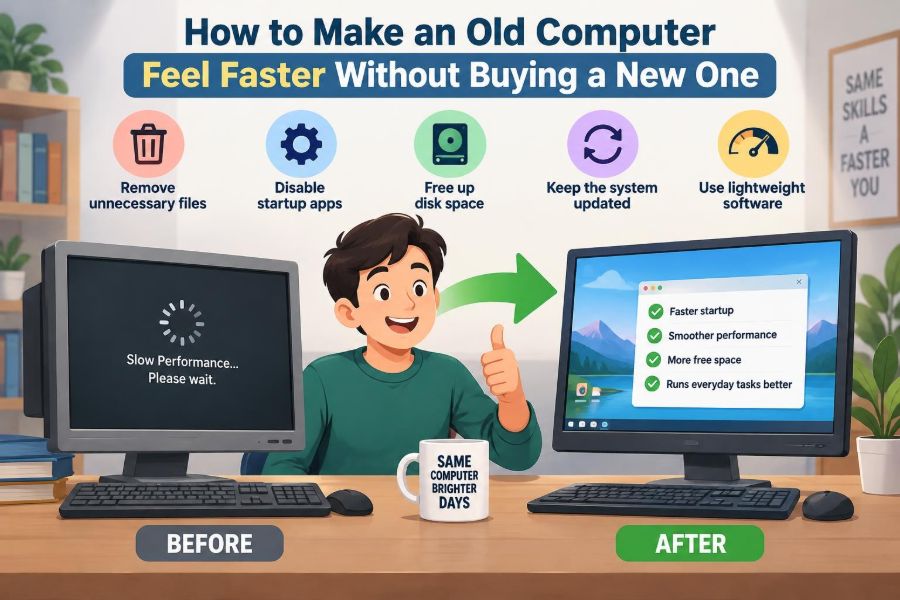

Your computer may still turn on, open documents, and connect to the internet—but everything takes just long enough to become frustrating. The browser pauses before loading a page, video calls make the fan roar, and a simple restart feels like a coffee break.
That does not automatically mean the computer is obsolete. Many slow systems are held back by crowded storage, too many background tasks, aging software settings, or one inexpensive component that no longer matches the rest of the machine.
For students, a faster computer can mean less time waiting between research, assignments, and online classes. For working professionals, it can make everyday tasks such as opening spreadsheets, joining meetings, and managing files feel far less tiring.
The goal is not to force a very old device to do work it was never designed for. It is to identify the real bottleneck, remove avoidable drag, and decide which improvements are safe and worthwhile.
🧭 Start by Defining “Slow”
“Slow computer” can describe several different problems. A machine that takes a long time to start has a different issue from one that starts quickly but freezes when ten browser tabs are open.
Notice when delays happen. Does the computer slow down only online, only while gaming, only when it is hot, or during every task? This observation prevents random fixes and helps you spend effort where it will matter.
- Slow startup: often too many startup apps or a hard disk drive.
- Slow programs: may point to low memory, an overloaded processor, or outdated software.
- Slow internet: may be a network problem rather than a computer problem.
- Freezing and errors: can indicate storage trouble, heat, drivers, or failing hardware.
🔎 Identify the Bottleneck Before Changing Anything
A bottleneck is the component or condition currently limiting performance. Think of a computer as a checkout line: adding another cashier helps only if the queue is at the checkout, not if customers cannot enter the store.
On Windows, Task Manager can show processor, memory, disk, network, and graphics activity. On macOS, Activity Monitor provides similar information. Open the tool while the computer is behaving slowly, then look for a resource staying unusually busy.
A short spike is normal. A disk stuck near full activity while opening basic apps, or memory almost completely used during ordinary work, is more revealing than a momentary jump.
💾 Understand the Difference Between Storage and Memory
Storage holds files and installed applications even when the computer is off. Memory, also called RAM, is the temporary workspace used by programs currently running.
When RAM is scarce, the operating system moves some temporary information to storage. This is called swapping or paging. It works, but it is much slower than keeping information in RAM—especially if the computer uses an older mechanical hard drive.
This distinction matters because deleting old photos may free storage but will not directly add RAM. Conversely, installing more RAM will not fix a drive that is almost full.
🧹 Free Up Enough Storage Space
An almost-full drive gives the operating system little room for temporary files, updates, caches, and virtual memory. It can make routine work feel less responsive and may complicate major software updates.
Start with large, obvious items: old downloads, duplicate installers, recordings, unused games, and files already copied elsewhere. Empty the recycle bin or trash afterward; files stored there still occupy space.
- Review the Downloads folder rather than deleting it blindly.
- Move large personal archives to an external drive or reputable cloud storage if appropriate.
- Uninstall programs you no longer use.
- Use the operating system’s built-in storage summary to find large categories safely.
Do not delete unfamiliar system folders just because they are large. Removing files from protected locations can break programs or prevent the operating system from updating.
🗂️ Organize Files Without Treating Cleanup as a Miracle Cure
File organization reduces searching and accidental duplication, but it does not normally transform processor speed. Its practical value is making storage cleanup safer and preventing the drive from filling again next month.
Create a simple home for coursework, current projects, completed work, media, and archives. Use clear names with dates when helpful, such as 2025-04-client-report, rather than leaving every item in Downloads.
A small monthly review is easier than an exhausting cleanup after years of accumulation.
🚀 Reduce Startup Programs
Many applications ask to launch when you sign in. Some are useful, such as security tools or a cloud-sync service you actively depend on. Others simply wait in the background so they can open slightly faster later.
Review startup items in your operating system settings or Task Manager. Disable nonessential launchers, chat tools you do not need immediately, game updaters, and vendor utilities whose purpose is unclear after you have checked them.
Disabling a startup item usually does not uninstall the application. You can still open it when needed, and you can re-enable it if a necessary feature stops working.
🧩 Close Background Apps That Consume Resources
A visible window is not the only program using your computer. Sync clients, browser helpers, update services, communication apps, and peripheral utilities can all use memory and processor time in the background.
Before demanding work, close what you are not using. For example, a student editing a presentation may not need a game launcher, several messaging apps, photo software, and dozens of browser tabs running at once.
Avoid ending unfamiliar system processes merely because they have technical names. If you are unsure what a process does, search for its name first or leave it alone.
🌐 Make Your Browser Lighter
For many people, the browser is the heaviest application on the computer. Modern web pages can include video, scripts, advertisements, interactive documents, and background activity that use considerable memory.
Close tabs you no longer need, especially pages with streaming media or web-based editors. Bookmark useful pages instead of keeping them open indefinitely. Consider using separate browser windows or profiles for work and personal browsing so one does not overload the other.
Browser task managers, where available, can reveal an individual tab or extension using an unusual amount of memory or processor time.
🧩 Audit Browser Extensions Carefully
Extensions can be genuinely useful, but each one adds code that may run whenever the browser starts or whenever a page loads. Old extensions may also become incompatible after browser updates.
Keep extensions that solve a specific problem, such as a password manager from a trusted provider or an accessibility tool you need. Remove extensions you do not recognize, no longer use, or installed only for a one-time task.
Be especially cautious of extensions that request broad access to every website. Performance, privacy, and security are all reasons to keep this list short.
📥 Uninstall Programs You No Longer Need
Unused software can occupy storage, add startup tasks, install update services, or create file associations that clutter the system. Removing it is often cleaner than simply ignoring it.
Use the official uninstall feature in the operating system rather than deleting an application folder by hand. This is more likely to remove supporting components properly.
Do not remove hardware drivers, security software, or system components unless you understand their role. If a program name is unfamiliar, investigate it before deciding it is unnecessary.
🔄 Keep the Operating System and Apps Updated
Updates can fix bugs, improve compatibility, and address security weaknesses. They sometimes improve efficiency, although an update is not a guaranteed performance upgrade for every older machine.
Install updates when you have time for a restart and a reliable power source. Back up important work before major operating system upgrades, particularly on an older computer with limited storage.
If a device is too old for a supported operating system version, that is a real limitation. Continuing with unsupported software can increase security risk, especially when the computer handles accounts, school systems, or work documents.
🛡️ Check for Malware Without Installing Multiple “Cleaners”
Unexpected pop-ups, browser redirects, unfamiliar extensions, unexplained processor activity, and sudden slowdowns can be signs of unwanted software. They can also have less serious causes, so symptoms alone are not proof.
Run a scan using the reputable security protection already built into or properly installed on your system. Update its definitions first. Remove confirmed threats, then check browser extensions and recently installed programs.
Avoid stacking several aggressive “PC cleaner” or registry-cleaning tools on one computer. Some make exaggerated claims, add their own background processes, or create new problems while trying to solve old ones.
🧽 Treat Registry Cleaning and “Boosters” With Skepticism
The registry on Windows is a database of settings. It is not a household cupboard that must be routinely emptied for the computer to run well. Removing entries rarely produces a meaningful speed increase and can occasionally cause software issues.
Likewise, one-click optimizer tools cannot create processor power or RAM. Useful maintenance is usually specific: remove a real startup burden, free meaningful storage, replace a failing drive, or correct a known configuration problem.
If a tool cannot explain exactly what it will change and why, do not give it broad permission to change your system.
⚡ Replace a Hard Disk Drive With an SSD
For many older desktops and laptops, replacing a mechanical hard disk drive (HDD) with a solid-state drive (SSD) is the most noticeable upgrade. HDDs read data from spinning magnetic disks using moving parts. SSDs use flash memory and have no moving parts.
This does not make the processor faster, but it greatly reduces the time spent waiting for files and programs to load. Startup, sign-in, launching applications, and general responsiveness often improve substantially when storage access was the bottleneck.
Check the computer’s drive connection, physical drive size, and installation options before buying. A technician can help if opening the device would risk damage or if migrating an existing system feels uncomfortable.
🧠 Add RAM When Multitasking Is the Problem
Adding RAM helps when the computer regularly runs out of memory. Common clues include frequent pauses when switching apps, browser tabs reloading unexpectedly, and high memory use during normal multitasking.
More RAM is particularly useful for people who work with many browser tabs, large spreadsheets, video meetings, programming tools, or image-editing applications. It will not cure a slow internet connection or make an old processor suitable for demanding modern games.
Before upgrading, verify the device’s maximum supported memory, the required memory type, the number of slots, and whether any existing memory is soldered in place. Laptop upgrades vary greatly by model.
📊 Choose Upgrades Based on Symptoms
The best upgrade depends on what is slowing down. This quick guide is not a diagnosis, but it can narrow the options before you spend money.
| Common symptom | Likely area to examine | Often useful response |
|---|---|---|
| Long boot and app-launch times | Storage drive | Free space; consider an SSD |
| Pauses with many apps or tabs | RAM and background apps | Close apps; consider more RAM |
| Slow only on websites or calls | Network and browser | Test connection; reduce tabs/extensions |
| Heat, loud fan, and throttling | Cooling system | Clean vents; check fans and airflow |
| Crashes, noises, or file errors | Drive health or other hardware | Back up immediately; seek diagnosis |
🌡️ Control Heat and Prevent Thermal Throttling
Computers produce heat while working. If the cooling system cannot remove enough of it, the processor may reduce its speed to protect itself. This protective behavior is called thermal throttling.
Use the computer on a hard, flat surface so air vents remain open. Soft bedding, cushions, and laps can block vents on many laptops. Check for visible dust around external vents and listen for a fan that never runs or makes unusual grinding sounds.
Opening a computer for deep cleaning can be helpful, but it also carries risks. If you are unfamiliar with the model, have a professional inspect it rather than forcing clips, cables, or fan assemblies.
🔌 Check the Power Plan and Charger
Laptops may limit performance to preserve battery life, particularly in power-saving modes. Plugging in the correct charger and selecting a balanced or performance-oriented power mode when doing demanding work can change how responsive the system feels.
More performance generally means more heat, fan noise, and battery use. A balanced setting is often sensible for everyday tasks, while a higher-performance mode may help during a presentation, compilation, or large file export.
Use a charger designed for the device or one that meets its required power specification. An underpowered or damaged charger can lead to charging problems and, on some devices, reduced performance.
📶 Separate Computer Slowness From Internet Slowness
A fast computer cannot compensate for a weak or unstable internet connection. If pages take a long time to begin loading but locally saved files and applications open quickly, test the network before changing the computer.
Try another device on the same Wi-Fi network, move closer to the router, or temporarily use a wired connection if possible. Restarting networking equipment can resolve temporary issues, but repeated dropouts may require checking the router, signal interference, or internet service.
Video calls also depend on the other participants’ connections and the service itself, so one poor call does not automatically identify the cause.
🖥️ Reduce Visual Effects When Hardware Is Limited
Animations, transparency, shadows, and live desktop elements make an interface feel polished, but older graphics hardware can struggle with them. Reducing motion and visual effects can make menus and window movement feel more immediate.
This adjustment is most useful on systems where the desktop itself stutters or where the graphics processor shares memory with the rest of the computer. It will not greatly improve a slow application caused by limited CPU power.
Choose usability over appearance if necessary. A simple interface that responds promptly is usually more pleasant than a decorative one that delays every action.
🎮 Set Realistic Expectations for Demanding Software
Some tasks need hardware capability that maintenance cannot provide. Modern 3D games, high-resolution video editing, complex engineering software, virtual machines, and local AI tools may exceed what an old processor or graphics chip can reasonably handle.
Lowering resolution, reducing visual detail, closing other apps, and working with smaller project files can help. In some cases, using a lighter application or a web-based service may be practical, provided privacy, cost, and internet reliability are acceptable.
There is a difference between making a computer responsive for everyday work and turning it into a current high-performance workstation.
🧪 Test Changes One at a Time
Changing ten settings at once makes it hard to know what helped—or what caused a new problem. Make one meaningful change, use the computer normally for a while, and observe the result.
For example, first remove unnecessary startup apps. Next, clear meaningful storage space. Then assess whether an SSD or memory upgrade is justified. Keep brief notes if you are troubleshooting a stubborn issue.
This method is slower than clicking every “optimize” button, but it is safer and gives you useful information for future maintenance.
💼 Back Up Before Major Cleanup or Upgrades
Performance work sometimes involves uninstalling software, moving files, updating the operating system, or replacing a drive. Any of these can go wrong because of power loss, hardware failure, or a mistaken deletion.
Keep important documents in more than one place. An external drive, a trusted cloud service, or both can work, depending on the sensitivity of the files and your access needs. Confirm that backup copies actually open.
If the computer shows signs of a failing drive—repeated file errors, unexplained corruption, or unusual mechanical sounds—prioritize backup over optimization.
🔧 Know When a Clean Operating System Install Helps
A clean installation removes installed applications, accumulated settings, and many software-related problems. It can be useful when a computer has years of clutter, persistent malware concerns, or unexplained issues that normal troubleshooting has not resolved.
It is also disruptive. You must back up files, gather installation details, reinstall applications, restore settings, and ensure you can sign in to necessary accounts. It should be a deliberate reset, not the first response to a slightly slow browser.
On a computer with a failing drive or inadequate hardware, a clean install may provide only temporary improvement. Diagnose those limitations first.
🧑🔧 Recognize Warning Signs That Need Repair
Some symptoms are not routine performance issues. Repeated blue screens or kernel panics, battery swelling, burning smells, liquid damage, frequent sudden shutdowns, and clicking or grinding from a hard drive require caution.
Turn off the device and seek qualified help if there is a safety concern, especially swelling batteries or electrical smells. Do not continue charging or disassembling a device that appears physically damaged.
For less urgent faults, a repair shop can test components and estimate repair options. Ask for a clear description of the fault and whether the proposed repair is likely to extend the device’s useful life.
💰 Decide When Repair Is Still Worth It
An old computer can remain excellent for writing, email, web research, coding practice, and office tasks after sensible maintenance. An SSD and additional RAM may be good value when the machine otherwise meets your needs and supports the upgrades.
Replacement becomes more reasonable when the device cannot run supported software safely, needs several expensive repairs, has severely limited processor capability, or lacks features essential to your work. Accessibility needs, battery condition, ports, display quality, and reliability also matter.
Consider the total picture rather than age alone. A well-maintained older desktop may be more practical than a newer but low-powered machine.
📅 Build a Low-Effort Maintenance Routine
Computers do not need constant tweaking. A small routine prevents most avoidable clutter without turning maintenance into a hobby.
- Install legitimate updates at convenient times.
- Review downloads and unused apps every few months.
- Keep enough free storage for normal work and updates.
- Restart occasionally instead of leaving the system running indefinitely.
- Check backups and protect accounts with strong sign-in practices.
- Keep vents clear and avoid using laptops on surfaces that trap heat.
The aim is consistency, not perfection. A computer that is backed up, updated, ventilated, and free of unnecessary background load is easier to trust.
✅ The Core Principle: Remove the Real Constraint
The most effective way to make an old computer feel faster is not a secret setting or a magical cleaner. It is matching the solution to the constraint: storage for slow loading, RAM for crowded multitasking, cooling for heat-related slowdowns, network troubleshooting for online delays, and realistic expectations for demanding workloads.
Start with free, low-risk steps: observe the symptom, back up important files, reduce startup and background clutter, free storage, update responsibly, and review browser habits. Then consider targeted hardware upgrades only when the evidence supports them.
That approach protects your files, avoids wasted purchases, and often gives a familiar device several more useful years.
An old computer feels faster when you solve its actual bottleneck instead of trying every shortcut at once. With a few careful changes, everyday computing can become calmer, quicker, and much less wasteful. 🖥️⚡🛠️