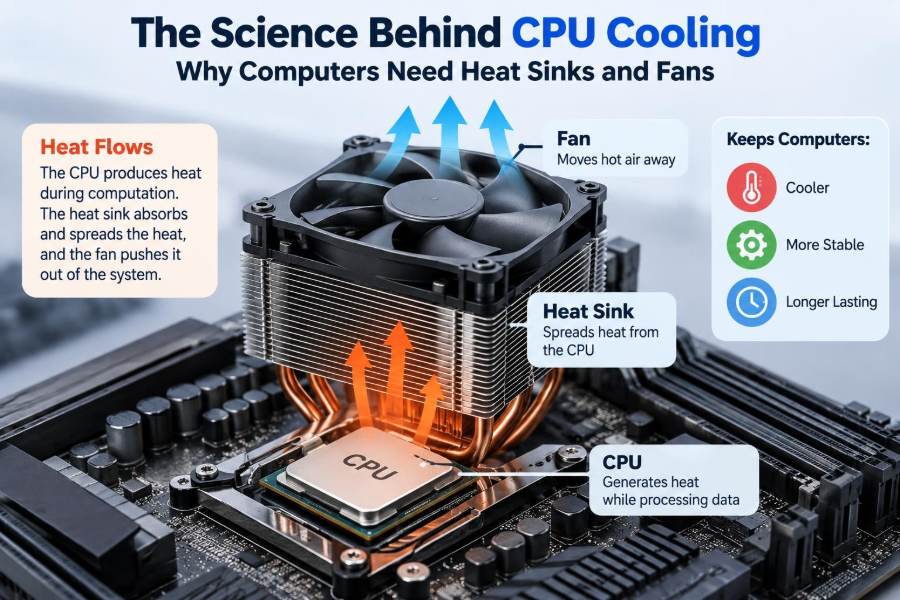

A laptop that becomes hot on your knees, a desktop fan that suddenly sounds like a small vacuum cleaner, or a game that starts smoothly and then slows down after half an hour: these are familiar computer experiences. They all point to the same underlying challenge—heat.
Modern processors perform enormous numbers of calculations in a tiny physical space. That work makes a CPU powerful, but it also turns electrical energy into unwanted thermal energy that must be moved away quickly.
Cooling is not only about comfort or noise. It helps a computer maintain performance, avoid protective shutdowns, and preserve the condition of components over time.
Heat sinks and fans may look simple, but they are part of a carefully designed thermal system. Understanding that system makes it much easier to choose, build, clean, and troubleshoot a computer.
🔥 A CPU Is a Small but Intense Heat Source
The central processing unit, or CPU, executes instructions for the operating system, applications, games, and background tasks. Inside its package are billions of tiny electronic switches called transistors.
Each switching event uses electrical energy. Some energy performs useful computational work, while some becomes heat because electrical current encounters resistance and because transistors are not perfectly efficient.
A modern CPU concentrates this activity in an area far smaller than the computer case around it. This makes the problem less like warming a whole room and more like cooling a very powerful hot plate.
⚡ Why Electrical Work Produces Heat
Electricity flowing through a conductor meets resistance. At a basic level, resistance converts part of that electrical energy into thermal energy, a process often called resistive heating.
CPUs also consume energy when their transistors change state. At high clock speeds, those changes happen billions of times per second. More activity, higher voltage, and faster switching generally mean more heat to manage.
Not every watt drawn by a computer becomes CPU heat. Storage drives, graphics processors, memory, and power circuitry also produce heat. Still, the CPU is commonly one of the most concentrated sources inside a system.
🌡️ Temperature Is Not the Same as Heat
People often use “heat” and “temperature” interchangeably, but they describe different things. Heat is energy moving from a warmer object to a cooler one. Temperature describes how hot an object is relative to a measurement scale.
A CPU can generate a modest amount of total energy yet reach a high temperature because that energy begins in such a small region. The goal of cooling is to transfer heat outward fast enough that the processor stays within its intended operating range.
This distinction explains why a large metal heat sink can feel only warm while the CPU beneath it is much hotter: the heat sink spreads the energy across a much larger mass and surface.
🧠 Why CPUs Cannot Simply Run Hotter Forever
Electronic circuits have temperature limits. As temperature rises, transistor behavior, electrical resistance, leakage current, and timing margins can change in ways that make reliable operation harder.
Processors include sensors and control logic to respond before a dangerous condition develops. Depending on the system, the CPU may reduce its clock speed, lower power use, or trigger an emergency shutdown.
These safeguards are valuable, but they are not a substitute for working cooling. Repeated operation near thermal limits can mean frequent slowdowns and can place added stress on surrounding components.
📉 Thermal Throttling Explains Many Slowdowns
Thermal throttling is a protective reduction in performance when a processor approaches a temperature or power limit. The CPU may lower its frequency, use less voltage, or limit how many high-performance cores can boost at once.
For example, a thin laptop might compile code quickly for a short period, then slow down during a long build. This does not automatically mean the laptop is faulty; its compact cooling system may have reached the amount of heat it can continuously remove.
Throttling is better than overheating, but persistent throttling during normal work can indicate dust buildup, restricted airflow, a poor cooler installation, or an undersized cooling design for the workload.
🔄 The Three Ways Heat Moves
CPU cooling relies on three forms of heat transfer: conduction, convection, and radiation. Each plays a role, although the first two do most of the practical work inside a computer.
| Method | What happens | Computer example |
|---|---|---|
| Conduction | Heat moves through touching materials. | Heat passes from the CPU into thermal paste and a heat sink. |
| Convection | Heat is carried away by moving fluid, including air. | A fan pushes air through heat-sink fins. |
| Radiation | Objects emit energy as electromagnetic radiation. | Warm components release a small amount of heat to their surroundings. |
Radiation exists, but a PC cooler is designed chiefly to conduct heat into metal and then convect it into moving air or liquid.
🧲 Conduction Moves Heat Out of the Chip
Heat first travels from the silicon die—the actual piece of semiconductor material—through layers of packaging to the CPU’s metal top, often called the integrated heat spreader.
The cooler presses against that top surface. Metals such as copper and aluminum are used because they conduct heat much better than air, plastic, or most ordinary materials.
Good physical contact matters. Even a tiny gap filled with air is a problem because air conducts heat poorly. This is why the layer between a CPU and cooler deserves special attention.
🧴 Thermal Paste Fills Microscopic Gaps
CPU heat spreaders and cooler bases look smooth, but at a microscopic level both surfaces have tiny ridges and pits. When pressed together, those imperfections trap air.
Thermal paste, also called thermal compound, fills those small gaps with a material that transfers heat better than trapped air. It does not replace the cooler; it improves the connection between the CPU and cooler.
Too little paste may leave gaps. Too much can create an unnecessarily thick layer and make installation messy. A small, appropriate amount spread by mounting pressure is usually the goal, though the exact application method can vary with CPU shape and paste instructions.
🪨 The Heat Sink Spreads Energy Across Metal
A heat sink is the metal structure attached to the CPU. Its base receives concentrated heat, and its body spreads that heat into a much larger area.
Without this enlarged surface, the CPU would have to transfer heat directly into nearby air through a small metal lid. That path is far too limited for sustained demanding work.
Think of a heat sink as a network of roads leaving a crowded city center. It gives heat many paths away from the CPU before the heat is handed off to airflow.
🪙 Copper and Aluminum Have Different Jobs
Copper conducts heat very effectively, so it is often used in cooler bases and heat pipes where rapid movement away from the CPU matters. Its drawbacks are greater weight and cost.
Aluminum is lighter, less expensive, and well suited to the many thin fins that exchange heat with air. Many air coolers therefore use a copper base or heat pipes combined with aluminum fins.
There is no universal “best” metal in isolation. Cooler performance depends on the complete design: contact quality, metal arrangement, fin area, airflow, mounting pressure, and the heat load of the CPU.
🌿 Fins Create the Surface Area Air Needs
The stacked plates on a tower cooler are called fins. Their purpose is not mainly to store heat; it is to create a large area where heat can transfer from metal into air.
More fin area can improve cooling, but only if air can pass through it. Fins packed too closely may resist airflow, especially with a weak fan or dust accumulation.
This is why a compact low-profile cooler and a tall tower cooler behave differently. The tower often has more fin area and can use a larger fan, but it also needs sufficient case space and compatible memory clearance.
🧪 Heat Pipes Carry Heat Efficiently
Many air coolers contain sealed copper tubes called heat pipes. Inside is a small amount of working fluid under low pressure.
Near the hot CPU base, the fluid absorbs heat and evaporates. The vapor moves toward a cooler part of the pipe, condenses, releases heat into the fins, and returns through an internal structure. This repeating cycle moves heat efficiently without a pump.
Heat pipes are not magical refrigeration devices. They still need fins and airflow to release the heat they carry. Their advantage is rapid transfer from the CPU base to a larger cooling area.
💨 Fans Turn a Heat Sink into a Cooler
A passive heat sink can remove some heat through natural airflow, but a CPU under meaningful load usually needs a fan. The fan forces air across the fins, continuously replacing warm air with cooler air.
This forced movement increases convection. Air that has absorbed heat must leave the fin area; otherwise, the heat sink and the air around it gradually become closer in temperature, reducing the rate of heat transfer.
Fans do not “make cold air.” They improve cooling by moving available air through the places where heat needs to leave.
🌀 Airflow Depends on More Than Fan Speed
Fan speed, often measured in revolutions per minute, is only one part of airflow behavior. Blade shape, fan size, motor design, obstacles, and the resistance created by fins or filters all affect real results.
A fan pushing air through a dense radiator or tightly packed heat-sink fins needs sufficient static pressure—the ability to keep moving air against resistance. A case fan in an open location may prioritize larger overall airflow instead.
Faster fans can remove more heat, but noise rises quickly. Good cooling design aims for an effective balance rather than simply running every fan at maximum speed.
🏠 The Computer Case Is Part of the Cooling System
A CPU cooler cannot work at its best if it repeatedly receives warm air trapped inside the case. The case determines where fresh air enters, where heated air exits, and how easily air can travel between those points.
A common arrangement uses front or bottom intake fans to bring in cooler room air and rear or top exhaust fans to remove warm air. The exact best layout depends on the case, cooler orientation, graphics card, and nearby obstructions.
Good cable routing and sensible component placement can also help. A large bundle of cables directly in front of an intake path can disrupt airflow more than many people expect.
↔️ Positive and Negative Case Pressure
Case pressure describes the rough balance between air pushed into a case and air pulled out. With positive pressure, intake airflow is somewhat greater than exhaust airflow. With negative pressure, exhaust is stronger.
Positive pressure can help reduce dust entering through unfiltered gaps because more air tends to leave through those openings. It works best when intakes have clean filters and enough exhaust paths exist for warm air to escape.
Neither approach guarantees low temperatures. A poorly placed intake or exhaust fan can still create inefficient circulation. What matters most is a clear path for cool air to reach components and warm air to leave.
🌬️ Ambient Temperature Sets the Starting Point
Every air cooler ultimately releases heat into the room. If the room is warm, the air entering the case is warm, leaving less temperature difference for heat to flow from the heat sink into the air.
For this reason, the same computer can run noticeably warmer during a hot day even when nothing inside has changed. Opening a case side panel may sometimes alter temperatures, but it can also disrupt the airflow path the case was designed to create.
No fan curve or premium heat sink can cool a CPU below the limits imposed by its surrounding environment without using a specialized active cooling method.
🚿 Liquid Cooling Still Ends at Air
An all-in-one liquid cooler, often called an AIO, uses a pump to circulate liquid between a CPU block and a radiator. The liquid absorbs heat at the block and carries it to the radiator.
Fans then push air through the radiator’s fins, releasing the heat into the room. In other words, liquid cooling changes how heat travels inside the computer, but the final destination is still the surrounding air.
Liquid cooling can place a large radiator in a convenient location and may suit high sustained heat loads. It also adds a pump, tubing, more mounting choices, and additional points that need correct installation.
⚖️ Air Cooling and Liquid Cooling Compared
Neither type is automatically superior for every computer. A well-designed air cooler can be quiet, durable, and highly capable, while liquid cooling can offer useful radiator area and layout flexibility.
- Air coolers: usually have fewer active parts and are straightforward to inspect and clean, but large models can be heavy and may limit clearance.
- AIO liquid coolers: can move heat to a radiator away from the CPU socket, but pump noise, radiator placement, and long-term component wear are practical considerations.
- Custom liquid loops: can cool multiple parts and offer flexibility, but require more planning, maintenance, and careful leak testing.
The sensible choice depends on the processor’s power behavior, case dimensions, desired noise level, budget, and the user’s willingness to install and maintain the system.
📊 Power Limits Shape Cooling Requirements
A CPU’s cooling needs are tied to the electrical power it uses during a workload, not merely to the number printed on its retail box. Modern processors can change power use dynamically based on workload, settings, and motherboard behavior.
Short bursts of high power may be manageable because the heat sink can absorb some heat briefly. Long rendering, simulation, compiling, or video-export tasks demand a cooler that can remove heat continuously.
When comparing cooling options, consider the actual use case. A computer used for web browsing and documents has a very different thermal pattern from one that runs long scientific calculations or high-frame-rate games.
🚀 Boost Clocks Trade Heat for Performance
Many CPUs automatically raise clock speeds when temperature, power, and electrical limits allow. This feature is often called boosting or turbo behavior.
Better cooling can therefore improve performance in some workloads—not because a cooler changes the CPU’s design, but because it gives the processor more thermal room to sustain higher speeds before reaching a limit.
The gain is workload-dependent. If a task is limited by storage, memory, software design, or a graphics card, lowering CPU temperature may not make a visible difference. Cooling helps most when the CPU is the limiting component.
🔊 Why Cooler Computers Are Often Quieter
Fan noise is closely linked to fan speed. When a heat sink and case airflow remove heat effectively, the system can often use lower fan speeds for the same workload.
Noise also comes from turbulence, vibration, pump operation, and air squeezing through restrictive panels or clogged filters. A larger fan running slowly can sometimes move comparable air more quietly than a small fan running very fast.
A quiet system is not necessarily a cool system, and a loud one is not necessarily failing. The useful goal is a stable temperature and performance level with sensible noise for the environment.
🎛️ Fan Curves Control the Response to Heat
A fan curve tells the computer how fast a fan should run at different temperatures. A gentle curve keeps noise low during light tasks, while a steeper curve increases airflow as heat rises.
An overly slow curve may allow unnecessary temperature spikes before fans respond. An overly aggressive curve can cause distracting fan surges when the CPU briefly boosts for ordinary tasks.
Good fan control often uses smoothing or response delays so fans do not chase every momentary sensor change. Exact controls differ among motherboards, laptops, and cooling software, so users should follow their device documentation.
🧹 Dust Is an Insulating Airflow Problem
Dust settles on fan blades, filters, radiator faces, and heat-sink fins. A light coating may have little effect, but dense buildup restricts airflow and creates an insulating layer that interferes with heat exchange.
Pets, carpets, smoking, workshops, and dusty rooms can make cleaning necessary more often. Filters help, but they also need cleaning; a blocked filter is still a blocked intake.
When cleaning a powered-off computer, use methods appropriate for electronics and avoid forcing fans to spin wildly with compressed air. Holding fan blades still while cleaning can reduce stress on their bearings and electronics.
🔧 Mounting Pressure and Contact Can Fail
A CPU cooler must be mounted evenly and securely. If one side is loose, the cooler base may not make full contact with the CPU, producing unusually high temperatures even if the fan is spinning normally.
Common installation errors include leaving protective plastic film on the cooler base, using the wrong mounting hardware, failing to connect the CPU fan, or applying paste after contamination has reached the contact surfaces.
If temperatures jump rapidly after a cooler installation, shut down and inspect the mounting process rather than assuming more fans will solve the problem. The first thermal path—from CPU to cooler—must work before case airflow can help.
⚠️ Common Cooling Mistakes to Avoid
Many cooling problems come from small, fixable oversights rather than defective hardware. A methodical check is more useful than replacing parts at random.
- Installing a powerful CPU in a case with severely restricted ventilation.
- Orienting a tower cooler so it blows air into a closed panel or against the case’s main airflow.
- Ignoring dust filters and assuming more fan speed will compensate forever.
- Using a cosmetic fan layout that creates turbulence but no clear intake-to-exhaust route.
- Judging temperatures only at idle, when a poorly mounted cooler may appear normal.
- Running manual overclocks or raised power limits without accounting for the extra heat produced.
🖥️ Laptops Face Tighter Physical Limits
Laptops have less space for heat sinks, smaller fans, and fewer paths for air than desktop computers. Their cooling systems must fit around batteries, screens, keyboards, ports, and compact circuit boards.
That is why a laptop’s underside vents should not be blocked by blankets, cushions, or a lap. A hard, flat surface gives the device its intended clearance for intake and exhaust.
External cooling pads can improve comfort or airflow in some designs, but they cannot overcome an internal dust blockage, aged thermal interface material, or a cooling system that is simply too small for a sustained heavy workload.
🧭 Reading Temperature Sensors Sensibly
Temperature-monitoring tools can report CPU package temperature, individual core temperatures, fan speeds, and sometimes power use. These readings are useful for spotting changes and testing whether a cleaning or cooler installation helped.
Do not focus on one universal “good” number. Sensor names, CPU designs, workloads, ambient conditions, and manufacturer limits vary. A brief spike during a short task is different from sustained operation near the processor’s limit under a long workload.
Look for patterns: sudden changes from previous behavior, performance drops paired with high temperatures, fans that never respond, or temperatures that remain unusually high at light load after confirming software activity is low.
🛠️ A Practical Cooling Troubleshooting Order
When a computer seems too hot, start with the simplest checks before buying hardware. This avoids treating symptoms while missing an obvious physical issue.
- Confirm the CPU fan or pump is connected and operating.
- Check that intake and exhaust vents are not blocked.
- Clean filters, fans, and accessible fin surfaces with the system powered off.
- Observe temperatures and clock behavior during a repeatable workload.
- Inspect cooler orientation, mounting hardware, and thermal-paste contact if safe and appropriate.
- Review fan curves, power settings, and recent overclocking or performance-profile changes.
- Consider a better cooler or case airflow only after identifying the actual bottleneck.
🧩 Cooling Other Components Helps the CPU Too
The CPU does not exist in isolation. A powerful graphics card can dump substantial heat into the case, raising the temperature of the air reaching the CPU cooler.
Voltage-regulator modules on the motherboard, memory, storage drives, and power-supply components also benefit from sensible case airflow. A balanced system avoids solving one hot spot while making another worse.
For example, mounting a radiator as front intake may provide cool air to the CPU radiator but can send warmer air toward the graphics card. Mounting it as top exhaust may affect CPU intake temperature differently. The best choice depends on which component is most thermally demanding and how the case is built.
🧱 Passive Cooling Has a Useful but Narrow Role
Passive cooling means using heat sinks without fans. It can work well for low-power processors, compact embedded devices, and carefully designed silent computers with large heat-dissipating surfaces.
Its limitation is that natural convection moves much less air than a fan. A passive system must use a processor with appropriate power demands, a suitable enclosure, and enough open space for warm air to rise away.
Removing a fan from a normal desktop CPU cooler does not automatically create a safe silent PC. It may instead remove the main mechanism that carries heat away from the fins.
🔋 Efficiency Is Another Form of Cooling
The cleanest heat to manage is heat that was never produced. Efficient processors, sensible power limits, and well-optimized software can reduce unnecessary energy use during demanding tasks.
Undervolting—reducing operating voltage while testing for stability—can sometimes lower heat and noise on supported systems. It is not universally available, and unstable settings can cause errors or crashes, so it should be approached carefully.
Choosing a processor and performance profile that matches the real workload is often more effective than trying to cool an unnecessarily high power target.
✅ The Core Principle: Move Heat Along a Complete Path
CPU cooling works only when every stage of the path is effective: heat must leave the silicon, cross the thermal interface, spread through the heat sink or liquid block, transfer into moving air, and exit the computer case.
A failure at any point weakens the whole system. Excellent fans cannot overcome poor CPU contact, and an expensive radiator cannot help much if it is fed by stagnant, hot case air.
The practical takeaway is simple: match the cooler to the workload, provide a clear airflow route, keep the system clean, and interpret temperatures in context rather than reacting to one isolated number.
Heat sinks and fans let a CPU turn electrical work into sustained, reliable computing by giving unwanted heat a safe route out of the machine. Once that path is understood, cooling becomes a manageable engineering problem rather than a mystery. 🖥️💨🌡️