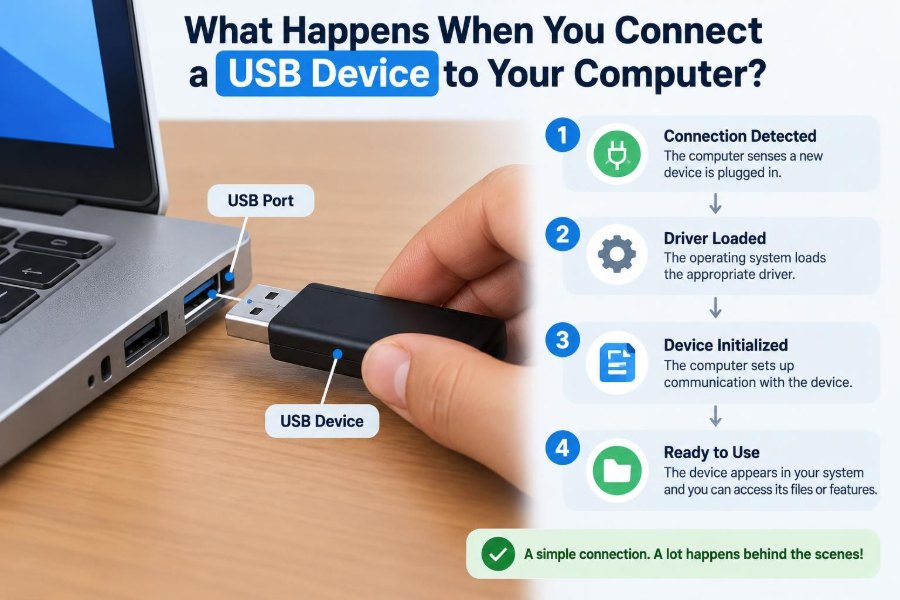

You plug in a flash drive to copy a presentation, connect a phone to charge it, or attach a new keyboard before a meeting. Often, a sound plays, a small notification appears, and the device simply works.
That familiar moment is the visible end of a surprisingly organized conversation. Your computer has to detect that something changed, identify the device, decide what it needs, provide power when appropriate, and make the device available to programs.
Most of the time, this happens in seconds. When it does not—when a drive does not appear, a mouse disconnects, or a phone only charges—the underlying steps explain where to start looking.
Understanding the USB connection process makes everyday troubleshooting less mysterious. It also helps you choose suitable cables, ports, chargers, and safe habits for the devices you rely on.
🔌 USB Is More Than a Plug Shape
USB stands for Universal Serial Bus. It is a family of standards that defines how devices connect, communicate, and often receive power through a common system.
The word “USB” can describe several related things: the physical connector, the cable, the electrical signals, the power rules, and the software process used to recognize a device. A connector that fits physically does not, by itself, guarantee every USB feature will work.
🧩 The Port and Plug Make First Contact
When you insert a USB plug, metal contacts inside the plug and port touch in a planned sequence. In many connector designs, the contacts that establish power and ground are arranged to connect reliably as insertion finishes.
The device may immediately receive a small amount of power. At the same time, the computer or hub detects an electrical change that indicates a possible device has been attached.
⚡ Power Arrives Before Most Communication
A conventional USB port can supply electrical power as well as data. This is why a wired mouse can light up or a phone can begin charging before the computer has finished identifying it.
Power availability is not unlimited. A port, hub, cable, and connected device must operate within the capabilities they negotiate or are designed to provide. High-demand equipment such as external hard drives may need a powered hub or their own power adapter.
📍 The Host Detects a New Connection
In the usual computer setup, the computer is the host: it controls the USB bus and starts the conversation. The keyboard, storage drive, webcam, or phone is the device.
When a device is attached, the host controller detects the change in the port’s electrical state. The operating system is notified, then prepares to discover what is connected. A USB hub performs a similar detection role for the ports attached to it.
🗣️ Enumeration Is the Introduction Process
The formal discovery process is called enumeration. Think of it as reception staff registering a visitor: the host asks who the device is, what services it offers, and how it should be reached.
During enumeration, the host resets the connection into a known state, learns the device’s basic capabilities, assigns it an address on that particular USB bus, and reads more detailed information. This is why an operating system may take a brief moment before displaying a new device.
🏷️ Device Descriptors Describe the Hardware
A USB device provides small blocks of standardized information called descriptors. These tell the host facts such as the device maker identifier, product identifier, supported USB version, and available configurations.
Descriptors are not marketing descriptions. They are structured data used by the operating system to decide which software support is appropriate. A device can also provide a human-readable product name, which may appear in system settings.
🧭 Interfaces Reveal What the Device Can Do
One physical USB device can contain more than one logical function. A phone, for example, may present charging controls, file transfer, camera transfer, audio, and tethering functions depending on its mode and operating system settings.
Descriptors list these functions as interfaces. The host can bind a different driver to each interface, allowing one cable connection to support several jobs without treating the hardware as several separate plugs.
🧑💻 Drivers Translate Between Software and Hardware
A driver is software that lets the operating system communicate with a class of hardware in a meaningful way. It translates requests such as “read this file” or “move the pointer” into the kinds of messages the device understands.
Many USB devices use built-in, class-based drivers. That is why ordinary keyboards, mice, flash drives, and many webcams work without an installation disc. More specialized equipment may require a driver supplied by its manufacturer.
📚 USB Classes Enable Plug-and-Play
USB classes define common categories of behavior. If a device follows a class specification closely, an operating system can often use a general driver rather than needing model-specific code.
| USB class or function | Typical example | What the computer usually does |
|---|---|---|
| Human Interface Device (HID) | Keyboard or mouse | Accepts key presses, button clicks, and movement |
| Mass Storage | Flash drive or card reader | Exposes storage for the file system to mount |
| Audio | Headset or microphone | Creates playback and recording devices |
| Video | Webcam | Offers camera streams to compatible apps |
| Communications | Network adapter or tethered phone | Creates a network connection |
Class support varies by operating system and device mode, so plug-and-play is common rather than automatic in every possible combination.
⌨️ A Keyboard Becomes Ready Quickly
A typical USB keyboard identifies itself as a Human Interface Device. The operating system already knows the general HID communication format, so it can begin receiving reports with very little setup.
When you press a key, the keyboard sends a compact report describing the key state. The operating system interprets that report according to your keyboard layout and the active application receives the resulting input.
🖱️ Mouse Movement Is Sent as Small Reports
A mouse does not normally transmit a map of its exact position on your desk. Instead, it commonly sends relative movement information: how far it moved horizontally and vertically since the prior report, along with button and wheel states.
The operating system applies pointer speed, acceleration settings, display scaling, and accessibility options. This separation explains why the same mouse can feel different on two computers.
💾 A Flash Drive Is Not Yet a Folder
When you connect a USB flash drive, the computer first sees a storage device, not an immediately usable collection of files. It communicates with the drive’s controller, which manages the memory chips inside.
The operating system then examines the drive’s partition layout and file system, such as FAT32, exFAT, NTFS, APFS, or a Linux file system. Only after it can interpret a supported file system can it show files in a file manager.
📂 Mounting Makes Storage Available
Mounting is the operating system step that makes a file system available at a usable location. On many systems, this appears as a new drive letter, disk name, or folder location.
If a drive does not appear in the file manager, it may still have been detected at a lower level. It could be unmounted, lacking a supported file system, encrypted, assigned no visible letter, or experiencing a hardware issue. Disk-management tools can help distinguish these cases.
🧠 The Operating System Manages the Conversation
The USB host controller handles low-level signaling, while the operating system coordinates drivers, permissions, notifications, and application access. Programs generally do not communicate freely with USB electrical signals themselves.
This layered design improves compatibility and stability. A word processor can save a document to a mounted drive through ordinary file-system calls without needing to know the electrical details of USB data transfers.
🚦 Different Transfers Suit Different Jobs
USB uses several transfer types because a keyboard, a webcam, and a storage drive have different priorities. Some tasks need reliable delivery; others value timely delivery more than retrying every lost piece of data.
- Control transfers handle setup, commands, and descriptor requests.
- Bulk transfers suit data such as file transfers, where accuracy matters and timing can vary.
- Interrupt transfers provide regular opportunities for responsive devices such as keyboards and mice.
- Isochronous transfers suit time-sensitive streams such as some audio and video, where late data may be less useful than missing data.
The word “interrupt” here describes a USB transfer category; it does not mean the device necessarily interrupts the computer’s processor in the everyday sense.
🚀 USB Generations Affect Data Speed
USB has evolved through several generations with different signaling capabilities. A device, cable, port, and hub must all support an appropriate mode for a connection to use a higher speed.
The practical transfer rate is always lower than a headline signaling rate because of protocol overhead, storage performance, system workload, and file characteristics. Copying one large video file can behave differently from copying thousands of small documents.
🧵 A Cable Has Capabilities Too
Not every cable with the same connector supports the same data rate or power level. Some USB-C cables are designed primarily for charging and may carry limited or no high-speed data. Others include additional conductors needed for faster modes or video features.
If an external SSD is unexpectedly slow, test with a known capable cable and a suitable port before assuming the drive has failed. Cable length, wear, and build quality can also affect connection reliability.
🔄 USB-C Describes a Connector, Not One Feature Set
USB-C is a small, reversible connector design. It is convenient because either orientation can fit, but USB-C does not automatically mean maximum speed, video output, or high-power charging.
Specific capabilities depend on the computer, cable, connected device, and supported standards. Two identical-looking USB-C ports on different machines may offer different features, and even ports on the same machine can have different capabilities.
🤝 Power Delivery Requires Negotiation
USB Power Delivery is a system that allows compatible equipment to negotiate power levels beyond basic USB power. A charger, cable, and device exchange information and agree on a suitable arrangement.
That negotiation is why a compatible laptop may charge from one USB-C charger but charge slowly—or not at all—from a lower-capacity charger. The safest expectation is not “any USB-C charger is interchangeable,” but “compatible equipment will request and provide power within their shared capabilities.”
🧱 Hubs Multiply Ports but Share Resources
A USB hub lets several devices connect through one host port. It is useful for keyboards, receivers, storage, and accessories, but it does not create unlimited bandwidth or power.
Devices behind the same hub can share the upstream connection. A bus-powered hub also relies on the power supplied by its host port. For several high-power devices, a powered hub with its own adapter is usually the more dependable choice.
🔋 Why Some Devices Disconnect or Fail to Start
An external drive that spins up and disappears, or a webcam that cuts out when other accessories are attached, may be dealing with insufficient or unstable power. Damaged cables, loose ports, and overloaded hubs can produce similar symptoms.
Try a direct connection to a different port, remove other high-demand devices, use the device’s supplied power source if available, and test with another known-good cable. These steps isolate the connection without making assumptions about which component is at fault.
📱 Phones Choose Their USB Mode
Connecting a phone does not always expose its storage like a traditional flash drive. Modern mobile operating systems commonly use controlled transfer modes that allow selected photos or files to be shared without giving the computer unrestricted access to the device’s internal storage.
Your phone may ask you to unlock it, trust the computer, choose file transfer, or approve a connection. Charging can work even when data access is intentionally blocked, which is a useful privacy safeguard.
🛡️ USB Data Security Deserves Attention
A USB device can be more than storage. It can identify as a keyboard, network adapter, audio device, or several functions at once. That flexibility is useful, but it means an unknown device should not automatically be trusted.
A device that impersonates a keyboard could rapidly type commands after being connected. Public charging stations may also create uncertainty if they offer an unknown data connection rather than power alone. Use your own charger when practical, keep devices locked, and avoid connecting untrusted accessories.
🧰 Safe Removal Protects Pending Writes
Storage devices often use caching: data may be temporarily held in the operating system or the drive before it is fully written to nonvolatile storage. Removing a drive during a write can damage a file or, in some cases, harm the file system’s structure.
Use the operating system’s eject or safely remove option when it is available, wait for any activity to finish, and then unplug. Some systems use policies that reduce caching for removable devices, but safe removal remains a sensible habit when you are unsure.
🔍 Start Troubleshooting with the Simplest Test
When a USB device fails, avoid changing many settings at once. First check the physical path: reconnect firmly, inspect the port for visible debris or damage, try another compatible port, and test another cable if the device uses one.
Then test the device on another computer, or test a known-working device on the original port. These comparisons help narrow the issue to the device, cable, port, hub, driver, or operating system configuration.
🧾 Check What the System Actually Detected
System device lists, hardware settings, and disk-management utilities can reveal whether enumeration occurred. A device may appear with an error, as an unknown device, as removable storage without a mounted volume, or not at all.
That distinction matters. “Detected but no usable driver” suggests a software or compatibility path, while “not detected on multiple systems with multiple cables” makes a physical fault more plausible. Neither result alone proves the cause, but each guides the next test.
🔧 Driver Updates and Resets Have Limits
Updating the operating system, installing a manufacturer driver, or reconnecting a device can solve genuine software problems. Restarting can also reset temporary driver states and power-management conditions.
However, a driver update cannot repair a broken connector, and repeatedly reinstalling drivers will not fix a cable that only works at a particular angle. Match the remedy to the evidence rather than treating software updates as a universal repair.
🌡️ Physical Care Extends USB Reliability
USB ports are designed for repeated use, but they are not indestructible. Pulling a cable by its wire, forcing a plug that does not fit, or leaving a large adapter under sideways strain can damage the connector or its internal mounting.
Hold the plug body when disconnecting, keep ports dry and reasonably free of dust, and avoid forcing connectors. If a port feels loose, overheats, smells unusual, or shows visible damage, stop using it until it can be assessed.
🧭 Choosing the Right Connection for the Job
For a basic keyboard or mouse, almost any functioning USB port and cable arrangement is sufficient. For fast external storage, a high-capability port and cable matter. For a laptop dock, check power input, display support, USB data capability, and the computer’s documented port features.
Read labels and specifications as a combination, not as isolated promises. The usable result is limited by the least capable relevant part: host port, dock or hub, cable, device, and sometimes software support.
🎯 The Core Principle: USB Is a Coordinated Handshake
Connecting a USB device triggers a chain of events: physical contact, power availability, detection, enumeration, descriptor reading, driver selection, and access through the operating system. Storage adds mounting and file-system handling; charging and advanced USB-C features may add power negotiation.
When everything works, this coordination is nearly invisible. When it fails, thinking in stages turns “my USB is broken” into a more useful question: did the computer detect it, identify it, power it, find a driver, or make its data available?
A USB connection works because hardware, power rules, cables, and software all complete the same coordinated conversation—not because the plug merely fits. Once you recognize those stages, using and troubleshooting everyday devices becomes much more straightforward. 🔌💻🧠