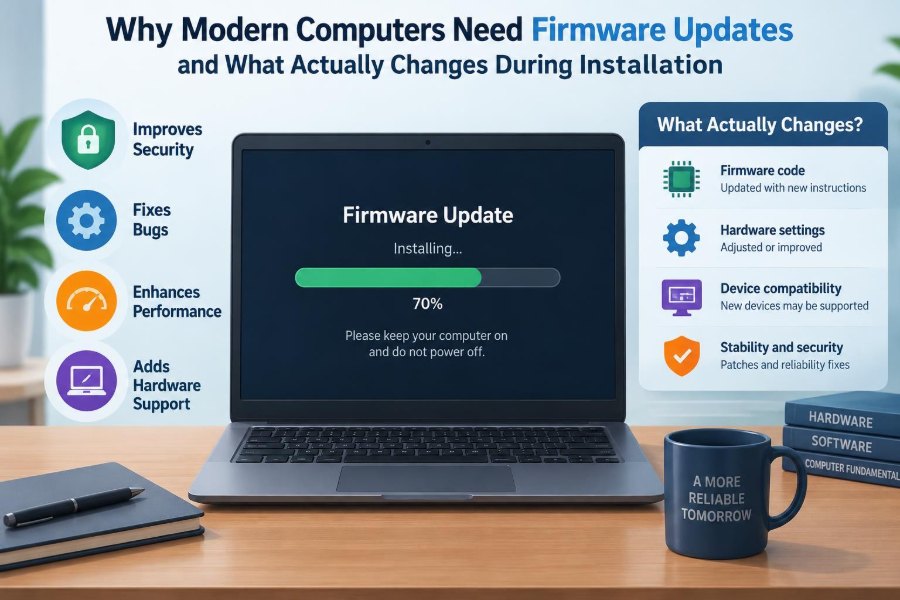

Your laptop starts more slowly after a major operating-system update, a new SSD is not detected correctly, or a Bluetooth device keeps disconnecting. The first instinct is often to reinstall an app, change a setting, or blame the operating system.
Sometimes the issue sits below all of that. Before Windows, Linux, or macOS begins loading, a layer of low-level software has already identified hardware, applied security rules, and prepared the machine to start. That layer is firmware.
Firmware updates can feel more intimidating than ordinary software updates because they may restart the computer several times, display a blank screen for a while, or warn against turning the power off. Those warnings have a real technical reason, but they do not mean every update is dangerous or urgent.
Understanding what firmware does—and what changes during an installation—makes it much easier to decide when an update is worthwhile and how to complete one safely.
🧩 Firmware Is Software Built Close to Hardware
Firmware is specialized software stored on, or closely associated with, a hardware device. It provides the basic instructions the device needs to start, identify itself, communicate, and perform essential functions.
A computer can contain firmware in many places: the motherboard, graphics processor, SSD, Wi-Fi adapter, dock, keyboard controller, battery-management system, and monitor. Unlike a normal application, firmware commonly runs before the main operating system is available.
A useful analogy is a building’s control systems. Applications are like the people working inside; the operating system is the building manager; firmware helps unlock doors, switch on utilities, and establish which equipment is present before work can begin.
🚀 The Startup Sequence Depends on Firmware
When you press the power button, the processor does not immediately launch your operating system. It begins with a defined starting location and executes motherboard firmware, usually called UEFI on modern PCs. UEFI is the successor to the older BIOS design.
The firmware initializes memory, checks key components, identifies storage devices, configures parts of the processor, and selects a boot device. It then hands control to the operating system’s boot loader.
If that early setup is wrong, the computer may fail before an operating system can display a useful error message. This is why firmware fixes can resolve problems that ordinary driver or application updates cannot reach.
🧠 Firmware, Drivers, and Operating Systems Are Different Layers
These terms are often used interchangeably, but they solve different problems. An operating system coordinates programs and hardware for the user. A driver is software the operating system uses to communicate with a particular device. Firmware is code running inside, or immediately around, the device itself.
| Layer | Primary role | Typical example |
|---|---|---|
| Firmware | Starts and controls hardware at a low level | UEFI, SSD controller code |
| Driver | Lets the operating system use hardware features | Wi-Fi or graphics driver |
| Operating system | Runs programs and manages the whole computer | Windows, Linux, macOS |
| Application | Performs a user task | Browser, spreadsheet, game |
A driver update may improve how an operating system uses a device. A firmware update may change how the device behaves even before that operating system is running.
🔐 Security Fixes Are a Major Reason Updates Exist
Firmware has broad control over a computer, so a weakness there can be serious. Firmware updates may correct flaws in startup code, processor management, device communication, or mechanisms that verify trusted software during boot.
For example, many systems use Secure Boot, a feature designed to verify that approved boot software is loaded. Firmware updates can improve compatibility with current boot components or address weaknesses in related security handling.
Not every security advisory applies to every machine, and the details are often technical. Still, updates from the computer or component manufacturer deserve attention when they explicitly mention security, especially for work devices or systems that handle sensitive information.
🛠️ Updates Also Correct Hardware Compatibility Problems
Hardware standards evolve after a computer has shipped. New memory modules, storage drives, USB accessories, graphics cards, docks, and displays can expose edge cases that were not found during the original testing period.
A motherboard firmware update might improve compatibility with a particular processor generation or memory configuration. An SSD firmware update might correct a problem that appears only under specific workloads, power states, or encryption settings.
This does not mean a newer firmware version automatically supports every future component. Manufacturers specify supported hardware, and physical or electrical limits still apply. Firmware can improve behavior within those limits; it cannot turn incompatible hardware into a guaranteed match.
⚡ Reliability Improvements Often Look Invisible
Many firmware release notes describe fixes in understated language: improved stability, corrected intermittent behavior, enhanced power management, or refined device compatibility. These changes may not add a visible feature, but they can remove frustrating problems.
Consider a hypothetical laptop that occasionally wakes from sleep with no display output. The cause could be an operating-system setting, a graphics driver, or the coordination between firmware and hardware power states. A firmware update can adjust that low-level coordination.
Such fixes are valuable precisely because they reduce failures people may otherwise struggle to reproduce. However, vague release notes also make it harder to predict whether an update will solve one particular symptom.
🌡️ Power, Heat, and Battery Behavior Can Be Updated
Modern computers constantly manage power limits, charging rules, fan behavior, thermal sensors, and performance states. Parts of that behavior may be controlled by firmware, including an embedded controller on many laptops.
An update can revise how the machine responds to temperature readings or changes between battery and external power. It may improve charging compatibility, reduce an unusual fan pattern, or correct a situation where a system draws more power than intended during sleep.
These updates are not magic performance upgrades. Manufacturers must balance speed, noise, temperature, battery health, and component limits. A change that makes a laptop quieter may also alter when it reduces performance under sustained heavy work.
🧮 Processor Microcode Addresses Very Low-Level Behavior
Microcode is a special kind of processor update. Modern processors translate many instructions internally, and microcode can adjust aspects of that internal operation without physically replacing the processor.
Computer makers may distribute microcode through firmware, while operating systems can sometimes load certain microcode updates during startup. Firmware delivery helps make the correction available early in the boot process and independent of one particular operating-system installation.
Microcode updates can address stability or security issues in processor behavior. In some circumstances, mitigation of a hardware-level issue can affect performance for certain workloads, which is one reason release notes and vendor guidance matter more than assumptions.
💾 Storage Firmware Controls More Than File Capacity
An SSD contains its own controller, memory chips, and firmware. The firmware decides how data is distributed across flash memory, how worn cells are managed, how errors are handled, and how the drive communicates with the computer.
A storage firmware update may correct rare data-handling bugs, improve compatibility, or address a problem involving sleep, encryption, or recovery after an unexpected power loss. It does not usually change the files you have stored, but a backup remains essential before any storage-related maintenance.
Use the drive maker’s supported utility or the computer manufacturer’s documented update channel. Installing firmware intended for a similar-looking but different drive model can cause serious problems.
📡 Network and Bluetooth Devices Have Firmware Too
Wi-Fi, Ethernet, Bluetooth, and cellular hardware often contain firmware that handles radio behavior and low-level protocol processing. A driver tells the operating system how to use the adapter, while the adapter’s firmware helps it perform the actual communication.
Updates can address connection drops, roaming behavior, compatibility with access points, security issues, or unusual interactions with sleep mode. They may be bundled into a system firmware package, supplied through an operating-system update, or delivered by a vendor utility.
Because wireless problems can also result from routers, signal interference, drivers, and network settings, firmware should be considered one possible layer—not a universal explanation for every dropped connection.
🎮 Graphics Firmware Has a Narrower but Important Role
Graphics cards and integrated graphics systems use firmware to establish basic display output and initialize graphics hardware. A dedicated graphics card’s firmware is often called a video BIOS, or VBIOS.
Graphics firmware updates may address display compatibility, power behavior, startup issues, or support for a specific hardware configuration. They are usually less routine for ordinary users than graphics driver updates.
Unless a manufacturer recommends the update for your exact model and the stated issue affects you, updating graphics firmware is often best treated as targeted maintenance. A graphics driver update is the more common first step for game or application problems.
🏭 Manufacturers Release Firmware After Products Ship
No realistic test environment can reproduce every combination of peripherals, networks, workloads, power conditions, and software versions customers will use. Firmware is therefore maintained after release, much like operating systems and drivers.
Reports from users, internal testing, changes in component supply, and newly discovered security issues can all lead to a new version. A laptop model may even have different firmware packages depending on its processor, display, wireless card, or regional configuration.
That is why the exact model identifier matters. “Close enough” is not a safe rule for firmware files.
🗂️ Release Notes Tell You What Problem Is Being Addressed
Before updating, read the manufacturer’s release notes when they are available. Look for the version number, supported models, prerequisites, changes, known limitations, and installation method.
Useful reasons to update include a stated security fix, a documented fix for a problem you have, required support for a planned hardware upgrade, or a vendor recommendation tied to your configuration. A stable system does not always require every optional update immediately.
Release notes may be brief, especially for consumer hardware. Brief notes do not prove an update is unimportant; they simply mean you should rely on the supported model list and the manufacturer’s instructions rather than guesswork.
🔎 Identify Your Exact Device Before Downloading Anything
Model families can be confusing. A small suffix can distinguish a different motherboard revision, display panel, processor, storage controller, or regional variant. Firmware packages are built for these details.
Check the system information screen, a manufacturer support application, the physical label where appropriate, or the current firmware setup screen. Record the present firmware version as well as the model.
- Confirm the full model or board name, not only the product family.
- Check the currently installed version and update date.
- Compare the vendor’s supported-device list carefully.
- Use the official support page or official update tool.
A search result, forum attachment, or file shared by another user is not a reliable substitute for that verification.
📦 What an Update Package Usually Contains
A firmware update download is more than a simple replacement file. It may include the new firmware image, a program that validates the package, model checks, instructions for placing the system into update mode, and a recovery component.
On some business and consumer PCs, the operating system downloads the package and schedules installation for the next restart. On others, you copy a file to a USB drive and launch an update tool from the UEFI setup screen.
Component firmware, such as SSD or dock firmware, may be installed while the operating system is running. The update utility still needs exclusive, reliable communication with the device, so it may ask you to close programs or restart afterward.
✅ Verification Happens Before Writing Begins
A well-designed updater performs several checks before it changes persistent firmware storage. It may verify the model, compare versions, check battery level, require external power, and confirm that the downloaded image has not been corrupted or altered.
Many packages use a digital signature. This is a cryptographic method that allows the system to verify the package came from an approved publisher and has not changed since it was signed.
Verification reduces risk, but it cannot compensate for choosing the wrong official package for a different model. The user still has to provide the right starting point.
✍️ Installation Writes Data to Non-Volatile Memory
Firmware must survive power loss when the computer is off, so it is stored in non-volatile memory, commonly flash memory. During an update, the system writes the new code into that storage.
Writing is not like opening a document and saving it repeatedly. Some memory regions must be erased before new data can be written, and an interruption at the wrong stage can leave incomplete code where boot-critical instructions used to be.
This is the practical reason behind the instruction not to turn off a machine during a firmware update. Let the updater finish, even if the display appears unchanged for longer than a normal restart.
🛡️ Backup Firmware Copies Reduce the Chance of a Dead System
Many modern systems include safeguards such as a backup firmware image, redundant storage regions, protected recovery code, or a controller that can restore a valid copy if the primary update fails.
These designs improve resilience, but they are not identical across devices. A motherboard with dual firmware chips has different recovery options from a small peripheral with one rewritable memory area.
Do not assume a recovery feature exists simply because another model has it. Consult documentation for your device before relying on a recovery procedure.
🔄 Why the Computer May Restart More Than Once
After the image is written, the computer must restart using the new code. It may then retrain memory, rediscover connected devices, reset security settings, update a controller, or perform its own verification.
These steps can produce behavior that looks unusual: fans changing speed, a black screen, a logo appearing later than normal, or multiple automatic restarts. For a short period, this can be normal.
Avoid pressing keys repeatedly or forcing a shutdown simply because the usual startup pattern has changed. Follow the vendor’s stated wait time and recovery instructions if the process exceeds it.
🧾 Settings May Be Preserved, Reset, or Reinterpreted
Firmware stores configuration settings such as boot order, virtualization options, time, memory profiles, fan choices, and security settings. Updates often preserve them, but some updates reset selected settings to safe defaults or interpret older settings differently.
Before updating a system with custom configuration, take photographs or notes of important setup pages. This is particularly useful for advanced users who have changed RAID modes, boot settings, virtualization, or memory tuning.
If encryption is enabled, understand your organization’s or device maker’s recovery process before changing firmware settings. A startup security change can cause the system to request a recovery key as a protective measure.
🔒 Disk Encryption Can Notice Firmware Changes
Full-disk encryption tools use hardware and startup measurements to help detect unexpected changes before the operating system unlocks protected data. A firmware update can legitimately change those measurements.
That can lead to a recovery-key prompt at the next startup. It is not necessarily evidence that the update failed; it can mean the encryption system noticed a major change in the pre-boot environment.
Make sure the recovery key is accessible before you begin. On a managed work computer, follow IT guidance rather than disabling security features on your own.
🔌 Stable Power Is a Safety Requirement, Not a Ritual
For a laptop, connect the approved power adapter and ensure the battery has a reasonable charge. For a desktop, use reliable mains power; in locations with unstable electricity, a suitable battery backup can add protection.
Do not perform a firmware update during a storm-related outage risk, while a battery is failing, or when the charging port is loose. Also avoid updating through a dock if the manufacturer specifically requires direct power.
Stable power does not eliminate every risk, but it protects against the most obvious way an in-progress write can be interrupted.
🧹 Prepare the System Before You Start
Good preparation makes an update routine rather than stressful. Back up important files, close work, disconnect unnecessary peripherals, and read the full vendor procedure before launching the installer.
- Save your recovery key if disk encryption is in use.
- Record current firmware settings that you may need to restore.
- Use the correct charger and a stable power source.
- Pause only tasks that could interrupt the process; do not force-close essential update tools.
- Allow enough time to wait through restarts without needing the computer.
For a workplace device, check whether the organization manages firmware centrally. Manual updates can conflict with company policy or approved configurations.
🚫 The Biggest Mistakes Are Usually Avoidable
Using a file for the wrong model is one of the most serious mistakes. So is interrupting the update because the screen is blank, even though the system is still working through its update cycle.
Other common errors include updating from an untrusted source, assuming a driver package is firmware, installing a beta release without a reason, and changing unrelated firmware settings at the same time. Each extra change makes troubleshooting harder.
A sensible rule is simple: update deliberately, use official tools, and change one layer at a time when investigating a problem.
🩺 When an Update Is Worth Doing Promptly
Some circumstances justify prioritizing a firmware update. These include an update identified as a security fix by the manufacturer, a known reliability issue that matches your symptoms, or a required update for supported new hardware.
It is also reasonable to update a newly purchased computer during initial setup, after confirming the package is intended for it. This can bring its startup and component software closer to the vendor’s current supported state.
For critical equipment, balance the urgency of a fix against operational needs. A device needed for uninterrupted work may require scheduled maintenance and a tested fallback plan rather than an impulsive update in the middle of a deadline.
⏸️ When Waiting Can Be Reasonable
If a computer is stable, the update is optional, and the release notes do not address security or a problem you face, waiting briefly can be sensible. This is especially true for complex production systems with specialized hardware or software.
Waiting is not the same as ignoring the update forever. Monitor the manufacturer’s guidance, especially if later releases replace the earlier package or clarify a security issue.
Do not postpone a clearly applicable security update merely because firmware updates feel unfamiliar. Instead, plan a safe maintenance window and complete it using the documented process.
🧰 Recovery Options Depend on the Device
If a firmware update appears to fail, do not immediately repeat random steps. Check the vendor’s official recovery instructions for the exact model. Some systems provide a recovery key combination, a USB recovery method, or an automatic fallback process.
For an SSD, network adapter, dock, or other peripheral, recovery may require a dedicated utility or professional service. Repeated power cycling can make a recoverable situation worse if the device is still attempting an internal repair.
When the machine is owned by an employer or school, contact the support team. They may have approved recovery media, warranty procedures, or device-management records that are not available to an individual user.
🏢 Managed Computers Need a Different Approach
Organizations often distribute firmware through endpoint-management systems or manufacturer tools. They may test a release against their standard hardware image, encryption configuration, security controls, and business applications before deployment.
This approach is not bureaucracy for its own sake. A firmware change can affect boot behavior, docks, authentication hardware, remote-management features, and device inventory.
If you use a work laptop, avoid downloading motherboard firmware independently unless IT has instructed you to do so. The correct update may already be scheduled, or your device may require a package customized for the organization.
📚 A Practical Maintenance Routine
Firmware maintenance works best as part of normal computer care rather than an emergency response. Check official update channels periodically, especially after buying a device, adding major hardware, or encountering a documented issue.
Keep basic records: device model, current version, date updated, and any settings changed afterward. These notes are useful if a later problem appears, and they prevent confusion between firmware, driver, and operating-system changes.
For most users, manufacturer-provided update tools are the safest starting point because they can identify the device and present applicable updates. Manual methods are useful when documentation specifically calls for them, not because they seem more advanced.
🎯 The Core Principle: Update With Purpose and Preparation
Firmware updates exist because the hardware beneath your operating system is still software-controlled, still exposed to newly discovered issues, and still expected to work with changing devices and security requirements.
During installation, the system validates a package, writes low-level code to persistent memory, restarts into that code, and may reconfigure hardware or startup settings. That process deserves more care than updating a browser, but it is a normal part of maintaining modern computers.
The best decision is neither “always update immediately” nor “never touch firmware.” It is to understand the reason for the update, confirm it matches your exact hardware, protect power and recovery access, and follow the supported instructions.
Firmware updates are safest and most useful when they are treated as planned maintenance for the computer’s foundation, not as mysterious fixes or routine clicks. 🖥️🔧🔐