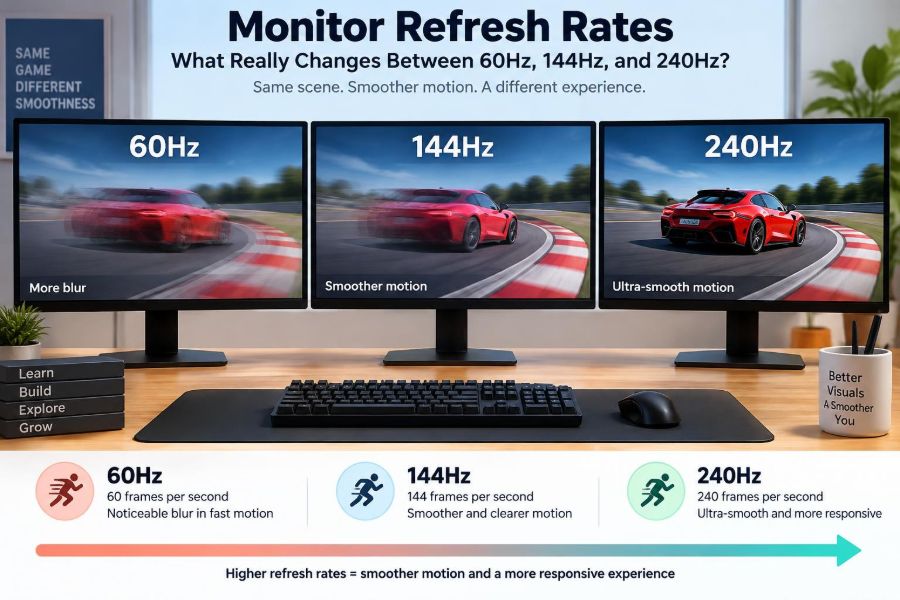

You move the mouse across a new monitor and something feels different. The pointer seems to glide rather than jump. Scrolling through a document looks calmer. In a fast game, the camera responds with a little more certainty.
That difference is often described as “smoothness,” but it comes from a specific display characteristic: refresh rate. It is one of the most visible specifications on a monitor box, yet it is also one of the easiest to misunderstand.
A higher number does not automatically make every task better, every game faster, or every image sharper. Its value depends on what your computer can produce, what you do on screen, and several other parts of the display chain.
Understanding the difference between 60Hz, 144Hz, and 240Hz makes it much easier to spend wisely—and to configure the monitor you already own correctly.
🧭 Refresh Rate in Plain Language
A monitor’s refresh rate is the number of times it can redraw the image each second. It is measured in hertz, written as Hz. A 60Hz monitor refreshes up to 60 times per second; a 144Hz monitor refreshes up to 144 times.
Think of a display as a very fast slideshow. Each refresh is an opportunity to show a newer frame from a game, a moving cursor, a video, or an animated interface. More opportunities can make motion appear more continuous.
🔢 What 60Hz, 144Hz, and 240Hz Actually Mean
The labels refer to a maximum refresh frequency, not a promise that every application will always display new information at that rate. The interval between possible refreshes becomes shorter as the rate rises.
| Refresh rate | Time per refresh, approximately | Common impression |
|---|---|---|
| 60Hz | 16.7 milliseconds | Standard baseline for everyday computing |
| 144Hz | 6.9 milliseconds | Noticeably smoother motion and interaction |
| 240Hz | 4.2 milliseconds | Very fluid motion when the rest of the system keeps up |
These values describe timing capacity. They do not say how quickly the panel’s pixels change color, how sharp motion looks, or how many frames a computer produces.
🎞️ Refresh Rate Is Not Frame Rate
Frame rate, usually measured in frames per second (fps), is generated by the source device. In a game, the graphics processor and CPU work together to render frames. Refresh rate belongs to the monitor.
If a computer produces 50 fps on a 144Hz monitor, the monitor can refresh 144 times, but it has only around 50 newly rendered frames available each second. Conversely, a game producing 200 fps on a 60Hz screen cannot show 200 separate frames in one second on that display.
Both numbers matter. Frame rate determines how often new visual information exists; refresh rate determines how often the monitor can present it.
👀 Why Higher Refresh Rates Look Smoother
At 60Hz, fast-moving objects travel farther between one displayed frame and the next. At 144Hz or 240Hz, their position is updated more frequently. Your eyes receive smaller visual steps, which can make motion feel more natural.
The effect is easy to notice when moving a cursor, scrolling text, dragging windows, or turning quickly in a game. It is not merely a gaming feature; operating systems and web pages also contain motion.
The jump from 60Hz to 144Hz is often striking because the intervals become much shorter. The change from 144Hz to 240Hz is real, but subtler for many people because each additional improvement is smaller in absolute time.
🖱️ Everyday Desktop Changes
On a high-refresh desktop, pointer movement can look more connected to hand movement. Long pages scroll with less perceived stepping, and animated panels or timelines can appear more stable.
This does not make a spreadsheet more accurate or a document easier to write by itself. But people who spend many hours navigating dense interfaces may appreciate the more responsive feel, especially after becoming accustomed to it.
For mostly static work—reading, writing, email, or viewing still images—the practical advantage is usually less dramatic than it is during fast motion.
🎮 What Gamers Gain
Games make refresh-rate differences particularly visible because the viewpoint, targets, and interface may move quickly. A higher refresh rate can present updated positions sooner, reducing the age of the visual information you see.
In competitive action games, that can make tracking motion feel clearer and controls feel more immediate. It does not replace skill, stable network performance, sensible settings, or a capable computer. It simply reduces one part of the visual delay chain.
Slower strategy, turn-based, puzzle, and narrative games can still feel pleasant at high refresh rates, but they usually place less value on 240Hz than a fast competitive shooter does.
⏱️ Refresh Rate and Input Lag
Input lag is the delay between an action—such as moving a mouse—and the corresponding result appearing on screen. Monitor refresh rate can affect one portion of this delay because a faster-refreshing display has more frequent chances to show the latest completed frame.
However, total input lag also includes the mouse or controller, operating system, game engine, CPU, GPU rendering, display processing, and pixel response. A 240Hz label alone does not reveal the total delay of a setup.
A higher refresh rate is best understood as lowering a timing limit within a larger system, not as a magic switch for instant response.
🧩 The Full Motion Pipeline
For a moving image to feel good, several stages must work together:
- The application must update its scene or interface.
- The CPU and GPU must prepare a new frame.
- The connection must carry the selected resolution and refresh rate.
- The monitor must begin a new refresh.
- The panel’s pixels must transition cleanly to the new colors.
A weakness at any stage can limit the experience. For example, a powerful 240Hz monitor cannot compensate for a game running at a consistently low frame rate, while a very fast GPU cannot overcome a monitor set to 60Hz.
💨 Pixel Response Time Matters Too
Pixel response time describes how quickly a pixel can change from one shade or color to another. It is different from refresh rate. A monitor may start a new refresh every 4.2 milliseconds at 240Hz, yet some pixel transitions may take longer than that.
When pixels change too slowly, traces can linger behind moving objects. This is commonly called ghosting. It can make fast objects look smeared even though the monitor has a high refresh-rate specification.
Manufacturer response-time figures are useful only with caution. They may represent a favorable transition under particular settings rather than every real-world change the panel performs.
👻 Ghosting, Overshoot, and Motion Clarity
Monitor makers often use an overdrive setting to push pixels toward their new values faster. Moderate overdrive can reduce ghosting. Excessive overdrive can create overshoot, where pixels briefly go beyond the intended shade and form bright or dark inverse trails.
The best setting is not always “Fast” or “Extreme.” It may vary by monitor and by refresh rate. If a dark object moving across a light background leaves obvious halos, try a lower overdrive mode.
Motion clarity depends on this balance. High refresh rate improves the timing of updates; well-controlled pixel transitions help those updates look clean.
📺 Why Motion Can Still Blur
Even a fast panel can show perceived blur because most LCD monitors are sample-and-hold displays. They hold each frame on screen until the next refresh. As your eyes track a moving object, that held image can appear blurred across your retina.
Some monitors offer backlight strobing or blur-reduction modes, which briefly flash the backlight instead of holding the image continuously. These modes can improve clarity in certain situations, but may reduce brightness, introduce flicker for some users, or limit adaptive-sync options.
A high refresh rate helps, but it is not the sole definition of clear motion.
🔄 Screen Tearing Explained
Screen tearing occurs when a monitor displays parts of two or more different frames during one refresh. You may see a horizontal break where the upper and lower portions of an image do not line up.
This can happen when the GPU sends frames at times that do not match the monitor’s fixed refresh cycle. Tearing is especially visible during horizontal camera movement, where straight edges move rapidly across the screen.
It is usually a synchronization issue, not evidence that the monitor is broken.
🔗 V-Sync and Its Trade-Offs
Traditional vertical synchronization, often called V-Sync, tells a game to coordinate frame presentation with the monitor’s refresh cycle. It can prevent tearing, but it may add delay or cause uneven motion when the game cannot maintain the selected rate.
For example, a game that regularly misses a 60Hz timing window may wait for a later refresh rather than presenting a partial frame. The exact behavior depends on the game and graphics settings.
V-Sync remains useful in some situations, particularly when tearing is distracting, but it is not the only synchronization option.
🧷 Adaptive Sync Changes the Match
Adaptive sync allows a compatible monitor to vary its refresh timing within a supported range so that it follows the game’s changing frame rate. It is commonly associated with technologies marketed under names such as AMD FreeSync and NVIDIA G-SYNC compatibility.
If a game varies between, for example, 70 and 110 fps and the display supports that range, adaptive sync can reduce tearing and uneven frame delivery without forcing a fixed cadence. The result often feels smoother than a fixed-refresh display at the same fluctuating frame rate.
Compatibility, supported range, behavior at low frame rates, and available ports differ by monitor, graphics card, and connection. Check the actual specifications rather than relying only on a marketing label.
🪜 Why 60Hz Remains Perfectly Usable
60Hz is not obsolete. It remains adequate for office work, web browsing, video playback, coding, many creative tasks, and a wide range of games. It is also common on affordable displays and on many laptop screens.
Most film and television content is produced at frame rates below 60 fps, so a 60Hz display can show it comfortably through appropriate frame repetition. A higher-refresh monitor does not automatically make a 24 fps movie look like it was filmed at 144 fps.
Choose 60Hz when budget, color quality, resolution, portability, or other priorities matter more than fluid interactive motion.
🚀 Why 144Hz Is a Popular Middle Ground
For many desktop users and gamers, 144Hz offers a substantial improvement over 60Hz without demanding the extreme frame rates needed to fully exploit 240Hz. It is widely available across different resolutions and panel types.
Its approximately 6.9-millisecond refresh interval provides much of the immediate, fluid feeling people seek from a high-refresh display. It can also be more realistic to drive at higher resolutions than 240Hz, depending on the game and GPU.
That balance makes 144Hz or nearby rates such as 120Hz, 165Hz, and 180Hz sensible choices for many mixed-use systems.
🏁 Where 240Hz Makes the Most Sense
A 240Hz display is most compelling when fast movement and low visual latency are central to the task. Competitive esports players, serious racing or action-game players, and users who strongly value maximum desktop fluidity are typical examples.
To see its strongest benefit, the system should produce high and reasonably stable frame rates in the games being played. This may require reducing graphics settings, choosing a lower resolution, or using a strong GPU and CPU.
For someone who mainly plays visually demanding single-player games at high resolution, a 144Hz display with better image quality, contrast, or resolution may be the more satisfying trade-off.
📉 Diminishing Returns Are Real
The improvement from 60Hz to 144Hz reduces the refresh interval by roughly 10 milliseconds. Moving from 144Hz to 240Hz reduces it by roughly another 2.8 milliseconds. Both changes matter, but they are not experienced equally.
This is why high refresh rates should not be treated as a simple ranking where the largest number is always the best purchase. The right choice depends on how noticeable the improvement is to you and what you give up to obtain it.
Price, resolution, panel quality, ergonomics, and computer performance can all matter more than the final step from 144Hz to 240Hz.
🖼️ Resolution Competes for Graphics Power
Resolution determines how many pixels the GPU must render. A 4K image contains far more pixels than a 1080p image, so reaching 240 fps at 4K is generally much more demanding than reaching 240 fps at 1080p with the same settings.
This creates a practical choice: prioritize a sharper, higher-resolution picture at a moderate refresh rate, or prioritize very high frame rates at a lower resolution. Neither choice is universally correct.
Photo editing, detailed design work, and large spreadsheets may benefit more from resolution and screen space. Fast competitive games often reward prioritizing consistent frame rate and refresh rate.
🎨 Color, Contrast, and Panel Type Still Count
Refresh rate is only one part of image quality. Color accuracy, color gamut, contrast, viewing angles, brightness, and uniformity can change the experience more than a higher Hz number in photography, video work, and general media use.
Different panel technologies also have characteristic strengths and limitations. Some provide strong contrast, some offer broad viewing angles, and some handle particular pixel transitions differently. Individual monitor implementation matters as much as the technology category.
A well-rounded 144Hz monitor may be a better long-term display than a poorly tuned 240Hz model with distracting motion artifacts or weak image quality.
🔌 Cables and Ports Can Limit the Setting
A monitor may support 144Hz or 240Hz, yet your computer may not offer that rate at the chosen resolution through every port. Display capability depends on the monitor input, GPU output, cable, adapter, color settings, and signal standard.
DisplayPort and newer HDMI versions often support high-refresh modes, but the exact combinations vary. Older cables, adapters, docking stations, and laptop ports can impose limits or prevent adaptive sync from working as expected.
Use the cable supplied with the monitor when possible, then consult the monitor and computer documentation for the supported resolution-and-refresh combinations.
⚙️ A New Monitor May Be Running at 60Hz
Connecting a 144Hz or 240Hz monitor does not always activate its maximum rate automatically. Operating systems may select 60Hz by default, particularly after changing cables, ports, drivers, or display modes.
On most systems, open the display settings or graphics control software and look for a refresh-rate menu. Select the highest stable rate supported by your current resolution and connection.
Also check the monitor’s on-screen menu. Some models require a specific input mode or a setting that enables their highest refresh options.
🛠️ A Practical Setup Checklist
When motion does not look as expected, troubleshoot the basics in a sensible order:
- Confirm the monitor is set to its intended refresh rate in the operating system.
- Verify the game is using the correct resolution, display mode, and refresh-rate option.
- Update graphics drivers when appropriate.
- Use a direct, suitable cable rather than an unknown adapter or dock.
- Check whether frame rate is actually high enough to benefit from the display.
- Test overdrive and adaptive-sync settings rather than assuming defaults are ideal.
A frame-rate counter can help diagnose the situation. It should be treated as a tool, not a target to chase at the expense of stable performance or enjoyable graphics.
🧠 CPU Limits Matter at High Frame Rates
At very high frame rates, a CPU can become the limiting component even when the GPU is powerful. The processor must handle game logic, draw-call preparation, physics, background tasks, and other work quickly enough to feed the graphics card.
This is one reason a graphics-card upgrade may not always transform performance on a 240Hz display. A game may be CPU-limited at lower resolutions, where the GPU finishes its work quickly and waits for the next frame instructions.
Settings such as view distance, simulation quality, crowd density, and background applications can affect this limit, depending on the game.
🌡️ Stable Frame Times Matter More Than a Peak Number
A game that briefly reaches 240 fps but repeatedly stutters may feel worse than one that holds a steady 120 or 144 fps. What you perceive is influenced by frame time: the time between delivered frames.
Consistent frame times create predictable motion. Sudden long frames create hitches, even if the average fps figure looks impressive. Adaptive sync can help with variable output, but it cannot remove every source of stutter.
When tuning a game, aim for sustainable performance. A sensible frame-rate cap can sometimes produce steadier behavior than allowing uncontrolled swings.
🎬 Video, Film, and High Refresh Displays
High-refresh monitors can display video smoothly, but the source frame rate still sets the amount of original motion information. A 24 fps film has 24 captured frames per second whether it is shown on a 60Hz, 144Hz, or 240Hz panel.
Because 24 divides evenly into 144 and 240, those rates can repeat each film frame an equal number of times in principle. Actual playback behavior also depends on the operating system, player, browser, and display settings.
Some devices use motion interpolation to create extra generated frames for video. That is a separate processing technique, and many viewers dislike its altered, overly smooth appearance for films.
💻 Laptops Need Extra Consideration
High-refresh laptop screens can make everyday use feel excellent, but they may increase power use when active. Many laptops automatically lower refresh rate on battery, offer dynamic refresh modes, or allow manual switching to extend battery life.
The laptop’s internal display connection and its external video ports may support different capabilities. An external 240Hz monitor may work perfectly from one port but not another.
For portable systems, consider whether you will benefit from high refresh away from a power outlet, not only while gaming at a desk.
🧪 Test With Your Own Eyes and Workload
Specifications narrow the choices, but personal testing is valuable. Move windows, scroll familiar pages, play the games you actually play, and inspect fast scenes for trails or flicker.
Do not judge a monitor only from a showroom demo. Demo units may use unusual settings, run simple content at very high frame rates, or sit beside displays with different brightness and calibration.
If possible, compare models with similar resolution and image quality. Otherwise, it is easy to mistake a difference in brightness, sharpness, or color for a refresh-rate difference.
⚠️ Common Buying Mistakes
Several assumptions lead to disappointing upgrades:
- Buying 240Hz while the main games rarely run above 60 fps.
- Ignoring resolution, color, contrast, and ergonomics for one headline specification.
- Assuming every HDMI port, cable, or adapter supports the advertised maximum mode.
- Leaving a new high-refresh monitor configured at 60Hz.
- Using aggressive overdrive because its name sounds faster, despite visible overshoot.
- Expecting a higher refresh rate to fix network lag, game stutters, or slow input devices.
A good purchase starts with the workload, then checks that the computer and connection can support the desired mode.
🛒 Choosing the Right Refresh Rate
Choose based on your most demanding regular use, not a feature you may use once. A 60Hz monitor can be a sensible value-focused choice for static productivity and media. A 120Hz or 144Hz-class display is often an excellent all-purpose option for work and games.
Consider 240Hz when fast, competitive play is a major priority and your system can maintain high frame rates. If you are choosing between 144Hz and 240Hz, compare the complete monitors: panel behavior, adaptive-sync support, resolution, connectivity, stand adjustment, warranty terms, and reviews that test real motion behavior.
There is no need to treat one category as objectively superior for every person. The best monitor is the one whose strengths match your tasks.
✅ The Core Principle: Match the Whole System
The difference between 60Hz, 144Hz, and 240Hz is fundamentally a difference in how often a monitor can present updated images. Higher rates can make motion smoother and can reduce part of the display-related delay, especially when a game produces enough frames and the panel responds quickly.
But refresh rate works alongside frame rate, pixel response, synchronization, connection bandwidth, resolution, and image quality. A balanced setup usually feels better than one built around a single impressive number.
The most useful question is not “What is the highest Hz I can buy?” It is “What refresh rate fits my computer, my work, my games, and the visual qualities I care about?”
A higher refresh rate is most valuable when the entire display pipeline can deliver clean, timely frames—and when your everyday tasks let you feel the difference. Choose the balance that makes your screen more comfortable and effective to use. 🖥️🎮✨