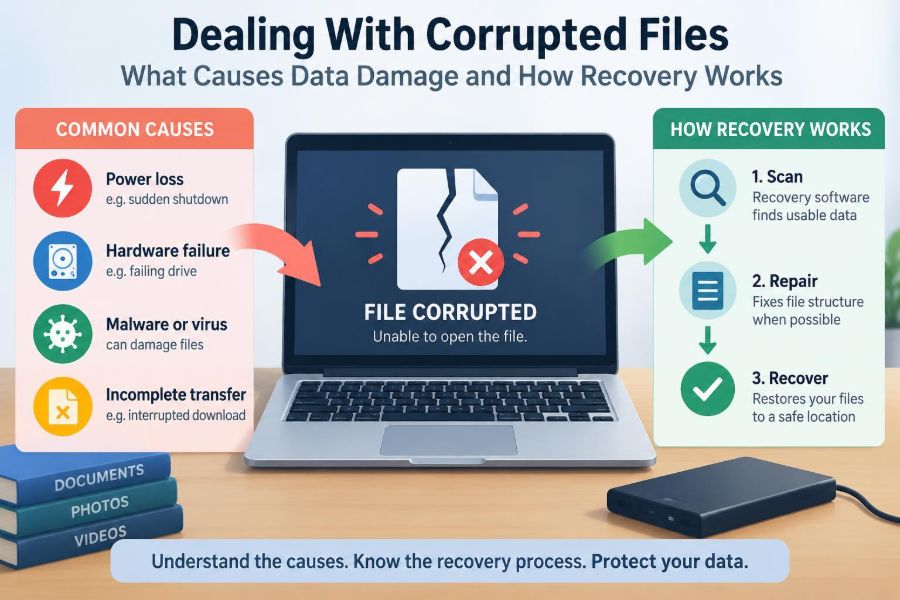

You open a presentation minutes before a meeting, and the file refuses to load. Or a phone gallery shows a gray thumbnail where a favorite photo should be. Sometimes the warning is vague: “The file is corrupted.” Sometimes there is no warning at all—just missing pages, garbled text, or a document that suddenly has a size of zero bytes.
These moments are frustrating because a file is not merely a thing on a screen. It may represent hours of work, business records, family memories, research data, or the only copy of an important form.
File corruption is often described as if the entire file has “gone bad.” In reality, data damage has many causes and many levels of severity. A damaged file may be partly readable, structurally broken, stored in the wrong location, or still intact but inaccessible through normal software.
Understanding what happened changes the next step. The safest response is rarely to keep reopening, editing, saving, and downloading recovery tools at random. It is to protect what remains, identify the kind of damage, and choose a recovery method that fits the situation.
🧩 What a Corrupted File Actually Means
A corrupted file contains data that no longer matches the structure expected by the application or file format. A word processor may expect a set of organized document records; if critical records are altered or missing, it may refuse to open the file.
Corruption does not always mean every byte is wrong. A photo may lose only its header—the small section that tells software what format it is—while much of the image data remains present. Conversely, a tiny change in a compressed archive can make the entire archive unusable.
📦 Files Are More Than Their Visible Contents
What people see as a file usually has several layers. There is the visible content, such as paragraphs or pixels, but also metadata, internal indexes, formatting instructions, and a file-system record that identifies its name and storage location.
Damage at different layers creates different symptoms. A broken index might prevent a database from opening, while damaged text content may leave a document openable but incomplete. This is why two files with the same error message may need different recovery approaches.
🔢 Bits, Bytes, and Why Small Changes Can Matter
Computers store information as bits: values of 0 or 1. Eight bits commonly form a byte. Text, audio, spreadsheets, and videos are all ultimately sequences of bytes interpreted according to rules.
Changing one byte may have little visible effect, or it may alter an instruction that controls thousands of other bytes. Think of a recipe: a smudge in a comment is minor, but a smudge in the oven temperature can ruin the result. File formats have similar critical fields.
🗂️ The File System’s Role
A storage device does not usually place a file in one perfectly continuous block. The operating system’s file system records which storage areas belong to the file and where they are located.
If that map is damaged, the file’s contents may still exist on the drive but be difficult for the operating system to assemble. File-system corruption can also cause folders to disappear, filenames to look strange, or a drive to request formatting even when data is present.
⚡ Interrupted Writes and Sudden Power Loss
A file is vulnerable while it is being saved, copied, updated, or moved. If a laptop battery dies, a desktop loses power, or a storage cable is disconnected at that moment, the operation may stop halfway through.
Modern software and file systems often use protective techniques such as temporary files, journaling, and autosave. These reduce risk but cannot eliminate it. A partially written project file may contain a valid beginning and an incomplete ending, or a new version may replace a previously healthy one.
🔌 Unsafe Removal of External Storage
Removing a USB drive, memory card, or portable drive without using the operating system’s eject option can interrupt writes that appear to have finished. Some data may still be waiting in a cache—a temporary holding area in memory.
Safe ejection tells the system to complete pending work and unmount the device cleanly. It is especially valuable for flash drives used across different computers, where background indexing or synchronization may continue after a file window seems idle.
💾 Failing Storage Hardware
Hard disk drives can develop unreadable sectors, mechanical problems, or electronic faults. Solid-state drives have no moving parts, but they can still fail through controller problems, worn flash cells, firmware faults, or sudden electrical events.
A corrupted file accompanied by slow access, repeated disconnects, clicking from a hard drive, or read errors deserves caution. Repeatedly scanning or copying a failing device can place extra stress on it. In valuable cases, a professional data-recovery service may be safer than further experimentation.
🦠 Malware and Ransomware Damage
Malware can alter, delete, hide, or encrypt files. Ransomware is a particularly disruptive category because it typically transforms files into encrypted data and may change their names or add unfamiliar extensions.
Encryption by ransomware is not ordinary accidental corruption. Repair tools cannot usually reconstruct the original contents without a valid decryption method or a clean backup. Disconnecting the affected device from networks and preserving evidence are sensible first actions; paying a demand does not assure recovery.
🐞 Software Bugs and Application Crashes
Applications can crash during saves because of bugs, insufficient memory, conflicts with add-ins, or unexpected input. A crash does not automatically corrupt a document, but it can leave an incomplete file or a temporary recovery copy.
Look first for the application’s built-in recovery area before trying third-party software. Many office suites, design tools, and code editors create autosave files or version histories. Opening a copy rather than the only original avoids making a difficult situation worse.
🔄 Sync Conflicts and Cloud Mistakes
Cloud storage improves resilience when it keeps version history, but synchronization introduces its own failure modes. Two devices editing the same file offline can create conflicting versions, while an accidental deletion may synchronize quickly across devices.
Do not assume a sync icon means a complete backup. Check whether the service retains old versions, deleted items, and shared-folder changes. A cloud account can protect against local drive failure, yet it may not protect against a mistaken edit that is faithfully copied everywhere.
🧪 Faulty Transfers and Incomplete Downloads
A file copied over an unstable network, unreliable cable, or failing card reader may arrive incomplete. Downloads can also be interrupted while still producing a file with the expected name.
Compare file sizes when a trusted source provides them. For technical downloads, a checksum is stronger evidence: it is a calculated value based on a file’s contents. Matching checksums indicate that the received file matches the source under that checking method.
🧷 Format Mismatch and Wrong File Extensions
Not every “corrupted” message means the data is damaged. Renaming report.pdf to report.docx does not convert it into a Word document; it merely changes the label used by the operating system.
Likewise, a file generated by an older, specialized, or incompatible application may be valid but unsupported by the program trying to open it. Confirm the real format before assuming recovery is needed. A compatible viewer, converter, or original application may solve the problem.
🖼️ Why Some File Types Recover Better Than Others
Recovery prospects depend on format design. Plain-text files have relatively simple structure, so readable portions may survive even if some bytes are damaged. A complex document, compressed video, encrypted archive, or database may depend on tightly connected internal records.
This does not make complex files hopeless. Many formats contain repeated structure, previews, or independently stored parts. It does mean that “repair” may produce only partial content, such as extracted images from a damaged presentation rather than a fully editable presentation.
🧱 Structural Damage Versus Content Damage
| Type of problem | Typical symptom | Possible response |
|---|---|---|
| Structural damage | File will not open or is identified as invalid | Use built-in repair, a format-aware tool, or a clean copy |
| Content damage | File opens, but sections, pixels, or records are wrong | Extract usable material and compare with older versions |
| File-system damage | Folders disappear or drive asks to be formatted | Stop writing to the device; assess the storage medium |
| Access problem | Permission, account, or encryption error | Verify credentials, keys, permissions, and original software |
The distinction matters because a tool designed to repair a document’s internal structure cannot fix a failing drive, and a disk-recovery tool cannot restore forgotten encryption keys.
🔍 First Signs That Deserve Attention
Early warning signs include files opening slowly, unexpected error messages, folders that vanish and reappear, files with zero-byte sizes, and applications that repeatedly ask to recover the same document.
One isolated failure may be a damaged file. A pattern across many files points more strongly to storage, synchronization, software, or malware issues. Treat patterns as diagnostic information rather than as a reason to keep retrying blindly.
🛑 Stop Writing to the Affected Device
When files have been deleted, a drive looks corrupted, or storage hardware seems unstable, the most protective immediate step is often to stop writing new data to that device.
Deletion commonly removes the file-system reference before the underlying space is reused. New files, application caches, updates, and recovery software installed on the same drive can overwrite recoverable data. Work from another drive whenever possible.
📸 Make a Safe Copy Before Repair Attempts
If the storage device is readable, copy the affected file and, ideally, other important data to reliable storage. For a drive showing signs of failure, a sector-by-sector image made with suitable tools can preserve the current state for later work.
Recovery attempts should normally target a copy, not the only original. Some applications save changes automatically when they open a file, which can overwrite clues that another repair method might have used.
🧰 Start With Built-In Recovery Features
Many programs include options such as Open and Repair, Recover Text, restore previous version, or document recovery. These tools understand their own file format and are often the least risky place to begin.
Also inspect temporary folders, autosave locations, recycle bins, and cloud version histories. Their exact locations and retention rules vary by operating system and application, so check documentation for the software involved rather than relying on a generic path found online.
🧬 What File Repair Tools Try to Do
File repair tools generally use format-specific rules. They may rebuild a damaged header, skip invalid records, reconstruct an index, or extract portions that remain recognizable.
Results vary. A repaired file that opens is not necessarily complete or accurate. Check page counts, formulas, media, dates, and important records against known copies. For business, academic, or legal material, preserve the original and document what was changed.
🕵️ How Deleted-File Recovery Works
Deleted-file recovery is different from repairing a damaged file. Recovery software searches file-system records or scans raw storage for recognizable patterns, sometimes called file signatures.
For example, a tool may recognize the beginning of a JPEG image or PDF document. It then tries to locate the remaining data. Fragmentation—when a file occupies separated areas of a drive—makes this harder because the correct pieces may be difficult to identify and order.
🧠 Why SSD Recovery Has Special Limits
On many solid-state drives, the operating system can issue a command commonly known as TRIM after deletion. This helps the drive manage free space and maintain performance, but it may cause deleted data to become unavailable quickly.
The exact outcome depends on the drive, operating system, encryption, and timing. The practical lesson is simple: do not rely on undelete tools as a safety net, especially for SSDs. Backup strategy remains far more dependable than after-the-fact recovery.
🔐 Encryption Changes the Recovery Equation
Encryption protects data by making it unreadable without the correct password, recovery key, or cryptographic key. If an encrypted drive suffers physical failure, the data may be recoverable only if both the storage contents and the required keys are available.
Keep recovery keys separately from the device, but securely. A backup of encrypted files is useful only if the organization or individual restoring it can still access the credentials and keys required to decrypt it.
☁️ Versions Are Often Better Than Repairs
A version history preserves earlier states of a file. This is valuable when the newest file opens but contains accidental deletions, unwanted edits, or subtle corruption introduced during a save.
Versions are not a substitute for independent backup copies, because retention may be limited and account problems can affect access. Still, for everyday documents, restoring yesterday’s healthy version is often cleaner and faster than repairing today’s broken one.
🗃️ Build Backups Around Real Risks
A useful backup plan accounts for hardware failure, accidental deletion, malware, and device loss. Keep more than one copy, store at least one copy separately from the main computer, and make sure backups actually complete.
For important work, combine automatic backup with deliberate versioning. A photographer might retain original images locally, copy them to external storage, and use a separate cloud service. A small business may need scheduled backups plus regular checks that restoration works.
✅ Test Restores Instead of Trusting Backup Icons
A backup job can appear successful while omitting a folder, storing an inaccessible encrypted copy, or preserving files that no longer open. The only meaningful test is restoring selected files to a different location and opening them.
Choose representative material: a document with images, a spreadsheet with formulas, a project folder, and a large media file. This reveals whether filenames, permissions, versions, and application-specific data survive the backup process.
🧹 Everyday Habits That Reduce Corruption
- Save important work before sleep, travel, updates, or battery depletion.
- Use safe ejection for removable storage and wait for transfers to finish.
- Keep operating systems, applications, and device firmware updated from trusted sources.
- Use reliable power protection where sudden outages are common.
- Scan for malware and be cautious with unknown attachments and cracked software.
- Avoid filling storage completely; systems need working space for updates and temporary files.
These habits do not make failure impossible. They reduce common opportunities for incomplete writes, unstable transfers, and preventable software problems.
⚠️ Common Mistakes During Recovery
One common mistake is formatting a drive because the operating system suggests it. Formatting may be appropriate only after data has been recovered or the drive is known to contain nothing needed.
Another is running multiple repair tools on the original file, then saving each result over the previous one. Avoid installing recovery software onto the affected drive, trusting every “preview” as a valid full recovery, or continuing to use a drive that shows repeated failure signs.
👩🔧 When Professional Help Makes Sense
Professional recovery is worth considering when the device contains irreplaceable data, shows physical failure, has suffered liquid or fire damage, or cannot be read without unusual noises or repeated disconnections.
Specialists may have equipment and controlled procedures unavailable to home users. They cannot promise success, especially when storage is severely damaged or encrypted without keys, but they can reduce the risk of making a fragile situation worse.
📋 A Calm Decision Path
- Identify whether the issue affects one file, one application, or an entire device.
- Stop writing to the affected storage if deletion, drive failure, or file-system damage is suspected.
- Check backups, recycle bins, autosave files, version history, and compatible applications.
- Copy readable data and work from copies.
- Use a targeted repair or recovery method appropriate to the file type and failure.
- Verify recovered content carefully, then replace unreliable storage or improve the backup plan.
This sequence avoids a frequent problem: applying a powerful tool before understanding whether a simple earlier version was already available.
🎯 The Core Principle: Preserve Before You Repair
Data recovery is not a single button. It is a set of methods for different failures: restoring a prior version, rebuilding a damaged file structure, locating deleted data, or extracting readable material from troubled storage.
The strongest protection comes before a failure: safe saving habits, healthy storage, version history, and tested backups. When something does go wrong, preserving the original state gives you more options and prevents a small incident from becoming permanent data loss.
When a file appears corrupted, protect the remaining data first, then choose recovery steps based on the actual type of damage. That calm, methodical approach is more valuable than any single repair tool. 💾🔍🛡️