
Your computer feels slow just as you need it most. A video call begins to stutter, a game starts dropping frames, or a spreadsheet takes far longer to respond than it did last week. The obvious question is, “What is my PC doing?”
Without a clear view of system activity, troubleshooting often becomes guesswork. You might close random applications, restart the machine, or assume that it is time to buy new hardware—even when one overloaded program or a nearly full drive is the real cause.
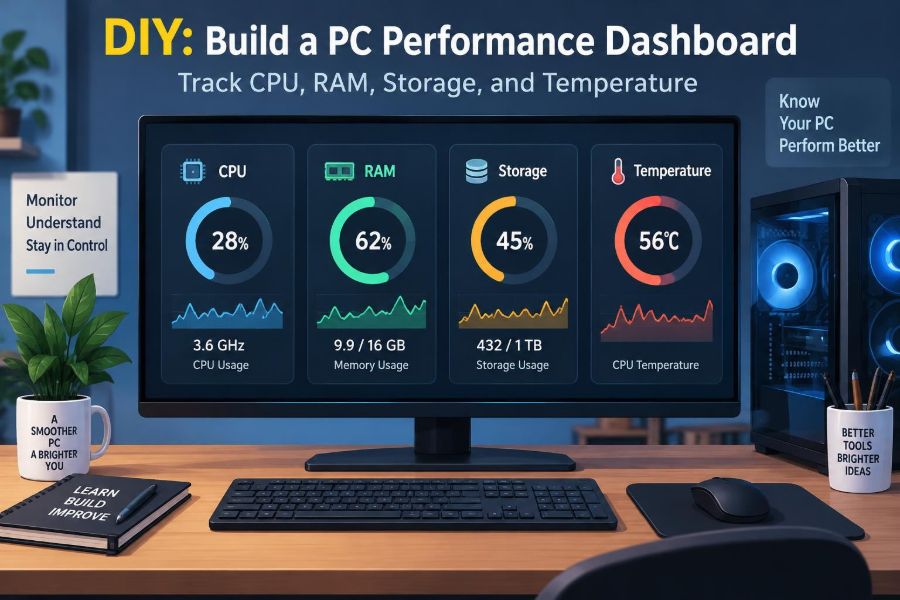
A PC performance dashboard turns scattered technical readings into one practical view. It can show processor load, memory use, storage activity, and temperatures while you work, play, create, or diagnose a problem.
This project does not require building monitoring software from scratch. With built-in operating system tools and a carefully chosen monitoring utility, you can create a dashboard that is useful, readable, and matched to the way you actually use your computer.
🧭 What a PC Performance Dashboard Does
A performance dashboard is a single screen, panel, or compact overlay that displays selected measurements from your computer. Rather than opening several separate windows, you can see the readings most likely to explain a slowdown or hardware concern.
Think of it like a vehicle dashboard. A fuel gauge alone does not explain every problem, but speed, engine temperature, warning lights, and fuel level together provide useful context. A PC dashboard works the same way: the relationship between readings matters more than any one number.
🎯 Start With a Clear Monitoring Goal
Decide what you want the dashboard to help you answer. A student running browser tabs and online classes has different needs from someone editing video, compiling software, or tuning a gaming PC.
- “Which application causes my PC to become unresponsive?”
- “Does my laptop get too hot during long meetings?”
- “Is my storage drive holding back file transfers?”
- “Do I have enough memory for my regular workload?”
A focused goal prevents the dashboard from becoming a wall of numbers. Monitoring every available sensor can look impressive but makes meaningful changes harder to spot.
🧩 Understand the Four Core Measurements
For a practical first dashboard, track CPU usage, RAM usage, storage activity, and temperature. These measurements cover many everyday performance complaints, although they do not explain every issue.
| Measurement | What it represents | What a sustained rise may suggest |
|---|---|---|
| CPU usage | How busy the processor is | Demanding software, background work, or an inefficient process |
| RAM usage | Working memory occupied by programs | Too many active tasks or a memory-heavy workload |
| Storage activity | Drive reads and writes | File transfers, updates, paging, indexing, or a busy application |
| Temperature | Heat reported by supported sensors | High workload, restricted airflow, dust, or cooling limitations |
Network activity, graphics processor usage, fan speeds, and battery condition can be useful additions later. Begin with the readings you can interpret confidently.
🧠 Read CPU Usage in Context
The central processing unit, or CPU, executes instructions for the operating system and programs. CPU usage shows the percentage of available processing capacity currently being used across its cores or logical processors.
Brief peaks are normal. Opening an application, exporting a file, loading a web page, or installing an update can push CPU use high for a short time. A concern is more likely when usage remains high and the computer feels slow despite little intentional activity.
High CPU use is not automatically bad. Rendering video or compiling code is supposed to use substantial processing power. The useful question is whether the activity matches the task you asked the computer to perform.
🧮 Know What RAM Usage Means
Random-access memory, usually called RAM, holds the data and instructions programs need quickly. It is much faster to access than ordinary storage, but it is temporary: its contents disappear when the computer loses power.
When available RAM becomes limited, the operating system may move less-active data between memory and storage. This process is often called paging or swapping. It helps programs remain open, but it can make the system feel less responsive, especially when the storage drive is also busy.
Do not treat a high memory percentage as a failure by itself. Modern operating systems use unused memory for caching because idle RAM provides little benefit. Look instead for a pattern of memory pressure, slow switching between applications, and persistent storage activity.
💾 Separate Storage Space From Storage Activity
Storage capacity answers “How much room is left?” Storage activity answers “How hard is the drive working right now?” Both matter, but they indicate different problems.
A drive with little free space can complicate updates, file creation, and temporary workspace needs. A drive showing intense read or write activity may be busy because of copying, syncing, searching, antivirus scanning, updates, or paging.
Include both a capacity indicator and an activity graph if your dashboard allows it. A nearly full drive may need cleanup; a drive that is constantly active may point to a process worth investigating.
🌡️ Treat Temperature as a Diagnostic Clue
Temperature readings show how much heat components are experiencing under current conditions. CPUs, GPUs, storage devices, and motherboard sensors may each report values, depending on the hardware and monitoring tool.
There is no universal “safe temperature” that applies to every PC. Component models, laptop designs, sensor locations, fan settings, room temperature, and workload all affect the reading. Use your device manufacturer’s documentation when you need model-specific limits.
A temperature rise during demanding work is expected. More useful warning signs include an unusual increase during ordinary tasks, performance drops while the system is hot, unexpected shutdowns, or fans running loudly when the PC is nearly idle.
🔗 Learn to Spot Bottlenecks
A bottleneck is the component or resource currently limiting progress. It changes with the task. A large photo export may be CPU-limited, a huge database query may be storage-limited, and dozens of browser tabs may create memory pressure.
The dashboard helps because it shows timing. If a program pauses while RAM is nearly exhausted and storage activity spikes, paging is a plausible explanation. If CPU use is low but a single drive remains saturated, faster processing hardware would not necessarily solve that wait.
Do not diagnose a bottleneck from one isolated metric. Compare at least two readings and observe which process is active.
🪟 Use Built-In Windows Tools First
Windows includes useful monitoring tools, especially Task Manager. Open it with Ctrl + Shift + Esc, then select the Performance view for overall CPU, memory, disk, network, and GPU graphs.
The Processes view is often the next step. Sort by CPU, Memory, or Disk to identify which applications are using resources at that moment. Resource Monitor provides a more detailed view when you need to see disk, CPU, memory, and network activity by process.
These tools are ideal for quick checks and software troubleshooting. Their limitation is that they may not provide the sensor detail or customizable always-visible panel that a dedicated dashboard can offer.
🍎 Use Built-In macOS Tools First
On macOS, Activity Monitor provides a clear starting point. Its CPU, Memory, Energy, Disk, and Network tabs show which processes are active and how system resources are being used.
The Memory Pressure graph deserves attention because it summarizes whether the system is comfortably managing memory or working harder to do so. A single high memory-use figure is less informative than the pressure trend and the overall responsiveness of the Mac.
macOS exposes some hardware data differently from one model to another. For detailed temperatures or fan information, you may need a reputable utility designed for your specific Mac hardware.
🐧 Use Native Linux Monitoring Tools
Linux distributions offer several approaches. A desktop system monitor can provide graphical CPU, memory, network, and process views, while terminal tools are useful on servers and lightweight systems.
For example, top and htop show active processes, while free summarizes memory and df reports free filesystem space. Sensor visibility depends on installed drivers and hardware support, so temperature monitoring may require configuration.
Linux dashboards are especially flexible, but flexibility creates responsibility: verify what each displayed sensor means before using it to make hardware decisions.
🛠️ Choose a Dedicated Monitoring Utility Carefully
A dedicated monitoring utility can combine detailed sensors, graphs, alerts, logging, and desktop overlays. Look for a tool that clearly labels sensor sources, lets you choose units, and allows you to hide values you do not need.
Download monitoring software from its official publisher or a trusted operating-system source. Be cautious with tools that bundle unrelated “cleanup,” driver-update, or optimization features. A dashboard should observe your system, not make unexplained changes to it.
Also consider resource use. A lightweight monitor running in the background is usually preferable to a visually elaborate dashboard that adds needless load.
🧱 Plan the Dashboard Layout Before Customizing
A readable layout follows the order in which you diagnose common problems. Put overall load indicators at the top, active bottleneck clues in the middle, and slower-changing capacity information lower down.
A practical arrangement might place CPU usage and temperature side by side, followed by RAM used and available, then storage activity and free space. Keep graphs wide enough to show recent changes rather than only an instant value.
Use consistent units: degrees Celsius or Fahrenheit, gigabytes rather than a mixture of megabytes and gigabytes, and percentage labels where percentages are meaningful.
📊 Build a Minimal First Screen
Your first version should answer a question in a few seconds. Include only the following:
- Overall CPU usage and CPU temperature
- RAM used, available memory, or memory pressure
- Primary drive activity and free capacity
- Optional GPU usage and temperature for graphics-heavy work
- A small process list or shortcut to the operating system’s process monitor
This compact design is easier to test. Once you understand its behavior during normal work, add a second page or panel for advanced readings such as fan speeds, per-core temperatures, or network throughput.
📈 Prefer Trends Over Instant Readings
An instantaneous value is a snapshot. A graph adds the missing story: whether the value is climbing, falling, pulsing, or staying high. A CPU reading of 70% can be normal for a few seconds or meaningful if it persists for twenty minutes.
Set graph history long enough to cover the behavior you are investigating. A few minutes works for app launches and short stutters. Longer history is more useful when tracking heat buildup during a meeting, game session, or long export.
Sampling intervals also matter. Very frequent updates look lively but can make minor fluctuations distracting. A moderate interval is usually easier to read and adds less monitoring overhead.
🏷️ Label Sensors So They Make Sense Later
Some systems expose multiple entries with similar or vague names. You might see several CPU temperature readings, package power values, motherboard sensors, or storage temperatures that are not immediately self-explanatory.
Rename dashboard tiles where the software permits it. For example, use labels such as “CPU overall,” “CPU package temperature,” “System drive free space,” and “Graphics load.” Clear labels prevent an important mistake: reacting to a sensor you have misunderstood.
If a value seems implausible, cross-check it with another tool or your firmware interface rather than assuming the reading is accurate.
⚙️ Set Sensible Alerts, Not Constant Alarms
Alerts can notify you when a temperature, capacity level, or utilization condition crosses a chosen threshold. They are useful for unattended tasks, compact PCs, and systems that routinely perform long workloads.
However, an alert that triggers during every normal peak quickly becomes background noise. Use conditions that persist for a period of time where the tool supports that option, and reserve urgent notifications for events that need action.
A low-storage warning is often practical because capacity changes slowly. A CPU alert is usually less useful unless high load is unexpected for the computer’s role.
🗂️ Record Logs for Problems That Come and Go
A log records readings over time. It is valuable when a problem occurs only occasionally, such as a laptop becoming hot after sleep, a workstation slowing during a scheduled task, or a game stuttering at unpredictable moments.
Capture the date, time, workload, and visible symptoms alongside the dashboard data. A short note such as “video call began freezing at 2:15 p.m.” can make a later graph much easier to interpret.
Logging has trade-offs: it uses storage and may collect more operational detail than you want to retain. Store logs locally when possible and review what a cloud-connected monitoring service uploads.
🔍 Investigate a Slow PC Step by Step
When the system slows down, avoid changing several things at once. First, reproduce or wait for the issue while the dashboard and process monitor are open. Then identify the busiest resource and the application associated with it.
- Note the time and the task you are performing.
- Check CPU, RAM, disk activity, and temperatures together.
- Sort running processes by the resource that is unusually busy.
- Wait briefly to see whether the activity is a normal short-lived burst.
- Investigate the process, its updates, startup behavior, or its workload.
This method does not guarantee an answer, but it replaces random fixes with evidence-based troubleshooting.
🧪 Test Under Realistic Workloads
A dashboard is most informative during work you actually do. A gaming PC should be observed during a typical game session; a student laptop during a browser-heavy class day; a creative workstation during a normal project export.
Synthetic stress tests can reveal cooling behavior, but they are not the same as everyday use. They may drive components harder than your normal tasks and should be used carefully, particularly on laptops or systems with uncertain cooling condition.
Build a baseline: observe how the PC behaves when it feels healthy. Later, unusual behavior is easier to recognize because you have a point of comparison.
🌬️ Connect Heat Readings to Airflow
High temperature is not always caused by software. A blocked laptop vent, dust buildup, a PC positioned against a wall, an ambient hot room, or failing cooling hardware can change thermal behavior.
Check simple physical conditions first. Place a laptop on a firm surface, keep intake and exhaust paths clear, and make sure a desktop case has reasonable space around it. Do not open hardware or alter cooling components unless you understand the risks and warranty implications.
If temperatures appear abnormal alongside throttling, crashes, or shutdowns, professional inspection may be safer than repeatedly pushing the system under load.
🧹 Use the Dashboard to Improve Daily Habits
Monitoring can reveal small habits that reduce friction. Perhaps a cloud-sync application is busiest during your video meetings, a browser extension consumes more memory than expected, or a scheduled backup overlaps with creative work.
Adjust timing rather than disabling useful services permanently. Pause a large sync during a presentation, schedule backups outside active hours, and close projects you no longer need. The goal is not to keep every graph low; it is to allocate resources to the work that matters now.
🚫 Avoid Misleading “Optimization” Shortcuts
Some advice encourages users to end unfamiliar processes, disable many startup entries, or use registry-cleaning tools based solely on a dashboard reading. These actions can create new problems, especially when the process belongs to the operating system, security software, or device drivers.
Before ending a task, identify it. Search within trusted documentation, check the application’s publisher, and consider whether it is doing a legitimate job such as updating, indexing, or scanning files.
A dashboard is a measuring instrument, not permission to remove anything that looks busy.
🔐 Protect Privacy and System Security
Monitoring data may reveal application names, device identifiers, network activity, usage schedules, and file paths. This matters on shared, managed, or workplace devices.
Use software from trustworthy sources, review requested permissions, and avoid sharing screenshots that expose confidential project names or account details. On employer-managed computers, follow organizational rules before installing third-party utilities.
For many users, the built-in tools are the best privacy-preserving first choice.
🖥️ Decide Between an Overlay and a Second Display
An on-screen overlay is convenient while gaming or presenting, but it can cover useful content and distract from the task. Keep an overlay minimal: one line for temperatures and load may be enough.
A second display, tablet-style dashboard, or separate desktop workspace offers more room for graphs and logs. It is better for long troubleshooting sessions, server monitoring, or content creation, where a full dashboard should remain visible without covering the main application.
Choose the format that supports your workflow rather than copying a dramatic multi-panel setup you have seen online.
🔋 Account for Laptops and Battery Power
Laptops have tighter thermal and power limits than many desktops. Their performance can change depending on whether they are plugged in, the selected power mode, battery condition, and the surface on which they are used.
When investigating a laptop, note whether it is charging and whether the issue happens on battery power, external power, or both. Also remember that a monitoring tool and always-on overlay consume some energy themselves.
For battery-focused monitoring, prioritize temperature, CPU activity, power mode, and the applications using notable energy rather than displaying every available sensor.
🎮 Add GPU Metrics When the Work Demands Them
The graphics processing unit, or GPU, deserves a place on the dashboard for games, 3D work, video effects, machine-learning workloads, and some creative applications. In these situations, CPU readings alone can be misleading.
Useful GPU metrics include utilization, temperature, dedicated graphics memory use, and sometimes clock behavior. A game may be GPU-limited even while the CPU appears lightly loaded, particularly at high resolutions or demanding graphics settings.
For ordinary office tasks, GPU data can remain on an advanced panel. Keeping it off the main screen preserves clarity.
🧾 Document Your Baseline and Changes
Keep a simple record of your normal idle condition and a few regular workloads. You do not need elaborate reports; a note with typical behavior, active software, and dashboard screenshots can be enough.
Record major changes too: a new application, driver update, storage upgrade, added memory, or a move to a warmer workspace. When a problem begins, this history helps separate coincidence from a likely cause.
Documentation is especially useful when supporting family members, maintaining shared computers, or handing a system to a repair technician.
🧭 Know When the Dashboard Cannot Answer Everything
A dashboard shows symptoms and resource patterns, not a complete diagnosis. Slow internet service, software bugs, failing peripherals, corrupted files, account issues, and remote-server delays may not appear clearly in CPU, RAM, storage, or temperature data.
Likewise, a normal-looking dashboard does not prove that hardware is healthy. Intermittent faults can be difficult to observe, and sensor data may be incomplete or inaccurate. Back up important files and seek qualified support when you see repeated crashes, data errors, swelling batteries, burning smells, or unexpected shutdowns.
✅ Build a Dashboard You Will Actually Use
The best performance dashboard is not the one with the most gauges. It is the one that helps you recognize normal behavior, notice a meaningful change, and take a proportionate next step.
Start with CPU load, memory state, storage activity and capacity, plus temperatures where reliable sensors are available. Add graphs, process details, alerts, and GPU data only when they answer a real question in your workflow.
A useful PC dashboard turns performance troubleshooting from guesswork into observation: watch the pattern, connect it to the workload, and change one thing at a time.
Once your dashboard is tuned to your own computer, it becomes a quiet reference point rather than another source of noise—ready when a slowdown, heat spike, or storage surprise needs explaining. 🖥️📊🌡️