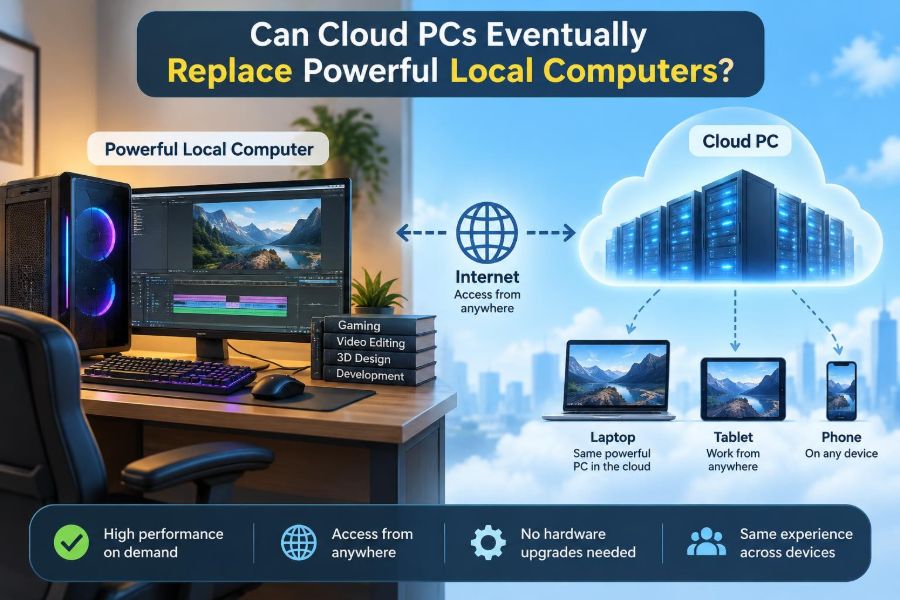

A video editor exports a large project on a desktop workstation, while a colleague opens the same project from a lightweight laptop at home. A student runs engineering software in a campus lab because their own computer cannot handle it. A designer travels with a thin notebook but still needs access to demanding 3D tools.
These situations point to the same question: does the computer have to sit on your desk? With a cloud PC, the demanding processing can happen in a remote data centre, while your local device mainly displays the result and sends back your keyboard, mouse, or pen input.
The idea is appealing. A modest device could feel like a powerful workstation, files could remain in one managed place, and upgrading might mean changing a remote configuration rather than buying new hardware. But the experience depends heavily on the network, the workload, security requirements, and the costs over time.
Cloud PCs are already useful in specific settings. Whether they can replace powerful local computers more broadly is not a simple yes-or-no question. It is a question of which jobs can move away from the desk, which cannot, and what must improve first.
☁️ What a Cloud PC Actually Is
A cloud PC is a personal desktop environment that runs on remote server hardware. You connect to it through an app, browser, or remote-desktop client on a laptop, tablet, thin client, or another computer.
The remote system has its own assigned processor capacity, memory, storage, operating system, and sometimes a virtual graphics processor. Your screen shows a compressed video stream of that remote desktop, much like a live interactive video feed.
This differs from simply storing files in cloud storage. With cloud storage, your applications usually run locally. With a cloud PC, the applications themselves can run remotely.
🖥️ How a Powerful Local Computer Works
A powerful local computer keeps its CPU, graphics card, RAM, and storage physically close to the user. When you click a button in a game, move a 3D model, or compile code, the machine processes the work directly and sends the result to the attached display.
This design minimizes delay and gives the user direct access to ports, devices, and local files. It also means the owner is responsible for buying, powering, cooling, updating, repairing, and eventually replacing the hardware.
For demanding jobs, local performance is often predictable because it does not depend on an internet connection or a provider’s remote capacity.
🔄 The Basic Difference: Compute Here or Elsewhere
The central trade-off is location. A local computer sends data over very short internal connections. A cloud PC sends input across a network, processes it remotely, then returns a visual representation of the result.
Think of it as using a very capable workshop in another city. You can send instructions quickly, but you still wait for each instruction and response to travel back and forth. For document editing, that wait may be unnoticeable. For fast, precise visual work, it can become frustrating.
Cloud computing does not remove the need for powerful hardware. It moves that hardware into a data centre and shares its management across many users.
⚙️ The Building Blocks Behind the Service
Cloud PCs are typically built from virtual machines. A virtual machine is software that behaves like a separate computer while sharing physical server hardware with other virtual machines.
A provider uses virtualization software to allocate processor cores, memory, storage, networking, and graphics resources. Management tools create desktop images, apply updates, control access, and monitor usage.
Some cloud desktops use shared resources, while others reserve more capacity for one user. The details affect consistency: a workstation-class virtual desktop generally needs more guaranteed resources than a basic office desktop.
🌐 Why Latency Changes the Experience
Latency is the time taken for data to travel from one point to another and for a response to return. In a cloud PC session, every mouse movement, keystroke, and display update is part of that loop.
Moderate latency may be acceptable when reading email, working in spreadsheets, or writing reports. It becomes more visible when dragging windows, drawing with a stylus, editing a timeline frame by frame, or controlling a fast-moving game.
Distance matters, but so do network congestion, Wi-Fi quality, routing, and the remote desktop protocol. A nearby data centre with an unstable home Wi-Fi connection can feel worse than a farther one on a clean wired connection.
📶 Bandwidth Is Not the Same as Responsiveness
Bandwidth describes how much data a connection can carry in a given time. It affects image quality, resolution, frame rate, and how well a remote session handles multiple displays or detailed visuals.
Latency describes delay. A connection can have high bandwidth but still feel sluggish if messages take too long to make the round trip. Conversely, a low-latency connection may feel responsive but show a blurry image if it lacks enough bandwidth.
For cloud PCs, both matter. A user viewing a static document needs little data compared with someone streaming a high-resolution 3D viewport across several monitors.
🎥 Why Video, 3D, and Design Are Harder
Visual workloads place pressure on several parts of the system at once. The remote GPU must render the scene, the system must encode that output into a stream, the network must carry it, and the local device must decode and display it.
Compression is necessary because sending every uncompressed pixel would require impractical amounts of network capacity. Yet compression can introduce softness, colour changes, or temporary artifacts, especially in rapidly changing scenes.
This does not make remote creative work impossible. It means the quality of the graphics stack, display requirements, and connection deserve testing before an organisation assumes every creative workflow will transfer cleanly.
🎮 Real-Time Interaction Has a Tighter Limit
Activities such as competitive gaming, live audio performance, precise CAD manipulation, and certain simulation tasks depend on immediate feedback. Even small delays can disrupt timing or make control feel disconnected.
Cloud streaming technologies continue to improve, and some users find them suitable for casual play or less time-sensitive creative work. But a powerful local machine still has a fundamental advantage: the input and rendered image travel only within the device.
The relevant question is not whether a cloud PC can run the software. It is whether the complete interaction loop feels accurate enough for the person doing the work.
🧾 Office Work Is a Strong Early Fit
Many office tasks are comparatively forgiving. Word processing, web applications, customer-support tools, accounting systems, and standard business software usually do not require a high frame rate or ultra-low response time.
For these tasks, central management can be especially valuable. An employee may sign in from an approved device and receive the same desktop, applications, settings, and controlled access to company information.
A cloud PC can also simplify support when temporary staff, contractors, or remote workers need a consistent workspace without receiving a fully configured high-end computer.
💻 Software Development Depends on the Workflow
Programming involves many different workloads. Editing code and using a terminal generally work well over remote desktop connections. Large builds, automated tests, and data-processing jobs can benefit from remote processor capacity that would be expensive to keep on every developer’s desk.
However, developers often use containers, virtual machines, debuggers, local services, hardware devices, and multiple tools simultaneously. Compatibility, storage speed, network access, and administrative permissions can matter as much as raw CPU power.
A hybrid approach is common in principle: keep responsive editing and experimentation local where needed, while using remote build servers or cloud workstations for heavy, scalable jobs.
🔬 Scientific and Engineering Work Has Special Demands
Researchers and engineers may work with large datasets, simulation software, specialized instruments, or certified application environments. Centralized compute can bring the processing closer to shared data and make collaboration easier.
At the same time, a cloud PC is not automatically appropriate for every laboratory or engineering environment. Instrument drivers, unusual peripherals, offline fieldwork, licensing rules, and data-governance requirements can limit what is practical.
For some workflows, remote visualization is useful while the real computation runs on a separate high-performance computing system. A cloud desktop can be the control room, not necessarily the entire laboratory.
🧑🎨 Creative Professionals Need Careful Testing
Illustrators, photographers, editors, animators, and architects do not all need the same kind of performance. A photographer sorting images may prioritize storage access and display colour accuracy. An animator may prioritize GPU rendering, pen response, and smooth playback.
Before replacing local workstations, teams should test representative projects: large files, complex scenes, several displays, tablets, audio devices, and peak-hour network conditions. A short demonstration with one simple file is not enough.
Colour-critical work also requires attention to the local display itself. A cloud PC cannot make an uncalibrated or low-quality screen show reliable colour.
📁 Data Location Can Be a Major Advantage
When large files stay in the data centre, users do not need to copy them repeatedly to individual laptops. This can reduce long downloads and prevent several conflicting versions of a project from spreading across personal devices.
For example, a team handling large media assets may be able to access the same central storage through their remote workspaces. Instead of moving the raw footage to every editor, only the changing screen image needs to cross the internet.
This advantage is strongest when the applications, desktop, and data are located close together in the provider’s infrastructure.
🔒 Security Improves Some Risks, Not Every Risk
A cloud PC can reduce exposure from lost or stolen endpoint devices because sensitive files may remain in the remote environment. Administrators can apply access rules, updates, backups, and monitoring more consistently than on a large collection of unmanaged laptops.
But remote access creates its own security responsibilities. Weak passwords, stolen credentials, overly broad permissions, insecure home networks, and misconfigured cloud resources can still expose information.
Centralization makes security easier to manage only when it is managed well. Strong sign-in protection, least-privilege access, logging, patching, and a plan for incidents remain necessary.
🔑 Identity Becomes the New Front Door
With a local computer, physical possession of the device once played a larger role in access. With cloud PCs, identity systems become even more central because a user can connect from many locations and devices.
Multi-factor authentication adds a second proof beyond a password, such as an authenticator app or security key. Conditional access policies can also restrict sign-ins based on device status, location signals, or risk indicators.
These controls improve protection but must be designed carefully. Overly rigid sign-in rules can block legitimate workers, especially when they travel or need emergency access.
🛡️ Endpoint Devices Still Matter
It is tempting to think a low-cost device is harmless because the real desktop is remote. In practice, the local endpoint still has a screen, input devices, a network connection, and software that can be attacked or misused.
Keylogging malware can capture passwords and input. An unattended device can expose an open session. Consumer tablets or old laptops may also lack the management features an organisation expects.
A cloud-PC strategy should include endpoint updates, screen-lock policies, secure authentication, and a clear rule about which devices may connect.
🧳 Mobility Is More Than Working From a Laptop
Cloud PCs can make moving between locations easier. A user may begin a task in the office, reconnect from home, and continue with the same applications and files without manually synchronizing their whole workstation.
This is valuable for employees who share desks, students using campus devices, or specialists who occasionally need workstation software while travelling. The local device can be lighter because it does not have to carry the full computing load.
Mobility is limited, however, when connectivity disappears. A powerful local computer remains usable on a train, at a remote site, or during an outage in ways a cloud-only setup may not.
🔌 Offline Work Is the Cloud PC’s Clear Weak Point
A cloud PC needs a viable connection for normal interactive use. Cached documents and locally installed communication tools may soften the problem, but they do not turn a remote desktop into an offline workstation.
This matters in regions with unreliable broadband, in disaster-response settings, on flights, and at field locations. It can also matter during a local router failure or a wider provider incident.
Organisations should identify which roles need a fallback. That may mean a local application set, an emergency laptop image, or procedures for delaying noncritical work rather than assuming connectivity will always be available.
🏢 Central Management Can Reduce Routine Work
IT teams often spend time preparing devices, applying updates, fixing inconsistent software versions, and recovering files from individual machines. Standardized cloud desktops can make these tasks more repeatable.
A managed desktop image can be created once and deployed to many users. If a session is damaged, an administrator may restore or recreate it more easily than repairing a deeply customized physical PC.
The trade-off is that central systems need skilled administration. Image management, application packaging, network configuration, identity integration, and capacity planning do not disappear; they move into a more centralized operating model.
💰 Costs Shift From Purchase to Ongoing Use
A local workstation is often bought upfront and used for several years, with later costs for repairs, upgrades, electricity, software, and support. A cloud PC typically turns more of the expense into recurring service charges tied to capacity, storage, licensing, and usage patterns.
Neither model is automatically cheaper. A lightly used cloud desktop may avoid buying hardware that spends much of its life idle. A heavily used high-performance workstation may be more economical when owned locally for a long period.
Decision-makers should compare the total cost of ownership, not just the first invoice. Include network upgrades, support staff, backup needs, endpoint devices, software licensing, and the cost of downtime.
📈 Scaling Helps When Demand Changes
Cloud resources can be adjusted more quickly than a room full of physical workstations. A team with a temporary rendering, training, seasonal support, or project-based need may be able to provision capacity for that period and reduce it later.
This flexibility is useful when demand is uneven. It is less useful when every employee needs the same high specification every day, year-round.
Capacity planning still matters. If too many users need graphics-heavy desktops at the same time, the service must have enough available hardware and network capacity to deliver the promised experience.
🧩 Hardware Access Can Be Complicated
Local computers connect directly to printers, scanners, cameras, drawing tablets, audio interfaces, USB security keys, laboratory equipment, and specialized controllers. Remote desktop software can redirect some peripherals, but not every device behaves perfectly through a remote session.
Drivers may be unavailable, features may be limited, and timing-sensitive equipment may not work reliably. This is especially relevant for manufacturing, healthcare, research, media production, and technical support roles.
Any migration plan should inventory required peripherals early. “It connects by USB” is not enough evidence that it will work properly with a cloud PC.
⚖️ A Practical Comparison
| Factor | Cloud PC | Powerful local computer |
|---|---|---|
| Performance location | Remote data centre | At the user’s desk |
| Dependence on internet | High for interactive work | Low for installed applications |
| Fast visual response | Depends on latency and streaming quality | Usually strongest |
| Large central datasets | Often convenient when data is nearby | May require syncing or copying |
| Hardware peripherals | Possible but needs compatibility testing | Direct, broad compatibility |
| Upgrades | Configuration can be changed remotely | Requires replacement or component upgrades |
| Offline use | Limited | Strong |
| Management model | Centralized service administration | Distributed device administration |
The table describes tendencies, not guarantees. A carefully designed cloud workstation can outperform an old local machine, while a high-end local workstation can outperform an underprovisioned remote desktop.
🚫 Common Mistake: Treating All Users Alike
One of the most expensive mistakes is assigning every worker the same cloud-PC specification or forcing every role into the same model. A receptionist, analyst, software developer, video editor, and field engineer have different tolerance for latency, hardware access, and offline work.
Classify work by actual needs rather than job titles alone. Ask what applications are used, how large the files are, whether work is interactive, which peripherals are required, and what happens when internet access fails.
This produces a more realistic mix of standard cloud desktops, GPU-enabled cloud workstations, local machines, and hybrid setups.
🧪 Pilot Projects Reveal Real Constraints
A small pilot lets an organisation measure everyday usability before making a broad commitment. Include users who perform demanding, representative tasks rather than only volunteers with simple workloads.
Test at different times and locations: office Ethernet, home Wi-Fi, mobile backup connections, and any sites with known network limitations. Record problems with audio, displays, peripherals, file access, application licensing, and sign-in procedures.
Success should be judged by whether people can complete work reliably, not merely whether they can log in and open an application.
📋 Questions to Ask Before Choosing
- What tasks require immediate visual or input response?
- Where do the largest files live, and how often must they move?
- Which monitors, tablets, printers, cameras, or instruments are essential?
- How reliable is internet access for each user group?
- What security controls and data-location rules apply?
- Is demand steady, seasonal, or project-based?
- What local fallback is needed during outages?
- What will recurring service costs look like over the expected life of the alternative?
Clear answers do not guarantee an easy decision, but they prevent a purchase from being driven solely by enthusiasm for a new delivery model.
🔀 The Most Likely Future Is Hybrid
For many people, the future will not involve choosing one permanent winner. Local devices, cloud PCs, web applications, remote build systems, and specialized data-centre computing can work together.
A professional might use a local laptop for meetings and offline tasks, a cloud workstation for large projects, and a separate compute cluster for simulations. The best place for each workload can change during the same workday.
This hybrid model recognizes a basic reality: processing, data, interaction, security, and availability do not all have to live in the same place.
📡 What Needs to Improve for Wider Replacement
Cloud PCs will become viable for more demanding roles as reliable low-latency connectivity becomes more common, remote-display technology improves, and providers offer better access to graphics resources and peripherals.
Better software design also helps. Applications that separate heavy processing from the interactive interface can make more efficient use of remote resources. Smarter encoding can preserve important visual detail while using less bandwidth.
Even with these improvements, physics remains relevant. Remote interaction always involves a network journey, so local systems will retain an advantage for some time-sensitive tasks.
🧠 So, Can Cloud PCs Replace Powerful Local Computers?
They can replace them for many users and many workloads, particularly where centralized management, secure access, shared data, flexible capacity, and ordinary office responsiveness matter more than offline independence or instant visual feedback.
They are less likely to fully replace local workstations where work depends on extremely low latency, dependable operation without internet, unusual hardware, or uncompromising graphics and audio performance. In those cases, cloud services may still support the workflow without becoming the primary desktop.
The core principle is simple: choose where computing happens based on the task, the connection, the data, and the consequences of delay or downtime—not on the assumption that cloud or local is always better.
Cloud PCs are becoming a practical alternative to powerful local computers for the right work, but the most capable computing strategy will often combine both rather than trying to eliminate either one. 🖥️☁️🔧