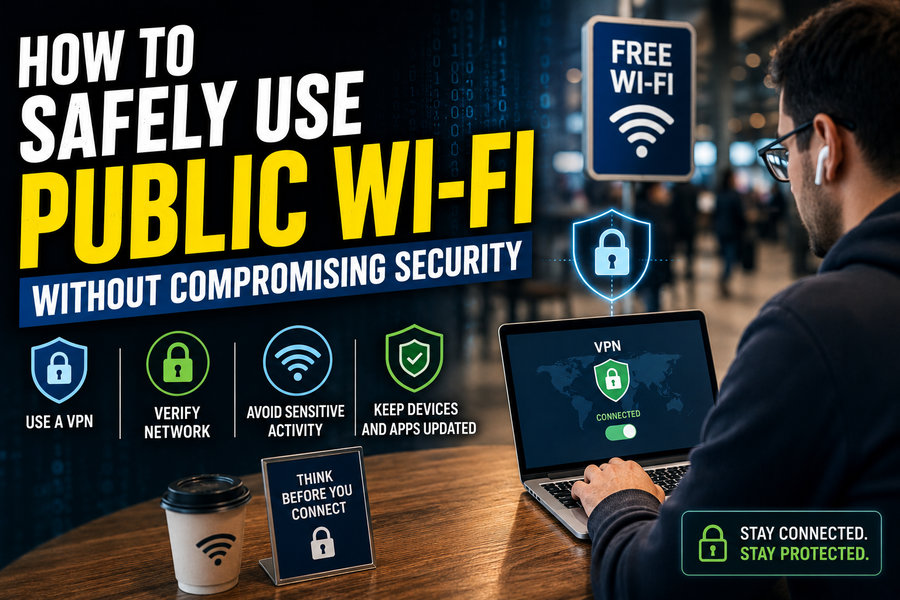

Public Wi-Fi is convenient. Airports, hotels, cafés, libraries, universities, shopping centers, and railway stations often provide wireless internet access that can save mobile data and keep travelers connected. ☕✈️📱
But public wireless networks also create security risks. Unlike a trusted home or office network, you usually do not know who configured the network, how well it is protected, or who else is connected to it.
An attacker on the same network may attempt to trick users into visiting fake websites, exploit insecure devices, observe unencrypted traffic, or imitate a legitimate Wi-Fi hotspot. Fortunately, modern encryption technologies such as HTTPS make public Wi-Fi much safer than it once was—but users still need good security habits.
The goal is not necessarily to avoid public Wi-Fi entirely. It is to understand the risks and reduce unnecessary exposure. 🛡️🌐
📡 Why Can Public Wi-Fi Be Risky?
Your home Wi-Fi network is usually controlled by you or someone you trust. Public networks are different.
A café network might be shared by dozens of strangers. An airport network could have hundreds or thousands of users connecting throughout the day.
Possible problems include:
- Fake Wi-Fi hotspots
- Malicious users on the same network
- Poor router security
- Unencrypted applications
- Fraudulent login pages
- Malware distribution
- Device-sharing exposure
- DNS manipulation
This does not mean every public network is dangerous.
The important difference is that public Wi-Fi should generally be treated as an untrusted network.
Your device should therefore be configured as though other users on that network cannot automatically be trusted.
🕵️ 1. Watch Out for Fake Wi-Fi Networks
One of the simplest wireless attacks is creating a network with a convincing name.
Imagine sitting inside an airport where the official network is:
Airport_Free_WiFi
An attacker might create another hotspot called:
Airport_Free_WiFi_5G
or:
Airport Guest WiFi
Users may connect because the name looks legitimate.
This type of malicious hotspot is sometimes called an evil twin.
The attacker hopes users will send their internet traffic through equipment controlled by the attacker.
✅ What should you do?
Whenever possible, verify the official Wi-Fi name using:
🏨 Hotel reception
☕ Café staff
🛫 Airport signage
🏢 Official information desks
Do not assume that the strongest signal or most professional-looking network name is automatically legitimate.
🔒 2. Prefer HTTPS Websites
One of the most important protections on modern networks is HTTPS.
When you visit an HTTPS website, communication between your browser and the website is encrypted using TLS.
Instead of transmitting readable information such as:
Username: Maria
Password: ExamplePassword
the network sees encrypted data.
This makes it much harder for someone sharing the Wi-Fi network to read your browsing contents.
Modern browsers generally indicate secure HTTPS connections and increasingly warn users about insecure pages.
⚠️ Never ignore certificate warnings
If your browser displays warnings such as:
Your connection is not private
or reports an invalid security certificate, do not casually proceed—especially when accessing banking, email, shopping, or other sensitive accounts.
A certificate warning could indicate:
- A network configuration problem
- A misconfigured website
- An attempted interception
Stopping and switching to another connection is usually safer. 🔐
🌐 3. Understand What HTTPS Does—and Doesn’t—Protect
HTTPS is extremely important, but it does not make every aspect of internet activity invisible.
Encryption generally protects the content exchanged with the website.
A network operator may still be able to infer certain information, such as:
- That your device connected to the network
- How much data you transferred
- When connections occurred
- Some information about destinations, depending on the technologies involved
HTTPS protects website content in transit, but it does not protect you from:
🎣 Phishing websites
🦠 Malware
🔑 Weak passwords
📱 Compromised devices
Therefore, encrypted communication needs to be combined with other security practices.
🛡️ 4. Consider Using a Reputable VPN
A Virtual Private Network, or VPN, creates an encrypted tunnel between your device and a VPN server.
When connected correctly, network traffic routed through that tunnel is protected from casual observation by users on the local Wi-Fi network.
VPNs can be particularly useful for:
👩💼 Remote employees
✈️ Frequent travelers
🏨 Hotel guests
📡 People using unfamiliar networks
However, VPNs require trust.
Instead of your local Wi-Fi provider seeing much of your network activity, the VPN provider becomes an important intermediary.
For this reason, avoid choosing a VPN solely because it is free.
A reputable provider should have transparent policies regarding:
- Data collection
- Logging
- Ownership
- Security practices
Businesses often provide employees with corporate VPN services for accessing internal systems.
🧠 Important:
A VPN does not make you immune to phishing, malicious downloads, or compromised websites.
It protects network traffic; it does not fix unsafe behavior.
📱 5. Use Mobile Data for Highly Sensitive Tasks
When practical, mobile data can be a better choice for particularly sensitive activity.
For example, you may prefer cellular connectivity when:
🏦 Accessing online banking
💳 Making an important financial transaction
🔐 Changing critical passwords
🧑💼 Connecting to sensitive business systems
Mobile networks are not magically immune to security threats, but they generally eliminate many of the risks associated with sharing a local Wi-Fi network with unknown users.
Another option is using your own phone as a personal hotspot.
If you have sufficient mobile coverage and data allowance, a personal hotspot gives you far more control over the connection.
🔄 6. Keep Your Device Updated
Cybersecurity vulnerabilities are regularly discovered in:
💻 Operating systems
🌐 Browsers
📱 Mobile applications
📡 Wireless drivers
🧩 Software libraries
Manufacturers release updates to fix these weaknesses.
An outdated device may remain vulnerable even if you use strong passwords and HTTPS.
Before traveling, make sure important devices are running supported software and current security updates.
Automatic security updates are helpful because they reduce the likelihood that critical patches will be forgotten.
🔥 7. Keep Your Firewall Enabled
A firewall helps control network connections entering or leaving a device.
Modern operating systems usually include built-in firewall protection.
When connected to public Wi-Fi, your computer may encounter other devices that should not automatically be trusted.
Keeping the firewall enabled helps block unwanted incoming connections.
Laptop operating systems may also ask whether a newly connected network is:
🏠 Private
🌍 Public
Choose the public network profile when connecting to café, hotel, airport, or other shared Wi-Fi unless you have a specific reason not to.
Public profiles normally apply stricter network-sharing rules.
📂 8. Disable Unnecessary File Sharing
File-sharing features are useful on trusted home or office networks.
They can be risky on public networks if configured too broadly.
Before connecting to public Wi-Fi, consider disabling features such as:
- Network file sharing
- Printer sharing
- Nearby device discovery
- Unnecessary remote access services
You generally do not want strangers in an airport or café to discover shared folders or services running on your laptop.
Bluetooth sharing should also be disabled when it is not needed. 📵
🔄 9. Turn Off Automatic Wi-Fi Connections
Phones and computers can remember networks and reconnect automatically.
This is convenient at home but can create risks when traveling.
A device that automatically joins familiar-looking networks may connect before you verify whether the hotspot is legitimate.
Review settings for:
Auto-Join
Automatically Connect
Connect to Open Networks
and disable unnecessary automatic connections.
Your device should ideally ask before connecting to unfamiliar public networks.
🧹 10. Forget the Network When You Are Finished
After using hotel, café, airport, or conference Wi-Fi, consider removing it from your saved networks.
This is sometimes called:
Forget This Network
Deleting the saved configuration prevents your device from reconnecting automatically later.
This is especially helpful for generic Wi-Fi names that might exist in many places.
For example, names such as:
GuestWiFi
or:
Free_WiFi
could easily be recreated by someone else.
🔐 11. Use Multi-Factor Authentication
A password alone can be stolen.
Multi-factor authentication (MFA) adds another verification requirement.
For example:
Password + authenticator app
or:
Password + security key
This means that even if an attacker obtains your password, they may still be unable to access the account.
Enable MFA especially for:
📧 Email
🏦 Banking
☁️ Cloud storage
💼 Business accounts
📱 Social media
Where available, authenticator apps, passkeys, and hardware security keys can offer stronger protection than relying only on SMS codes.
🔑 12. Use Unique Passwords
Public Wi-Fi safety also depends on account security.
If you reuse the same password across many websites, compromising one account can threaten all the others.
Use a unique password for each important service.
A reputable password manager can generate and store complex passwords so you do not have to memorize every one.
For example, instead of repeatedly using:
Summer2026!
a password manager can generate long, unique credentials for each service.
This dramatically limits the damage caused by one password leak.
🎣 13. Be Alert for Phishing Pages
Attackers may create websites that imitate:
🏦 Banks
📧 Email services
🛒 Online stores
☁️ Cloud platforms
📱 Social networks
A fake page may look nearly identical to the real service.
Always check the website address before entering credentials.
For example:
accounts.example.com
is different from:
accounts-example-security.com
A padlock or HTTPS connection alone does not prove that a website is legitimate. Attackers can also obtain valid HTTPS certificates for domains they control.
The domain itself matters.
🚪 14. Treat Captive Portals Carefully
Public Wi-Fi often uses a captive portal.
This is the page that appears after connecting and asks you to:
- Accept terms
- Enter a room number
- Provide an email
- Purchase access
- Confirm your identity
Captive portals are normal in hotels, airports, and cafés.
However, fake Wi-Fi networks can imitate them.
Before entering sensitive personal information or payment details, verify that you joined the legitimate network.
A café’s real Wi-Fi portal probably does not need your banking password or primary email account credentials.
Requests for unusually sensitive information should be treated as suspicious. 🚨
💳 15. Avoid Sensitive Transactions on Questionable Networks
HTTPS makes financial transactions far safer than they were during the early days of public Wi-Fi.
However, security is about reducing unnecessary risk.
If the network behaves strangely, your browser displays warnings, or you cannot verify the hotspot, avoid performing highly sensitive tasks.
Wait until you have:
📱 Mobile data
🏠 A trusted network
🔐 A verified VPN connection
Convenience is rarely worth ignoring obvious security warnings.
📧 16. Be Careful With Work Accounts
Business accounts may provide access to:
- Confidential files
- Customer information
- Internal systems
- Corporate email
- Financial information
Employees traveling for work should follow their organization’s cybersecurity policies.
Companies may require:
🛡️ Corporate VPN
💻 Managed laptops
🔑 MFA
☁️ Secure cloud applications
🚫 Restrictions on public networks
Personal devices should not automatically be used for confidential business activities unless organizational policy permits it.
📡 17. What About Password-Protected Public Wi-Fi?
A Wi-Fi network requiring a password is not necessarily private.
Imagine a café displaying its Wi-Fi password on every table.
Hundreds of visitors may know that password.
The password protects access from outsiders who do not know it, but the network still contains many untrusted users.
Public Wi-Fi should therefore remain treated as untrusted even when staff provide a password.
Newer Wi-Fi security technologies can improve protection between clients and access points, but users should still follow normal security precautions.
🦠 18. Avoid Downloading Unknown Software
Some public networks or fake portals may attempt to convince users to install software.
You might see messages such as:
Install our Wi-Fi security certificate
or:
Download this connection utility
Be extremely cautious.
Legitimate public Wi-Fi rarely requires ordinary visitors to install unknown applications, browser extensions, or certificates simply to access basic internet service.
Installing malicious certificates or software can create serious security problems.
If you are uncertain, ask staff or use another network.
🖥️ 19. Protect Your Screen Physically
Not every public Wi-Fi threat is technical.
Someone sitting behind you may be able to read information directly from your screen.
This is known as shoulder surfing. 👀
Be careful when viewing:
- Passwords
- Banking information
- Confidential documents
- Customer records
- Personal identification numbers
A privacy screen filter can help travelers who frequently work in airports, trains, and cafés.
Always lock your laptop or phone if you walk away, even briefly.
🔌 20. Public USB Charging Can Be a Separate Concern
Public Wi-Fi and public charging stations are different technologies, but travelers often use them together.
For maximum control, prefer:
🔌 Your own charger
🔋 A portable power bank
⚡ A power-only charging cable
Connecting an unlocked device to unfamiliar USB data equipment can create unnecessary exposure.
Modern devices include various protections, but using your own power accessories remains a simple precaution.
🔍 21. Monitor Your Accounts After Traveling
Security monitoring should continue after leaving the public network.
Review important accounts for:
🚨 Unknown login attempts
💳 Unexpected transactions
📧 Password-reset emails
📱 New devices
🔐 Security-setting changes
Many services can send notifications when a new device signs in.
Enable these alerts for important accounts.
If you discover suspicious activity, change credentials from a trusted device and connection, revoke unfamiliar sessions, and contact the relevant provider when necessary.
🚨 Signs a Public Wi-Fi Network May Be Suspicious
Disconnect if you notice unusual behavior such as:
- Repeated certificate warnings
- Unexpected login requests
- Websites redirecting strangely
- Unrequested downloads
- Numerous pop-up pages
- Requests to install unknown certificates
- Several nearly identical network names
One warning does not automatically prove that someone is attacking you, but unexplained security errors should not simply be ignored.
Switching to cellular data is often the simplest response.
🧳 A Practical Public Wi-Fi Security Routine
Before traveling:
✅ Update your device
✅ Enable MFA
✅ Check firewall settings
✅ Configure a trusted VPN if needed
✅ Disable unnecessary auto-connect features
When connecting:
✅ Confirm the official Wi-Fi name
✅ Treat the connection as public
✅ Verify HTTPS
✅ Avoid suspicious certificate warnings
✅ Use a VPN when appropriate
When finished:
✅ Disconnect
✅ Forget networks you do not need
✅ Re-enable any settings you temporarily changed
✅ Review important account alerts
These simple habits eliminate many common risks without making public Wi-Fi impractical.
🤔 Is Public Wi-Fi Still as Dangerous as It Used to Be?
Public Wi-Fi security has improved dramatically.
Years ago, many websites transmitted information without strong encryption. Someone sharing the same network could sometimes observe sensitive traffic far more easily.
Today, HTTPS is widespread, operating systems have stronger security defaults, browsers detect many certificate problems, and major online services use encrypted communication.
That is excellent progress. 🔐
However, risks have not disappeared.
Modern threats increasingly involve:
🎣 Phishing
🕵️ Fake hotspots
🔑 Credential theft
🦠 Malware
⚙️ Misconfigured devices
Therefore, public Wi-Fi security is less about assuming that every café hotspot is actively spying on you and more about maintaining layers of protection in case the network cannot be trusted.
🛡️ Defense in Depth
Cybersecurity professionals frequently use a principle called defense in depth.
Instead of relying on one protection, several security controls work together.
For public Wi-Fi, that might include:
Verified network + HTTPS + updated device + firewall + MFA + strong passwords + VPN when appropriate
If one layer fails, another may still protect you.
For example, a fake hotspot might capture a phishing password, but strong MFA could prevent the attacker from successfully logging into the account.
No individual security measure is perfect.
Layers make the overall system stronger. 🧱🔐
🏁 Final Thoughts
Public Wi-Fi can be used safely when you understand that it is an untrusted network and take sensible precautions. 📶🛡️
The most important habits are straightforward:
Verify the hotspot before connecting, use encrypted HTTPS websites, keep devices updated, maintain firewall protection, disable unnecessary sharing, enable multi-factor authentication, and avoid ignoring browser security warnings.
A reputable VPN can provide an additional encrypted layer when using unfamiliar networks, particularly for travelers and remote workers. For highly sensitive tasks, cellular data or a personal hotspot may provide greater control.
Most importantly, remember that public Wi-Fi security is not only about preventing someone from reading network traffic. Modern attackers may instead rely on fake websites, stolen passwords, malicious downloads, and social engineering.
Good security therefore requires several layers working together.
Public Wi-Fi is a useful convenience. With the right precautions, you can enjoy that convenience without unnecessarily exposing your accounts, devices, and personal information. 📱🔐🌐