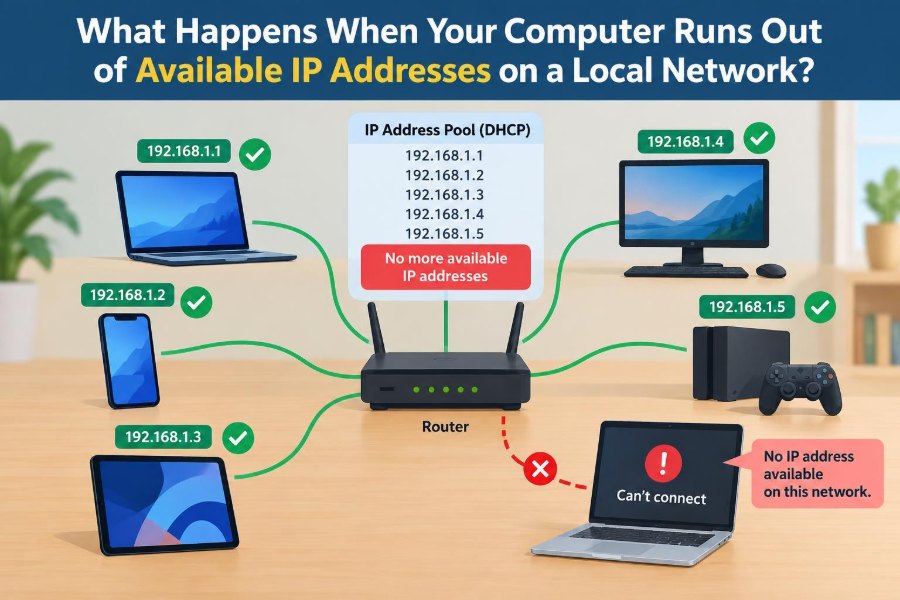

You arrive at the office, connect your laptop to Wi-Fi, and see a familiar message: “Connected, no internet.” At home, a new smart device refuses to join the network even though every other device seems fine. In a classroom, several students can browse the web while late arrivals cannot.
These problems can have many causes, but one surprisingly common explanation is that the local network has run out of available IP addresses. The router is working, the internet service may be healthy, and yet a new device has no usable place on the network.
IP address shortages are usually not dramatic failures. They are often quiet configuration limits that only become visible when a network gets busier than its designer expected.
Understanding what an IP address does, where addresses come from, and why they sometimes run out makes network troubleshooting far less mysterious.
🌐 The Simple Meaning of an IP Address
An IP address is a numerical identifier that lets devices send data to the right destination on a network. Think of it as a local delivery address: without one, a device cannot reliably receive replies from the router, a website, a printer, or another computer.
On most home and small-business networks, devices use private IPv4 addresses such as 192.168.1.24. These addresses work inside the local network and are different from the public IP address your internet provider assigns to the router.
🏠 Your Local Network Has Its Own Address Space
A local area network, or LAN, is the network inside a home, office, classroom, or similar location. Its router normally creates a private address range for connected devices.
For example, a router might use the network 192.168.1.0 with a subnet mask of 255.255.255.0, often written as 192.168.1.0/24. This setup provides a limited pool of usable addresses, commonly enough for typical homes but not necessarily for a crowded workplace.
🚪 The Router Is Usually the Network’s Gatekeeper
A home router generally performs several roles at once: it connects the LAN to the internet, forwards traffic, provides Wi-Fi, and assigns addresses. Its own local address, often something like 192.168.1.1, acts as the default gateway.
When a device wants to reach a website outside the LAN, it sends traffic to this gateway. But before it can do that normally, it needs a valid local IP address and the other network settings that go with it.
📬 DHCP Automatically Hands Out Addresses
Most devices do not require you to type in an address manually. Instead, they use DHCP, short for Dynamic Host Configuration Protocol. A DHCP server—often built into the router—leases an available address to a device.
The lease usually includes more than the address itself. It also provides the subnet mask, default gateway, and DNS servers. DNS servers translate names such as example.com into IP addresses that computers can use.
🔄 What Happens During a Normal Connection
When a phone or laptop joins Wi-Fi, it broadcasts a request asking whether a DHCP server is available. The server offers an address, the device accepts it, and the server records the lease for a set period.
This process is normally invisible. A device may renew its lease later, often while it is still connected, so it can continue using the same address without interruption.
📦 An Address Pool Is Not Infinite
DHCP can only lease addresses from the range it has been configured to use. A router might reserve addresses from 192.168.1.2 through 192.168.1.100 for DHCP, even though the broader subnet could support more devices.
That means the practical limit may be 99 leases, not the full capacity of the subnet. Router settings, reserved addresses, and manually configured devices all affect the real number available.
🔢 Why a /24 Network Has Fewer Usable Addresses Than It Appears
An IPv4 address has four numbers, each from 0 to 255. A /24 network contains 256 total addresses, but not every one can be assigned to an ordinary device.
Traditionally, one address identifies the network itself and one is used as the broadcast address. The router also needs an address. So a common /24 LAN has 254 usable host addresses, with one or more already occupied by infrastructure.
| Address role | Example in 192.168.1.0/24 | Typical use |
|---|---|---|
| Network address | 192.168.1.0 | Identifies the network |
| Gateway | 192.168.1.1 | Router’s LAN address |
| Device address | 192.168.1.24 | Laptop, phone, printer, or other host |
| Broadcast address | 192.168.1.255 | Traffic intended for all local devices |
🚫 What “No Available IP Addresses” Actually Means
An address shortage means the DHCP server has no unleased address left in its configured pool that it can safely give to the requesting device. It does not automatically mean that the internet provider has run out of public addresses.
The problem is local. The device may connect to the Wi-Fi radio successfully, but it cannot complete the network setup needed for normal communication.
📱 The Symptoms You May Notice
Different operating systems describe the problem differently. You may see “Unable to join network,” “No IP address,” “Limited connection,” or a Wi-Fi connection with no internet access.
- A new device connects briefly and then disconnects.
- The device shows a self-assigned address rather than the usual local range.
- Some devices work normally while newly connected ones fail.
- The router’s administration page shows all DHCP leases in use.
- A wired device may have the same problem if it also relies on DHCP.
These signs are clues, not proof. A bad password, weak signal, DHCP service failure, or an address conflict can produce similar behavior.
🧩 A Self-Assigned Address Is a Useful Clue
When a device cannot obtain a DHCP lease, some systems assign themselves an address in the 169.254.x.x range. This is often called a link-local or self-assigned address.
It may allow limited communication with another nearby device using the same mechanism, but it usually cannot reach the router or the internet. Seeing this range strongly suggests that DHCP did not complete successfully.
👥 Why Modern Networks Fill Up Faster
A household once needed addresses mainly for desktop computers and perhaps a printer. Now one person may use a phone, laptop, tablet, watch, game console, television, e-reader, and work device.
Smart home equipment adds cameras, speakers, plugs, thermostats, doorbells, sensors, and appliances. An address pool sized years ago can be exhausted without anyone realizing how many networked objects have accumulated.
🏢 Guest Wi-Fi Can Consume the Same Pool
If guest Wi-Fi uses the same LAN and DHCP scope as staff or household devices, every visitor can consume an address from the same pool. A meeting, party, or training session can create a sudden spike in demand.
Guest networks are often better placed on a separate network with a separate DHCP pool. This improves capacity planning and can also keep guest devices away from shared printers, storage, and other internal resources.
⏳ Leases Can Keep Addresses Busy After Devices Leave
DHCP leases expire rather than disappearing the moment a device disconnects. If a device leaves Wi-Fi, the router may hold its address until the lease ends because that device could return and renew it.
Long leases are convenient for stable networks because devices tend to keep familiar addresses. On a busy guest network, however, long leases can leave many addresses reserved for people who have already gone home.
🧠 A Lease Table Does Not Always Match Reality
A router’s lease table shows addresses it believes are assigned. It may include phones that are asleep, devices that are no longer nearby, or records left behind after a network change.
That does not necessarily indicate a fault. DHCP is designed around timed leases, not perfect real-time awareness. Still, an unusually crowded or stale lease list is valuable troubleshooting evidence.
📌 Static Addresses Reduce the Dynamic Pool
A static IP address is manually configured on a device instead of supplied by DHCP. Static addresses are useful for equipment that should remain easy to find, such as a printer, server, or network camera.
They create problems when chosen carelessly. If a person manually assigns an address inside the DHCP range, the router may later offer that same address to another device, creating a conflict.
🛑 IP Address Conflicts Are Different From Exhaustion
An address conflict occurs when two devices attempt to use the same IP address. Exhaustion occurs when no free address remains to assign. Both can prevent reliable connections, but their causes and fixes differ.
A conflict may cause one device to work intermittently, disconnect another device, or display a duplicate-address warning. Expanding a DHCP pool will not fix a conflict caused by duplicated manual settings.
🖨️ DHCP Reservations Offer a Safer Middle Ground
A DHCP reservation tells the router to give a particular device the same address whenever it asks. The reservation is tied to the device’s network hardware address, often called its MAC address.
This preserves automatic configuration while making the address predictable. It is usually safer than manually entering network settings on a printer or smart device, provided the reservation is managed within the network plan.
🔍 Confirm the Problem Before Changing Settings
Do not assume an IP shortage merely because the internet is unavailable. First compare a device that works with one that does not. Check whether the failing device received an address, gateway, and DNS information.
The router’s administration interface is often the clearest source. Look for DHCP settings, the configured address range, active leases, reservations, and any error messages. Business networks may use a separate DHCP server, so the router alone may not show the full picture.
💻 Check the Address on the Affected Device
On a computer or phone, view the current Wi-Fi or Ethernet connection details. A normal private address matching the local network is reassuring; an empty address or 169.254.x.x points toward a lease problem.
Also inspect the gateway. A device with an address but no gateway cannot usually leave the local network. A device with a gateway but failing name lookups may instead have a DNS issue.
🧪 Test With a Simple, Controlled Example
Suppose a small office DHCP pool runs from 192.168.10.50 to 192.168.10.75. If the lease list shows all 26 addresses assigned and a new laptop cannot obtain one, that is a strong, specific explanation.
By contrast, if only ten leases appear in that pool, the failure may be a disabled DHCP service, a Wi-Fi access point on the wrong network, or another configuration issue. Testing the facts prevents random changes.
🔧 Releasing a Lease Can Help, But It Is Not a Strategy
Disconnecting unused devices, forgetting old Wi-Fi connections, or restarting a device may eventually release or renew leases. Restarting the router can also clear temporary state on some consumer models.
These actions can restore service in the moment, but they do not solve an undersized pool. If the network repeatedly fills up, the configuration needs a planned change rather than recurring resets.
📏 Expand the DHCP Range Carefully
The direct solution is often to enlarge the DHCP pool. If the router uses a /24 subnet but leases only addresses through .100, extending the pool through .200 may provide room without changing the overall network.
Before doing this, identify addresses used for routers, switches, access points, printers, servers, and static devices. The expanded range must not overlap with manually assigned addresses unless those devices are moved or converted to reservations.
🗺️ A Larger Subnet Changes the Network Plan
If a full /24 network is genuinely too small, an administrator can use a larger subnet, such as a /23. This combines two adjacent address blocks and increases the number of available host addresses.
It is not a casual change. The router, DHCP settings, static devices, firewall rules, and management documentation must remain consistent. On managed networks, subnet redesign should be planned and tested, preferably during a maintenance window.
🏷️ Separate Networks Can Solve More Than Capacity
Segmenting a network means dividing it into separate logical networks, often using VLANs on business equipment. Staff devices, guests, cameras, and Internet of Things equipment can each receive their own address scope.
This does not magically create unlimited addresses, but it makes each group easier to size, monitor, and secure. It also limits unnecessary communication between device categories.
🕒 Choose Lease Times for the Network’s Behavior
There is no universal “best” lease duration. A stable home network may work well with longer leases, while a café, classroom, or event space with frequent visitors may benefit from shorter leases.
Very short leases create extra DHCP activity and may be inconvenient if a device briefly loses its connection. Very long leases can retain addresses longer than a high-turnover network can afford. Match the setting to usage patterns.
🧹 Remove Devices You No Longer Use
Old smart devices, retired access points, and forgotten test equipment can complicate an address plan. They may not always consume a current lease, but removing obsolete reservations and documenting active equipment reduces confusion.
A periodic review is especially useful after moving, changing routers, adding mesh Wi-Fi, or inheriting an office network. Good network hygiene is often simpler than emergency troubleshooting.
🧱 Do Not Treat Every Router as a Large-Network Device
Even with plenty of addresses available, a low-cost router may struggle with many active clients, high traffic, or numerous wireless devices. Address capacity and device performance are related but separate limits.
If a network is growing, consider whether the router, Wi-Fi access points, switches, and internet connection are all appropriate for the workload. Expanding DHCP alone cannot fix weak coverage or overloaded hardware.
🔐 Address Management Supports Security Too
A clear address plan helps administrators recognize unfamiliar devices and investigate problems. Reservations for known infrastructure, a separate guest network, and sensible segmentation make the network easier to understand.
However, an IP address is not proof of identity. Addresses can change, devices can use randomized Wi-Fi hardware addresses, and a determined attacker can imitate network settings. Use strong Wi-Fi security and account controls alongside address management.
🌍 IPv6 Changes the Scale, Not Every Practical Problem
IPv6 was designed with a vastly larger address space than IPv4, so ordinary local IPv6 address exhaustion is unlikely. Many modern networks run IPv4 and IPv6 together in a dual-stack arrangement.
Yet IPv4 remains widely used by local routers, older devices, and services. A network can have working IPv6 while still experiencing an exhausted IPv4 DHCP pool, so IPv6 does not automatically remove the need for sound IPv4 administration.
⚠️ Common Troubleshooting Mistakes
- Restarting everything first: this can hide useful evidence in lease tables and logs.
- Assigning random static addresses: this can create conflicts or bypass the real issue.
- Expanding a range without checking overlaps: printers and servers may already occupy the new addresses.
- Blaming the internet provider: a local DHCP shortage can occur even when the internet connection is healthy.
- Ignoring guest devices: temporary users can be the reason a small pool suddenly fills.
📝 A Practical Response Checklist
- Check whether the affected device has a valid local IP address, gateway, and DNS settings.
- Open the DHCP lease table and compare active leases with the configured pool.
- Identify static addresses and reservations before modifying the range.
- Remove stale entries only when you understand what they represent.
- Expand the DHCP pool, shorten leases where appropriate, or create a separate guest scope.
- Reconnect and test the affected device, then document the change.
For a workplace, school, or network containing critical systems, involve the person responsible for IT. An apparently small address change can affect printers, cameras, remote access, and business applications.
🎯 The Core Principle: Plan for Devices, Not Just People
The number of people using a network is no longer a reliable estimate of the number of addresses required. Each person may carry multiple devices, and many networks now include equipment that is always connected but rarely noticed.
An IP address shortage is usually a capacity-planning problem: the network’s available address pool no longer matches the devices and connection patterns it must support. DHCP, sensible reservations, appropriate lease times, and network segmentation give administrators practical ways to keep that mismatch from becoming a daily disruption.
When a new device cannot get online while established devices still work, look beyond the Wi-Fi signal. A quick check of the local address pool can turn an annoying mystery into a clear, manageable network task. 🖥️🌐🔧