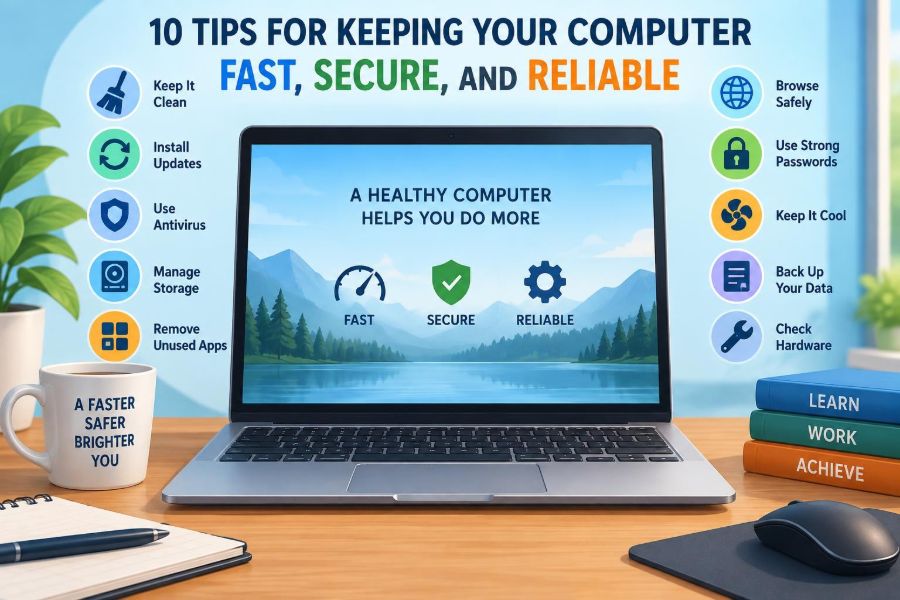

A computer rarely becomes frustrating all at once. It starts with a browser that takes a little longer to open, a battery that seems to drain faster, or a message that interrupts work at the worst possible moment. Then one day, an update fails, storage is full, or an important file cannot be found.
Students depend on computers for assignments, research, online classes, and projects. Working professionals rely on them for documents, meetings, communication, and often the systems needed to do their jobs. A slow or unreliable computer costs more than a few minutes: it breaks concentration and can put valuable work at risk.
The good news is that most routine computer problems are preventable. You do not need to be a technician or install dozens of “cleanup” tools. Consistent habits—updates, backups, careful downloads, and sensible storage—make a much larger difference.
These ten practical tips explain what to maintain, why it matters, and where common shortcuts cause trouble. They apply broadly to Windows PCs, Macs, and many other personal computers, though the exact menu names may differ.
🧭 1. Start With a Clear Picture of Computer Health
“Fast” can mean different things. A computer may start slowly, a particular application may freeze, the internet may feel sluggish, or files may take too long to save. Treating every symptom as the same problem leads to wasted effort.
Before changing anything, notice when the problem occurs. Does it happen immediately after starting the computer, only while many browser tabs are open, or only on one website? This simple observation narrows the likely cause.
- Slow startup often points to too many launch-at-startup programs.
- Low free disk space can affect updates, temporary files, and general responsiveness.
- Slow web pages may be a network, browser, or website issue rather than a computer issue.
- Repeated crashes can indicate a faulty application, driver, update conflict, or hardware problem.
Write down recurring symptoms and their timing. That small record is more useful than randomly deleting files or changing settings.
🔄 2. Install Operating System Updates Promptly
Your operating system is the core software that manages hardware, files, memory, accounts, and applications. Windows, macOS, and Linux distributions receive updates to fix defects, improve compatibility, and address known security weaknesses.
Postponing one update for a short time may be reasonable when you are about to give a presentation or leave for travel. Postponing updates indefinitely leaves known weaknesses uncorrected and can eventually create compatibility problems with newer applications.
Use automatic updates where practical, but choose a restart time that will not interrupt important work. Before a major update, save open files and ensure a laptop is plugged in. If the device is managed by a school or employer, follow its update policy rather than altering management settings.
🧩 3. Update Applications, Browsers, and Drivers Too
An updated operating system does not protect outdated applications. Web browsers, PDF readers, video-conferencing tools, office software, and media applications all process files or internet content, so their updates can matter just as much.
A driver is software that helps the operating system communicate with a device such as a printer, graphics card, or Wi-Fi adapter. Driver updates can solve a specific problem, but installing random driver-updater utilities is usually unnecessary and can introduce the wrong software.
Prefer updates offered through the operating system, the application itself, or the device manufacturer’s official support page. If everything works normally, do not treat every available driver version as an urgent repair.
🚀 4. Reduce What Launches at Startup
Many programs ask to run when you sign in. Some are useful: security software, cloud-sync services, or an accessibility tool. Others simply want to be ready in the background, even when you rarely use them.
Each startup item may use memory, processor time, and disk activity. A few small items are not always noticeable, but a long list can make a modern computer feel slow before you have opened anything.
Review startup applications in your operating system’s settings or task-management utility. Disable nonessential items rather than uninstalling them immediately. For example, a music application does not need to launch at every login if you only use it occasionally.
🧠 5. Understand Memory, Storage, and Processor Limits
Computer performance depends on several resources working together. The processor handles calculations, memory holds information currently in use, and storage keeps files and programs when the computer is off. These are related but not interchangeable.
| Resource | What it does | Common sign of pressure |
|---|---|---|
| Processor | Executes instructions | System slows during demanding tasks |
| Memory (RAM) | Holds active programs and data | Apps reload or stutter with many tasks open |
| Storage | Keeps files, applications, and system data | Little free space, slow file operations, failed updates |
Closing unused applications can reduce memory pressure. A computer with limited memory may struggle with many browser tabs, a video call, image editing, and large documents at the same time. That is a workload limit, not always a malware problem.
🗂️ 6. Keep Enough Free Storage Space
Storage should not be filled to its limit. Operating systems and applications need room for temporary files, update packages, caches, virtual memory, and recovery information. When free space becomes scarce, ordinary tasks can become unreliable.
Begin with the largest categories: downloads, old videos, duplicate files, unused applications, and outdated device backups. Empty the recycle bin or trash only after checking that it does not contain something you still need.
Move long-term files to a trusted external drive or cloud storage when appropriate, but verify the transfer before deleting the original. Freeing space is useful; deleting the only copy of important work is not.
🧹 7. Clean Files Deliberately, Not Aggressively
Built-in storage-management tools can identify temporary files, large items, and unused applications. These tools are usually safer than unfamiliar “PC cleaner” programs that promise dramatic speed increases.
Be cautious with tools that claim to repair the registry, remove every duplicate, or optimize memory with one click. On many systems, the benefit is limited, while an overly broad cleanup can remove saved settings, browser data, or files you intended to keep.
A sensible cleanup routine is simple: review downloads, uninstall software you no longer use, remove confirmed temporary files, and organize folders where work accumulates. Focus on real sources of clutter rather than trying to make the computer look technically “perfect.”
🌐 8. Separate Internet Problems From Computer Problems
If a video call drops or a webpage loads slowly, the computer may not be the cause. Test another website, another device on the same network, or a wired connection if available. One site can be slow because of its own server; every device being slow suggests a network issue.
Restarting a router can solve temporary connection problems, but do not reset it to factory settings unless you know how to restore its configuration. A factory reset may erase the network name, password, and provider-specific settings.
Browser extensions can also slow browsing or interfere with pages. Disable suspicious or unnecessary extensions one at a time to identify a problem, rather than reinstalling the entire operating system.
🛡️ 9. Use Security Software and Built-In Protections
Security software helps detect known malicious files and suspicious activity, but it is one layer of protection, not a substitute for careful choices. Many current operating systems include capable built-in security features that should remain enabled unless an organization provides an approved alternative.
Run periodic scans if you suspect a problem, such as unexpected pop-ups, unfamiliar applications, browser redirections, or a sudden spike in resource use. However, a slow computer alone does not prove an infection; aging hardware, background updates, and full storage are also common explanations.
Avoid running several real-time antivirus products at once. They can conflict, consume resources, or produce confusing alerts. One actively maintained solution plus safe habits is generally more practical.
🎣 10. Recognize Phishing Before It Becomes an Account Problem
Phishing is an attempt to trick someone into revealing passwords, payment details, verification codes, or other sensitive information. It may arrive through email, text messages, social media, fake support calls, or convincing login pages.
Urgency is a common warning sign: “Your account will close today,” “A package cannot be delivered,” or “Your manager needs this immediately.” A real-looking logo or sender name is not proof that a message is legitimate.
- Inspect the full sender address, not only the display name.
- Do not sign in through an unexpected link; visit the service directly.
- Never share one-time verification codes with an unsolicited caller or sender.
- Confirm unusual requests through a separate, trusted communication channel.
Pausing for thirty seconds before clicking is often more effective than any technical tool.
🔐 11. Create Strong, Unique Passwords
Reusing one password across services creates a chain of risk. If one unrelated site suffers a breach and that password is exposed, attackers may try the same email-and-password combination on popular services.
Use a different, long password or passphrase for every important account. A password manager can generate and store unique passwords, reducing the temptation to reuse short, memorable ones. Protect the password manager itself with a strong master password and available recovery options.
Do not store passwords in an unprotected text document or send them through ordinary email or chat. Convenience should not turn a private credential into a file anyone using the computer can open.
📱 12. Turn On Multi-Factor Authentication
Multi-factor authentication, often called MFA or two-factor authentication, requires more than a password to sign in. The additional factor might be an authenticator-app code, a security key, or a prompt on a trusted device.
MFA reduces the harm of a stolen password, but it cannot protect you if you approve a fraudulent sign-in prompt or disclose a code to a scammer. Read authentication prompts carefully, especially when you did not initiate a login.
Save recovery codes in a secure location that you can access if your phone is lost. Account recovery is part of security planning, not an afterthought.
💾 13. Back Up Files Before You Need Them
A backup is a separate copy of data that can be restored after loss, deletion, corruption, theft, or hardware failure. Synchronization is useful, but it is not always a complete backup: if a file is deleted or damaged, that change may synchronize too.
Use automatic backup software when possible. Keep important documents, photos, project files, and records in locations included in the backup plan. A backup that excludes the folder where you actually work will not help much.
For especially valuable data, keep more than one copy and avoid relying entirely on one device. An external drive offers local recovery; a reputable cloud-based backup or storage service can help if the computer and local drive are both unavailable.
🧪 14. Test Restores, Not Just Backup Messages
A backup status message only confirms that a process ran. It does not guarantee that the needed version of a file is present, readable, and recoverable.
Occasionally restore a noncritical file to a separate folder and open it. Check whether old versions are available if your backup system claims to keep version history. This small test builds confidence before a real emergency.
Also consider what must be backed up beyond documents: browser bookmarks, encryption recovery keys, software license information, and configuration notes may matter during a full rebuild.
🔌 15. Protect Against Power Loss and Electrical Damage
A sudden power loss can interrupt an update or leave a file unsaved. On a desktop computer, a quality surge protector can help protect against some voltage spikes, though it is not a guarantee against every electrical event.
A battery backup, also called an uninterruptible power supply (UPS), provides short-term power so a desktop can save work and shut down safely. It is particularly useful where brief outages are common.
For laptops, avoid repeatedly letting the battery reach zero when it is unnecessary. Use the charger designed for the device or a compatible, properly rated replacement. Damaged charging cables and unusually hot adapters should be replaced rather than ignored.
🌡️ 16. Keep Airflow Clear and Temperatures Sensible
Computers produce heat while working. Fans, vents, and heat sinks move that heat away from critical components. When airflow is blocked, the system may slow itself down to reduce temperature, become noisy, or shut down unexpectedly.
Use a laptop on a hard, flat surface when possible. Blankets, cushions, and laps can block lower vents. Leave space around desktop vents, and do not place papers or storage boxes against the case.
Dust can accumulate over time, especially around fans. If you clean it, power down the device and follow manufacturer guidance. If opening the case is uncomfortable or may affect service coverage, seek qualified help rather than forcing components loose.
🧼 17. Clean Screens, Keyboards, and Ports Safely
Physical care supports reliability. Dirt in ports can interfere with charging or connections, while sticky keys and blocked ventilation can make everyday use harder.
Turn off the device before cleaning. Use a soft microfiber cloth for the screen, following the manufacturer’s advice about cleaners. Do not spray liquid directly onto a display, keyboard, or port.
Use gentle methods for dust. Pushing metal objects into charging ports or using excessive force can damage small internal contacts. If a port repeatedly fails with known-good cables, it may need professional inspection.
👤 18. Use Separate Accounts and Lock Your Screen
A separate user account keeps one person’s files, browser sessions, and settings apart from another’s. It is useful on a shared family computer and especially important when a device contains work or school information.
Lock the screen whenever you step away, even for a short break in a shared space. A screen lock does not replace encryption or backups, but it prevents casual access to an already signed-in account.
Use an administrator account only when needed. Everyday work from a standard account can reduce the chance that an accidental installation or unsafe change receives broad system permissions.
🔒 19. Encrypt Devices That Leave Home or the Office
Device encryption protects data stored on a computer if the device is lost or stolen. When encrypted storage is locked, someone cannot simply remove the drive and read ordinary files with another machine.
Many modern devices offer built-in encryption, but availability and setup vary by edition, hardware, and organization policy. Keep recovery keys in a secure place that is separate from the device. Losing both the sign-in method and recovery key can make data inaccessible.
Encryption protects data at rest. It does not protect an unlocked computer, a compromised online account, or files sent to the wrong recipient.
📥 20. Download Software From Trusted Sources
Free software can be useful, but download location matters. A search result advertisement, a look-alike website, or a third-party download portal may bundle unwanted software or distribute a modified installer.
Use official vendor websites, reputable app stores, or software approved by your organization. Read each installation screen instead of clicking through quickly; optional add-ons and changes to browser settings are often presented during installation.
Be especially skeptical of pop-ups claiming your computer is infected and asking you to call a number or install a “repair” program. Legitimate security alerts do not usually demand immediate payment through an unsolicited browser message.
🧾 21. Remove Applications You No Longer Use
Unused applications consume storage and can add startup tasks, background services, update prompts, or potential security exposure. Removing an application you no longer need makes the system easier to manage.
Use the operating system’s normal uninstall process. Deleting an application shortcut does not remove the application itself, and dragging random program files to the trash may leave supporting files behind.
Before uninstalling, check whether the program holds locally stored projects, saved game data, or account information you may need. If it is an employer-managed tool, ask the relevant support team first.
📊 22. Use Task Monitoring to Find Real Bottlenecks
Task Manager on Windows, Activity Monitor on macOS, and similar utilities on other systems show which applications are using processor time, memory, disk activity, and network bandwidth. These tools replace guesswork with evidence.
If one program uses unusually high resources while idle, close it and see whether performance improves. Search its official help documentation or update it before assuming the hardware is failing.
Do not end unfamiliar system processes merely because their names look technical. Critical operating-system services may restart, destabilize the session, or prevent features from working. Investigate first.
🧭 23. Restart When Behavior Becomes Unusual
Restarting clears active memory, ends stuck processes, and reloads many services. It is not a cure for every problem, but it is a low-risk first step when a computer becomes unexpectedly slow, a peripheral stops responding, or an application repeatedly hangs.
Save work before restarting. If the computer is completely frozen, a forced shutdown may be necessary, but it can risk unsaved files and should not become a routine habit.
When a problem returns immediately after every restart, record any error message and the steps that trigger it. Persistent problems need diagnosis, not endless restarting.
📅 24. Build a Lightweight Maintenance Routine
Reliable maintenance works best when it is small and regular. Waiting until the computer is unusable turns ordinary housekeeping into a stressful repair project.
Weekly checks
- Install pending application and system updates at a convenient time.
- Review downloads and save important work to its proper folder.
- Confirm cloud syncing or backup activity is behaving as expected.
Monthly checks
- Review free storage and uninstall software you no longer use.
- Check startup items and browser extensions.
- Inspect cables, vents, and charging equipment for obvious damage.
Adjust this routine to the device and workload. Someone editing large videos needs more frequent storage checks than someone mainly working with text documents.
🧰 25. Know When to Ask for Professional Help
Some symptoms should not be solved by trial and error. Repeated blue-screen or kernel errors, burning smells, swollen batteries, liquid damage, clicking drives, unexplained account activity, and persistent crashes deserve prompt attention.
For workplace or school devices, contact authorized support before attempting repairs. Managed computers may contain security controls, licenses, or data requirements that a local fix could disrupt.
When seeking help, provide useful details: the device model, operating system, exact error text, when the issue began, and what changed shortly before it appeared. Clear information shortens diagnosis.
✅ 26. The Core Principle: Prevent Small Problems From Becoming Big Ones
A fast, secure, reliable computer is not created by a single “optimization” tool. It comes from layers of sensible care: current software, enough free space, safe sign-in practices, tested backups, protected hardware, and attention to unusual behavior.
The ten tips reinforce one another. Updates reduce known software risks; unique passwords and MFA protect accounts; backups limit the damage from loss; ventilation and power care protect the machine itself. No single layer is perfect, but together they make everyday computing far less fragile.
Choose one improvement to make today—perhaps enabling backups, reviewing startup apps, or turning on MFA—then add another to your routine later. Steady maintenance is easier, safer, and more effective than a rushed repair after something fails.
The best computer maintenance habit is simple: make small, informed checks before speed, security, or reliability becomes an emergency. 🖥️🔐⚙️