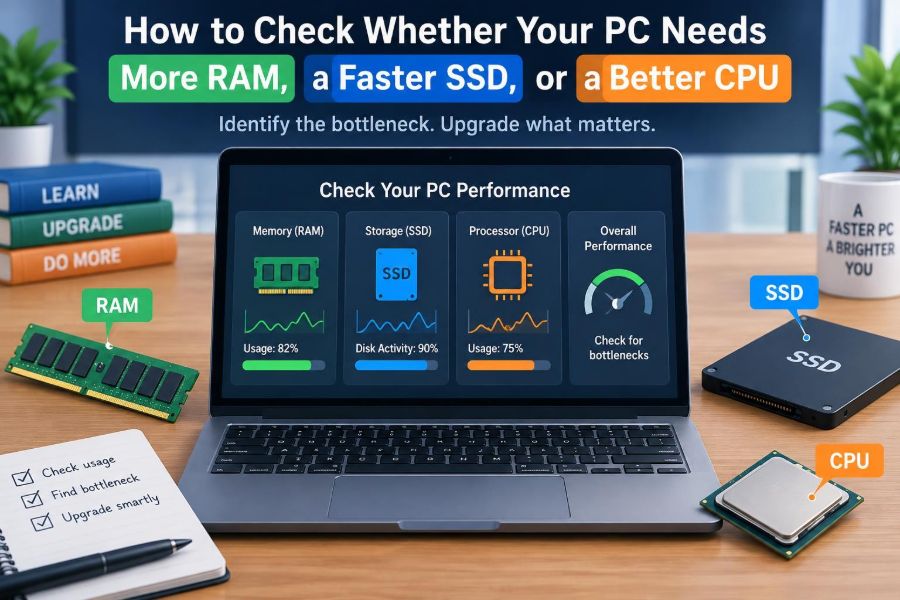

Your computer may feel slow in a very specific way. Perhaps video calls stutter when you have a browser full of tabs open, files take ages to load, or a spreadsheet becomes unresponsive while calculations run. It is tempting to call all of these problems “a slow PC.”
But RAM, storage, and the CPU do different jobs. Replacing the wrong component can cost money while leaving the original frustration untouched. Adding memory will not make a worn-out hard drive load files quickly, and a fast SSD will not solve a processor that is fully occupied rendering video.
The useful question is not “Which upgrade is best?” It is “Which part is holding back the work I actually do?” A little observation can usually answer that question more reliably than a specification sheet or a general recommendation.
This guide explains how to recognise the patterns, check them with built-in tools, account for laptop limitations, and choose an upgrade that makes a noticeable difference.
🧩 Start with the Idea of a Bottleneck
A bottleneck is the component that most limits performance during a particular task. Think of a computer as a small workplace: the CPU performs instructions, RAM holds items currently in use, and storage keeps files for the long term.
If the CPU finishes work slowly, faster storage cannot make its calculations finish sooner. If RAM is full, the system may repeatedly move data to storage. The slowest pressured part determines how responsive the whole experience feels.
🛠️ Know What Each Component Actually Does
RAM, or random-access memory, is short-term working space. Open applications, browser tabs, and active documents occupy it while you work. Its contents disappear when the computer shuts down.
Storage is the long-term home for Windows or another operating system, applications, documents, and media. An SSD is solid-state storage with no moving parts; a hard disk drive, or HDD, uses spinning platters.
The CPU, or central processing unit, interprets and executes instructions. Its speed, number of cores, and design affect demanding calculations, code compilation, simulations, image processing, and many other tasks.
🎯 Judge Performance by Your Real Workload
There is no single “right” amount of RAM or universally necessary CPU. A computer used for email and a few documents has very different needs from one used for virtual machines, large design files, or 4K video editing.
Write down the moment slowness occurs. Does it happen when opening programs, switching among applications, exporting a project, or simply during ordinary browsing? That detail is more useful than judging the PC only by its age.
- Many simultaneous apps and tabs often point toward RAM pressure.
- Slow startup, app launches, and file transfers often point toward storage.
- Long waits during calculations or exports often point toward CPU limits.
📊 Use Task Manager Before Buying Anything
On Windows, press Ctrl + Shift + Esc to open Task Manager. Select the Processes tab to see which applications are currently using CPU, Memory, Disk, and GPU resources. The Performance tab gives a broader view over time.
Do not diagnose the machine while it is idle. Reproduce the problem: open the files, tabs, meeting software, or creative application that normally causes the delay. Watch for a resource that stays close to its maximum while the slowdown is happening.
🧭 Read the Numbers in Context
A brief spike to high CPU or disk use is normal. Opening a program, installing an update, or scanning files may temporarily demand a great deal of a component. The stronger clue is sustained high use that matches the frustrating task.
Likewise, a low CPU percentage does not always mean the CPU is irrelevant. Some applications can use only one core effectively. On a multi-core processor, one busy core may create a delay even though the total CPU figure does not show 100 percent.
🧠 Recognise the Signs of Too Little RAM
Insufficient RAM usually makes multitasking feel increasingly uncomfortable. Switching back to an application may cause a pause while it reloads data. Browser tabs can refresh unexpectedly, and a program may become sluggish after you have worked for some time.
Task Manager may show memory use near the installed limit during ordinary work. Windows can still operate, but it must rely more heavily on virtual memory: disk space used as an emergency extension of RAM.
🔄 Understand Paging and Why It Feels Slow
When RAM is crowded, the operating system moves less-active information into a file on storage, commonly called the page file. If that information is needed again, it must be read back. This process is called paging or swapping.
Even a capable SSD is far slower than RAM for this kind of frequent, small access. On an HDD, the effect can be especially obvious: applications pause, the disk stays busy, and switching windows feels delayed rather than immediate.
🌐 Browser Tabs Are a Practical Memory Test
Modern browsers can use substantial memory because each tab may contain scripts, images, video elements, advertisements, and extensions. A lightweight text page is not comparable to a web-based editor, dashboard, video call, or online design tool.
If your usual collection of tabs, plus the programs you genuinely need, pushes memory use consistently high, more RAM may provide a direct improvement. Closing unused tabs is still sensible, but it should not be the only solution if your normal workflow requires them.
➕ Decide When a RAM Upgrade Makes Sense
Consider more RAM when memory is repeatedly near capacity during your routine workload and CPU and disk use are not the main source of delay. It is especially helpful for multitasking, large spreadsheets, photo editing, development tools, virtual machines, and integrated graphics that share system memory.
More RAM does not automatically make every program faster. If you currently have enough free memory, adding more usually changes little. It increases capacity, not the CPU’s ability to perform instructions.
🧷 Check RAM Type, Slots, and Compatibility
Before buying memory, identify your computer’s RAM generation, supported capacity, number of slots, and whether any memory is soldered to the motherboard. Desktop systems and many older laptops often allow upgrades; thin laptops may not.
Matching modules can also matter. Systems commonly perform best when compatible memory is installed in paired channels. Use your computer manufacturer’s documentation or a reliable hardware information tool rather than assuming any module that physically fits will work.
💾 Spot Storage-Related Slowdowns
Storage problems are often most visible when the computer starts, opens applications, searches files, copies data, or loads large projects. You may see high disk activity while the CPU has little to do, yet the PC remains difficult to use.
An older HDD is a common cause because its moving read/write head must physically seek different locations. That delay is minor for one operation but becomes noticeable when an operating system and several programs request many small files.
⚡ Why an SSD Changes Everyday Responsiveness
An SSD accesses data electronically rather than mechanically. It usually improves boot times, application launches, updates, searches, and file loading because it handles random reads much more quickly than a typical hard drive.
For a computer that still uses an HDD as its main system drive, an SSD can be one of the most noticeable everyday upgrades. It does not raise frame rates or accelerate every calculation equally, but it removes many waiting periods that interrupt ordinary use.
🗂️ Separate SSD Speed from SSD Capacity
A nearly full drive can cause complications, but buying a larger drive is not automatically a speed upgrade. Capacity answers “How much can I store?” while performance depends on drive type, interface, workload, available space, and the condition of the existing device.
Keep reasonable free space for operating-system updates, temporary files, and application work areas. Avoid treating the last portion of any system drive as permanent storage. A drive that is full or failing deserves attention even if its original speed was adequate.
🚨 Consider Drive Health, Not Only Performance
Sudden freezes, repeated file errors, unexplained corruption, unusual noises from an HDD, or warnings from the operating system may indicate a failing drive rather than merely a slow one. Performance tuning is not the priority in that situation.
Back up important files promptly before testing, replacing, or heavily using a drive you suspect is unreliable. Health-reporting tools can offer useful clues, but they cannot promise that a drive will or will not fail at a particular time.
🔌 Check Whether Your Storage Interface Limits Choices
SSDs come in several physical forms and connection types. A 2.5-inch SATA SSD can replace many laptop or desktop hard drives. An M.2 drive is a compact card, but M.2 describes the shape rather than the speed: it may use SATA or PCIe/NVMe communication.
Check the motherboard or laptop manual before ordering. A slot may not support every M.2 drive, and a very fast NVMe drive cannot deliver its full potential if the system only supports a slower connection.
🧮 Recognise a CPU-Limited Task
CPU limits often appear during work that must calculate, encode, compile, render, simulate, or process large amounts of data. A complex spreadsheet may pause during recalculation; video export may take a long time even when the source files sit on a fast SSD.
In Task Manager, CPU use may remain high during the task. The computer can still feel responsive if other resources have room, but the demanding job itself will not finish faster until its processing requirement is reduced or the processor is improved.
🧵 Cores, Threads, and Single-Core Speed
A CPU core can work on instructions independently. More cores can help software that divides work across them, such as certain rendering, encoding, and professional applications. Threads are logical work paths that can help a core keep its resources busy.
Not every program scales evenly. Some everyday apps and older software depend heavily on the speed of one or a few cores. That is why a processor with more cores is not automatically better for every person or every task.
🎮 Keep the GPU in the Diagnosis
Graphics-heavy games, 3D modelling, GPU-accelerated video effects, and some AI or scientific tools can be limited by the graphics processing unit rather than the CPU. Task Manager can show GPU activity too.
If a game has low performance while the GPU is heavily used and the CPU is not, a CPU replacement may make little difference. On laptops, the CPU and GPU are often not separately upgradeable, so diagnosis helps you decide whether settings changes or a future system replacement are more realistic.
⏳ Know When a CPU Upgrade Is Worth It
A CPU upgrade is most compelling when a recurring, important task is processor-bound and takes enough time to affect your work. Examples include frequent code builds, batch photo processing, long video exports, or calculations that regularly prevent you from moving forward.
It can be a less practical upgrade than RAM or storage. A newer CPU may require a compatible motherboard, firmware support, different memory, and suitable cooling. For many older platforms, replacing the whole system may offer better value and fewer compatibility risks.
🧪 Test One Change at a Time
Before opening the case or spending money, remove simpler causes. Restart the computer, allow pending updates to complete, close unnecessary startup applications, and check whether a particular program or browser extension is consuming unusual resources.
Then test the same task under similar conditions. If you change the storage drive, memory, operating system settings, and application version all at once, you will not know which change solved the issue—or introduced a new one.
🧹 Don’t Mistake Software Problems for Hardware Limits
Malware, overly aggressive background software, a broken driver, insufficient free storage, overheating, and an application bug can all imitate a hardware bottleneck. A computer that was previously fine and becomes suddenly slow deserves a broader check.
Look for a specific process using resources unexpectedly. Check for available operating-system and driver updates from legitimate sources. If the system becomes hot and then slow under load, thermal throttling may be reducing CPU or GPU speed to prevent overheating.
🌡️ Account for Heat and Power Limits
Laptops often run within stricter cooling and power limits than desktops. A processor may be technically capable, yet reduce its speed during sustained work because the device cannot safely dissipate the heat or provide unlimited power.
Use the laptop on a hard, clear surface and keep vents unobstructed. Cleaning dust can help in some systems, but disassembly carries risks and may not be appropriate for every user. A faster CPU in the same thin chassis may not sustain its peak speed for long tasks.
🪟 Compare Common Symptoms Carefully
| What you notice | Likely area to inspect first | Useful confirmation |
|---|---|---|
| Apps pause after many tabs and programs are open | RAM | Memory stays near full during normal work |
| Slow boot, launches, and file loading on an HDD | Storage | Disk remains heavily active during delays |
| Long export, compile, or calculation times | CPU | CPU remains busy throughout the task |
| Poor 3D game performance | GPU, then CPU | GPU usage and in-game settings point to graphics load |
| New random freezes or file errors | Drive health and software | Back up first; check warnings and diagnostics |
These patterns are starting points, not verdicts. A memory shortage can create disk activity through paging, and an overloaded background process can make every component appear busy.
🧾 Build a Simple Upgrade Priority
For many general-use computers, the practical order is straightforward: replace a system HDD with an SSD if appropriate, add RAM if real multitasking produces memory pressure, then consider a CPU or platform upgrade for consistently processor-bound work.
That order is not a rule. A workstation with sufficient memory and fast storage but lengthy daily renders may benefit most from CPU improvement. A computer that freezes because its drive is unreliable needs backup and replacement ahead of performance planning.
💰 Include the Full Cost of an Upgrade
Hardware price is only part of the decision. Consider installation tools, adapters, data migration, a possible operating-system reinstall, cooling requirements, and time spent troubleshooting compatibility. A modest upgrade that you can install and maintain confidently may be preferable to a theoretically faster but disruptive one.
For an SSD replacement, plan how you will move or reinstall your operating system and verify that you have backups. For RAM, confirm return policies in case a module is incompatible or exposes an unrelated system issue.
🔐 Protect Your Data Before Hardware Work
Backups are essential before changing storage and sensible before any internal hardware work. Keep important files in more than one place, with at least one copy separate from the PC. A backup is valuable only if you can locate and restore the files you need.
When working inside a desktop or laptop, fully power it down, disconnect external power, follow the manufacturer’s service guidance, and handle components carefully. If the device is under warranty or difficult to open, professional assistance may be the safer choice.
🧭 Use Measurements to Set Expectations
Choose a repeatable task that matters to you: opening your normal set of work applications, exporting a short representative project, or compiling a typical codebase. Record how it behaves before and after an upgrade.
This approach avoids vague impressions. An SSD may transform launch responsiveness yet leave a render time unchanged; additional RAM may make switching apps smoother without altering startup. Those are successful outcomes when they match the bottleneck you identified.
🚫 Avoid Common Upgrade Mistakes
- Buying the fastest-looking part without checking compatibility.
- Assuming all M.2 drives support the same protocol.
- Adding RAM when memory use is already comfortably below capacity.
- Replacing a CPU before checking for overheating, background tasks, or a slow HDD.
- Using a suspected failing drive as the only location for important files.
- Expecting one component to improve every type of workload.
The best upgrade is rarely the most impressive specification. It is the one that removes a specific, observed source of waiting.
✅ Match the Upgrade to the Waiting
More RAM helps when your active workload no longer fits comfortably in memory. A faster SSD helps when storage access is making starts, loads, and file operations feel slow. A better CPU helps when computation itself is the long-running part of the job.
These components work together, so a very old computer can have more than one constraint. Still, identifying the first meaningful bottleneck lets you spend carefully, improve the experience sooner, and decide honestly when an upgrade has reached the limits of the platform.
Observe the task that feels slow, identify the resource under sustained pressure, and upgrade the part that directly addresses that pressure. That simple habit turns a guess into a practical PC improvement plan. 🖥️⚡🔧