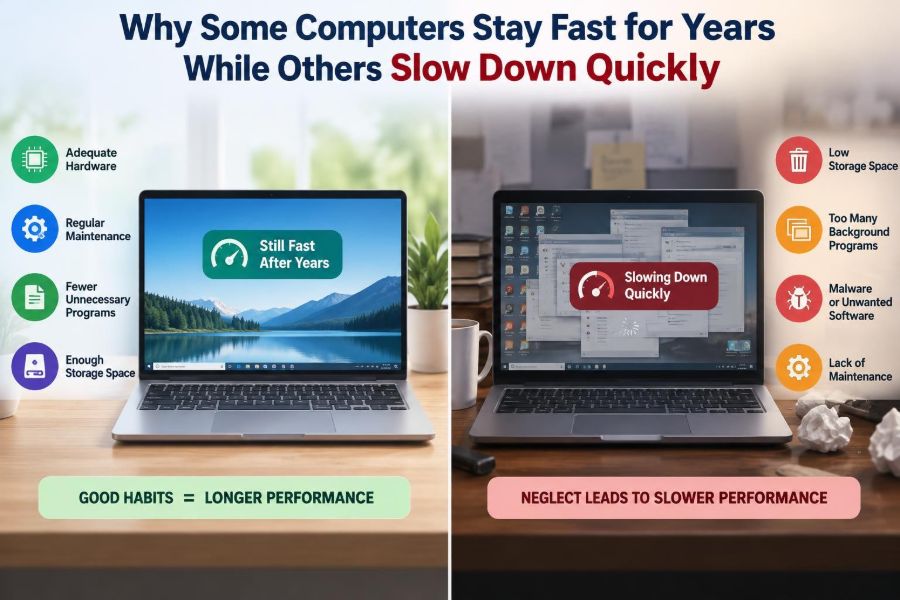

A computer can feel wonderfully quick on the day it is unboxed. Programs open immediately, the desktop responds without hesitation, and switching between a browser, a document, and a video call seems effortless.
Then, a year or two later, the same machine may take longer to start, pause while opening files, or make a simple task feel frustrating. Meanwhile, someone else is still using an older computer that appears remarkably capable.
This difference is not usually explained by age alone. A computer’s long-term speed depends on its original design, the work it is asked to do, the condition of its parts, and the way its software environment is managed.
Understanding those factors helps students choose sensible devices, helps professionals keep work machines dependable, and helps everyone know when maintenance will help—and when an upgrade is the more realistic answer.
🧠 Fast Is Not One Single Measurement
“Fast” can mean several different things. A computer may start quickly but struggle with large spreadsheets. Another may render video well but feel slow when many browser tabs are open.
Common experiences of speed include:
- booting and signing in;
- opening applications and files;
- switching between active programs;
- loading web pages or cloud documents;
- saving, exporting, compiling, or rendering work;
- staying responsive during heavy workloads.
A computer stays satisfying for years when its components and software continue to meet the demands behind the tasks that matter to its owner.
⚖️ The Gap Between Capacity and Demand
The central idea is simple: performance remains comfortable when a computer has more usable capacity than the task currently requires. When demand regularly reaches or exceeds that capacity, delays become visible.
Think of a checkout line. One cashier can serve a few customers smoothly, but a queue forms when arrivals outpace service. In a computer, the “customers” are instructions, files, background tasks, and data waiting for processing.
A machine bought with modest headroom—extra memory, faster storage, or a stronger processor than the buyer immediately needs—often ages more gracefully. That does not make it future-proof, but it gives changing software and workflows room to grow.
🧩 The Processor Handles the Instructions
The central processing unit, or CPU, carries out general-purpose instructions. Opening an application, calculating formulas, decompressing a download, and coordinating many system activities all rely on it.
CPU performance is not determined by clock speed alone. Modern processors differ in how much work they complete per clock cycle, how many processing cores they have, how efficiently they use power, and how well software can divide work across cores.
A basic CPU may remain perfectly adequate for writing, browsing, email, and video playback. It can feel limited sooner when asked to edit high-resolution media, run virtual machines, compile large projects, or manage several demanding applications at once.
🧵 Cores Help Only When Work Can Be Shared
A CPU core is an independent processing unit. More cores can improve performance when software has multiple tasks that can run at the same time, such as exporting video while preparing another file.
However, some actions depend heavily on one main chain of instructions. In those cases, strong single-core performance matters more than a large core count. A computer with many slower cores is not automatically faster for every everyday action.
Long-lasting systems tend to have a balanced processor: enough single-task responsiveness for ordinary use and enough parallel capacity for the owner’s real multitasking habits.
🧠 RAM Prevents Work From Piling Up
RAM, or random-access memory, is the temporary working space used by active programs and data. It is much faster to work from RAM than to repeatedly retrieve information from a storage drive.
When RAM is scarce, the operating system moves some inactive data to storage to make space. This is often called swapping or paging. It allows work to continue, but responsiveness can drop sharply when the system must constantly move data back and forth.
Common signs of insufficient RAM include browser tabs reloading, pauses when switching applications, and a computer becoming sluggish only after several programs have been opened.
🗂️ Why Browser Tabs Can Change Everything
A browser is often the heaviest application on a modern computer. Each tab may contain scripts, images, video elements, advertisements, web applications, and background connections.
Ten simple text pages are very different from ten online documents, meetings, dashboards, and streaming pages. Extensions also consume resources, especially when they examine every page or run continuously.
For a person whose daily work happens mostly in a browser, enough RAM may matter more than a slightly faster CPU. Closing abandoned tabs and removing unneeded extensions can produce a noticeable improvement without buying hardware.
💾 Storage Speed Shapes Everyday Responsiveness
Storage holds the operating system, applications, documents, and long-term data. Its speed strongly affects boot time, application launches, searches, updates, and the moments when a computer retrieves files that are not already in RAM.
Traditional hard disk drives use spinning platters and moving heads. They can offer large capacity economically, but physical movement makes them much slower at locating many small files than solid-state drives.
A solid-state drive (SSD) stores data electronically and has no moving read head. Replacing an old hard drive with a suitable SSD is often one of the most visible upgrades for an otherwise capable older computer.
📦 Free Space Is Part of Storage Performance
A nearly full drive does not always become slow for one single reason, but low free space makes normal operation harder. The operating system needs room for temporary files, updates, caches, virtual memory, and recovery processes.
Large downloads, old installers, duplicate photos, and unused applications quietly consume capacity. Cloud-sync folders can also grow unexpectedly when files are kept both online and locally.
Keeping a reasonable amount of free space is practical maintenance. Before deleting anything, back up personal files and verify what is safe to remove; storage-cleanup tools can be helpful, but they should be used thoughtfully.
🔄 Software Gradually Raises the Baseline
Applications often gain features over time: richer interfaces, stronger security, better accessibility, more device support, and tighter cloud integration. These improvements can increase hardware requirements.
An older computer has not necessarily become weaker. Instead, the software environment may have become more demanding than it was when the machine was new. A current browser, operating system, and collaboration suite can ask far more of hardware than older versions did.
This is why a device can still run an older, lightweight program smoothly while struggling with a modern web-based alternative.
🛡️ Security Work Has a Performance Cost
Security protections are necessary, but they use some computing resources. Antivirus scanning, disk encryption, browser isolation, software updates, and background checks all perform useful work.
On a well-equipped computer, this overhead is usually modest. On a machine already close to its limits, a scan or update can make the system feel noticeably slower for a while.
The answer is not to disable protections casually. Instead, schedule demanding maintenance when possible, reduce unnecessary software, and recognize that an unsupported operating system may create a security problem even if it still feels quick.
🚀 Startup Apps Compete Before You Begin
Many applications ask to start automatically: chat clients, cloud storage tools, game launchers, update helpers, printer utilities, and vendor dashboards. Some are essential; many are merely convenient.
Too many startup items increase sign-in time and consume memory and CPU cycles from the first minute of use. They may also keep checking the internet or displaying notifications throughout the day.
Review startup settings periodically. Keep services needed for backups, security, accessibility, or essential synchronization, but disable optional launchers that do not need to run constantly.
👻 Background Processes Are Not Always Obvious
A computer can appear idle while it is indexing files, syncing cloud folders, downloading updates, scanning for malware, creating backups, or processing photos. Such work is often legitimate and temporary.
Task Manager on Windows, Activity Monitor on macOS, and comparable tools on Linux show which processes are using CPU, memory, storage, and network resources. Looking at these tools during a slowdown turns a vague complaint into evidence.
Do not end unfamiliar processes at random. First identify the application, wait to see whether a temporary task finishes, and investigate repeated high use from software you recognize.
🌡️ Heat Makes Hardware Slow Itself Down
Processors produce heat while working. If temperatures rise too high, a computer may reduce its speed to protect components. This automatic behavior is called thermal throttling.
Dust in vents, blocked airflow, worn cooling fans, old thermal material, and use on soft bedding can all make cooling less effective. Thin laptops are especially sensitive because they have less space to move heat away.
A computer that performs well briefly but slows during a long meeting, game, export, or compilation may be limited by heat rather than by its advertised processor speed.
🧹 Cleaning Helps, but It Is Not Magic
External vents can be kept clear with careful cleaning, and a hard desk usually allows better airflow than a blanket or cushion. These simple habits reduce avoidable heat buildup.
Internal cleaning or fan replacement can help older machines, but opening a laptop can damage delicate connectors or affect a warranty. Users without experience should consult the manufacturer’s guidance or a qualified repair service.
Cleaning cannot transform a low-powered computer into a high-performance one. Its purpose is to restore the cooling conditions the hardware was designed to have.
🔋 Battery and Power Settings Can Limit Speed
Laptops often lower performance on battery power to extend runtime and control heat. A power-saving mode may reduce processor speed, screen brightness, background activity, or graphics performance.
This behavior is useful when mobility matters, but it can be confusing when a laptop feels slow away from its charger. Power settings should match the task: efficiency for reading and notes, more performance for demanding work when power and cooling allow.
A failing battery or incorrect charger can also affect some laptops. If performance changes dramatically with power source, check the manufacturer’s recommended adapter and battery health information.
🎮 Graphics Workloads Need the Right Hardware
The GPU, or graphics processing unit, draws images and can accelerate certain workloads such as 3D design, video effects, scientific computing, and machine-learning tasks. Some computers use integrated graphics that share system memory; others include a separate graphics chip.
Integrated graphics are often efficient and sufficient for office work, streaming, coding, and many creative tasks. Dedicated graphics hardware can be valuable for sustained 3D work or specialized applications, but it adds cost, heat, and power use.
Buying a powerful GPU for someone who only writes reports will not solve a memory shortage or a slow storage drive. Hardware choices must match the workload.
📡 A Slow Internet Connection Can Look Like a Slow Computer
When a web page, video call, or cloud document hesitates, the computer may not be the main cause. Wi-Fi signal quality, router congestion, service-provider issues, a busy corporate network, or a distant server can create similar symptoms.
A useful clue is scope. If locally stored files and offline applications respond normally while only online services lag, investigate the network before replacing hardware.
Testing near the router, trying a wired connection where practical, and checking whether other devices have the same issue can separate a network problem from a computer-performance problem.
🧪 The Workload Determines the Upgrade
Two people can own the same model of computer and have opposite experiences. A student working with notes and presentations may find it fast for years, while a designer handling large layered images may reach its limits quickly.
| Typical symptom | Likely area to examine | Possible response |
|---|---|---|
| Long startup and slow app launches | Storage and startup apps | Free space, reduce startup items, consider an SSD |
| Pauses with many apps or tabs | RAM | Close heavy tasks, reduce tabs, add RAM if supported |
| Slowdown during long heavy tasks | CPU, cooling, or GPU | Check temperatures and task requirements |
| Only cloud apps or calls are slow | Network connection | Test Wi-Fi, router, and another network |
Diagnosis should begin with the task that feels slow, not with a generic assumption that “the computer is old.”
🧱 Balanced Systems Age Better Than Lopsided Ones
A system is only as comfortable as its most restrictive major component. A fast CPU cannot fully hide a tiny amount of RAM, and a large amount of RAM cannot make a failing drive responsive.
Balance also includes practical design choices: reliable cooling, adequate ports, a usable keyboard, repairable parts, and storage capacity appropriate for the owner’s files. These details affect whether a machine remains pleasant after the first months of ownership.
When comparing devices, consider the whole configuration rather than one impressive specification printed in large type.
🔧 Upgradeable Parts Extend Useful Life
Some computers allow RAM, storage, batteries, or wireless modules to be replaced. Others use soldered memory and sealed designs that limit upgrades. Neither approach is automatically right, but the difference matters over several years.
Upgradeable storage can be particularly valuable because files grow and SSD replacement may restore responsiveness. Expandable RAM can help when a user’s workflow becomes more demanding.
Before purchasing parts, check the exact model’s documentation. Compatibility depends on factors such as physical size, connector type, supported capacity, and firmware behavior.
🧾 Low-Cost Configurations Can Carry Hidden Limits
A low purchase price can be appropriate for light use, but it sometimes reflects compromises that affect longevity: minimal memory, very small storage, a slow processor, limited cooling, or non-upgradeable components.
These machines are not defective simply because they are inexpensive. They are designed around a narrower workload. Problems arise when their capabilities are mistaken for those of a general-purpose work computer.
For a purchase expected to last several years, it is often wiser to prioritize sufficient RAM, SSD storage, and a processor suited to the intended work over cosmetic extras.
🗃️ File Organization Reduces Friction
Disorganized files do not directly make every computer slow, but they increase the time people spend searching, duplicating downloads, and keeping unnecessary data. Large cluttered folders can also make backups and cloud synchronization less manageable.
Use clear folder names, archive completed projects, and remove duplicates after confirming that a backup exists. Keep enough local space for current work and system maintenance.
This is a productivity benefit as much as a technical one: a responsive computer is less helpful if its owner cannot find the needed document.
🔄 Updates Need Judgment, Not Avoidance
Operating-system and application updates often fix bugs, improve compatibility, and address security weaknesses. Avoiding every update can leave a computer unstable or exposed.
At the same time, a major update can occasionally introduce a temporary issue or reveal that aging hardware is no longer well supported. Back up important files before major upgrades, and allow time to resolve problems if the computer is essential for work.
Keeping software current is usually a better long-term strategy than freezing a system indefinitely, especially when security support has ended.
🦠 Malware Is One Possible Cause, Not the Default Explanation
Unexpected slowness can be caused by unwanted software, malicious browser extensions, or intrusive advertising software. Warning signs may include unfamiliar pop-ups, unexplained redirects, new toolbars, or sustained activity from unknown processes.
But not every slow computer has malware. Limited RAM, an overloaded drive, background updates, and thermal throttling are often more ordinary explanations.
Use reputable security tools, remove software from trusted system settings where possible, and be cautious with “PC cleaner” programs that make dramatic claims without clearly explaining what they change.
📊 Measure Before Making Changes
Random tweaks can waste time and occasionally create new problems. A better method is to reproduce the slowdown, observe system activity, and change one meaningful factor at a time.
- Describe the exact task that feels slow.
- Check CPU, memory, storage, and network activity during that task.
- Confirm free storage space and pending updates.
- Reduce unnecessary startup and background software.
- Test again before considering an upgrade.
This process also prevents expensive mistakes, such as buying a graphics card when the actual bottleneck is a full hard drive.
🧰 Maintenance Has Clear Limits
Restarting, updating, freeing storage, cleaning startup apps, and improving airflow can restore lost responsiveness. These steps are worthwhile because they address real causes of slowdown.
They cannot overcome fundamental limits forever. A computer may be unable to run required software smoothly because its processor lacks needed capability, its memory cannot be expanded, its storage is failing, or the operating system no longer receives support.
Knowing this limit is useful. It shifts the question from “Which trick will fix everything?” to “What is the most sensible repair, upgrade, replacement, or change in workflow?”
♻️ Replacement Should Consider More Than Raw Speed
When replacement becomes necessary, reuse and responsible disposal matter. An older computer may still be suitable for a lightweight role, a family member with simple needs, or a supported lightweight operating system, depending on compatibility and security requirements.
Before donating or recycling a device, back up needed files, sign out of accounts, and securely erase personal data using the appropriate method for its storage type. Recycling through a reputable electronics program keeps materials out of ordinary waste streams.
A new computer should be chosen for the work expected over its useful life, not just for its performance during a short store demonstration.
🧭 A Practical Plan for Keeping a Computer Responsive
Long-term performance is less about secret optimization and more about steady, informed habits. The most useful routine is usually modest:
- keep the operating system, browser, and essential applications updated;
- leave working room on the storage drive;
- review startup apps and browser extensions occasionally;
- back up important files before major changes;
- keep vents clear and avoid blocking airflow;
- watch resource use when a specific task becomes slow;
- upgrade parts only after identifying the limiting component.
This approach protects both performance and data. It also makes it easier to notice a genuine hardware problem before it turns into lost work.
🏁 The Core Principle Behind Long-Lasting Speed
Computers that remain fast for years are rarely lucky by accident. They usually start with balanced components and enough headroom, then receive sensible software maintenance, adequate cooling, and workloads that fit their design.
Computers that slow down quickly may be constrained from the beginning, overwhelmed by growing software demands, burdened by startup and background tasks, limited by storage or RAM, or affected by heat and network conditions. The visible symptom can be the same, but the solution depends on the cause.
The most valuable habit is to treat performance as a system question. Look at the task, the hardware, the software, and the environment together before deciding what to change.
A computer stays useful longest when its capacity, care, and workload remain in balance—not when it is endlessly subjected to random “speed-up” tricks. 🖥️⚙️🌱