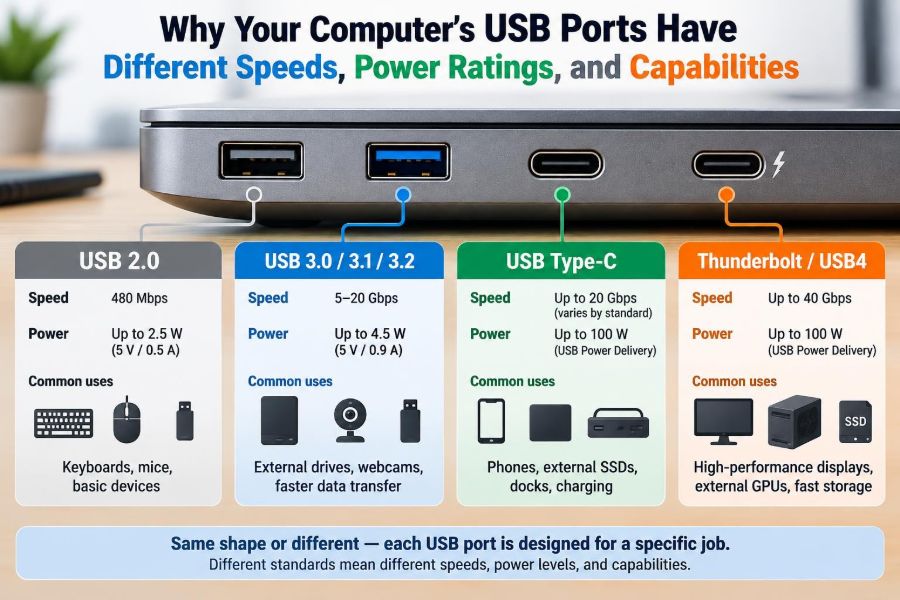

You plug an external drive into one USB port and a large video file copies quickly. Move the same drive to another port on the same computer, and the transfer takes noticeably longer. Both connectors look almost identical, so what changed?
Or perhaps a phone charges from one port while another barely keeps its battery level steady. A monitor works through a USB-C port on one laptop, but shows nothing when connected to a similar-looking USB-C port on another.
USB was designed to make connecting devices simpler, but its long history has created a confusing mix of connector shapes, speed generations, charging rules, and optional features. The label “USB” tells you less than many people expect.
Understanding those differences helps you choose the right port, cable, dock, charger, and accessory—and avoids blaming a perfectly healthy device for a limitation built into the connection.
🔌 USB Is a Family of Standards, Not One Feature
USB stands for Universal Serial Bus. It describes a broad set of specifications for moving data, supplying power, and sometimes carrying other signals such as video.
A USB connection has several separate capabilities. A port may support a particular data speed, provide a particular amount of electrical power, and offer optional functions. Those capabilities do not automatically travel together.
That is why “it has USB” is not enough information when you are buying equipment or troubleshooting a connection.
🧩 Connector Shape and Capability Are Different Things
The plug shape is the physical connector: USB-A, USB-B, Micro-USB, or USB-C. The underlying USB version determines how data is handled, while other specifications determine charging and video support.
A rectangular USB-A port can be an older, slow connection or a relatively fast one. A USB-C port may handle charging, displays, and high-speed storage—or it may only support basic USB data.
Think of the connector as the doorway, not the description of every service available behind it.
📏 The Common USB Connector Shapes
USB-A is the familiar flat rectangular plug found on many desktops, laptops, keyboards, and flash drives. USB-B is the squarer plug historically common on printers, while smaller Mini-B and Micro-B connectors appeared on older portable electronics.
USB-C is smaller, oval-shaped, and reversible. It is increasingly common because it can support modern data, power, and display features in one compact connector.
Its convenience has created a frequent misunderstanding: USB-C describes the shape, not the performance level.
↔️ Why USB-C Plugs Work Either Way Up
Older USB-A plugs must be inserted in one orientation. USB-C uses a symmetrical design with contacts arranged to let the host and device determine the correct signal paths regardless of which side faces up.
That reversibility improves everyday usability, but it also requires more sophisticated electronics in cables and ports. Some USB-C cables include electronic markers, often called e-markers, that report what current or data modes the cable can safely support.
A reversible plug is therefore a design improvement, not proof that every USB-C cable is interchangeable.
🚦 Data Speed Is Measured Separately from Charging
Data speed is commonly expressed in bits per second. USB specifications are often described by their theoretical signaling rate, such as 480 megabits per second for USB 2.0 or 5, 10, 20, 40, or higher gigabits per second for newer USB families.
Charging is measured through voltage and current, which together determine power in watts. A port can be fast at transferring files but provide modest charging power, or supply substantial power while offering ordinary data speeds.
These are different jobs, performed over related but distinct parts of the USB ecosystem.
📊 A Practical Guide to Major USB Data Tiers
Marketing names have changed several times, so labels on product boxes can be more confusing than helpful. The signaling rate is usually the clearest comparison point.
| Common name or family | Typical maximum signaling rate | Everyday example |
|---|---|---|
| USB 2.0 | 480 Mbps | Keyboard, mouse, printer, basic flash drive |
| USB 3.2 Gen 1 | 5 Gbps | Many external SSDs and older USB 3 ports |
| USB 3.2 Gen 2 | 10 Gbps | Faster external SSD enclosure |
| USB 3.2 Gen 2×2 | 20 Gbps | Compatible high-speed USB-C storage |
| USB4 | Starts at 20 Gbps; higher modes exist | Modern docks, displays, and fast storage |
These figures are maximum signaling rates, not guaranteed file-copy speeds. The storage device, cable, software, and computer all influence what you actually see.
🐢 Why Real File Transfers Fall Below the Label
Protocol overhead uses some of the available bandwidth for coordination and error handling. Files themselves also behave differently: one large video file is generally easier to transfer quickly than thousands of tiny files.
The source and destination storage matter just as much. Copying from a slow hard disk to a fast external SSD cannot exceed the hard disk’s ability to read data.
Encryption, antivirus scanning, thermal throttling, and a busy computer can reduce results further. A lower number does not necessarily mean the port is defective.
🧱 The Slowest Part Sets the Connection Speed
A USB path is only as capable as its slowest required component. This includes the computer port, cable, hub or dock, external enclosure, drive, and the device’s internal controller.
For example, a 10 Gbps SSD connected through a 5 Gbps cable to a 10 Gbps port will operate at no more than the cable’s lower tier. Connecting it through a USB 2.0 hub drops it much further.
This is often called a bottleneck. Finding it requires looking at the entire chain rather than one impressive specification.
🎨 Port Colors Can Offer Clues, Not Guarantees
Some manufacturers use colored inserts to distinguish ports. Blue has often indicated USB 3.x capability, while black commonly appears on USB 2.0 ports. Teal or red may suggest faster data or charging-oriented designs.
However, colors are not a universal, enforceable language. A manufacturer may use a color for visual design rather than a specific standard, and many USB-C ports have no colored insert at all.
Use color as a hint. Check the computer manual, labels, or technical specifications when the feature matters.
🔣 Icons Are More Useful Than Color Alone
Near a port, you may find a USB trident symbol, a battery symbol, a lightning-related mark, or a display symbol. These can indicate general USB use, enhanced charging, or support for a display-related alternate mode.
Still, an icon does not always reveal the precise data rate or maximum wattage. Product documentation may be necessary, especially with USB-C laptops where adjacent ports can have different capabilities.
A port’s location can also help: manufacturers often place high-bandwidth ports near a dock symbol or group them separately from basic peripheral ports.
⚡ Power Ratings Explain Why Charging Feels Different
Electrical power is calculated as voltage multiplied by current. A basic USB port may provide enough power for a mouse, keyboard, or low-power flash drive, while a charging-capable port can negotiate a much larger power level.
The computer must decide what it can safely provide, and the connected device must request and accept it. A phone will not simply pull unlimited power because a charger has a high wattage rating.
That controlled negotiation protects equipment and allows one modern connector to serve many device types.
🔋 Basic USB Power Was Built for Peripherals
Traditional USB power was designed first for accessories, not for rapidly charging laptops. A small keyboard or mouse needs very little energy, and early USB ports had limited current budgets.
Some computer ports can deliver extra charging current, particularly when the system is sleeping or powered off. Others stop supplying power in those states to conserve battery energy.
Do not assume every port will behave like a wall charger. The computer’s hardware design and power settings affect the result.
🤝 USB Power Delivery Changes the Conversation
USB Power Delivery, usually shortened to USB PD, is a charging specification that lets compatible devices negotiate voltage, current, and power direction. It is widely associated with USB-C, though the important detail is support for PD, not merely the connector shape.
A compatible laptop and charger can agree on a power level suitable for charging the laptop. A phone can request a lower level, while a monitor may receive power from the same connection it uses for video.
PD is negotiated: the charger advertises available options, and the device chooses an appropriate one.
🔄 A USB-C Port Can Send or Receive Power
Older USB arrangements usually had obvious roles: the computer supplied power and the peripheral consumed it. USB-C with Power Delivery can support more flexible roles.
A laptop may power a dock; a dock may charge the laptop; and a monitor may power the laptop while also receiving video from it. The devices negotiate which side acts as the power source.
This flexibility is useful, but it means a connection can fail to charge as expected if the dock’s power adapter, cable, or available power budget is insufficient.
🧮 Wattage Is Shared in Docks and Hubs
A dock may have a power adapter with a substantial rating, but it often reserves some of that power for its own electronics, USB accessories, Ethernet, storage, and display functions. The remainder is available for the connected laptop.
If several power-hungry devices are connected, a hub may limit output to particular ports or distribute available power among them. A portable hub powered only by the laptop has an especially limited budget.
For reliable charging, read both the dock’s host charging output and its power-adapter rating. They are not necessarily the same number.
🧵 Cables Are Active Participants, Not Simple Wires
A cable can restrict data speed, charging power, video capability, or all three. USB-C cables look very similar because they share the same ends, but their internal wiring can be dramatically different.
Some inexpensive USB-C cables are intended chiefly for charging and USB 2.0 data. Others support high-speed USB, higher-power PD operation, or display signals. Longer cables can face greater signal-loss challenges and may have different limits.
When a fast device behaves slowly, testing a known-capable cable is one of the most useful troubleshooting steps.
🏷️ Read Cable Labels with Healthy Skepticism
Look for explicit claims such as a data rate, power rating, or support for USB4, rather than relying only on phrases like “fast charging.” A charging claim says little about file-transfer performance.
Likewise, a cable advertised for high-speed data may not be suitable for the highest charging levels your equipment can negotiate. The package should ideally state both kinds of capability.
Keep capable cables labeled or stored separately. Once several nearly identical USB-C cables accumulate in a drawer, identifying them by appearance becomes unreliable.
🖥️ Video Over USB-C Uses Alternate Modes
A USB-C connector can sometimes carry display signals through an alternate mode. In this arrangement, some high-speed connector lanes are reassigned from ordinary USB data to a display protocol.
This makes one-cable monitor connections possible: the cable may carry video to the screen, USB data to the monitor’s built-in hub, and power back to the laptop. But all participating equipment must support the needed mode.
A USB-C port without display capability may still charge and transfer files perfectly. A blank screen does not automatically mean the cable or monitor is broken.
🧷 Display Bandwidth Requires Trade-Offs
Video signals consume substantial bandwidth, especially at higher resolutions and refresh rates. Depending on the implementation, using USB-C for video can leave fewer high-speed lanes for USB data.
Some docks manage this with display compression or by choosing a different connection technology. The result can be excellent for office work but may impose limits with multiple high-resolution displays, fast external drives, or demanding visual workloads.
Check supported display arrangements rather than assuming one USB-C port can drive every monitor setup.
🌩️ Thunderbolt and USB4 Add Another Layer
Thunderbolt and USB4 are related modern connection technologies that use USB-C connectors. They can provide high bandwidth and can carry data, video, and power through a compact connection.
Compatibility is not perfectly symmetrical. Many Thunderbolt ports support USB devices, but a USB-C port is not automatically a Thunderbolt port. USB4 support also does not mean every optional feature or maximum speed is present.
For advanced docks and storage, confirm the exact capabilities at both ends instead of treating these names as interchangeable.
🧠 Protocol Support Matters for Specialized Devices
Many everyday peripherals work through basic USB data modes. More specialized equipment—certain high-speed storage enclosures, professional audio interfaces, capture devices, or dock features—may depend on a specific protocol, driver, or bandwidth level.
A device can physically connect and still operate with reduced features. An external SSD, for example, might mount successfully while performing below its advertised speed because it has fallen back to a lower USB mode.
Successful connection and full capability are different outcomes.
🛜 Hubs Multiply Ports, Not Bandwidth
A hub lets multiple devices share one upstream USB connection to the computer. It creates convenient physical ports, but it does not create unlimited new bandwidth.
Two fast drives connected to one hub share the hub’s upstream link when used at the same time. A webcam, network adapter, and storage device may also compete for the same connection through a dock.
For low-bandwidth accessories, this rarely matters. For storage, video capture, or displays, the upstream connection is a key specification.
💻 Desktop and Laptop Ports Often Have Different Jobs
On a desktop computer, rear ports may connect directly to the motherboard and can be intended for permanent peripherals. Front-panel ports often travel through internal cables and may share a controller or hub.
On laptops, one USB-C port may be the full-featured docking port while another is intended mainly for charging or basic accessories. Compact designs force manufacturers to make trade-offs in controllers, lane allocation, and internal space.
The physical placement is not a rule, but it explains why ports on the same machine can behave differently.
🧭 Find Your Computer’s Port Specifications
The most reliable source is the model-specific technical documentation from the computer manufacturer. Search for a port diagram or specifications page, not just a generic product-family description.
Useful details include:
- Maximum USB data rate for each port
- Whether USB-C supports charging input, charging output, video, USB4, or Thunderbolt
- Maximum power accepted from a charger
- Supported dock and monitor configurations
- Whether ports share bandwidth
Operating-system tools can identify connected USB devices, but they may not reveal every physical feature of an unused port.
🧪 A Simple Method for Diagnosing Slow USB Transfers
Start with the simplest path: connect the device directly to the computer using a known-good, suitably rated cable. Avoid hubs and adapters during the first test.
- Confirm the port and device are expected to support the desired speed.
- Try another cable that is known to support that speed.
- Try another compatible port on the computer.
- Check whether the drive is nearly full, overheating, or limited by its own storage technology.
- Reconnect the hub or dock only after the direct connection works as expected.
This process isolates one variable at a time and prevents a misleading conclusion based on the connector’s appearance.
🚫 Common Assumptions That Cause Confusion
The most common mistake is treating every USB-C port or cable as identical. Another is assuming the highest number on a device package will be achieved with any computer.
- “USB-C means fast.” It may only provide USB 2.0 data.
- “A powerful charger forces power into a device.” Compatible equipment negotiates what it uses.
- “A hub gives every port full speed.” Connected devices share the upstream link.
- “If it charges, it supports video.” Charging and display alternate modes are separate features.
Replacing assumptions with specific specifications makes USB much less mysterious.
🛡️ Choose Chargers and Cables With Safety in Mind
Use chargers and cables from reputable sources, particularly for laptops and high-power equipment. Poorly made accessories may have unreliable construction, misleading ratings, or inadequate handling of the signals needed for modern USB-C power negotiation.
Stop using a cable or charger that becomes unusually hot, has damaged insulation, loose connectors, or intermittent behavior. Heat can occur during normal charging, but excessive heat, odor, discoloration, or instability warrants caution.
Compatibility cannot be judged by price or appearance alone; clear specifications and dependable build quality matter.
🛒 Match the Accessory to the Actual Task
A mouse and keyboard do not need a premium high-bandwidth cable. A fast external SSD needs an appropriately rated data path. A laptop charger needs enough PD output for the laptop’s normal workload, not merely enough to slow battery drain.
Before buying a dock, list what must operate simultaneously: displays, wired networking, storage, charging, card readers, and audio. Then check whether its upstream connection and power supply can support that combination.
Buying for the task avoids both overspending and frustrating underperformance.
🧠 The Core Principle: Read the Whole Connection
Different USB ports exist because computer makers balance cost, size, power, bandwidth, and intended use. A basic peripheral port, a charging port, and a full docking port may share a familiar shape while serving very different roles.
The practical rule is simple: evaluate the port, cable, connected device, hub or dock, and required feature as one system. The connection delivers only what every necessary part can support.
Once you separate connector shape from data rate, power delivery, and alternate capabilities, USB specifications become a useful checklist rather than a collection of confusing labels.
Your USB experience is determined by the entire connection chain, not by the shape of the plug alone. Check the specifications that matter for your task, and the right port will make much more sense. 🔌💻⚡