
You launch a game that ran smoothly last year, raise the texture setting, and suddenly the experience turns into stutters, blurry surfaces, or a warning about insufficient video memory. The computer may still have plenty of free storage space and unused system RAM, so the problem feels confusing.
The same question appears outside gaming. A video editor cannot preview a high-resolution timeline reliably. A 3D design program simplifies a scene. An AI image tool refuses a larger batch. In each case, a small but critical resource may be under pressure: VRAM.
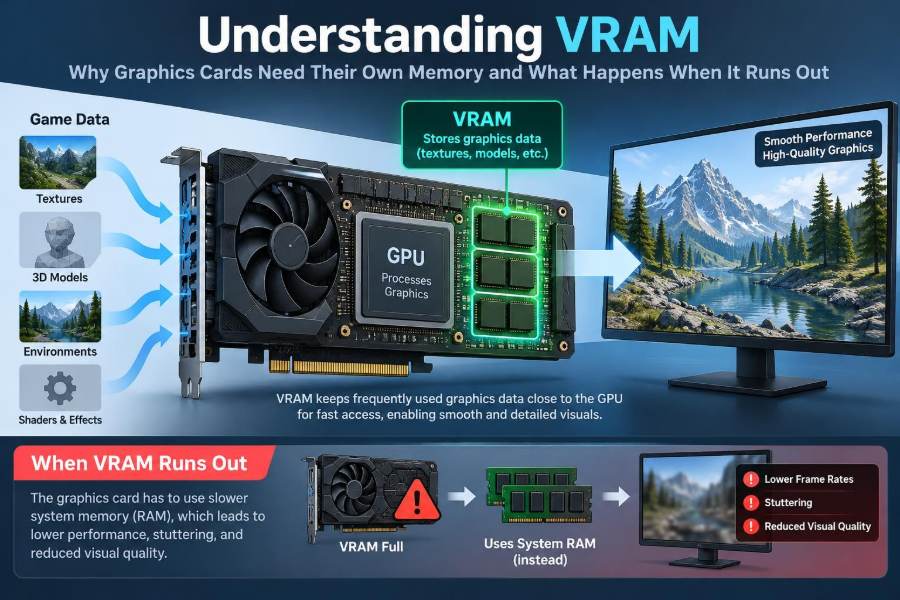
VRAM is one reason a graphics card is not simply a processor that draws pictures. It has its own fast working memory, positioned close to the graphics processor and designed for the constant movement of visual data.
Understanding what VRAM stores, how software uses it, and what happens when capacity is exceeded makes graphics-card specifications much easier to interpret. It also helps separate a genuine memory limit from problems caused by drivers, heat, settings, or an underpowered GPU.
🧠 VRAM Is the Graphics Processor’s Working Memory
Video random-access memory, usually shortened to VRAM, is memory used by a graphics processing unit (GPU). The GPU stores and rapidly accesses the data it needs while producing images for a display.
Think of the GPU as a chef and VRAM as the ingredients laid out on the counter. System RAM is more like a nearby pantry: useful, but less convenient when the chef needs the same ingredient many times per second.
Modern graphics cards usually use dedicated graphics memory such as GDDR memory. Some high-end cards use HBM, or high-bandwidth memory, which is packaged especially close to the GPU.
🎮 Why a GPU Cannot Rely Only on System RAM
System RAM is shared by the operating system, browser tabs, applications, and many background tasks. A discrete graphics card connects to it through the motherboard’s PCI Express connection, which is capable but generally much slower and higher-latency than the card’s local memory interface.
Rendering involves repeatedly reading textures, geometry, lighting information, and temporary buffers. Keeping these resources in dedicated VRAM lets the GPU retrieve them with far less delay.
This arrangement also prevents the GPU’s heavy memory traffic from competing constantly with the CPU. It is a division of labor: the CPU and system RAM manage general computing, while the GPU and VRAM handle graphics-oriented workloads.
🔌 The Memory Bus Explains Why Speed Matters
Capacity is only one part of a VRAM specification. Memory bandwidth describes how much data can move between the GPU and its memory each second. It depends on memory speed and the width of the memory bus, among other design choices.
A GPU rendering a complex frame may read enormous amounts of data in parallel. Fast local memory helps it feed thousands of processing units without leaving them idle.
More VRAM does not automatically mean higher performance. A card with ample capacity but limited GPU processing power or memory bandwidth can still struggle. Capacity determines what can comfortably fit; bandwidth helps determine how quickly the GPU can work with what fits.
🧩 What Data Actually Lives in VRAM
VRAM is not reserved for one type of visual asset. A game engine or creative application allocates it for several resources, some persistent and some temporary.
- Textures: image maps applied to objects, such as wood grain, skin detail, labels, and terrain.
- Geometry: vertex, index, and mesh data describing shapes.
- Framebuffers: images being rendered before they are sent to the monitor.
- Shadow, reflection, and depth buffers: data used to calculate realistic visibility and lighting.
- Shaders and compute data: program-related resources and working datasets used by the GPU.
The exact mix changes by application. A detailed open-world game may emphasize textures, while a 3D renderer may hold large scene data structures and render targets.
🖼️ Resolution Raises the Cost of Every Frame
A higher display resolution contains more pixels. A 4K frame has four times as many pixels as a 1080p frame, so buffers that track color, depth, motion, and other per-pixel information often require substantially more memory.
Rendering techniques may create several full-resolution or near-full-resolution buffers at once. The final image is only one output; the GPU may also be storing depth, normals, motion vectors, lighting results, and post-processing inputs.
Resolution is therefore relevant to VRAM, but it is not the whole story. Texture quality, ray tracing, anti-aliasing, and the application’s resource management can matter just as much.
🧵 Texture Quality Is Often the Biggest Setting
Textures are commonly the most adjustable source of VRAM demand. Higher-quality texture packs use larger images and more detailed mip levels, which are pre-made versions of a texture at different resolutions.
Lowering texture quality can reduce memory use with a smaller performance or image-quality penalty than lowering every visual option. This is especially useful when a game stutters while moving into new areas or when its own VRAM indicator shows pressure.
Texture settings do not necessarily make the GPU calculate fewer effects. They mainly change the size and detail of visual data that must be stored and streamed.
✨ Ray Tracing Adds More Than Visual Effects
Ray tracing can improve reflections, shadows, and global lighting by simulating paths of light. It also increases workload and can increase memory demand, because the GPU needs acceleration structures and additional buffers to trace rays through a scene.
Its impact varies widely. A modest ray-traced shadow setting may be manageable, while extensive reflections and lighting at high resolution can place much greater pressure on both GPU processing power and VRAM.
If performance collapses after enabling ray tracing, the limitation may be compute performance, VRAM capacity, or both. Monitoring tools and controlled setting changes help identify which is more likely.
📦 Modern Games Stream Assets Instead of Loading Everything
Large games usually do not place every texture and object in VRAM at once. They stream assets: loading nearby or soon-needed data and removing lower-priority data to make room.
This system makes enormous environments practical, but it depends on timing. If a game must fetch assets from storage, transfer them through system memory, and upload them to VRAM too late, players may see delayed textures, brief hitching, or lower-detail objects.
A fast SSD can help asset streaming, but it does not replace enough VRAM. Storage supplies data; VRAM holds the active data the GPU needs right now.
📊 Allocated VRAM and Used VRAM Are Not Always the Same
Many games report a VRAM number in their settings menu, but that figure can be misunderstood. Software may allocate or reserve memory that it could use, rather than actively filling every byte with essential data.
Operating systems and graphics APIs also manage memory through budgets, caches, and resource eviction. A monitoring tool may show high usage without proving that the GPU is failing because of VRAM.
Look for a pattern instead: sustained high memory pressure combined with stutter, texture problems, warnings, or abrupt quality reductions is more informative than one number alone.
🚧 What Happens When VRAM Reaches Its Limit
When demand exceeds available local memory, the graphics driver and application try to cope. They may evict less urgent resources, reduce detail automatically, reuse memory more aggressively, or access data outside dedicated VRAM.
These strategies can keep an application running, but they impose costs. Resources that were instantly available may need to be transferred again when the scene changes.
Behavior differs by game, driver, operating system, and graphics API. There is no single universal “VRAM full” event, but the practical result is often reduced consistency rather than a neatly predictable drop in average frame rate.
🐢 Shared Memory Is a Fallback, Not a Free Upgrade
Windows can report shared GPU memory, which is a portion of system RAM that the GPU may use when necessary. This does not mean a graphics card with 8 GB of VRAM suddenly performs like one with much more dedicated memory.
Data accessed through system memory must travel over PCI Express, and system RAM has to serve the rest of the computer too. The transfer path is far less suitable for the GPU’s most frequently used resources.
Shared memory can prevent an immediate crash and is essential for integrated graphics. For a discrete GPU under heavy load, however, relying on it can lead to uneven frame times and visible pauses.
📉 Stutter Is the Classic Symptom
Average frames per second can hide a VRAM problem. A game might report a reasonable average while producing noticeable pauses when entering a new room, turning quickly, or traveling through a dense area.
Those pauses appear in frame times: the time required to render each frame. A smooth experience needs frame times that are reasonably consistent, not merely a high average FPS number.
VRAM pressure is only one possible cause of stutter. Shader compilation, CPU limits, background tasks, slow storage, network activity in online games, and overheating can produce similar symptoms.
🧊 Texture Pop-In and Blurry Surfaces Offer Clues
When high-detail textures cannot remain resident in VRAM, a game may initially display lower-resolution versions and replace them later. This can appear as blurry walls, terrain, or objects that sharpen after a delay.
Some pop-in is normal in games designed around streaming, particularly on large maps. Persistent low-detail textures or frequent replacements after increasing texture settings are stronger clues of a memory budget issue.
Engine design matters. Two games with visually similar screenshots can behave very differently because they prioritize, compress, and stream assets differently.
💥 Crashes Can Occur, but They Are Not Proof
An out-of-memory error or crash can happen when an application cannot obtain the graphics resources it requests. Yet crashes have many causes, including unstable overclocks, driver faults, corrupted files, overheating, or application bugs.
Do not diagnose VRAM from a single crash. Check whether the problem repeats in the same demanding scene, whether reducing texture quality changes the result, and whether error messages specifically mention graphics memory.
This cautious approach avoids replacing hardware when the real problem is a software conflict or an unstable system.
🖥️ Integrated Graphics Use a Different Arrangement
Integrated graphics are built into a processor or chipset rather than residing on a separate graphics card. They usually use system RAM as graphics memory because they do not have a dedicated VRAM pool.
This saves space, power, and cost, and modern integrated GPUs are capable enough for everyday displays, media playback, lighter games, and many office tasks. Their performance depends heavily on system-memory speed, memory configuration, and the amount of RAM available.
Some firmware settings let users reserve more memory for integrated graphics. This can help specific workloads, but it also leaves less RAM for the operating system and does not create the bandwidth of a dedicated graphics card.
🧠 Unified Memory Blurs the Traditional Boundary
Some systems use a unified memory architecture, where CPUs and GPUs access a shared memory pool through a high-bandwidth design. This is not identical to ordinary shared system RAM on a desktop PC.
Unified designs can avoid some copying between CPU and GPU memory and can use capacity flexibly. Their practical performance still depends on the processor, memory bandwidth, software, cooling, and workload.
The lesson is simple: labels such as “shared” and “unified” need context. Compare the complete device design and real workload requirements rather than treating all memory arrangements as equivalent.
🎞️ Video Editing Has Its Own VRAM Demands
Video-editing software may use VRAM for timeline playback, compositing, color work, effects, and GPU-accelerated encoding or decoding tasks. Higher-resolution footage, multiple layers, noise reduction, and complex effects can increase demand.
VRAM is not the only bottleneck. CPU speed, system RAM, storage throughput, codec type, and software optimization can all determine whether a timeline plays smoothly.
A practical workflow is to use proxy media or lower-resolution previews when needed. Proxies reduce the burden during editing while preserving the original media for final export.
🏗️ 3D Modeling and Rendering Need Scene Capacity
In 3D applications, VRAM may contain meshes, textures, materials, lighting information, and data needed by a GPU renderer. A scene with many high-resolution texture maps can exhaust memory even if its geometry is not especially complex.
GPU renderers sometimes fall back to system memory, render in tiles, or refuse to render a scene that exceeds available VRAM. The available behavior depends on the renderer and its settings.
Artists often manage memory by reducing texture resolution where it will not be visible, using instancing for repeated objects, simplifying hidden geometry, and optimizing assets before the final render.
🤖 AI Workloads Also Depend on Graphics Memory
Many machine-learning and generative-AI workloads use GPUs because they can perform large parallel calculations. VRAM stores model parameters, input data, intermediate activations, and output-related data.
A model that fits in VRAM can run much more smoothly than one that continually transfers pieces between memory locations. Larger models, higher image resolution, longer context windows, and bigger batches generally require more capacity.
Software can sometimes use quantization, smaller batches, offloading, or lower-precision formats to reduce demand. These trade-offs may affect speed, output behavior, or supported features, so they are workload-specific rather than universal fixes.
🔢 Capacity Needs Depend on What You Actually Do
There is no single correct VRAM amount for every buyer. A person playing older or lighter games at 1080p has different needs from someone using high-resolution texture packs, 4K displays, 3D rendering, or local AI tools.
| Use case | What commonly raises VRAM demand | Useful buying perspective |
|---|---|---|
| Everyday desktop work | Multiple displays and high resolutions, usually modestly | Integrated graphics are often sufficient. |
| Gaming | Texture quality, resolution, ray tracing, mods | Match capacity to target settings and expected game lifespan. |
| Creative work | Large media, effects, 3D scenes, GPU rendering | Check the requirements of the actual applications and projects. |
| Local AI | Model size, batch size, image size, context length | Capacity can become a hard constraint, not merely a speed factor. |
Specifications should be interpreted alongside independent performance tests for the applications you use. A capacity figure alone cannot reveal cooling quality, GPU speed, driver maturity, or software compatibility.
🎯 Settings to Change When Memory Is Tight
Start with options that directly reduce memory use. Texture quality is usually the first setting worth testing, followed by resolution, ray tracing, and unusually large texture packs or mods.
- Lower texture quality one step and revisit the problematic area.
- Disable or reduce ray-traced effects before lowering unrelated settings at random.
- Use a lower render resolution or an upscaling mode if image quality remains acceptable.
- Remove high-resolution mods and close GPU-heavy background applications.
- Restart the game after major changes if its memory management does not release resources cleanly.
Change one or two options at a time. That makes it possible to identify the setting that actually improves consistency.
🔍 Monitoring Tools Need Careful Interpretation
Operating-system tools, GPU utilities, and application overlays can show dedicated memory usage, shared memory usage, temperatures, clock speeds, and frame-time graphs. Used together, these measures can reveal patterns.
For example, if stutters occur precisely when dedicated VRAM is saturated and shared memory rises, memory pressure is a reasonable suspect. If VRAM remains well below capacity while the GPU is lightly used and CPU cores are busy, the bottleneck may lie elsewhere.
Monitoring is observational, not a verdict. Values can be reported differently by different tools, and an application may reserve memory before it needs it.
🛠️ Drivers, Updates, and Clean Troubleshooting
Update the game or creative application and use a stable graphics driver appropriate for your hardware. Updates can improve memory management, fix crashes, and change performance, although they cannot add physical VRAM.
When a problem begins after an update, test a known stable driver if the hardware vendor and application documentation support that step. Avoid changing many variables at once; otherwise, it becomes difficult to know what solved or caused the issue.
Also verify game files, remove unstable overclocks, watch temperatures, and test without overlays or background capture tools. These checks address common problems that can resemble a VRAM shortage.
⚖️ More VRAM Is Valuable, but Not the Only Specification
Comparing cards solely by VRAM capacity can lead to poor choices. A weaker GPU with more memory may still render fewer frames, have lower bandwidth, or lack features needed by a particular application.
Conversely, a fast GPU with too little memory for your intended resolution and assets may produce excellent results in some workloads and frustrating limits in others. The best choice balances processing power, memory capacity, memory bandwidth, software support, power requirements, and price.
Consider the settings you expect to use over the life of the hardware, not only the games or projects that run today.
🚫 Common Misunderstandings About VRAM
Several shortcuts sound plausible but do not hold up well in practice.
- “Unused system RAM will fix it.” It may provide a fallback, but it is not equivalent to local VRAM.
- “High VRAM use always means a problem.” Applications often cache or reserve memory intentionally.
- “Lower settings always reduce VRAM equally.” Texture and resolution-related options usually matter more than settings such as motion blur.
- “A VRAM issue always lowers average FPS.” It often appears first as uneven frame times, texture streaming issues, or instability.
- “More memory makes every GPU faster.” Extra capacity helps only when capacity was a constraint.
🧭 A Practical Way to Diagnose a Suspected Limit
Reproduce the issue in the same scene or workflow if possible. Note the resolution, texture setting, ray-tracing setting, active mods, frame times, and memory readings.
- Close unnecessary GPU-using programs and test again.
- Reduce texture quality first, then test the identical situation.
- Reduce resolution or ray tracing if the issue persists.
- Compare frame-time behavior and visual symptoms, not just average FPS.
- Check temperatures, drivers, storage activity, CPU usage, and system RAM before reaching a conclusion.
If a specific memory-reducing change consistently removes the problem, VRAM was likely contributing. If no such change helps, investigate other bottlenecks.
🔮 Plan for Workloads, Not Marketing Labels
Future needs are uncertain because software engines, asset quality, and creative tools evolve. Still, a realistic target is more useful than an abstract desire for “future-proofing.”
Decide which display resolution, games, project sizes, and features matter to you. A student using basic design software may value affordability and system RAM, while a professional working with large 3D scenes may prioritize GPU memory capacity even over peak gaming performance.
Read each application’s requirements as a starting point, then leave sensible headroom for the complexity of your own files and preferred settings.
🏁 The Core Principle: Keep Active Graphics Data Close
VRAM exists because a GPU needs rapid access to a large, changing collection of visual data. Local graphics memory gives it the capacity and bandwidth to render frames without constantly waiting on the rest of the computer.
When VRAM runs short, the system can sometimes adapt through streaming, eviction, shared memory, or reduced quality. Those fallbacks are useful, but they can cause stutter, delayed detail, lower settings, or instability when the workload remains too large.
The most useful question is not “How much VRAM is universally enough?” It is “Can this GPU hold and quickly access the assets required by my resolution, settings, and applications?”
VRAM is best understood as the GPU’s fast workspace: enough of it keeps active visual data nearby, while too little forces costly compromises. Choose settings and hardware around the work you genuinely do, then use monitoring and careful testing to solve problems without guesswork. 🖥️🎮🔍