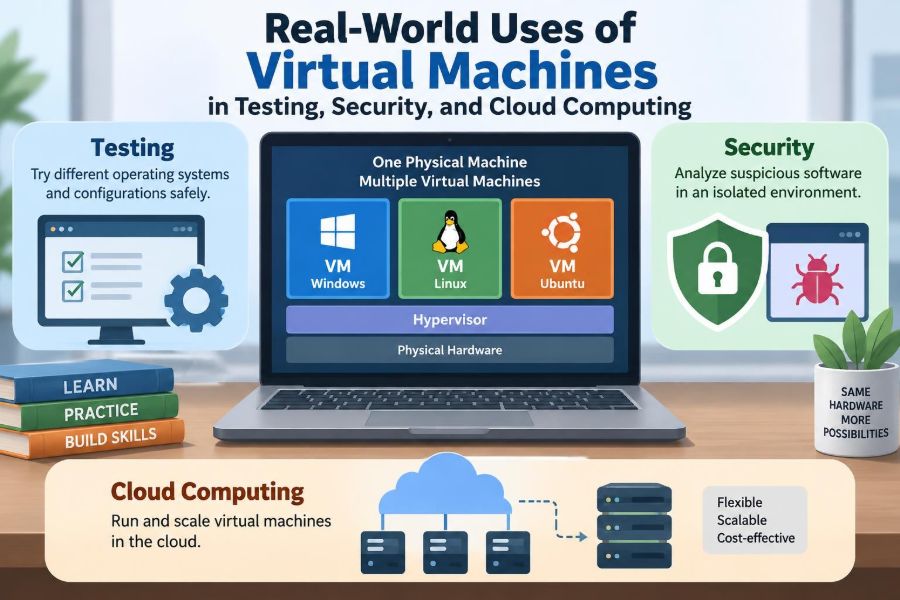

A developer needs to try a new version of an application, but cannot risk breaking the software already used by customers. A student wants to practice Linux commands without replacing the operating system on a personal laptop. A security analyst receives a suspicious file that should not be opened on an everyday work computer.
These situations look different, yet they share the same practical need: create a separate place to work, test, or investigate without putting the main system at unnecessary risk. A virtual machine, usually shortened to VM, provides that separate place.
VMs are not only a data-center technology. They support software testing, cybersecurity labs, classroom exercises, disaster recovery, and the cloud services people use every day. They make computing environments easier to reproduce, move, and manage.
That flexibility has limits. A VM is not automatically secure, free, or simple; it still needs careful configuration, updates, backups, and access controls. Understanding where it helps—and where it does not—is the starting point for using it well.
🧩 What a Virtual Machine Actually Is
A virtual machine is a software-defined computer that runs inside, or alongside, a physical computer. It has virtual versions of familiar hardware: a processor, memory, storage, network adapter, and sometimes a graphics adapter.
Inside this simulated hardware, a VM can run its own operating system and applications. For example, one physical server may run several VMs: one using Linux for a web service, one using Windows for a business application, and one reserved for testing.
The physical computer supplying the real hardware is called the host. Each software-defined computer is a guest. Guests are separate from one another, even though they share the host’s underlying resources.
⚙️ The Hypervisor Makes Virtualization Possible
The key software layer is the hypervisor. It allocates processor time, memory, storage, and networking to VMs, while helping keep each guest isolated from the others.
Type 1 hypervisors run directly on server hardware and are common in data centers. Type 2 hypervisors run as applications on a regular operating system and are often used on desktops for learning, development, and local testing.
The hypervisor does not create unlimited capacity. If several VMs demand more processor time or memory than the host can provide, all of them may slow down. Virtualization improves utilization and flexibility; it does not repeal hardware limits.
🏠 A Simple Analogy for Isolation
Think of a physical server as an apartment building. Each VM is an apartment with its own occupant, layout, and belongings. The building provides electricity, plumbing, and structure, but one apartment can be furnished differently from another.
This analogy also shows the limitation. A major problem with the building’s shared infrastructure can affect multiple apartments. Likewise, a failure of the physical host, its storage, or its network can disrupt many VMs at once unless the design includes redundancy.
🔄 Virtual Machines Versus Containers
VMs and containers both package workloads, but they work at different layers. A VM includes a full guest operating system. A container usually packages an application and its dependencies while sharing the host operating system’s kernel.
| Feature | Virtual machine | Container |
|---|---|---|
| Operating system | Runs a separate guest OS | Shares the host OS kernel |
| Isolation boundary | Typically stronger separation at the VM layer | Depends heavily on host and runtime configuration |
| Startup and size | Often larger and slower to start | Often lighter and faster to start |
| Best fit | Different OS needs, legacy systems, broader isolation | Portable application deployment at scale |
Neither replaces the other in every case. Organizations often run containers inside VMs, using VMs to separate teams or workloads and containers to deploy individual services efficiently.
🧪 Reproducing Bugs During Software Testing
Software failures are easier to fix when they can be repeated. A VM lets a tester build an environment matching a reported problem: the same operating system version, application version, configuration, and supporting services.
Suppose a customer reports that a desktop program fails after a particular update. A test team can create a VM with a comparable setup and investigate without changing their own daily computers. If the issue is reproduced, developers have a safer and more consistent place to test a fix.
This reduces the classic problem of “it works on my machine.” The goal is not merely to run code somewhere; it is to run it in conditions that meaningfully resemble the environment where the fault occurred.
📸 Snapshots Speed Up Repeated Experiments
A snapshot records the state of a VM at a particular moment. Depending on the platform, it can preserve disk state and may also preserve memory state. Restoring it returns the VM to that earlier point.
Before installing an experimental driver, applying a risky update, or running a destructive test, a team can take a snapshot. After the test, it can roll back rather than rebuilding the guest from scratch.
Snapshots are convenient, but they are not a universal backup strategy. Long-lived or numerous snapshots can consume storage and complicate performance or recovery. They should be named clearly, used purposefully, and removed when no longer needed.
🧱 Clean Test Environments Prevent Hidden Dependencies
Development machines gradually collect tools, libraries, environment variables, browser extensions, and cached files. A program may appear to work because it quietly depends on something installed months earlier.
A clean VM exposes these hidden assumptions. If an application fails in a freshly built guest, the team may discover that an installation package omitted a required dependency or that setup instructions are incomplete.
For this reason, many teams maintain standard base images: carefully prepared VM templates with an approved operating system and basic configuration. New test machines begin from the same known foundation rather than from a mysterious, heavily modified desktop.
🌐 Testing Across Operating Systems and Browsers
Users do not all have the same platform. A web application may need checking in different browsers and operating systems, while a business tool might support several versions of a desktop environment.
VMs allow a tester to run those combinations without owning a separate physical device for every case. A team can keep dedicated guests for supported platforms, then test installation, user interface behavior, file handling, and compatibility.
Virtual testing still has gaps. Specialized hardware, touch input, real battery behavior, unusual graphics drivers, and mobile-device features may require physical devices. A VM broadens coverage, but it should not be mistaken for a perfect copy of every user’s hardware.
🔁 Regression Testing After Changes
A regression is a feature that previously worked but fails after a change. VMs help teams run repeatable regression tests because each test environment can start in a known state.
For example, an automated test system can create a temporary VM, install a build, run tests, collect logs, and discard the VM afterward. The next run starts fresh, which limits interference from leftovers created by earlier tests.
This approach is especially useful for installers, operating-system updates, and configuration-heavy enterprise software. It makes test results easier to compare because the surrounding environment is controlled.
🛡️ Security Isolation Is Useful, Not Absolute
Security teams use VMs to reduce the chance that an untrusted program affects a primary workstation or other systems. The guest is separated from the host through the hypervisor, and its network access can be restricted.
However, a VM is not a guarantee of safety. Misconfigured shared folders, clipboard integration, USB pass-through, overly broad network access, or unpatched software can weaken the boundary. Sophisticated attacks may also attempt to exploit vulnerabilities in virtualization software.
For risky work, isolation needs layers: patched hosts, limited permissions, controlled networking, monitored activity, and a plan to delete or restore the environment afterward.
🦠 Malware Analysis in a Controlled Lab
Security researchers may use isolated VMs to observe suspicious files. They can watch which processes start, what files are modified, which system settings change, and whether the sample attempts network communication.
In a carefully designed lab, analysts may use simulated network services instead of exposing the guest directly to the public internet. This can reveal a sample’s behavior while limiting the risk that it contacts real targets or downloads additional harmful content.
This work requires training and authorization. Opening unknown files casually—even in a VM—is not a safe hobby experiment. The analyst must consider shared resources, legal obligations, organizational policy, and the possibility of escape or unintended network spread.
🔍 Digital Forensics and Evidence Preservation
In digital forensics, investigators often need to examine a system image without changing the original evidence. A VM can boot a copy of a disk image or provide a controlled environment for examining an operating system’s configuration and artifacts.
The principle is preservation: document what was received, protect the original, and work from controlled copies where appropriate. Procedures vary with the investigation and applicable rules, so a VM is a technical aid rather than a substitute for sound evidence-handling practice.
Virtual environments can also help analysts compare a suspected altered system against a known-clean baseline and test explanations for observed behavior.
🎓 Safe Learning Labs for Students
A VM gives students room to learn by doing. They can install an unfamiliar operating system, create user accounts, configure a web server, practice command-line tasks, or make a mistake without permanently altering the main computer.
That freedom matters because administration skills are learned through observation and recovery, not only by reading instructions. A student can intentionally misconfigure a service, diagnose the error, restore a snapshot, and try again.
Educational labs should still explain resource requirements. A laptop with limited memory may struggle to run both the host and a demanding guest. Choosing a lightweight guest and closing unnecessary host applications often improves the experience.
🧰 Testing Patches Before Production
Applying a patch directly to a production server can be risky when the update interacts with a critical application, driver, database, or custom configuration. A comparable VM offers a staging environment for testing first.
The team can install the patch, restart services, run key workflows, review logs, and check integrations. If a problem appears, it can be diagnosed before customers or employees are affected.
A staging VM is only as useful as its similarity to production. Different software versions, missing integrations, unrealistic data, or weaker security settings can produce misleading confidence. Teams should identify which production characteristics truly need to be represented.
🏭 Supporting Legacy Applications
Some organizations rely on older software that only runs on a specific operating system or depends on an outdated library. Replacing it may take time because the application supports a specialized process or connects to older equipment.
Virtualization can preserve a compatible environment while newer systems continue to evolve. Instead of maintaining aging physical hardware solely for one application, the organization may host a controlled legacy VM.
This is a bridge, not always a final solution. Unsupported operating systems may have unpatched vulnerabilities. Restricting network access, limiting user rights, monitoring activity, and planning modernization are often essential safeguards.
☁️ Cloud Computing Runs on Virtualization
Many cloud computing services present customers with virtual servers that can be created, resized, started, stopped, and removed through a console, command line, or automation tool. Behind that experience, providers use large pools of physical infrastructure and virtualization technology.
A customer does not need to purchase and rack a server before trying a new service. Instead, it can provision a VM with chosen processor, memory, storage, network, and operating-system options, subject to the provider’s offerings.
Cloud platforms also offer services that hide VM management, such as managed databases or serverless computing. Even so, understanding VMs remains valuable because many workloads still run on virtual servers and depend on their configuration.
📈 Elastic Capacity for Changing Demand
Demand is rarely constant. An online registration system may be quiet for months and busy during a deadline. A virtualized environment can make it easier to add instances when load rises and reduce them when demand falls.
This is often called elasticity. It works best when the application is designed to run across multiple instances and when data storage, sessions, and background tasks are handled thoughtfully.
Adding VMs is not an automatic cure for slowness. A bottleneck may be a database, a slow external service, a lock in application code, or a network limit. Monitoring should guide scaling decisions rather than guesswork.
🏗️ Infrastructure as Code and Repeatable Builds
Cloud and virtualization platforms can be controlled through configuration files and automation tools. This approach, known as infrastructure as code, describes desired servers, networks, storage, and settings in version-controlled definitions.
Instead of manually clicking through setup steps, a team can build the same environment repeatedly. Reviews can catch changes before deployment, and a replacement VM can be created consistently after a failure.
Automation also introduces risk when mistakes are copied quickly. Access controls, peer review, tested templates, and sensible limits help prevent a flawed configuration from being deployed broadly.
🗂️ Templates, Images, and Golden Baselines
A VM image is a reusable starting point for creating new guests. A carefully maintained “golden image” may include a hardened operating system, approved updates, monitoring tools, and standard settings.
Using images improves consistency. New VMs begin with the same baseline rather than relying on each administrator to remember a long list of setup steps.
Images need maintenance. An old template can distribute outdated packages, expired certificates, or insecure settings to every new VM. Teams should assign ownership, document the build process, and regularly retire obsolete images.
🔀 High Availability and Moving Workloads
Virtual machines can be moved or restarted on other physical hosts more easily than a server tied tightly to one piece of hardware. In some environments, platforms can migrate running VMs between compatible hosts with little interruption.
This supports maintenance and can contribute to high availability, meaning a design that aims to keep a service available when components fail. Shared or replicated storage, redundant networks, health checks, and tested recovery procedures may also be involved.
Virtualization helps, but it does not create high availability by itself. If every VM depends on one storage system, one network path, or one poorly tested recovery plan, that shared dependency remains a weakness.
💾 Backup, Replication, and Disaster Recovery
A VM can often be backed up as a manageable unit: its disks, configuration, and sometimes its application-aware state. Replication can keep a copy at another location or infrastructure zone for recovery after a major disruption.
Recovery planning must answer practical questions: Which systems are restored first? How recent must the recovered data be? Who has authority to begin recovery? Can dependent services, credentials, and network routes also be restored?
The most valuable backup is one that has been tested. A backup job reporting success does not prove that an application will start correctly or that data can be used after restoration.
🌍 Network Segmentation Around VMs
Virtual networks let administrators separate workloads even when they share physical hardware. A public-facing web VM, an internal application VM, and a database VM can be placed on different network segments with rules controlling permitted traffic.
For example, the web tier may be allowed to reach the application tier on a specific port, while direct internet access to the database is blocked. This reduces unnecessary pathways and supports the principle of least privilege.
Network rules should be documented and reviewed. Overly broad rules make systems easier to reach than intended; overly restrictive rules can break legitimate services and tempt people to create unsafe exceptions.
🔐 Identity, Permissions, and Least Privilege
VM security depends heavily on who can create, change, log into, snapshot, copy, or delete a machine. A user who can export a VM may be able to obtain sensitive files stored on its virtual disk.
Least privilege means granting only the permissions needed for a task. A developer may need to restart a test VM without receiving authority to change production networks or access backups containing other teams’ data.
Separate administrative accounts, multi-factor authentication where available, audit logs, and regular permission reviews make it easier to detect mistakes and reduce the impact of compromised credentials.
📊 Resource Allocation and Performance Planning
Each VM is assigned virtual resources, but those allocations still consume finite host capacity. Giving every guest more memory and processors than it needs can reduce the number of workloads a host can support and may create contention.
Performance planning starts with measurement: processor use, memory pressure, disk latency, network throughput, and application response time. These signals help distinguish a VM-sizing problem from an issue inside the application.
Storage is frequently overlooked. A VM may have enough CPU and memory yet feel slow because many guests compete for disk operations. Fast storage, sensible workload placement, and monitoring can matter as much as adding virtual processors.
💰 Cost Control in Virtual and Cloud Environments
Creating a VM is easier than acquiring a physical server, which can encourage sprawl: forgotten test machines, unused disks, old snapshots, and idle cloud instances that continue consuming resources.
Tags, ownership records, expiration dates for temporary systems, and automated shutdown policies can make unused resources visible. Teams should distinguish systems that must run continuously from development or training VMs that can be stopped when not in use.
Lower hardware use is a real advantage of consolidation, but cost depends on licensing, storage, network transfers, backups, operations, and cloud pricing models. The cheapest-looking VM size is not always the cheapest reliable design.
⚠️ Common Configuration Mistakes
Many VM problems come from ordinary setup decisions rather than unusual technical failures. Treating a guest as disposable can lead to weak passwords, missed updates, sensitive data left in snapshots, and undocumented network connections.
- Copying production data into a test VM without masking sensitive information.
- Leaving snapshots indefinitely and assuming they replace backups.
- Enabling every convenience feature, including unnecessary shared folders or device pass-through.
- Using one oversized host without planning for its failure or maintenance.
- Forgetting decommissioning when a project ends, leaving accounts and disks behind.
A short provisioning checklist prevents many of these problems: define the owner, purpose, data classification, network access, backup need, patching responsibility, and retirement date.
🧭 Choosing Between a VM, a Physical Machine, and a Container
Choose a VM when a workload needs its own operating system, when stronger separation is useful, or when a legacy application expects a conventional server environment. It is also a practical choice for multi-OS testing and many enterprise applications.
Choose a physical machine when specialized hardware, predictable high performance, strict isolation requirements, or device-level testing makes virtualization unsuitable. Choose containers when rapid, consistent packaging of compatible applications is the central need.
The decision is not a contest between technologies. It is an engineering question: what isolation, portability, performance, management effort, and recovery characteristics does this workload require?
📝 A Practical VM Setup Checklist
Before creating a VM, define the job it must do. A clear purpose prevents accidental overbuilding and makes later review easier.
- Choose the operating system and software versions required.
- Assign only the CPU, memory, storage, and network access the workload needs.
- Apply updates and configure accounts with appropriate permissions.
- Decide whether the VM needs backups, snapshots, monitoring, and logging.
- Document its owner, dependencies, data sensitivity, and recovery procedure.
- Set a review or retirement date, especially for labs and temporary tests.
After deployment, test the intended workflow rather than assuming the VM is ready because it boots successfully.
🚀 The Core Takeaway: Flexible Computing With Clear Boundaries
Virtual machines turn a fixed physical computer into a flexible platform for many separate environments. That is why they are so useful for reproducing software problems, learning safely, analyzing suspicious activity, supporting cloud services, and improving operational recovery.
The value comes from controlled separation and repeatability. A VM can be created from a known image, configured for a specific task, observed, restored, moved, or removed more easily than a traditional one-purpose server.
But virtual does not mean consequence-free. The host, network, identities, storage, backups, and configuration choices remain real responsibilities. Strong VM practice combines convenience with disciplined security, resource planning, and lifecycle management.
Used thoughtfully, virtual machines let people experiment faster, operate services more reliably, and contain risk without losing sight of the systems that support them. 🖥️🛡️☁️