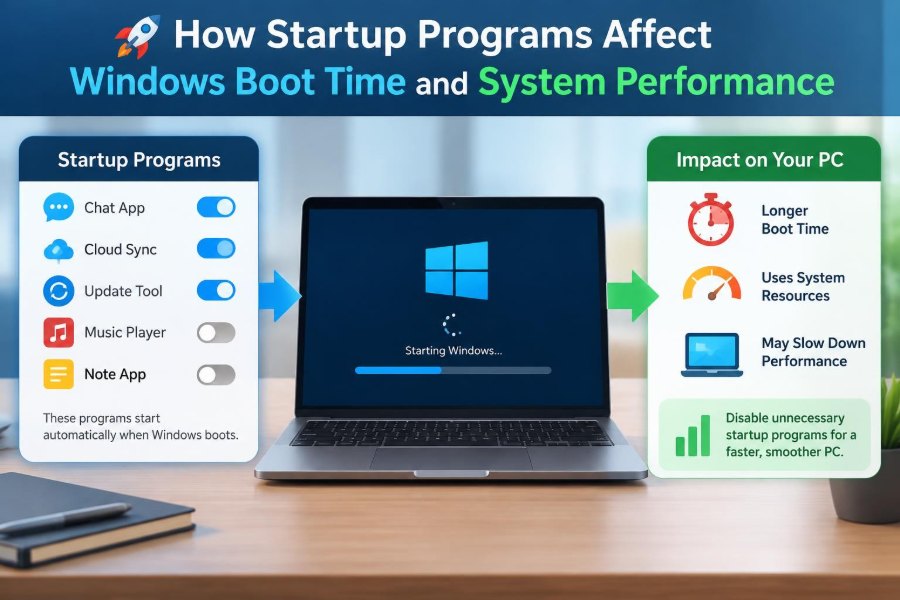

You press the power button because you need to join a meeting, open a document, or answer a message. Instead of a ready desktop, Windows spends what feels like far too long showing a spinning circle, loading icons, and gradually becoming responsive.
That delay is often blamed on “an old computer,” but the real picture is more specific. Many applications ask Windows for permission to launch automatically, and each one competes for processing time, memory, storage activity, and sometimes internet access during the busiest moments of startup.
Startup programs can be useful. Security software, cloud synchronization, touchpad utilities, and accessibility tools may need to be ready from the beginning. The problem is not that startup apps exist; it is that they can accumulate without a clear purpose.
Understanding what starts with Windows helps you make sensible choices instead of disabling random items and hoping for the best. It also explains why a PC can look fully booted while still feeling slow.
🧩 What a Startup Program Is
A startup program is an application, service, helper process, or script configured to start when a user signs in or when Windows starts. Some have a visible window, while others run quietly in the background.
For example, a cloud-storage client may start so it can synchronize files immediately. A music app, game launcher, chat tool, printer utility, or update checker may also register itself to start automatically after installation.
Startup behavior is different from simply having an app installed. An app that only runs when you open it has no direct startup cost until you choose to use it.
⏱️ Boot Time Is More Than One Moment
People often call the whole process “booting,” but Windows startup has several stages. The firmware initializes hardware, Windows loads core components, services begin, you sign in, and your personal startup items load.
Because of this sequence, startup programs usually affect the period after Windows begins loading and especially after sign-in. They may not change the time until the manufacturer logo appears, yet they can make the desktop unusable for a while.
A computer can therefore reach the sign-in screen quickly but take another minute to settle after you enter your password. That is a startup-performance issue, not necessarily a basic boot failure.
🏁 The Difference Between Boot and Sign-In
Boot time generally describes the path from power-on to a functioning Windows environment. Sign-in time is the period from entering credentials to getting a usable desktop.
Startup programs are commonly tied to a user account, so their strongest effect may appear only after that account signs in. System-wide services can begin earlier and affect every user.
This distinction matters when troubleshooting. If the computer is slow before the sign-in screen, drivers, firmware, storage health, or Windows services may deserve attention. If it slows down after sign-in, startup apps are a logical first place to inspect.
🧠 Why Several Apps Starting Together Causes Delays
Starting one modest program may be barely noticeable. Starting ten programs at once is different because they all request resources during the same narrow time window.
Imagine one checkout lane serving customers who all arrive at once. The cashier eventually handles everyone, but each customer waits longer. A PC similarly schedules competing tasks, reads many files, creates processes, checks settings, and may contact online services.
The delay is not always caused by one “bad” app. It can be the combined effect of many reasonable apps launching simultaneously.
⚙️ CPU Demand During Startup
The processor, or CPU, executes instructions for Windows and every running program. During startup it is already busy loading desktop components, drivers, security features, and background services.
A startup application may unpack files, scan folders, index content, or initialize a browser-based interface. These actions consume CPU time, particularly on older processors or low-power laptops.
Modern multi-core CPUs can run many tasks in parallel, but parallelism is not unlimited. Programs can still contend for CPU time, and short bursts of heavy activity can make the mouse, Start menu, or taskbar respond slowly.
🧮 Memory Pressure and Its Hidden Cost
Every running process uses RAM, the computer’s short-term working memory. A few small background tools may not matter, but multiple large applications can leave less RAM for the work you actually intend to do.
When available RAM becomes tight, Windows may move less-active data to a file on the storage drive. This is called paging. It allows the system to continue working, but retrieving data from storage is slower than using RAM.
The result may be a computer that technically finishes startup yet stutters when you open your first browser tab or document. Disabling unnecessary startup items can reduce this early memory crowding.
💾 Storage Activity Can Become the Bottleneck
Windows needs to read many system files during startup. Startup applications add their own executable files, settings databases, logs, caches, and update data to that workload.
Traditional hard disk drives are especially sensitive to many small, scattered reads and writes because their mechanical parts must move to locate data. Solid-state drives handle this pattern much faster, but they are not immune to excessive simultaneous activity.
If the disk usage indicator stays very high immediately after sign-in, startup activity may be contributing. It is still worth checking for updates, drive problems, or security scans before assuming every delay comes from startup apps.
🌐 Network Checks May Slow an App’s Readiness
Many applications contact the internet when they launch. They may check for updates, sign in to an account, verify a subscription, synchronize files, retrieve messages, or look for other devices.
A slow or unreliable network does not always block Windows itself, but it can make individual startup programs take longer to become ready. Some poorly designed apps repeatedly retry connections, adding background activity.
This is why a laptop may feel slower after sign-in on a weak Wi-Fi connection even though its processor and storage are unchanged. The delay may involve network-dependent startup tasks.
🔄 Startup Apps Are Not the Same as Windows Services
A service is a background component that can run without a visible user window. Windows uses services for core functions such as networking, printing, updates, and device support. Third-party software can install services too.
A startup app often launches after you sign in, while a service may begin earlier or run even when no one is signed in. Both can influence performance, but Task Manager’s Startup apps list does not show every service.
That difference calls for care. Disabling a visible game launcher is usually straightforward; changing an unfamiliar service can affect printing, backups, device features, or security software.
🪟 Where Windows Keeps Startup Instructions
Windows can launch software from several locations. The Startup apps page gathers many common entries, but developers may also use the Startup folder, registry entries, scheduled tasks, services, or vendor-specific update components.
This variety explains why an app can still appear after you disable an obvious startup item. It may be configured through a different mechanism, or the application may restore its own setting after an update.
You do not need to edit the registry to manage ordinary startup behavior. Begin with the built-in tools, then investigate other mechanisms only when a specific program continues to launch unexpectedly.
📋 Using Task Manager’s Startup Apps List
Task Manager is the safest starting point for most users. Open it with Ctrl + Shift + Esc, select the Startup apps area, and review the entries shown for your account and system.
The exact wording can vary slightly between Windows versions, but the goal is the same: identify what Windows is configured to launch automatically. You can usually enable or disable an entry without uninstalling the application.
Before changing anything, take a screenshot or note the current list. A simple record makes it easy to restore an item if you later discover that you need it.
📊 What Startup Impact Ratings Mean
Windows may label entries with an estimated startup impact, such as low, medium, or high. This is a useful clue because it reflects resource use observed around startup, but it is not a complete verdict.
A high-impact app may be essential for your workflow, while a low-impact app may still be unnecessary. An entry can also show no measured impact if Windows has not gathered enough information.
| Rating or status | Practical interpretation | Best response |
|---|---|---|
| High impact | May noticeably add to startup resource demand | Check whether immediate launch is truly needed |
| Low impact | Usually a smaller startup cost | Keep or disable based on usefulness |
| Not measured | Windows lacks enough recent data | Identify the app before deciding |
Use the rating to prioritize review, not to make automatic decisions.
🔎 Identifying an Unknown Startup Entry
Unknown names deserve investigation, not panic. Some entries are clearly named after an installed app; others use a publisher name, a shortened executable name, or a hardware vendor label.
In Task Manager, look for options such as opening the file location or viewing properties. Check the file’s publisher, installation folder, and digital signature information where available. A file inside a familiar program folder is easier to evaluate than one in an unexpected location.
If you cannot identify an item with confidence, leave it enabled while you gather more information. Disabling a legitimate component is usually reversible, but understanding it first is the better habit.
🛡️ Items You Should Treat Carefully
Some startup-related components support functions that users rely on without noticing. Security software may provide real-time protection; backup tools may schedule or monitor backups; password managers may offer browser integration; accessibility tools may be needed at sign-in.
Hardware utilities can also matter. Touchpad gestures, audio enhancements, graphics control panels, VPN clients, keyboard shortcuts, and docking-station features may depend on a background component.
Do not assume a vendor name means “unnecessary,” and do not assume it means “essential” either. Consider what would stop working if the item did not start until you manually opened its main app.
🎮 Commonly Optional Startup Programs
Many convenience applications do not need to be ready the instant you sign in. Examples often include game launchers, meeting tools you use occasionally, music players, chat clients, creative-suite helpers, shopping apps, and updater trays.
A cloud-sync app is more personal: disable it if you prefer to start syncing manually, but keep it enabled if immediate synchronization protects your work routine. The right choice depends on how you use the computer.
- Ask whether you need the app before your first task of the day.
- Ask whether opening it manually takes only a few seconds.
- Check whether delayed launch would interrupt an important feature.
That practical test is more reliable than trying to make the startup list as short as possible.
🧪 A Safe Test-and-Observe Method
Change one or two entries at a time, restart the PC, and observe the next sign-in. This controlled approach helps you learn which change made a difference and avoids creating confusion.
- Record the item’s name and current enabled state.
- Disable one nonessential, recognizable item.
- Restart rather than judging only the current session.
- Check for missing features during normal work.
- Re-enable the item if it causes a problem.
Testing matters because startup impact is specific to your hardware, installed software, and daily workflow. A recommendation that works well on one PC may not suit another.
🚫 Disabling Is Different From Uninstalling
Disabling a startup entry tells Windows not to launch it automatically. The program remains installed and can usually be opened normally whenever you need it.
Uninstalling removes the program itself, along with some or all of its files and settings. This can free storage and reduce background components, but it is a larger decision.
Start by disabling auto-launch when you are unsure. Uninstall software only when you no longer use it, recognize it as unwanted, or have confirmed that it is safe to remove.
🧹 The Risk of Aggressive “PC Cleanup”
Some cleanup utilities encourage users to disable large numbers of entries or alter services with a single click. Their labels can make ordinary components sound suspicious, even when those components are legitimate.
A blanket cleanup may remove useful integration, break automatic backups, or create problems that are difficult to connect to the change. It can also distract from the actual cause of slow startup, such as a nearly full drive or a failing disk.
Use built-in Windows controls first. A careful, reversible change is more valuable than an impressive-looking list of “optimizations.”
🦠 When a Startup Entry May Signal Malware
Malware often tries to persist by launching automatically, but an unfamiliar startup entry is not automatically malicious. Treat it as a reason to investigate, especially if it has no clear publisher, uses a random-looking name, or launches from an unusual folder.
Run a scan with your trusted security software and keep Windows security updates current. If the computer shows repeated pop-ups, browser redirects, unexpected accounts, or suspicious network behavior, seek help from a qualified technician or an organization’s IT team.
Avoid deleting unknown files manually just because they appear in a startup list. Removing the wrong file can damage software or make proper investigation harder.
🔐 Security Software and Startup Trade-Offs
Security tools can add startup work because they initialize protection, scan certain locations, update definitions, or inspect newly launched processes. That overhead may be noticeable, particularly on slower hardware.
However, turning off protection merely to shorten startup is usually a poor trade. Real-time security is designed to operate in the background and can prevent a much more disruptive problem than a short wait after sign-in.
If security software seems unusually heavy, verify that you do not have multiple real-time antivirus products competing with each other. Then review its settings or consult its documentation rather than disabling protection without a plan.
☁️ Cloud Sync Requires a Workflow Decision
Cloud-storage clients illustrate why startup advice must be personal. Starting them automatically can ensure that documents, photos, and work files begin syncing as soon as you sign in.
On the other hand, a large first sync can compete with video calls, downloads, or file-intensive work. Someone with limited bandwidth may prefer to start syncing after completing an urgent task.
A balanced approach is to keep automatic sync for folders containing active work while adjusting sync schedules or selective folders where the app supports those controls. The objective is dependable access, not simply fewer processes.
🔌 Devices, Drivers, and Manufacturer Utilities
Drivers allow Windows to communicate with hardware such as graphics adapters, printers, Wi-Fi cards, and audio devices. Many driver functions run at the system level and should not be casually disabled.
Manufacturer utilities are a separate category. Some provide useful firmware updates, battery charging limits, display controls, or special keyboard functions. Others mainly offer notifications, promotions, or quick-launch features.
Identify the specific utility and test carefully. If disabling it removes a feature you value, enable it again. If nothing changes except a quieter and faster sign-in, it may not need automatic launch.
🧱 Why an SSD Helps but Does Not Solve Everything
Replacing a hard drive with a solid-state drive often improves startup responsiveness because Windows and applications can read files much faster. This is especially noticeable when many small files are needed at once.
Still, an SSD cannot eliminate CPU work, RAM limits, slow network requests, buggy software, or too many background tasks. A fast drive can make a crowded startup less painful, but it does not make unnecessary work useful.
Think of an SSD as a faster road, not fewer vehicles. Sensible startup management still reduces traffic.
🔋 Startup Programs and Laptop Battery Life
Programs that stay running after startup continue to use some combination of CPU time, memory, network access, and wake-ups from low-power states. The effect of any single app may be small, but background activity can add up on a laptop.
Auto-syncing, update checks, browser helpers, and communication apps may also increase network use. This matters when you begin a day away from a charger or rely on a mobile connection.
Reviewing startup apps can therefore improve more than boot time. It can help create a calmer background environment with fewer unnecessary notifications and less routine activity.
📈 Measuring Improvement Realistically
Do not judge performance from one restart alone. Windows may install updates, run maintenance, rebuild caches, or behave differently depending on which apps were open before shutdown.
Instead, observe several restarts under similar conditions. Notice when the desktop accepts input comfortably, when your usual first application opens smoothly, and whether disk or CPU activity remains busy unusually long.
The most meaningful measurement is often time to productive use: how quickly you can reliably begin your actual task. A few seconds on a clock matter less than a system that no longer freezes when you need it.
🛠️ Other Causes of a Slow Windows Startup
Startup apps are only one piece of the diagnosis. A PC may remain slow after careful cleanup because of insufficient RAM, a nearly full system drive, damaged system files, outdated drivers, unwanted software, or storage hardware beginning to fail.
Windows updates can also temporarily extend startup while components are installed or configured. On managed work computers, organization-wide security or management tools may be required and should not be changed without IT guidance.
If startup suddenly becomes far worse than usual, look for recent software changes, error messages, unusual noises from a hard drive, or repeated crashes. Back up important files before deeper troubleshooting.
🧭 A Practical Monthly Startup Review
Startup lists change as you install new programs and as applications update themselves. A short review every few months, or after installing several tools, prevents unnecessary auto-launch behavior from quietly accumulating.
Keep the review focused. Look for new entries, programs you no longer use, and tools that do not need immediate availability. Avoid changing core Windows entries or unknown services simply to pursue a perfect-looking list.
For shared or work-managed PCs, check your organization’s guidance first. A startup item may support security, backup, compliance, or remote assistance requirements.
✅ The Core Principle: Start Only What You Need
The goal is not to disable everything. Windows works best when essential components can start reliably and optional applications wait until they are wanted.
Review startup items by function: protection, hardware support, backup, synchronization, communication, convenience, or promotion. Keep the entries that deliver value at sign-in, and delay the ones that do not.
This approach improves responsiveness without turning ordinary computer maintenance into a risky technical project. It also builds a useful troubleshooting habit: change deliberately, observe the result, and keep only changes that help.
A lean, purposeful startup gives Windows more room to become ready for your work instead of spending its first moments launching software you may never use. With a few careful choices, your computer can feel more responsive without sacrificing the features that matter. 🚀💻